

MovieBox Pro cannot be declared safe from its name alone. A website, an Android APK, a Windows installer and an app with a similar store name are different things to assess. Before installing anything, identify its source and developer; do not bypass a security warning to make it work. If you already used it, the next step depends on whether you only visited a page, installed software or shared account or payment details.
There is a documented MovieBoxPro data exposure from April 2024, but it does not establish that your device is infected. There is also a security record for a particular similarly named Android package. Keeping those findings separate gives you a more useful answer than a blanket “safe” or “virus” label.
Check which MovieBox Pro you actually have
Record the full website address, download source, app developer and version before removing anything. On Android, check the app’s information and store listing, if one exists; a package identifier can distinguish applications that display the same name. On Windows, check the installer’s publisher and where it came from. Do not run an unknown file just to discover its identity.
A page calling itself “official,” a familiar icon or a paid VIP plan does not authenticate a downloaded file. Nor does a store listing for a similarly named app validate an APK from a different website. A clean scan is useful evidence about the file checked, not a promise about future updates, the operator or its payment pages.
What the published security evidence actually says
The historical account-data incident: Have I Been Pwned records more than six million MovieBoxPro records scraped through a vulnerable API in April 2024. The listed data classes are email addresses and usernames. Passwords are not listed. That record describes exposed account information, not a new 2026 incident or evidence of malware on every user’s device. Exposed contact information can make impersonation messages more convincing, so treat unsolicited account or renewal messages cautiously. [1]
The Android package record: Secure-D lists an app called Moviebox Pro, publisher BOBA Games, with package name com.movieboxpro.android in its index of apps identified and blocked for malicious activity. This is evidence about that named package. It does not establish that every MovieBox-branded APK is the same software, or that the package and the service in the breach share an operator. We have not tested your particular download. [2]
The practical distinction is important: deleting an app does not withdraw leaked contact data, and changing an account password does not remove installed software.
Choose the next step from what happened
- Only opened a website. Close unwanted tabs. Check downloads and permissions if the page prompted you. A visit alone does not establish infection; respond to any actual warning or unexpected change.
- Downloaded an APK or installer, but did not install or run it. Leave it unopened and delete it if unwanted. A downloaded file is different from an installed app. Use our unopened suspicious-file guide if you are unsure what occurred.
- Installed an app or ran a player installer. Follow the Android, iPhone or Windows branch below. Keep the source and warning details so you can identify the specific software.
- Allowed notifications or added an extension. Remove that site’s notification permission or the unwanted extension. Reopen the browser without restoring the offending tab. Persistent redirects deserve a separate browser check.
- Entered a password or approved account access. Review the account immediately from a separate trusted device. Change exposed passwords and revoke unwanted access; do this in parallel with device cleanup.
- Entered card details or see an unfamiliar charge. Save the receipt and merchant name. Contact your card issuer through its official app or the number on your card about unrecognized charges or exposed details.
For misleading Play buttons, player downloads and browser prompts across other brands, see our free movie streaming scam guide. A domain change or similarly named replacement is not a reason to repeat the installation.
If you installed an Android APK
Do not disable Play Protect or allowlist the app solely because a forum says it is harmless. Google says Play Protect also checks apps from outside Google Play and may warn about, disable or remove harmful apps. Keep it enabled and review the actual warning, including the app it names. [3]
- Stop using the questionable app and uninstall it through Android’s app settings if you no longer trust its source.
- Use Gridinsoft Trojan Scanner for Android to scan installed apps or inspect a downloaded APK. Review detections and risk explanations, then confirm removal of unwanted detected apps through Android.
- If uninstalling is blocked, check whether that particular app has device-administrator or accessibility access. Revoke access you granted to the unwanted app, then retry. Ask IT before changing a work-managed device.
- Turn off permission to install unknown apps for the browser or file manager used for the download if you no longer need it. Restart and check whether the original warning or unwanted behavior returns.
A scanner cannot guarantee detection of every sample or recover an account. If symptoms persist after removal, preserve the warning and seek device-specific help instead of cycling through replacement APKs. Our third-party APK safety guide explains why the download page and the installed package need separate checks.
If you installed an iPhone app or configuration profile
Remove an app you installed from an untrusted source. If installation also asked you to add a configuration profile, open Settings → General → VPN & Device Management and inspect what is present. An installed profile is a separate item to review; removing an app alone does not answer that question.
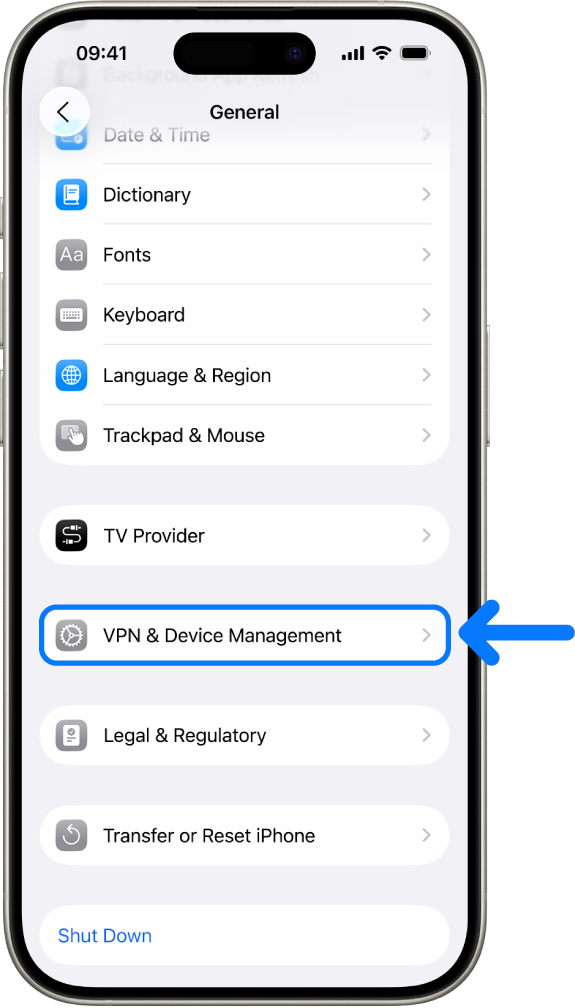
Apple explains that deleting a profile removes its associated settings, apps and data. Remove only an unwanted profile you can identify, consider the effect on your data, then restart. On a school or company device, check with the administrator first. If there are no profiles listed, there is no device-management profile to remove. Do not install a “repair” profile from another movie page. [4]
If you ran a Windows player or installer
An APK saved on Windows is not itself a Windows installation. This branch applies if you ran an executable or installer, added software or now have security warnings or recurring browser changes. Keep a detected file quarantined while you investigate; do not restore it just because its filename mentions MovieBox.
If an unfamiliar installer ran, removing its visible app may leave bundled software or startup components. For that situation, download Gridinsoft Anti-Malware, install it, update its database and run a Full Scan. Review the findings, apply cleanup to detected threats and restart. Check the original symptom again; use targeted troubleshooting if it returns. This is a check for installed threats and leftovers, not proof that account data was never exposed.
If the page or email made you download an invoice, coupon, tracking app, browser extension, or support tool, scan the PC before opening it again or logging into sensitive accounts.
Scan this Windows PCProtect the account separately from the device
Start from a separate trusted device if you entered credentials into a suspicious page or see unauthorized activity. Do not wait for a scan to finish. Go directly to your account provider, review recent security events and signed-in devices, change an exposed or reused password, remove unfamiliar sessions and verify recovery details. Enable two-step verification where available. Google’s account-recovery guidance describes these checks. [5]
A genuine Google authorization screen and a password form on an unrelated website are different situations. Review any third-party connections you approved and remove access you do not want. If you typed your Google password into a non-Google page, treat that password as exposed. A service saying it uses Google login does not authenticate a particular login page you reached through an ad or redirect.
For a payment concern, use the issuer’s trusted contact route and retain the transaction details. A charge you do not recognize needs investigation; neither a forum complaint nor the 2024 email-data incident proves who caused an individual card charge. Avoid paying an extra “verification” or “refund release” fee to resolve it.
Does a VPN make MovieBox Pro safe?
A VPN changes how network traffic reaches a service. It does not verify an APK’s publisher, remove installed malware, revoke account access or undo shared payment details. Choose a viewing service with an identifiable operator and authorized content, and obtain its app through that provider’s documented distribution route.
References
- Have I Been Pwned. “MovieBoxPro Data Breach.” Incident April 2024; added April 30, 2024; accessed November 2, 2026. Breach record.
- Secure-D. “Moviebox Pro — com.movieboxpro.android.” Secure-D Index, accessed November 2, 2026. Package record.
- Google. “Use Google Play Protect to help keep your apps safe & your data private.” Google Play Help, accessed November 2, 2026. Play Protect guidance.
- Apple. “Review and delete configuration profiles.” Personal Safety User Guide, October 2025; accessed November 2, 2026. Configuration-profile guidance.
- Google. “Secure a hacked or compromised Google Account.” Google Account Help, accessed November 2, 2026. Account-recovery guidance.