If your Windows PC is suddenly slow, do not start by reinstalling Windows. First find what is overloaded: CPU, memory, disk, startup apps, browser extensions, storage, malware activity, overheating, or aging hardware. Open Task Manager, sort by resource usage, and match the symptom to the fix below. A slow PC that also shows pop-ups, unknown apps, high disk/CPU use at idle, or browser redirects deserves a malware scan before you spend time tweaking performance settings. If you see several symptoms at once, compare them with this computer virus warning signs checklist before treating it as a normal performance issue.
Quick diagnosis: what is making the PC slow?
Use this first-screen checklist before changing settings. It helps separate a normal performance bottleneck from a suspicious slowdown.
| What you see | Likely cause | First safe action |
|---|---|---|
| CPU stays high when no heavy app is open | Background app, browser process, updater, miner, or stuck service | Sort Task Manager by CPU, close the app you recognize, then scan if the process is unknown |
| Memory is near full and apps freeze when switching windows | Too many tabs/apps, low RAM, memory leak | Close browser tabs, restart, disable unnecessary startup apps, consider more RAM if it repeats |
| Disk is often at 100% | Old HDD, indexing, updates, low free space, failing drive, or malware activity | Free storage, let Windows Update finish, check drive health, and scan for malware if usage is unexplained |
| PC is slow only in the browser | Extensions, too many tabs, adware, or browser hijacker | Remove unknown extensions and reset the browser search/start page if it changed |
| Fan is loud and performance drops after a few minutes | Overheating and CPU/GPU throttling | Check vents, dust, fan operation, and temperature before blaming Windows |
Restart the PC properly
Restart first, especially if the computer has been sleeping for days. In Windows, Restart clears more state than simply closing the lid or using fast startup shutdown. After the restart, open only the apps you need and check whether the slowdown returns.
Open Task Manager and find the bottleneck
Press Ctrl+Shift+Esc, open Processes, and click the CPU, Memory, or Disk column to sort by the highest usage. Do not remove random files or services from search results. Identify whether the heavy process is a browser, game launcher, updater, backup client, antivirus scan, Windows Update, or an unknown executable.
If a known antivirus scan is running, let it finish and test performance again. If an unknown process keeps using resources at idle, write down its name and file path, then scan the system before disabling services blindly.
CPU drops when Task Manager opens: normal or hidden miner?
A quick CPU spike or drop right after opening Task Manager is often normal. Task Manager wakes up, samples running processes, and Windows may settle background activity while you are watching it. The suspicious pattern is different: the PC is hot or slow while idle, fans calm down only when Task Manager is open, and the load returns after you close it.
Some miners and loaders watch for Taskmgr.exe or common monitoring tools, then pause, close, or hide the resource-heavy process. Do not assume every CPU drop is malware, but treat repeated idle spikes that disappear only during inspection as a reason to check persistence.
- Leave the PC idle for several minutes, then open Resource Monitor from the Start menu instead of relying only on the first Task Manager snapshot.
- Write down the exact time when fans, CPU load, disk activity, or network traffic rise and fall.
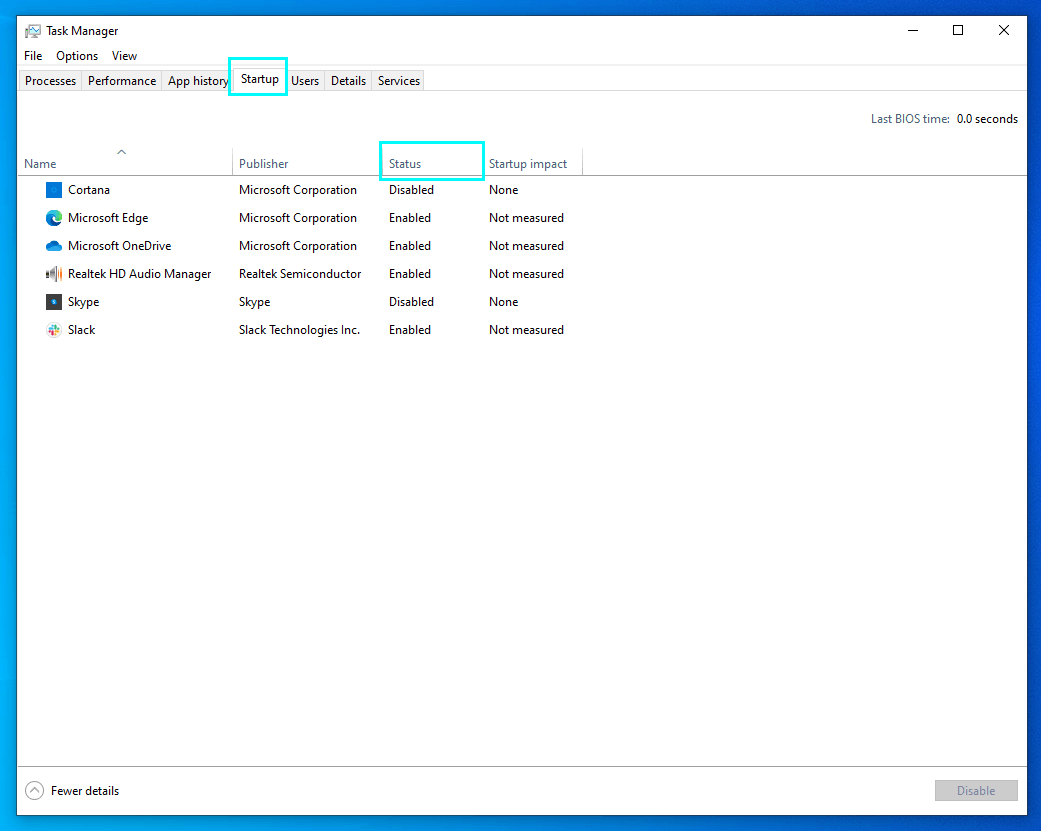
- Check Task Manager > Startup apps and remove unknown entries. For a deeper walkthrough, use the suspicious startup apps guide.
- Open Task Scheduler and look for newly created tasks that launch from
AppData,Temp,ProgramData, browser profile folders, or random-looking subfolders. - Check Services for unknown services added around the time the slowdown started.
- Review Microsoft Defender exclusions and security-tool settings. A miner or loader may add an exclusion so the visible process disappears from normal scans.
- If you find names such as
xmrig.exe,perfmonhost.exe, or a process that keeps returning after reboot, compare the case with the XMRig.exe removal guide, PerfMonHost.exe high CPU guide, and the broader coin miner malware guide.
Disable unnecessary startup apps
Many slow PCs feel worst right after sign-in because too many programs launch at once. In Windows 11 or Windows 10, open Task Manager > Startup apps. Disable launchers, messengers, updaters, and helper apps you do not need immediately after boot. Keep security software enabled unless you are replacing it with another trusted protection layer.
Install Windows and driver updates
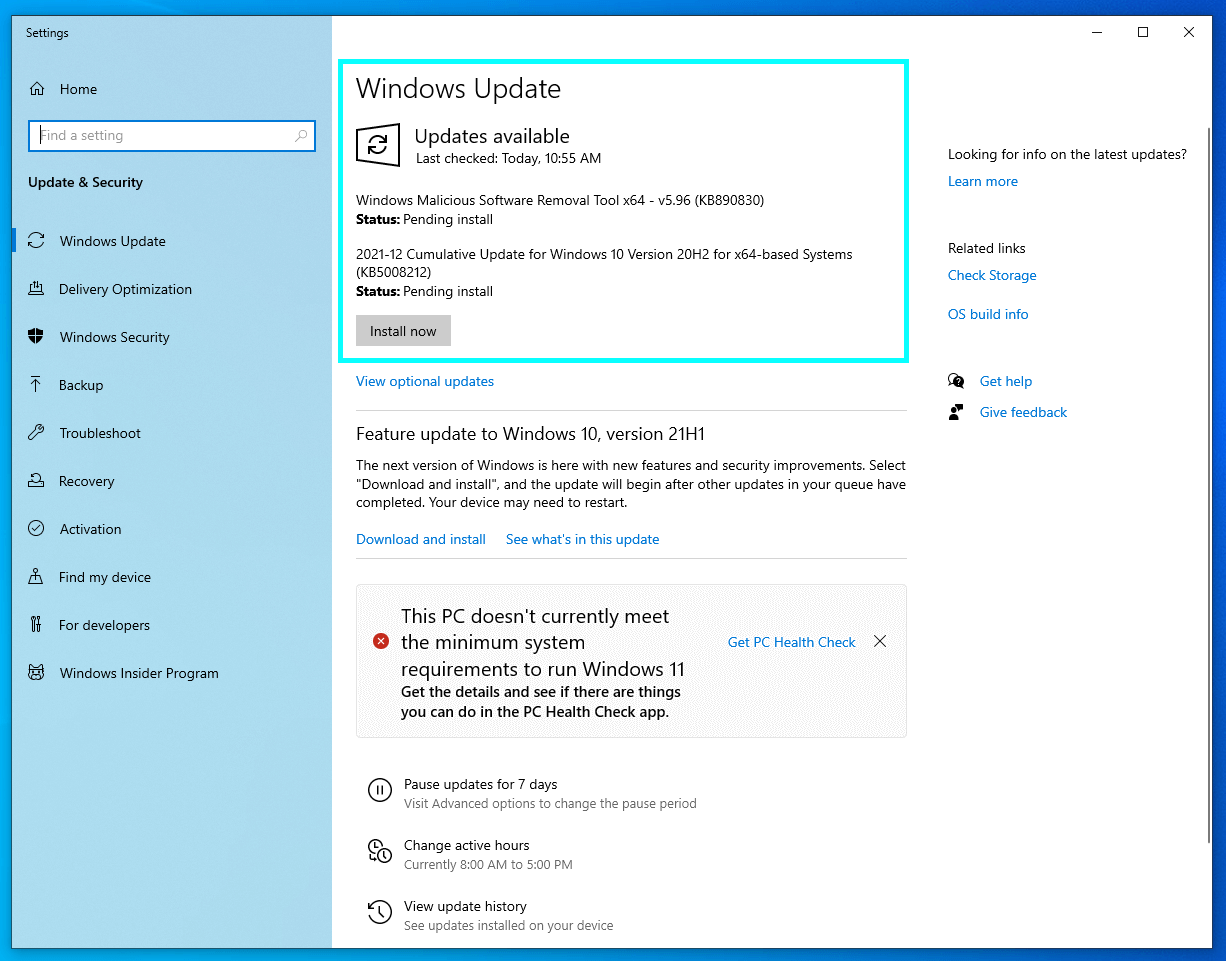
Updates can fix performance bugs, driver conflicts, and security issues. Open Settings > Windows Update, install pending updates, then restart. If the slowdown started after a graphics, printer, chipset, or Wi-Fi issue, get the driver from the device or PC manufacturer’s official support page rather than from a random driver-download site.
Clean up storage and temporary files
If Task Manager shows storage, startup apps, and ordinary clutter rather than one suspicious process, follow the safe Windows cleanup and speed-up workflow before installing any one-click optimizer.
A nearly full system drive makes Windows slower because updates, browser cache, temporary files, and the page file need working room. Open Settings > System > Storage and review cleanup recommendations. On older Windows builds, you can also run Disk Cleanup.
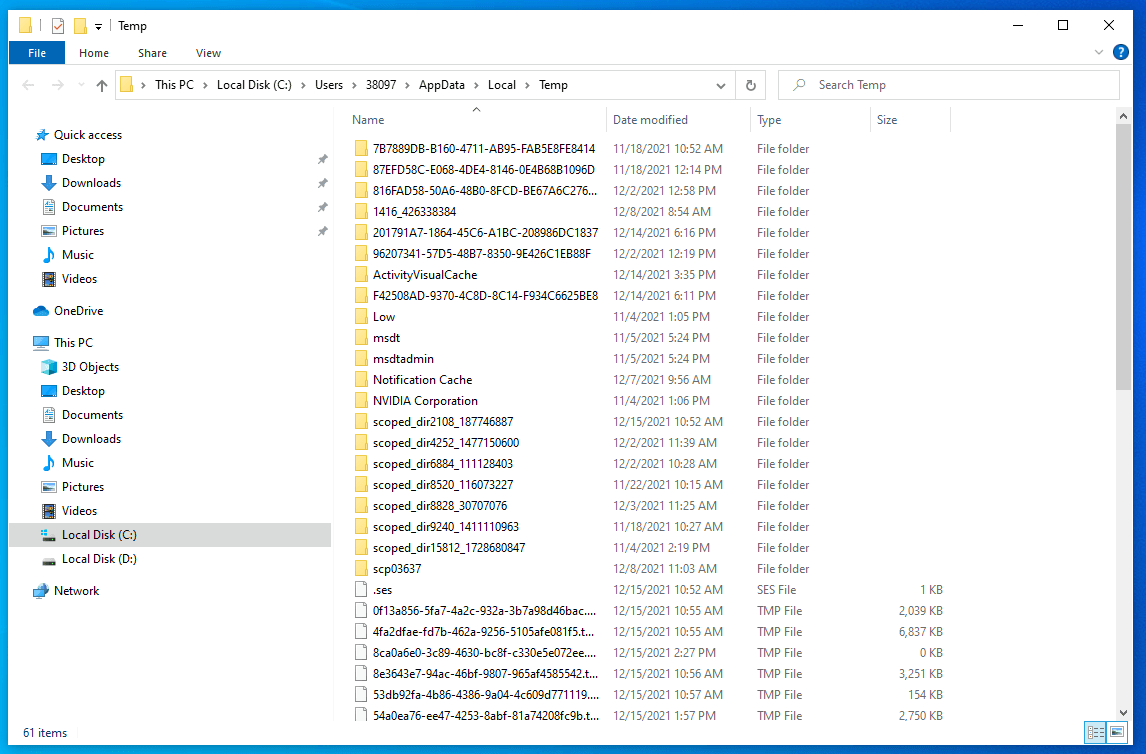
For a quick temp-folder cleanup, press Win+R, type %temp%, and delete files Windows allows you to remove. If a file is in use, skip it. Do not delete the whole Windows folder, driver folders, or random files just because they are large.
Check browser tabs, extensions, and search changes
If the computer slows down mainly while browsing, the problem may be in the browser rather than the whole PC. Close heavy tabs, remove extensions you do not recognize, and check whether the search engine or start page changed without permission. Adware and unwanted extensions can make the browser slow, inject ads, and keep background processes active.
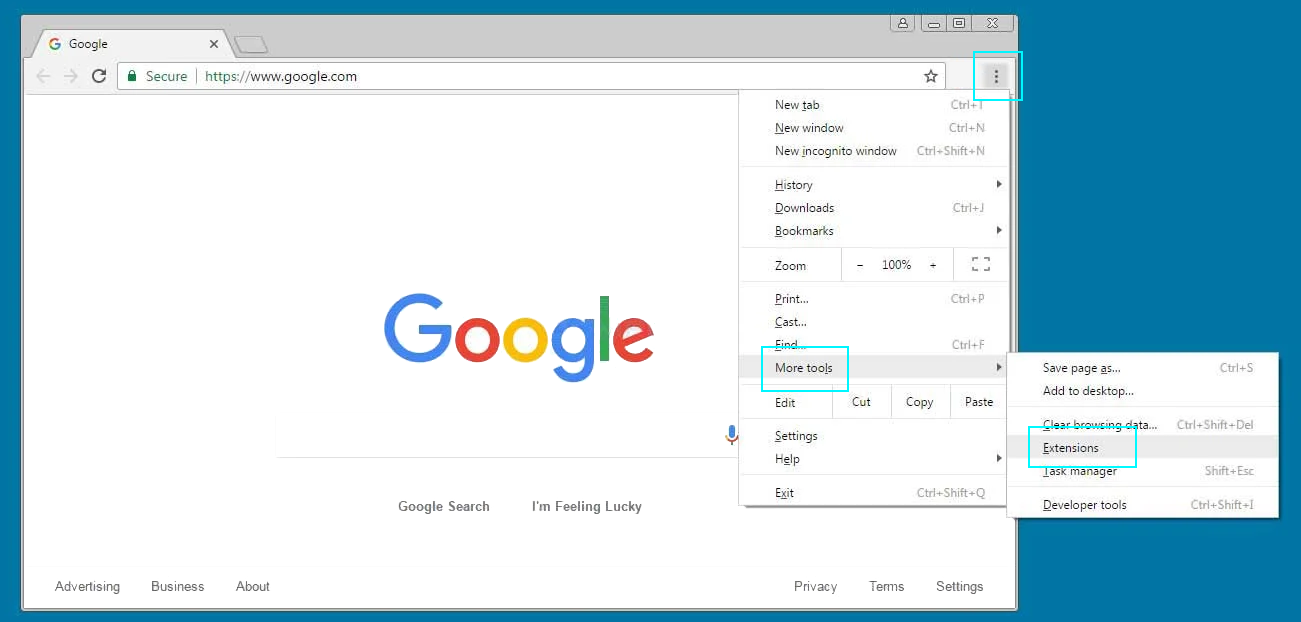
Related guide: How to make Google Chrome faster.
Scan for malware, miners, and unwanted apps
Malware can slow a PC by mining cryptocurrency, running proxy traffic, injecting ads, downloading more components, or fighting removal in the background. Treat a sudden slowdown as suspicious when it appears together with pop-ups, unknown startup entries, browser redirects, disabled security settings, or a process name you cannot explain.
- Disconnect from risky downloads or sites that triggered the issue.
- Run a full scan with your installed security tool.
- Use a second-opinion scan if the PC still behaves strangely or if Task Manager shows unknown resource-heavy processes.
- Remove suspicious browser extensions and unwanted programs after the scan, then restart.
Gridinsoft Anti-Malware can help check for miners, adware, browser hijackers, and potentially unwanted applications that commonly show up as slow-PC symptoms. If the slowdown started after installing a fake optimizer, see the PC Accelerate unwanted app guide. If CPU usage is high at idle, also compare the symptoms with coin miner infection signs.
If the load returns after reboot, appears from AppData, Temp, Startup, Task Scheduler, Services, or follows a crack, fake installer, or suspicious browser extension, a loader or miner component may still be present. Scan the PC, remove detections, reboot, and scan again if the fan or CPU pattern returns.
If the process path is wrong, the name imitates a Windows component, or high CPU started after an unknown installer, scan for hidden miners, services, startup entries, and bundled components.
Scan for hidden miner leftoversRule out overheating and throttling
A PC can become slow because the processor or graphics chip reduces speed to stay cool. This often looks like normal performance for a few minutes, then lag, loud fan noise, hot air, and lower frame rates or stuttering.
- Make sure laptop vents are not blocked.
- Clean dust from desktop intake filters and fans.
- Check that fans spin normally.
- Do not keep using a PC that smells burnt, shuts down under load, or has a failing fan.
Check the drive before defragmenting
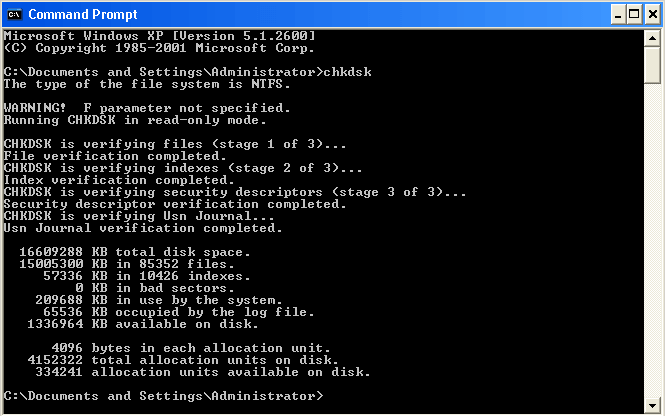
If Disk usage is high even after updates and cleanup, check the drive. Open Command Prompt as administrator and run:
chkdsk C: /fWindows may ask to schedule the check for the next restart. Use /r only when you specifically need a deeper bad-sector check because it can take much longer.
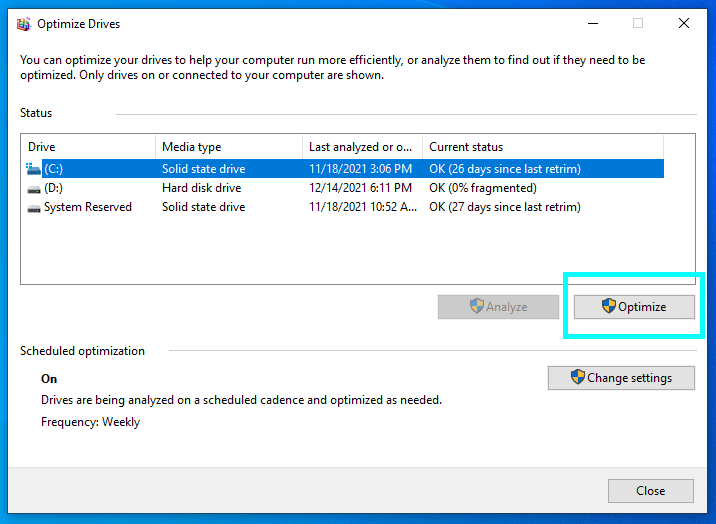
Defragment only old hard disk drives. Do not manually defragment an SSD. Windows Optimize Drives handles SSD maintenance differently and usually runs TRIM instead.
Know when hardware is the real limit
Some slow PCs are not infected or misconfigured. They are limited by hardware. The biggest practical upgrades are usually:
- SSD instead of HDD: the most noticeable upgrade for boot time and app loading.
- More RAM: useful when Memory is frequently near full during normal work.
- Battery or cooling repair: important for laptops that throttle under load.
If the PC is old, has a mechanical boot drive, and uses 4 GB or 8 GB of RAM for modern browsing, software cleanup may help but will not make it feel like a new device.
Reset or reinstall Windows only after diagnosis
Resetting Windows can fix deep software conflicts, but it should not be the first move. Back up important files, confirm the drive is healthy, and remove malware first. If you reinstall Windows on a failing disk or restore the same infected installers afterward, the slow PC problem can return.
FAQ
Why is my PC so slow all of a sudden?
A sudden slowdown is usually caused by a heavy background process, Windows Update, a browser problem, low storage, malware, overheating, or a drive issue. Open Task Manager first and sort by CPU, Memory, and Disk to see what changed.
Can malware make a computer slow?
Yes. Miners, adware, browser hijackers, proxy malware, and unwanted apps can consume CPU, memory, disk, and network resources. Scan the PC if the slowdown appears with pop-ups, redirects, unknown startup apps, or unfamiliar processes.
Should I defragment my SSD to fix a slow PC?
No. Do not manually defragment an SSD. Use Windows Optimize Drives and let Windows handle SSD maintenance. Defragmentation is mainly relevant for older hard disk drives.
How much free space should I keep on the system drive?
Keep enough free space for updates, temporary files, browser cache, and the page file. If the system drive is nearly full, clean temporary files, uninstall unused apps, move large personal files, and empty the Recycle Bin.
Is reinstalling Windows the fastest way to fix a slow computer?
Sometimes, but it is a last step. Diagnose resource usage, storage, malware, overheating, and drive health first. Reinstalling Windows will not fix failing hardware and can reintroduce the same problem if unsafe apps or backups are restored.
References
- Microsoft Support. “Tips to improve PC performance in Windows.” Microsoft, accessed June 1, 2026. https://support.microsoft.com/en-gb/windows/tips-to-improve-pc-performance-in-windows-b3b3ef5b-5953-fb6a-2528-4bbed82fba96
- Microsoft Support. “Free up drive space in Windows.” Microsoft, accessed June 1, 2026. https://support.microsoft.com/en-us/windows/free-up-drive-space-in-windows-85529ccb-c365-490d-b548-831022bc9b32
- Microsoft Learn. “chkdsk.” Microsoft, accessed June 1, 2026. https://learn.microsoft.com/windows-server/administration/windows-commands/chkdsk