
WSAPPX high CPU or disk usage often means Windows is installing or updating Microsoft Store apps. A spike that falls as an installation finishes usually needs observation, not a disabled service. If the same load returns while an app stays stuck, identify that app and its deployment error before repairing anything. Start with the WSAPPX row in Task Manager, compare it with Store download progress, and use the package event log when the queue does not explain the activity.
This guide focuses on Windows 11, with Windows 10 Settings differences where useful. A busy WSAPPX entry alone does not identify malware, failing RAM, or a reason to replace the processor.
What WSAPPX does
WSAPPX is a service-group label associated with packaged Windows apps. Its components include AppX Deployment Service (AppXSvc), which supports deploying Store apps, and Client License Service (ClipSVC), which supports Store licensing. These are started when needed; stopping their work can prevent apps from installing or working correctly. Microsoft’s service documentation describes those dependencies. [1]
Think of the group as a delivery crew. High activity tells you the crew is busy; it does not tell you which package is moving—or whether the same delivery is being attempted again. That distinction determines the next step.
Confirm the resource and the pattern
Press Ctrl + Shift + Esc, open Processes, and sort by CPU, Memory, or Disk. Record the figure beside WSAPPX, rather than only the total at the top. Expand the group when available and note the service name. Save your work before troubleshooting an unstable PC.
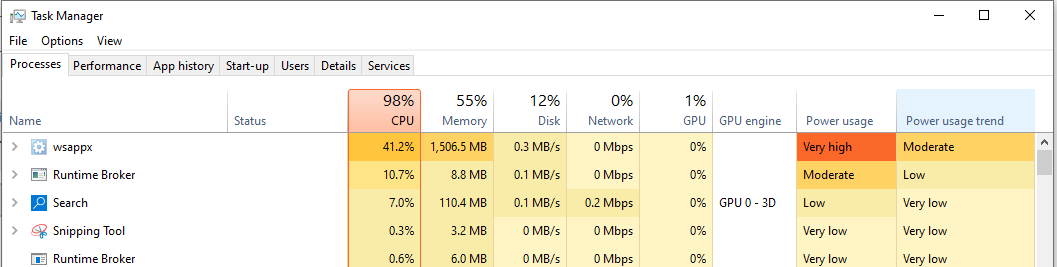
The screenshot separates two different observations: total CPU is 98%, while WSAPPX accounts for 41.2%. Other processes are also working. Use the same distinction on your PC before attributing all slowdown to one service.
- The Store queue advances and load then falls: let the installation complete. Keep the PC powered and connected. There is no universal minute count or percentage that proves a fault.
- The same app repeatedly fails or never advances: write down its name, error, and time. Follow the package-specific checks below.
- WSAPPX is quiet but another row is high: diagnose that row. For example, System Interrupts high CPU points toward a hardware or driver path.
Find the app behind repeated activity
Open Microsoft Store and its Downloads or Library area, depending on the Store version. Look for an app showing pending, downloading, installing, or an error. Note whether the displayed progress actually changes. Avoid starting several new installations while comparing the results.
If one app reports failure, save its open work, close it normally, and retry that app once. If Windows already requests a restart, finish your work and restart before the next comparison. Repeated clicking on Update does not tell you why the first attempt failed.
When the queue is empty or ambiguous, open Event Viewer. Expand Applications and Services Logs → Microsoft → Windows → AppXDeployment-Server and select its Operational log. Microsoft identifies this as the starting point for deployment errors. Match recent entries to the time of the load, and note the package name, error code, and activity ID when present. PowerShell’s Get-AppxLog can also show the latest deployment operation. [2]
A single old error is not a diagnosis. A more useful pattern is the same package failing again at the times the load returns. For example, if an app’s update fails, you close that app, retry it, and the installation completes as CPU settles, the result supports a package-related cause. That is a comparison to perform, not a claim that we reproduced your fault.
- Error
0x80073D02: resources needed by the package are in use. Save work and close the named app before retrying. - Error
0x80073CF4: insufficient disk space. Free space on the relevant drive, then retry the installation. - An unfamiliar code, policy block, or missing package: retain the exact event and use the linked Microsoft error reference or give it to IT. Do not delete WindowsApps folders to clear the message.
Repair the identified app before resetting it
In Windows 11, open Settings → Apps → Installed apps, find the affected app, select its three-dot menu, and open Advanced options if available. On Windows 10, use Apps → Apps & features, select the app, then Advanced options. Choose Repair first, reopen the app, and retry its update. Some apps do not expose these options. [3]
If repair fails, consider Reset only after checking the app’s warning and backing up local data. Reset can remove app data and settings and may require signing in again. Reset the identified app rather than every installed package. Reinstallation is a later option when you can recover the app and its data.
If Microsoft Store itself will not open or its interface is malfunctioning, press Windows + R, enter wsreset.exe, and select OK. Microsoft describes a blank command window followed by Store opening. This clears the Store cache; it is not a universal repair for every app deployment failure. Recheck the original app afterward. Also check Windows Update and the PC’s time and region settings if Store still fails. [4]
When disk or memory is the bigger problem
Disk stays saturated: compare Task Manager’s disk activity with the processes doing the reads and writes. A drive can be busy without transferring a large number of megabytes per second. Open Resource Monitor’s Disk tab to see which activity continues after the Store queue finishes. If other applications also freeze, the drive disconnects, or Windows reports storage errors, back up important files and investigate storage health before repeated repairs.
WSAPPX memory keeps climbing: record the approximate usage before an update, after it completes, and after a restart. Check whether the same package repeatedly appears in the event log. If only one Windows account is affected, record that distinction for support; do not move the Users folder or alter profile permissions as an improvised fix. Increasing virtual memory may relieve pressure but does not explain why a package keeps retrying.
If the problem began after a cleanup or debloat script removed Store components, use that tool’s documented rollback or seek help with the specific changes. The Windows debloat safety guide explains why removing system packages can have consequences beyond the app you meant to remove.
Should you disable WSAPPX?
Do not permanently disable AppXSvc or ClipSVC as a general performance fix. That hides activity by preventing part of the app workflow. It does not identify the failed installation, and dependent Store apps may stop working. Avoid registry recipes that set service startup values to Disabled, bulk package re-registration commands, and taking ownership of protected system folders.
If your Store version offers a temporary update pause, it can help schedule background work, but plan to resume updates. A quieter PC during the pause tells you that update activity matters; successful installation afterward is the stronger completion check. On a managed PC, leave organization policies to IT.
Only when a suspicious file or installer is involved
The normal WSAPPX group is not an application you should download from a process-fix website. If a separate unfamiliar wsappx.exe appeared after an unknown installer, inspect its full path and publisher and retain any antivirus alert. A file in Downloads or a temporary folder needs a different investigation from the Windows service group. Keep quarantined files quarantined while checking them.
If suspicious activity returns after reboot, the visible file may have left a startup entry, scheduled task, or bundled component. After removing the unwanted application, run a full Gridinsoft Anti-Malware scan to check for detected files and persistence, then review the results. Scanning is relevant to that suspicious-install scenario; ordinary Store activity alone is not a reason to classify WSAPPX as malware.
If the process path is wrong, the name imitates a Windows component, or high CPU started after an unknown installer, scan for hidden miners, services, startup entries, and bundled components.
Scan for malware and leftoversIf the name you actually see is PC App Store, it is a different, third-party product. Follow the PC App Store uninstall and pop-up guide instead of resetting Microsoft’s Store.
Verify that the fix worked
- Confirm the previously failing app now installs or updates and opens normally.
- Let background activity settle, then compare the same Task Manager row under the same workload.
- Restart once and check whether the original slowdown returns.
- If it returns, preserve the time, package name, error, Windows build, and changes already attempted. Give support that short record rather than applying another unrelated fix.
You are looking for completed app operations and a stable PC, not a service that never runs again.
FAQ
Why does WSAPPX run after I close Microsoft Store?
Closing the Store window does not prove background package work has finished. Check installation progress and recent deployment events before assuming the activity is unrelated.
Why do I see more than one related service entry?
Task Manager can group or display app deployment and licensing work differently across Windows versions. Record the service beneath the expanded group and the resource it uses; the number of entries alone does not diagnose a problem.
References
- Microsoft. “Security guidelines for system services in Windows Server 2016.” Microsoft Learn, accessed September 10, 2026. Service descriptions for AppXSvc and ClipSVC. Service roles and dependencies.
- Microsoft. “Troubleshooting packaging, deployment, and query of Windows apps.” Microsoft Learn, accessed September 10, 2026. Deployment logs and error codes.
- Microsoft. “Repair apps and programs in Windows.” Microsoft Support, accessed September 10, 2026. App repair and reset options.
- Microsoft. “Microsoft Store doesn’t open.” Microsoft Support, accessed September 10, 2026. Store cache and startup checks.
- Anonymous community contributor. “Fixing wsappx high memory and CPU usage.” Microsoft Q&A, October 16, 2020; accessed September 10, 2026. Historical Task Manager example.