
YesMovies should not be treated as safe just because a page carries that name. The brand appears across changing domains, clone pages, embedded players, apps, and advertising chains, so a result for one hostname cannot certify the next. If you only opened a page and closed it, the risk is usually limited. If you allowed notifications, installed anything, entered a password, or submitted card details, use the matching response below.
This guide does not list working YesMovies mirrors or recommend ways around access restrictions. It explains how to judge the interaction you already had, without reopening the page, and how to clean up redirects, permissions, downloads, accounts, or payment exposure.
Why the YesMovies Name Is Not a Safety Verdict
A familiar name, HTTPS padlock, working video, or old bookmark does not prove that the current page is operated by the same people you visited before. The visible site, its embedded player, a pop-under advertisement, a notification sender, and a downloaded file may all come from different hosts. Any of those parts can change while the YesMovies label stays the same.
The Federal Trade Commission has warned that illegal streaming apps and add-ons can carry malware and expose information on devices that share the same network.[1] That does not mean every browser visit installs malware. It does mean that a free-streaming name is a poor substitute for checking the exact domain, prompt, and file you actually encountered.
What a YesMovies Domain Check Can and Cannot Prove
Gridinsoft’s dated check of yesmovies.lol classified that exact domain as Caution Advised: no strong external security warnings were found, but independent public evidence was limited. The report also recorded a 52/100 trust score at the time of the check. This is useful evidence for one hostname on one date, not a universal verdict for every YesMovies domain, app, redirect, or future visit.
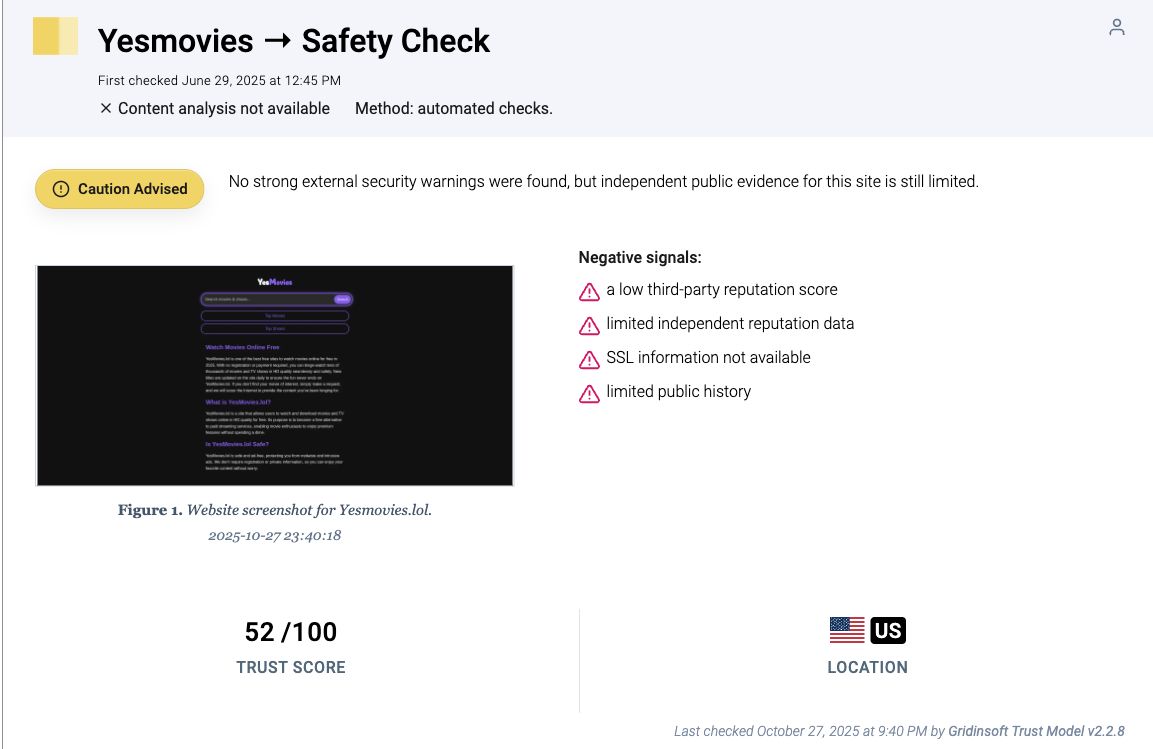
Use a point-in-time reputation report as one signal. Then compare it with the behavior you saw. A page that forces new tabs, requests notification access, asks for a player update, or sends you to an unrelated checkout deserves a higher-risk response even if the main hostname has no current blacklist hit.
Your Risk Depends on What You Did
| What happened | Risk and what to do now |
|---|---|
| You opened the page and closed it | Risk is usually low if no prompt was approved and no download started. Close extra tabs, check the Downloads list, and do not restore the same session if it reloads redirects. |
| You clicked Play, Close, or a CAPTCHA | Close every new tab. Do not call a support number, install an update, complete a survey, or approve a second verification page. |
| You allowed browser notifications | Revoke the permission for the exact sending domain. Notification spam can continue after the YesMovies tab is gone and may imitate virus, delivery, or account alerts. |
| You downloaded a player, codec, APK, extension, archive, or executable | Do not open it. If it already ran, disconnect from sensitive accounts, remove the app or extension, scan the device, and check whether redirects return after reboot. |
| You entered an email address or password | Change any reused password from a clean device, enable multi-factor authentication, and revoke active sessions for the affected account. |
| You entered card details | Contact the card issuer, monitor small test charges and recurring payments, and replace the card if the issuer recommends it. Do not revisit the suspicious page to cancel. |
| You only saw an ad or legal warning | Do not assume that message came from the main site or from an authority. Close it and verify any claim through the real organization or your local legal guidance. |
Fake Play Buttons, Redirects, and Update Prompts
The most useful question is not whether a video played. It is what the page asked you to do before or after the click. A real-looking Play triangle can be an advertisement layered over the player. A close button may open another tab. A fake CAPTCHA may ask you to press Allow, and a supposed browser or codec update may download an unrelated installer.
Stop when the page asks for any of these:
- notification permission to prove you are human or continue watching;
- a browser extension, APK, codec, VPN, or “HD player” download;
- a command to paste into Run, Terminal, PowerShell, or a browser console;
- remote-access software or a phone call after a virus warning;
- card verification for a supposedly free stream;
- a Google, Apple, Facebook, or email login on a domain you did not intentionally visit.
If the page opened repeated tabs, use the browser multiple-tabs cleanup guide. If it showed a full-screen infection warning or support number, compare it with the fake virus alert response before calling anyone.
Remove YesMovies-Related Notifications and Browser Changes
Chrome and other browsers let users review and remove site notification permissions. Google also identifies persistent pop-ups, unexpected redirects, changed browsing settings, and extensions that return as signs that unwanted software may be involved.[2][3]
- Open the browser’s site or notification settings directly; do not use a link supplied by the pop-up.
- Remove the exact domain that is sending the alerts, including unfamiliar advertising or redirect domains.
- Delete extensions installed around the same time, especially video, search, coupon, VPN, or download helpers you did not seek out.
- Check the homepage, default search provider, startup pages, and browser shortcut.
- Clear site data for the suspicious domains if redirects continue, then restart the browser without restoring every old tab.
If a website keeps showing unwanted pop-ups, you likely granted it permission to send notifications. To stop them, you need to revoke that permission in your browser settings.
- Copy and paste this into the address bar:
chrome://settings/content/notifications - Scroll down to the Allowed to send notifications list.
- Find the suspicious site.
- Click the three dots (...) next to it and select Remove (or Block).
- Open Safari and go to Settings (or Preferences).
- Click the Websites tab and select Notifications on the left.
- Find the suspicious site in the list on the right.
- Select it and click Remove (or change "Allow" to "Deny").
- Copy and paste this into the address bar:
about:preferences#privacy - Scroll down to Permissions and click Settings... next to Notifications.
- Type the suspicious site in the search bar or find it in the list.
- Select the site and click Remove Website.
- Copy and paste this into the address bar:
edge://settings/content/notifications - Look under the Allow section.
- Find the suspicious site.
- Click the three dots (...) next to it and select Remove (or Block).
- Copy and paste this into the address bar:
brave://settings/content/notifications - Scroll to the Allowed to send notifications list.
- Find the suspicious site.
- Click the three dots (...) and select Remove (or Block).
- Copy and paste this into the address bar:
opera://settings/content/notifications - Check the Allowed to send notifications list.
- Find the suspicious site.
- Click the three dots next to it and select Remove.
- Launch Chrome.
- Click the three dots (...) in the top right corner.
- Select Extensions > Manage Extensions.
- Click Remove next to the extension you want to delete.
Quick Access: Type chrome://extensions/ in the address bar.
- Open Safari.
- In the menu bar, click Safari and select Settings (or Preferences).
- Click on the Extensions tab.
- Select the extension and click Uninstall.
- Click the menu button, select Add-ons and themes.
- Go to the Extensions tab.
- Click the three dots (...) next to the extension and select Remove.
Quick Access: Type about:addons in the address bar.
- Launch Microsoft Edge.
- Click the three dots (...) in the top right corner.
- Select Extensions.
- Find the extension and click Remove.
Quick Access: Type edge://extensions/ in the address bar.
- Launch Brave browser.
- Click the menu icon > Extensions.
- Find the extension and click Remove.
Quick Access: Type brave://extensions/ in the address bar.
- Launch Opera.
- Click the Opera logo in the top left corner.
- Select Extensions > Extensions.
- Click the X or Remove button next to the extension.
Quick Access: Type opera://extensions/ in the address bar.
If a Player, APK, Extension, or Installer Ran
Deleting the visible download is not enough after it has executed. An installer can add an app, extension, startup entry, scheduled task, or browser policy and then remove or hide its original file. On Android, an APK can request notification access, Accessibility, SMS, or device-admin permissions that matter more than its icon or name.
- Disconnect the device from sensitive work until the unknown software is removed.
- Uninstall the suspicious app and remove related browser extensions.
- Review recent downloads and use the safe executable-check process before restoring or running anything.
- Run a full security scan. Gridinsoft Anti-Malware can check for detections, hidden files, browser changes, startup entries, scheduled tasks, and bundled software that may remain after the visible installer is deleted.
- Reboot and scan again if pop-ups, redirects, or security warnings return.
For an Android app or APK, follow the Android malware cleanup checklist and review Accessibility, notification, VPN, and device-admin permissions before signing back into important accounts.
If redirects, notifications, extensions, homepage changes, or managed policies return after browser cleanup, the source is often outside the browser: an installed app, policy, scheduled task, or startup entry.
Scan after a suspicious streaming redirectProtect Accounts and Payments After Data Entry
If you typed a password into a page opened from a YesMovies player or ad, assume the destination may have captured it. Start with the email account that can reset other passwords. Change reused passwords from a device you trust, enable multi-factor authentication, review recovery addresses and phone numbers, and revoke sessions you do not recognize.
For card entry, call the number on the real card or banking app. Ask about replacing the card and blocking recurring transactions. Save the suspicious URL, screenshots, confirmation emails, and transaction details for the issuer, but do not return to the page or download a “refund” tool.
The Safer Decision
Use licensed services and official apps obtained from the provider or a trusted app store. Do not treat a VPN, incognito mode, an ad blocker, or a clean scan of one hostname as permission to install a player or enter payment information. Those tools may change privacy or block some advertising, but they cannot prove who controls a clone, embedded player, redirect, or file.
For the broader pattern, the free movie streaming site scams guide explains card verification traps, fake players, notification prompts, and device-specific recovery without listing working piracy sites.
FAQ
Is there one official YesMovies domain?
A YesMovies name or familiar layout does not establish one stable operator. Domains, mirrors, clones, players, and apps can change independently. Verify the exact hostname and behavior rather than trusting the brand label.
Can YesMovies give me a virus just by visiting?
A browser-only visit that ends without a permission, download, or exploit is lower risk than running a file. Risk rises when you approve notifications, install an extension or app, execute a download, paste a command, or enter credentials.
Does a VPN or incognito mode make YesMovies safe?
No. Those features may change network privacy or local history, but they do not validate the domain, advertising chain, embedded player, payment form, or downloaded file.
Should I scan my device after closing the tab?
A scan is most useful if something downloaded or ran, the browser changed, redirects continue, or security alerts appear. If you only opened and closed the page with no other action, check tabs and downloads first.
Is YesMovies legal?
Copyright and streaming rules vary by country and by how content is licensed or delivered. A site calling itself free or legal does not prove it has distribution rights. Use licensed sources and local legal guidance instead of relying on the page’s own claim.
References
- Federal Trade Commission. “Malware from illegal video streaming apps: What to know.” FTC Consumer Advice, May 2, 2019, accessed August 28, 2026. https://consumer.ftc.gov/consumer-alerts/2019/05/malware-illegal-video-streaming-apps-what-know
- Google. “Use notifications to get alerts.” Google Chrome Help, accessed August 28, 2026. https://support.google.com/chrome/answer/3220216?hl=en
- Google. “Remove unwanted ads, pop-ups & malware.” Google Chrome Help, accessed August 28, 2026. https://support.google.com/chrome/answer/2765944?hl=en