
Microsoft.Photos.exe is normally part of the Microsoft Photos app, but high memory use deserves attention when it keeps growing after the image, slideshow, import, or gallery work has stopped. End the Photos task once, reopen only the item that triggered the spike, and compare active use with the app sitting idle. If the load returns, update Photos and Windows, isolate the affected folder or cloud source, then use Repair before Reset. Do not download a replacement EXE or change permissions on the protected WindowsApps folder.
- Usually normal: a temporary spike while opening a large image, decoding video, building thumbnails, importing media, or loading a large gallery.
- Needs troubleshooting: memory continues rising at idle, stays high after the window closes, or returns every time one folder, slideshow, or cloud library is opened.
- Best first test: end Photos, reopen it without the problem folder, and reproduce one action while watching Task Manager.
- Safe repair order: update, isolate the input, Repair, Reset, then reinstall from Microsoft Store.
- Security branch: verify the package and Microsoft publisher if the process runs from an unrelated folder or appeared after an unknown installer.
When Microsoft.Photos.exe memory use is normal
Photos is not only a static picture viewer. The current app can browse folders, import media, show OneDrive or iCloud content, compare images, play video, and create thumbnails. Microsoft describes Photos as the built-in Windows app for viewing, organizing, editing, and sharing photos and videos.[1] Each of those actions can allocate memory for decoded pixels, previews, metadata, and the gallery interface.
A large compressed photo can require much more working memory after it is decoded. A folder containing thousands of mixed photos and videos can also take time to enumerate and preview. A short spike during that work is not proof of a memory leak, and Task Manager does not provide one universal “safe” megabyte number for every PC.
| What you observe | What it means and what to do |
| Memory rises while a large photo, video, slideshow, or import is active, then falls | Usually active decoding or gallery work. Let the task finish and compare the idle state. |
| Memory stays high after the Photos window closes | End the Photos task once, reopen cleanly, and test whether the same input recreates the problem. |
| Only one folder or cloud library triggers the spike | Temporarily remove that source from the gallery or test a small local folder before resetting the whole app. |
| Several Microsoft Store apps are unstable | The problem may be broader than Photos. Update Windows and Microsoft Store before app-specific repair. |
| The executable is outside a Microsoft package path or has an unexpected publisher | Treat it as a lookalike and verify the file before allowing, deleting, or replacing it. |
Verify Microsoft.Photos.exe without changing WindowsApps permissions
The expected Photos package is installed below the protected C:\Program Files\WindowsApps\ tree. Its versioned directory changes after Store updates, and current Photos releases may display a related process name rather than the exact legacy filename on every build. Check the package identity and publisher instead of comparing one hard-coded folder copied from another PC.
- Open Task Manager, select the Photos process, and note its exact name, publisher, and command context where available.
- Open PowerShell as your normal user and query the installed Photos package:
Get-AppxPackage Microsoft.Windows.Photos | Select-Object Name, Publisher, InstallLocation
- Confirm that the package is named
Microsoft.Windows.Photos, the publisher is Microsoft, and the install location is belowC:\Program Files\WindowsApps\. - If you inspect the executable properties, confirm a valid Microsoft signature. A familiar filename alone is not proof of safety.
An access-denied message when browsing WindowsApps is not evidence of malware. Windows protects that folder by design. Do not take ownership, loosen its permissions, delete the executable, or copy a Photos EXE from another computer. If the location or signature is suspicious, use the broader EXE safety checklist to include the source, parent process, startup entry, and scan result.
Measure the problem before resetting Photos
- Record the trigger. Note whether memory rises after opening one file, entering Gallery, starting a slideshow, importing from a phone, or opening a OneDrive or iCloud source.
- End the Photos task once. In Task Manager, select Microsoft Photos or the related Photos process and choose End task. This is a diagnostic reset, not a permanent fix.
- Reopen Photos cleanly. Open the app from Start without immediately selecting the problem folder. Watch the Memory column for a minute while the app is idle.
- Reproduce one action. Open the same photo, folder, slideshow, or library once. If the memory curve rises again only for that input, the input or integration is a stronger suspect than the executable.
- Compare another file and folder. Test one ordinary local JPEG in a small folder. This separates an app-wide problem from one damaged media file, codec, or very large library.
If Task Manager shows Application Frame Host rather than Photos as the busy item, identify the packaged app behind the visible window before changing the host. The ApplicationFrameHost.exe diagnostic guide explains that isolation step.
Fix Microsoft Photos high memory use in the safest order
1. Close Photos and restart Windows
Save any unfinished edit, close Photos, end a remaining Photos process in Task Manager, and restart Windows. A restart clears the current app process and pending package state. If the symptom began after a Store or Windows update, the restart also completes work that may still be waiting.
2. Update Photos, Microsoft Store, and Windows
Open Microsoft Store → Library → Get updates, then install the Photos update if one is offered. Check Settings → Windows Update as well. Microsoft’s Store-app troubleshooting order starts with closing the app, updating Windows and Store apps, then moving to Repair, Reset, and reinstall only if needed.[2]
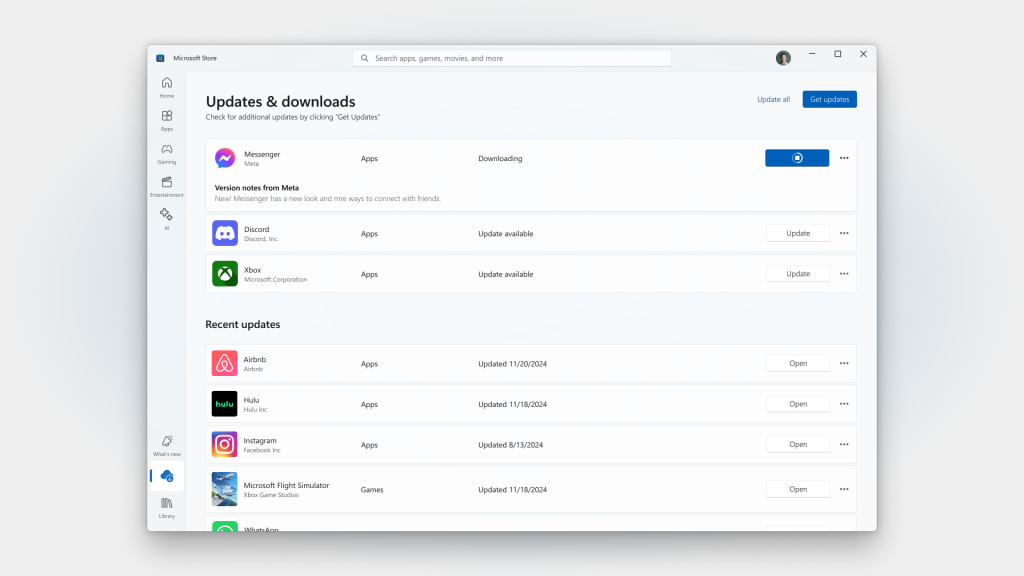
3. Isolate the folder, slideshow, or cloud source
If the spike occurs only in Gallery, remove the newly added folder from the Photos source list temporarily and reopen the app. This does not delete the folder from disk; it only tests whether enumerating that source recreates the load. If one damaged or unusually large image triggers the spike, copy it to a small test folder and open a different image first.
If Photos is reading a OneDrive library and OneDrive.exe is busy too, pause sync briefly and compare both processes. Do not reset Photos to solve a sync queue that belongs to OneDrive. Use the OneDrive high CPU and memory guide when the load follows sync status, repeated file retries, or “Processing changes.”
4. Use Repair before Reset
- Open Settings → Apps → Installed apps.
- Find Microsoft Photos, select the three-dot menu, then Advanced options.
- Select Repair. Reopen Photos and repeat the same measured test.
- If Repair does not help, return to the same page and select Reset.
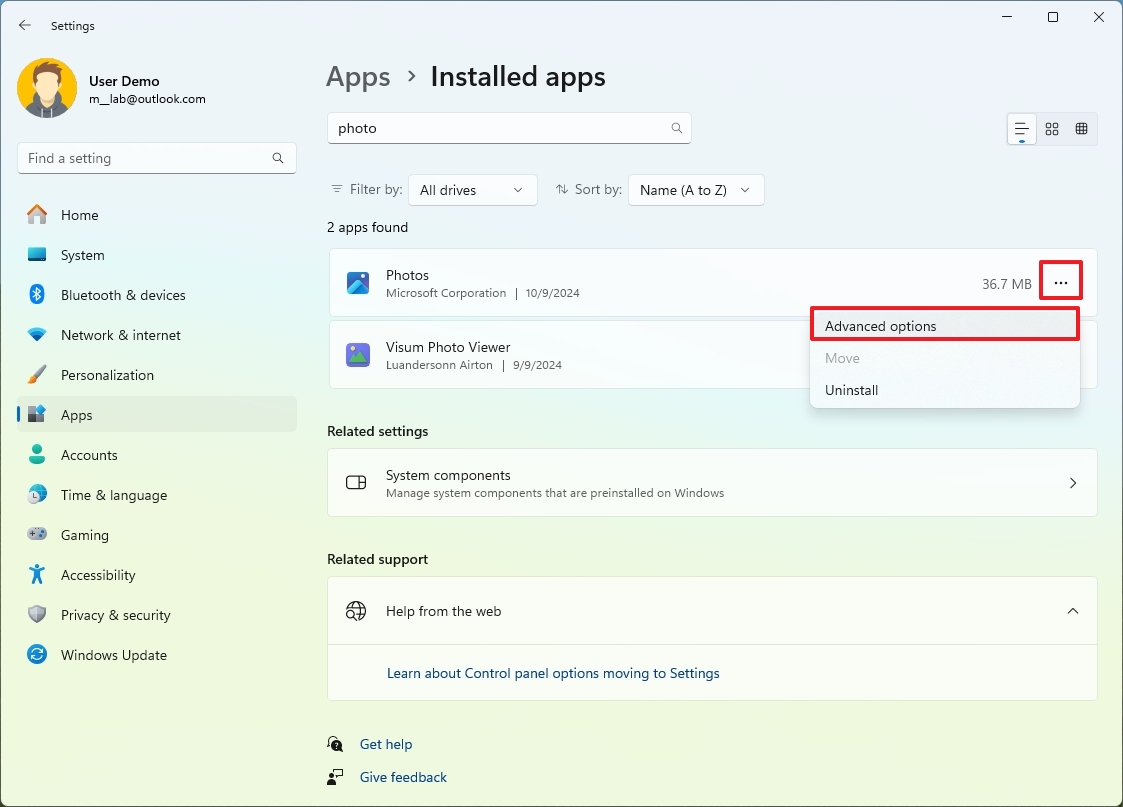
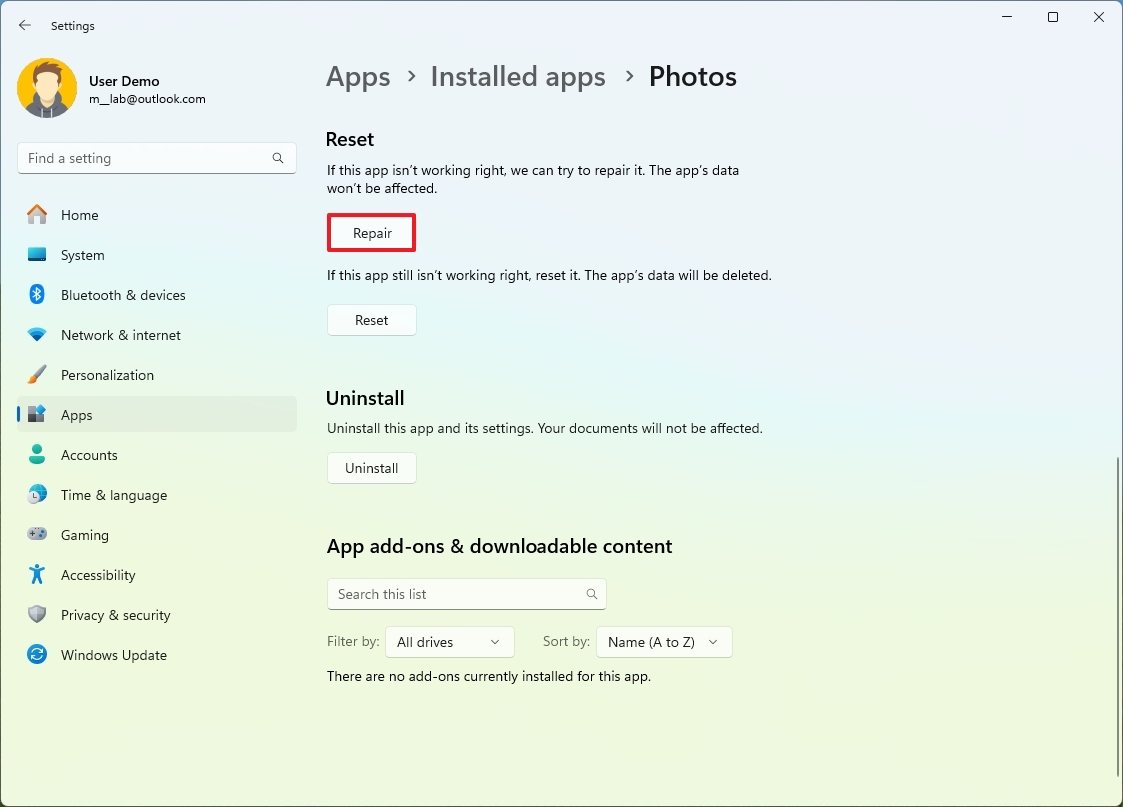
Microsoft recommends Repair first because it is the less disruptive option; Reset is the next step when Repair is unavailable or does not fix the app.[3] Reset can clear the Photos app’s local settings, cache, and sign-in state. It does not target image files stored in Pictures, OneDrive, or another library, but save unfinished edits and back up irreplaceable files before any repair operation.
5. Reinstall Photos from Microsoft Store
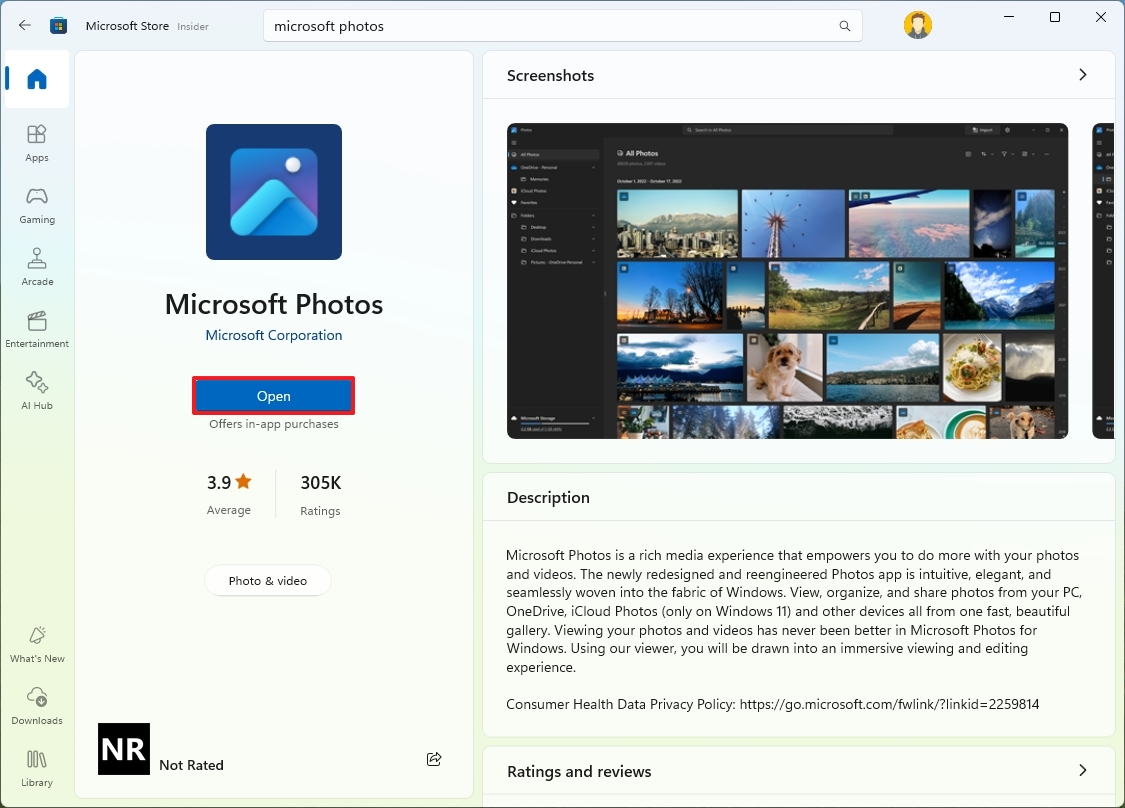
Reinstall only after update, isolation, Repair, and Reset have failed. Remove Microsoft Photos through Settings → Apps → Installed apps when Windows offers that option, restart the PC, then reinstall Photos from Microsoft Store → Library or the verified Microsoft Photos Store listing. Never search for a standalone Microsoft.Photos.exe download: the executable belongs to a signed app package and should be restored through Microsoft Store.
What not to change
- Do not disable Windows Search globally as the first fix. Prove that indexing or one library is the trigger before changing a system-wide service.
- Do not clear every thumbnail cache or codec package at once. Test one file and folder first so you know which change mattered.
- Do not take ownership of WindowsApps. Permission changes can break Store updates and make later package repair harder.
- Do not delete Microsoft.Photos.exe manually. Repair, Reset, or Store reinstall keeps package registration and servicing consistent.
- Do not download a replacement EXE. File-download sites cannot safely reconstruct the signed Photos package for your Windows build.
When Microsoft.Photos.exe may be suspicious
A wrong-path copy is a different problem from the genuine Photos app using too much memory. Investigate when the executable runs from AppData, Temp, Downloads, a browser folder, or an unrelated program directory; when its signature is missing or invalid; or when it appeared after an unknown installer and returns through Startup, Task Scheduler, or a service.
Ending the visible process may not remove the component that starts it again. If the file is outside the Microsoft package, the signer is wrong, or recurring activity began after an untrusted install, scan the PC for the launcher, scheduled task, service, bundled app, and other persistence rather than repeatedly deleting one EXE.
If the process path is wrong, the name imitates a Windows component, or high CPU started after an unknown installer, scan for hidden miners, services, startup entries, and bundled components.
Check this Photos processFAQ
Is Microsoft.Photos.exe a virus?
The Microsoft-signed process inside the installed Microsoft Photos package is legitimate. The filename alone is not enough: verify the package publisher, install location, signature, and how the process starts. A same-name file in an unrelated folder needs separate investigation.
Why does Photos use memory after I close the window?
The app can briefly finish thumbnail, gallery, import, cloud, or package work after the visible window closes. End the task once and retest. If memory remains high or the process multiplies every time the same input is opened, continue with update, source isolation, Repair, and Reset.
Will resetting Microsoft Photos delete my pictures?
Reset targets the app’s local data and settings, not ordinary image files in Pictures, OneDrive, or another library. It can clear preferences, cache, and sign-in state. Save unfinished edits and keep a backup of important files before troubleshooting.
Can I disable Microsoft Photos?
You can choose another default image viewer or uninstall Photos when Windows offers that option. Disabling background behavior is not the same as fixing an app that leaks memory only with one folder or cloud source, so isolate the trigger first.
Where can I download Microsoft.Photos.exe?
Do not download the EXE by itself. Install or reinstall Microsoft Photos through Microsoft Store so Windows receives the complete signed package and its dependencies.
References
- Microsoft. “Get help with Microsoft Photos app.” Microsoft Support, accessed September 2, 2026. Open source ↗
- Microsoft. “Fix problems with apps from Microsoft Store.” Microsoft Support, accessed September 2, 2026. Open source ↗
- Microsoft. “Repair apps and programs in Windows.” Microsoft Support, accessed September 2, 2026. Open source ↗
- Giorgio Sardo. “Raising the bar: Updates to the Microsoft Store on Windows.” Windows Developer Blog, December 3, 2024; accessed September 10, 2026. blogs.windows.com ↗
- Mauro Huculak. “How to reset Photos app to fix problems on Windows 11 and 10.” Windows Central, October 16, 2024; accessed September 10, 2026. windowscentral.com ↗