

OneStart.ai, also called OneStart Browser, is a controversial Chromium-based browser that many users remove as a potentially unwanted program. It advertises AI widgets and a desktop toolbar, but installs often arrive through bundles, open search results through OneStart/Yahoo flows, and can leave onestart.exe startup leftovers after the visible browser is removed. This guide explains how to identify the OneStart.ai files, remove the browser, and check for co-installed unwanted apps instead of treating every file as a confirmed Trojan.
For another AI-branded browser case, the Ace Browser removal guide covers AceLauncher redirects, startup leftovers, and extension checks without treating every install as a confirmed Trojan.
OneStart Browser Overview
If a bundled utility installer added a separate startup app instead of a browser shell, use the E START App removal checklist to uninstall the app, restart Windows, and check browser/startup leftovers.
OneStart is a browser built on the Chromium open-source project, marketed as an AI-assisted tool that integrates features like a ChatGPT widget, a desktop toolbar, and seamless switching between AI engines such as Google AI, Bing, and others.
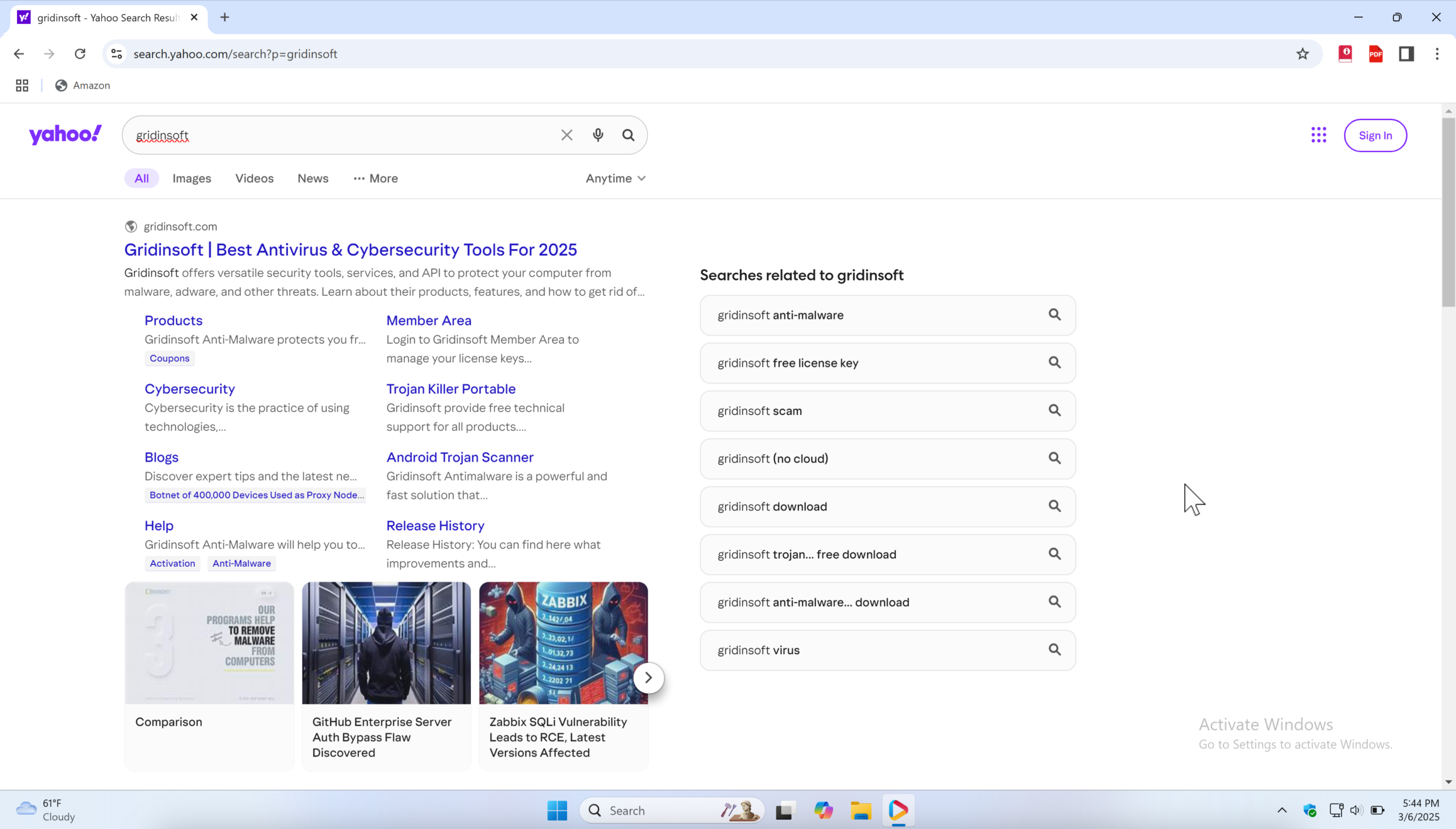
According to its official page, it aims to streamline online experiences with lightning-fast performance and customization options like light and dark modes. However, its legitimacy is debated, with security sites classifying it as a Potentially Unwanted Application (PUA) due to distribution methods.
Its official blog (OneStart.ai is Not A Malware And Here’s Why) defends its safety, saying the product is signed, distributed through verified sources, and checked by security scanners such as VirusTotal. That vendor claim does not remove the PUA concern: users and security vendors still report bundled installs, startup entries, and co-installed unwanted components that may need cleanup.
How Users Get Infected with OneStart Browser?
Research indicates OneStart browser is often distributed through software bundling, a common tactic where it’s included with other downloads without clear user consent. This can occur via freeware sites, Peer-to-Peer networks, or deceptive sites, especially when users rush through installations using “Quick/Simplified installation” settings.
It’s installed unknowingly, bundled with other software, leading to confusion about its origin. This method increases the risk of inadvertently allowing unwanted programs, and user reviews on platforms echo similar experiences of unexpected installations.
What’s Wrong With OneStart Browser?
There are several concerns surrounding OneStart, making it a problematic application for many users. One of the primary issues is its unwanted installation. Many users find it on their systems without explicit permission, often due to software bundling. This classifies it as a Potentially Unwanted Program (PUP).
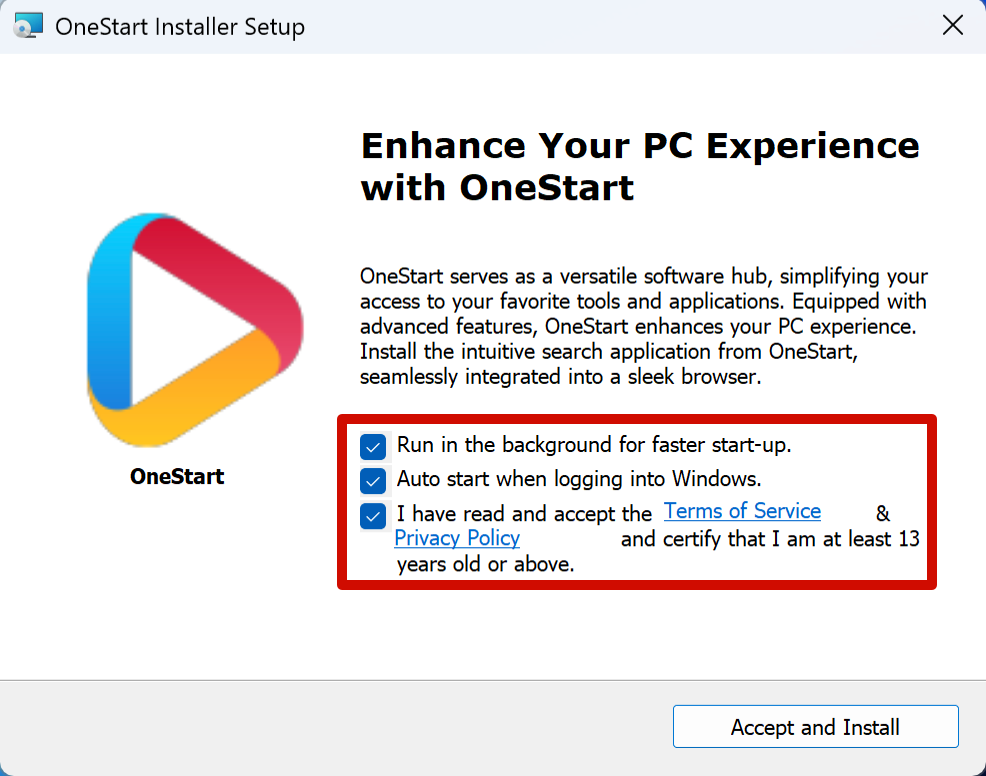
During installation, the program requires you to check the EULA box. However, along with this checkbox, two checkboxes are immediately placed against the items “Auto start when logging into Windows” and “run in the background”. Although you can remove the two checkboxes afterward, not every user can think of doing so.
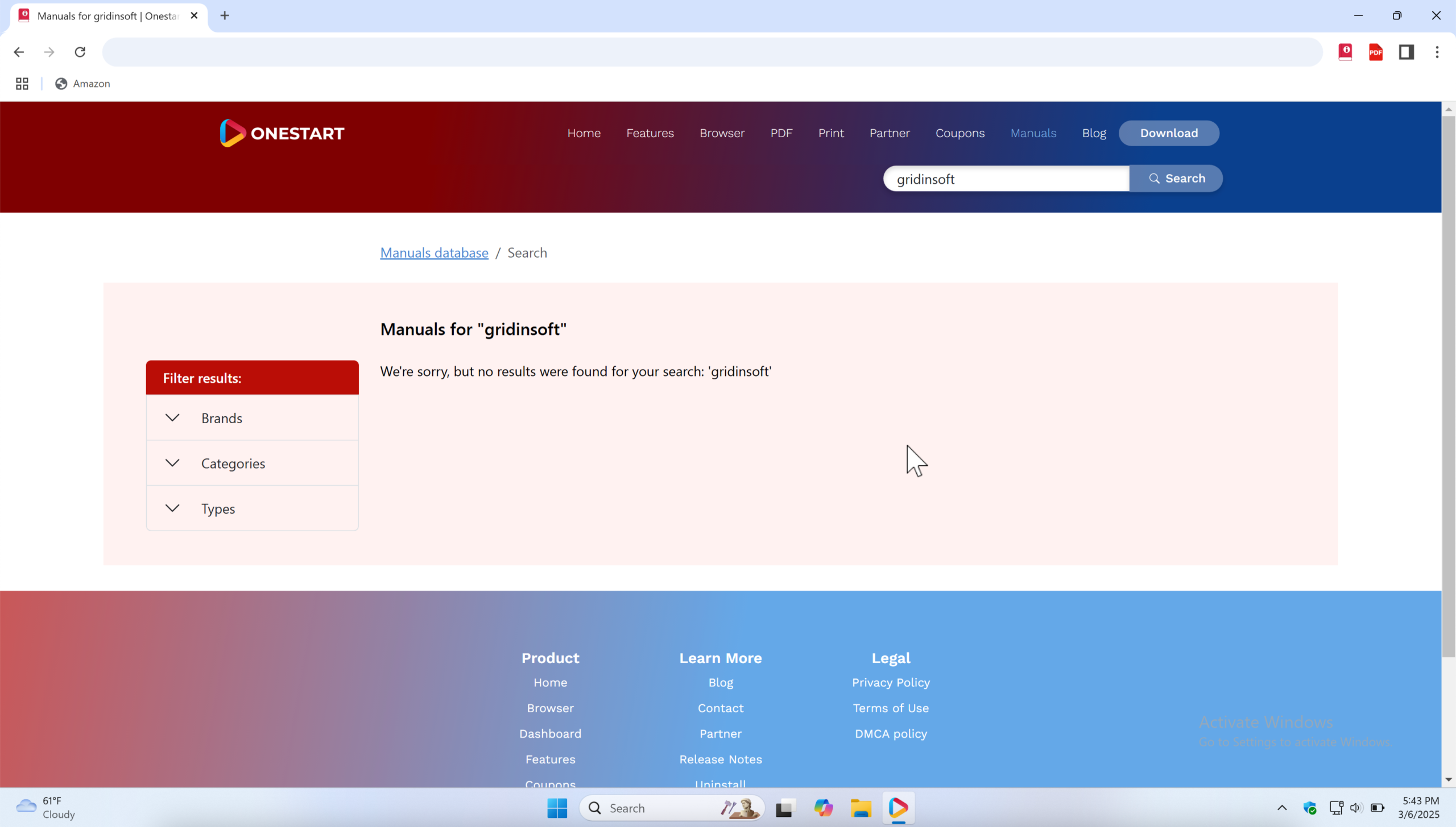
The program alters browser settings, such as resetting the default search engine, frequently without user consent. Another major concern is search query redirection. When users perform searches, their queries are first routed through onestart.ai before reaching Yahoo. This raises significant privacy concerns, as it suggests potential data collection.
In addition to these issues, OneStart is known for injecting unwanted advertisements and opening new tabs with promotional content. These ads can sometimes promote scams or even malicious software, further compromising user security. Some sources have even labeled this browser as a trojan, citing its ability to track user data, including browsing histories and personal details, which could then be sold to third parties.
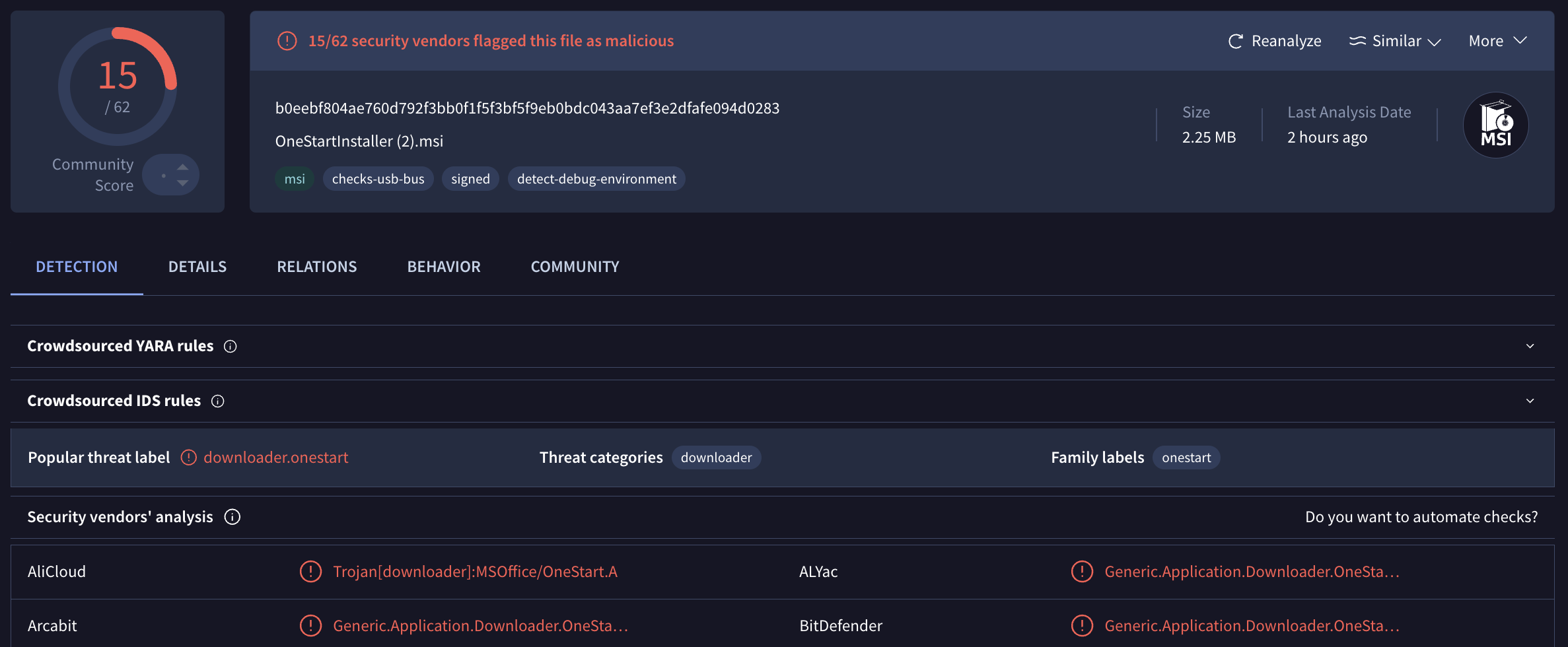
Microsoft community answers about recurring OneStart startup errors reflect the same practical issue: users often need to check Startup, shell:startup, Autoruns, and scheduled tasks after the visible app is gone. While some users appreciate its AI features, many others report system slowdowns and unwanted behavior, reinforcing its reputation as a questionable program. How about VirusTotal, vendors are divided in their opinions. At the time of writing, 12 anti-malware vendors have marked the OneStartInstaller.msi installer as potentially unwanted software or Generic Application Downloader.
OneStart.ai Files and Startup Items to Check
If OneStart opens again after uninstall, or Windows shows a startup error saying it cannot find onestart.exe, check the per-user files and launch points before assuming the cleanup is finished. A normal uninstall can remove the main app while a shortcut, startup entry, scheduled task, or companion PUP keeps the symptoms visible.
| Artifact | Why it matters |
|---|---|
%LOCALAPPDATA%\OneStart.ai or an older %APPDATA%\OneStart folder |
Common user-profile locations for the OneStart.ai install and leftovers after uninstall. |
onestart.exe and onestart_proxy.exe |
Main browser/proxy processes to close before removing files or troubleshooting redirects. |
notification_helper.exe |
Background helper that can keep pop-ups, reminders, or promotional notifications active. |
onestart_elf.dll and onestart_wer.dll |
Supporting Chromium/error-reporting files; their presence does not prove a separate Trojan, but they belong to the OneStart install set. |
Desktop, Start Menu, Task Manager Startup, shell:startup, or scheduled-task entries |
Leftover launch points can recreate the startup error or make the browser appear after reboot. |
HKCU\Software\OneStart.ai and matching Run entries |
Registry cleanup is only appropriate when the path and publisher clearly point to OneStart.ai. |
Also review the installed-apps list for companion programs that appeared around the same date. In real cleanup cases, OneStart.ai can sit beside other unwanted utilities such as Web Companion or PremierOpinion/pmls64.dll leftovers. If those names appear, remove them separately and then scan the system; deleting only the OneStart folder can leave the bundle’s other modules behind.
How to Remove OneStart.ai Browser
Start with the normal uninstall path, then verify the leftover launch points. This keeps the cleanup safe: you remove the unwanted browser and its companions without deleting unrelated Chromium-based software or Windows components.
- Open Settings → Apps → Installed apps in Windows 11, or Control Panel → Programs and Features in Windows 10. Uninstall OneStart or OneStart Software if it is listed.
- Open Task Manager and close OneStart-related processes, especially
onestart.exe,onestart_proxy.exe, andnotification_helper.exe, before removing leftover files. - Check Task Manager → Startup, the
shell:startupfolder, Start Menu shortcuts, and Task Scheduler for entries that point to OneStart.ai. Disable or delete only entries that clearly reference OneStart paths. - After uninstalling and closing the processes, remove leftover OneStart folders such as
%LOCALAPPDATA%\OneStart.aior%APPDATA%\OneStartif they remain under your user profile. - Open your regular browser and review the default search engine, homepage, pinned shortcuts, and extensions. If searches still route through OneStart, Yahoo, or unfamiliar redirects, reset the affected browser profile.
- Look for co-installed unwanted apps. Web Companion, PremierOpinion, unknown PDF tools, driver tools, or PC cleaners installed on the same date should be reviewed and removed if you did not choose them.
- Run a full Gridinsoft Anti-Malware scan, remove detections, reboot, and scan again if OneStart or its companion apps return. This second pass is useful when a startup task, bundled module, or browser change recreates the symptom after manual cleanup.
If the app was installed intentionally and you only dislike the startup behavior, first disable the startup entry and uninstall it through Windows. If OneStart arrived without clear consent, keeps returning, or appears beside other PUP detections, treat it as a bundle cleanup case and verify the files, launch points, and browser settings together.
Browser reset can remove visible symptoms, but adware may keep a desktop app, extension source, notification permission, or startup task that brings pop-ups and redirects back.
Scan for OneStart leftovers

I am actually using OneStart as a browser because of its Ai chat widgets. At first, the pop-ups were kind of annoying, but I found out you can turn them off in the settings. Honestly, I don’t think it’s malware or anything like that.