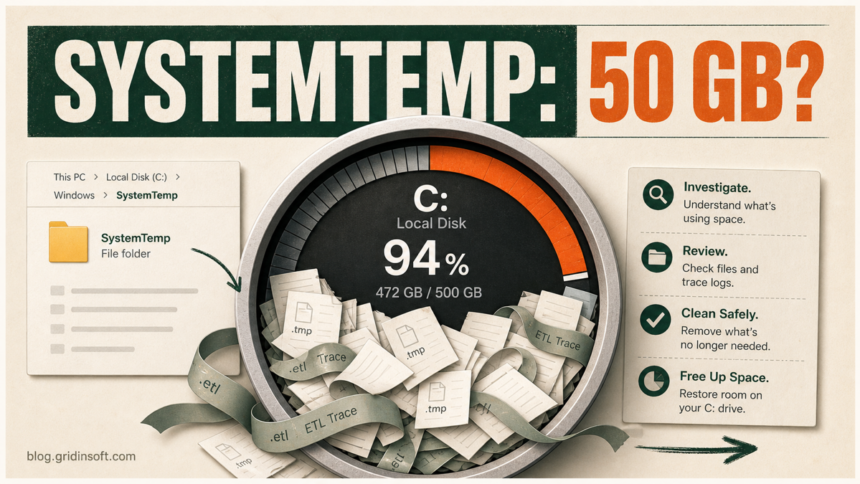
C:\Windows\SystemTemp is a legitimate protected temporary folder used by processes running as the Windows SYSTEM account. Its presence is not evidence of malware. However, if SystemTemp is filling up with tens of gigabytes or regains space soon after cleanup, a service, updater, diagnostic trace, or other process is writing files faster than Windows removes them.
Do not delete the SystemTemp folder itself, take ownership of it, weaken its permissions, or redirect it as a generic fix. Recover space with Windows cleanup tools first, then identify what creates the new files. That distinction prevents a short-lived cleanup from hiding the actual cause.
Why Windows Uses C:\Windows\SystemTemp
Microsoft’s GetTempPath2 API returns C:\Windows\SystemTemp for processes running as SYSTEM. The folder has restrictive access controls so ordinary users and processes cannot redirect privileged temporary-file operations to a less secure location.
This also explains why the folder may appear after a Windows, .NET, driver, security, or application update even if you did not notice it before. The location is normal; uncontrolled growth is the part that needs investigation.
Recover Space Without Deleting the Folder
- Record the current size and time. In File Explorer, open
C:\Windows, right-clickSystemTemp, and note its size. Take another measurement 10-15 minutes later. A stable 2 GB folder and a folder gaining 2 GB every few minutes are different problems. - Use Windows cleanup first. Open Settings > System > Storage > Temporary files or Cleanup recommendations. Review each category before removing it. Disk Cleanup can also remove temporary system files. Our broader guide explains how to free up disk space on Windows safely.
- Restart Windows. A restart closes many installers and trace sessions and releases files that were legitimately in use.
- Inspect the contents before manual deletion. Sort by Date modified, Size, and Type. Note repeated filenames, extensions, and subfolder names. Do not open unknown executables.
- If emergency space is still needed, remove only stale contents. From an administrator account, select old files inside SystemTemp after the restart. Skip anything Windows says is in use. Never delete the SystemTemp directory itself, force-delete locked files, or change its permissions merely to make deletion easier.
If the folder immediately begins growing again, stop repeating the delete cycle. The writer must be identified.
What the File Types Can Tell You
| What you see | Likely meaning and next check |
|---|---|
Many large .etl files |
Event Tracing for Windows logs. Rapid growth can point to a diagnostic or logging session, service, driver, or updater that is stuck or unusually verbose. Identify the writer before stopping anything. |
Repeated .tmp files |
Generic temporary data. Names alone rarely identify the owner; compare creation times with Windows Update, driver, app, and security-tool activity. |
.dmp files |
Crash dumps. Repeated new dumps usually mean the associated app, service, or driver keeps crashing. The filename and matching Event Viewer entries can narrow the cause. |
.cab, .msi, or installer-like folders |
An update or installer may be staging or failing repeatedly. Check update history and the relevant vendor’s logs before deleting active setup data. |
Unknown .exe, .dll, or scripts |
Do not run them. Check the digital signature, full path, and the process that created them. A file in SystemTemp is not automatically malicious, but executable content deserves verification. |
Find the Process That Keeps Filling SystemTemp
Microsoft Sysinternals Process Monitor shows real-time file-system activity and can filter events by path. It is more useful than guessing from filenames.
- Download Process Monitor from Microsoft Sysinternals and run it as administrator.
- Open Filter > Filter.
- Set Path begins with
C:\Windows\SystemTemp, then choose Include. - Clear the existing display, start capture, and wait until a new large file appears or the folder size increases.
- Check the Process Name, PID, operation, target path, and event properties for the write events.
- Stop the capture. Verify the process’s full image path and digital signature before changing or uninstalling anything.
A Microsoft process or a signed driver is not automatically faultless; it can still be part of a broken update or trace loop. Conversely, an unfamiliar process name is not proof of malware. The path, signer, parent process, recent installation history, and recurrence pattern matter together.
Choose the Fix Based on the Writer
- Windows Update or a Microsoft component: finish pending updates, restart, and run the Windows Update troubleshooter if the same setup files return. Do not disable Windows Update services permanently.
- A signed driver or hardware utility: update it from the PC or hardware manufacturer’s official site. If growth began after an update, use the vendor-supported rollback path.
- A third-party application or updater: repair, update, or uninstall that application. Check whether the process continues after a clean restart.
- Repeated crash dumps: use Event Viewer and Reliability Monitor to identify the crashing component. Deleting dumps recovers space but does not stop the crash.
- A trace or logging process: identify the owning application or service before stopping it. Corporate diagnostic and endpoint tools may be managed by an administrator.
If the writer is a specific Windows database rather than general temp data, use the exact-file guide. For example, CapabilityAccessManager.db-wal growth has a separate update-first recovery path.
If the growing item begins with etilqs_, the etilqs file guide explains its SQLite origin, how to identify the program holding it open, and when an unlocked stale file is safe to delete.
When SystemTemp Growth May Need a Malware Check
Large SystemTemp usage alone is not a malware indicator. Add a security check when Process Monitor shows an unsigned or unfamiliar executable, a lookalike system filename from a user profile or download folder, a script launched by an unknown scheduled task, security alerts, blocked connections, or files that return after the related app was removed.
First follow the steps to check whether an executable is safe. You can also submit a suspicious file to the Gridinsoft Online Virus Scanner without running it. If the file already ran or the same activity returns after reboot, perform a full system scan and review startup apps, scheduled tasks, services, and browser changes.
How to Confirm the Problem Is Fixed
- Restart after repairing, updating, or removing the identified writer.
- Record the SystemTemp size immediately after sign-in.
- Use the PC normally for 30-60 minutes and repeat the measurement.
- Confirm that the same large file pattern is not returning and that free space remains stable.
- Keep automatic Storage Sense settings conservative; do not enable automatic deletion of Downloads unless that behavior is intentional.
What Not to Do
- Do not delete
C:\Windows\SystemTempitself. - Do not take ownership or grant ordinary users access to the folder.
- Do not set a different
SystemTemppath with weaker permissions. - Do not force-delete locked files or stop an unidentified service.
- Do not disable telemetry, Event Tracing, Windows Update, or security services broadly because some files use the
.etlextension. - Do not install a random “PC cleaner” to solve a writer-specific problem.
FAQ
Is C:\Windows\SystemTemp a virus?
No. It is a legitimate protected temporary directory for processes running as SYSTEM. A suspicious file inside it can still require investigation, but the folder itself is normal.
Can I delete files inside SystemTemp?
Use Windows Temporary files, Cleanup recommendations, Storage Sense, or Disk Cleanup first. If space is critically low, stale contents can usually be removed after a restart, but skip locked files and never delete the folder or change its permissions just to force cleanup.
Why does SystemTemp keep filling up after I clear it?
A running service, updater, crash loop, or trace session is creating new files. Capture file writes with Process Monitor and fix the identified component instead of repeatedly deleting its output.
Are ETL files in SystemTemp safe?
ETL files are Windows event-trace logs, not executable programs. They may be normal, but rapid or continuous ETL growth can indicate a logging or diagnostic problem. Identify the process writing them before disabling or stopping a trace.
References
- Microsoft. “GetTempPath2A function (fileapi.h).” Microsoft Learn, accessed July 30, 2026. learn.microsoft.com.
- Microsoft. “Free up drive space in Windows.” Microsoft Support, accessed July 30, 2026. support.microsoft.com.
- Mark Russinovich. “Process Monitor v4.04.” Microsoft Sysinternals, updated June 17, 2026, accessed July 30, 2026. learn.microsoft.com.