

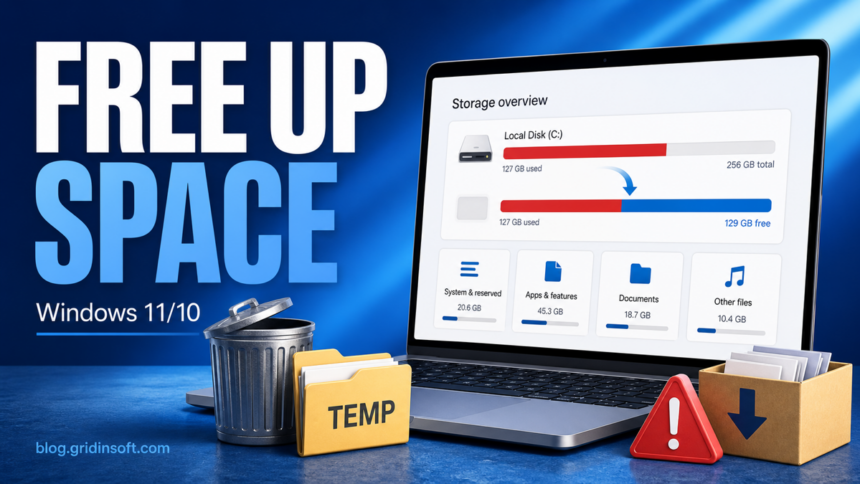
If your Windows PC says the C: drive is almost full, start with the built-in Storage page instead of downloading a random “PC cleaner.” On Windows 11 and Windows 10, the safest order is: check Storage usage, remove temporary files, empty the Recycle Bin, uninstall large unused apps, move personal videos/photos off the system drive, and only then consider advanced options such as hibernation, restore points, or external storage. If free space disappears again after cleanup, check for Windows Update leftovers, a runaway Temp folder, backup/sync loops, or malware.
Fastest Safe Cleanup Order
- Open Settings > System > Storage and check which category is using the most space.
- Use Cleanup recommendations or Temporary files first. Review each checkbox before deleting.
- Empty the Recycle Bin after you are sure you no longer need those files.
- Sort installed apps by size and remove games, launchers, trials, and tools you do not use.
- Move large videos, ISO files, installers, archives, and old projects to another drive or cloud storage.
- Turn on Storage Sense only after checking its Downloads and cloud-file rules.
- If the drive fills again by itself, investigate the cause before deleting more files.
Check What Is Filling the C: Drive
Go to Start > Settings > System > Storage. Windows groups disk usage into Apps, Temporary files, Documents, Pictures, Videos, Other, and System & reserved. This view tells you where to act first instead of guessing.
If Temporary files or Windows Update Cleanup is large, use Storage cleanup. If Apps is large, remove unused apps or games. If Other is large, open File Explorer and sort folders by size to find installers, archives, virtual machines, game recordings, and old downloads.
Use Cleanup Recommendations on Windows 11
Windows 11 has a modern cleanup flow that is usually safer than manually deleting folders. Open Settings > System > Storage > Cleanup recommendations. Review the sections for temporary files, large or unused files, files synced to the cloud, and unused apps.
Do not select everything automatically. Read each item first:
- Windows Update Cleanup is usually safe after updates are working normally.
- Recycle Bin is safe only if you do not need to restore deleted files.
- Downloads can contain installers, documents, invoices, photos, or recovery files. Check it manually before deleting.
- Previous Windows installation(s) frees a lot of space, but removes your easy rollback path to the previous Windows version.
Use Storage Sense, But Configure It First
Storage Sense can remove temporary files and old Recycle Bin items automatically. In Windows 11/10, open Settings > System > Storage > Storage Sense, turn it on, and choose how often it should run.
The important part is the cleanup schedule. Keep automatic deletion conservative if you often store work in Downloads. For OneDrive or another cloud provider, understand the difference between a file that is online-only and a file that is deleted. Online-only cloud files save local disk space while remaining available when you have network access.
Run Disk Cleanup for System Files
Disk Cleanup still exists and is useful when you need older system cleanup categories. Search for Disk Cleanup, open it, choose the C: drive, and select Clean up system files. After it recalculates, review the categories and delete only the items you understand.
| Disk Cleanup item | What to know before deleting |
|---|---|
| Windows Update Cleanup | Usually safe after Windows is stable, but may require a restart. |
| Previous Windows installation(s) | Can free many gigabytes, but removes the simple rollback option. |
| Device driver packages | Usually safe when hardware works normally; avoid during driver troubleshooting. |
| Thumbnails | Safe; Windows rebuilds them later. |
| Downloads | Risky unless you reviewed the folder yourself. |
Remove Large Apps and Games
Open Settings > Apps > Installed apps and sort by size. Large games, launchers, video editors, Android emulators, virtual machine tools, and old trial software often free more space than deleting browser cache.
If an app looks unfamiliar, do not uninstall it only by name. Search the publisher, check whether it came with a driver or device, and make a restore point when you are unsure. For suspicious apps or installers, upload the file to the Gridinsoft Online Virus Scanner or scan the computer before removing related files manually.
Move Personal Files Instead of Deleting Them
Videos, photos, downloads, virtual machine images, ISO files, game clips, and old project folders are usually the biggest safe wins. In File Explorer, open Downloads, Videos, Pictures, and Documents, switch to Details view, and sort by size.
Move files you want to keep to an external SSD, another internal drive, or a cloud folder. After moving them, open a few files from the new location before deleting the originals from C:. If you use OneDrive, right-click large synced folders and choose Free up space to make local copies online-only instead of deleting the cloud copy.
When the C: Drive Is Still Full After Deleting Files
If the free-space number barely changes after cleanup, one of these is usually happening:
- The files are still in the Recycle Bin.
- A sync app is downloading cloud files back to the PC.
- Windows Update, Microsoft Store, or a game launcher is rebuilding a cache.
- A backup tool is saving restore images on the same system drive.
- Another Windows user account has large files under its profile.
- Malware, a broken app, or a log file is generating data continuously.
If System & reserved grows while free space disappears, inspect the exact cause before deleting more files. On affected Windows 11 systems, an oversized CapabilityAccessManager.db-wal file needs an update-first fix and cautious post-update recovery rather than general cleanup.
If C:\Windows\SystemTemp is the folder growing instead, follow the SystemTemp safe-cleanup and writer-tracing guide. Keep the protected folder in place, clear space conservatively, and identify the process recreating files before changing a service or updater.
If the large item is named etilqs_ followed by random characters, use the etilqs file tracing and safe-deletion steps to find the SQLite-using application before clearing it.
Check Settings > System > Storage again after a restart. If the same category grows rapidly, focus on that category instead of running cleanup repeatedly.
Advanced Space Savers: Use Carefully
These options can free space, but they should not be your first step:
| Option | When it makes sense |
|---|---|
Disable hibernation with powercfg /hibernate off |
Useful on desktops or systems where you never use Hibernate or Fast Startup. It removes hiberfil.sys. |
| Delete old restore points | Useful when System Restore is using too much space, but keep at least one recent restore point before major changes. |
| Move default save locations | Useful when you have a second internal drive for new documents, photos, videos, and apps. |
| Compress the OS drive | Use only when you understand the tradeoff. Storage cleanup and moving files are usually cleaner options. |
What Not to Delete Manually
A full drive can make risky advice look tempting. Avoid manually deleting files from these locations unless you are following a specific vendor repair procedure:
C:\Windows\System32C:\Windows\WinSxSC:\Program FilesandC:\Program Files (x86)folders for apps you have not uninstalled properly- driver folders, recovery partitions, EFI partitions, and files whose purpose you do not understand
If Windows system files are corrupt or the disk fills because of strange repeated errors, fix the cause. Related guides on Gridinsoft cover computer freezing, Svchost.exe application errors, and broader PC cleanup and speed-up steps.
When to Scan for Malware
Disk cleanup is not a malware-removal method, but a sudden full drive can be a symptom. Scan the PC if storage disappears overnight, unknown apps keep returning, browser caches refill with suspicious files, Windows Security or another antivirus reports repeated detections, or you see strange folders in AppData, Temp, Startup, or Downloads.
Use Windows Security or Gridinsoft Anti-Malware for a full scan, then clean up leftover temporary files after the threat is removed. Deleting random folders first can remove evidence and leave the startup entry or malicious task behind.
Final Checklist
- Keep at least 10-15% free space on the system drive when possible.
- Use Storage cleanup before third-party cleaner apps.
- Review Downloads and cloud-file settings before automatic deletion.
- Move personal files and large projects instead of deleting important data in a hurry.
- Investigate rapidly growing Temp, log, backup, or unknown folders.
FAQ
What is the safest way to free up space on Windows 11?
Use Settings > System > Storage first, then Cleanup recommendations or Temporary files. Review Downloads, Previous Windows installation(s), and cloud files before deleting them.
Is Disk Cleanup still available in Windows 11?
Yes. Search for Disk Cleanup from Start. Microsoft now emphasizes Storage settings and Cleanup recommendations, but Disk Cleanup can still remove temporary files and system cleanup categories.
Why is my C: drive still full after I deleted files?
The files may still be in the Recycle Bin, a sync app may be redownloading them, another user profile may contain large files, or an app may be rebuilding cache/log files. Recheck Storage usage by category after a restart.
Should I delete everything in Downloads?
No. Downloads often contains installers, documents, photos, exports, and recovery files. Sort it by size and date, move anything important, then delete only what you recognize.
Can malware make a drive run out of space?
Yes, malware or a broken unwanted app can create repeated logs, cache files, downloads, or corrupted data. If free space disappears again quickly, run a full security scan before deleting more files manually.
References
- Microsoft Support. “Free up drive space in Windows.” Microsoft, accessed June 1, 2026. https://support.microsoft.com/en-us/windows/free-up-drive-space-in-windows-85529ccb-c365-490d-b548-831022bc9b32
- Microsoft Support. “Manage drive space with Storage Sense.” Microsoft, accessed June 1, 2026. https://support.microsoft.com/en-us/windows/manage-drive-space-with-storage-sense-654f6ada-7bfc-45e5-966b-e24aded96ad5
- Microsoft Support. “Free up space for Windows updates.” Microsoft, accessed June 1, 2026. https://support.microsoft.com/en-us/windows/free-up-space-for-windows-updates-429b12ba-f514-be0b-4924-ca6d16fa1d65



Polina Lisovskaya, thanks for the article post.Really thank you! Great.