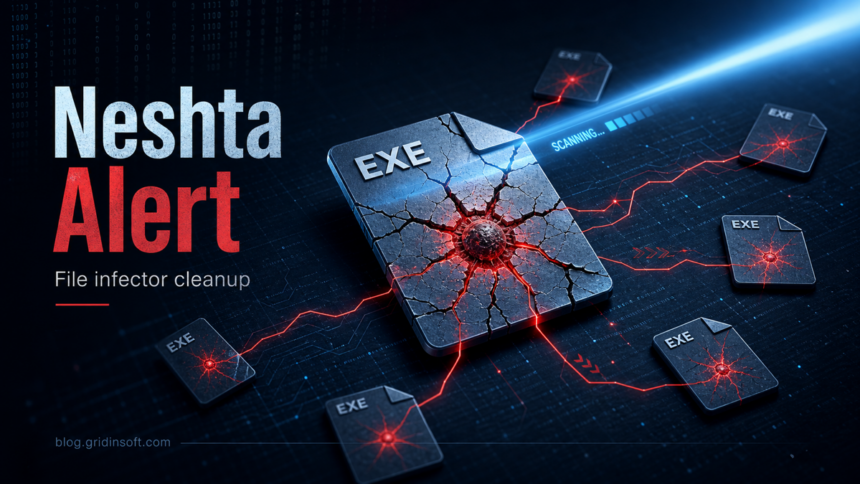
Neshta.Virus.FileInfector.DDS is a Malwarebytes detection for a Neshta-style file infector. Treat it differently from a normal one-file trojan: a true file infector can modify many Windows .exe files, so the first job is to stop running unknown executables, scan the whole system, and decide whether infected programs can be repaired or must be restored from clean sources.
If you saw only one detection in a game, Python tool, installer, archive, or $Recycle.Bin path and other reputable scanners disagree, it may be a false positive or a deleted-file hit. If you see many detections across unrelated folders, changed executable timestamps, or a suspicious svchost.com file in the Windows directory, handle it as an active infection until proven otherwise.
What the Neshta alert means
Malwarebytes uses Neshta.Virus.FileInfector.DDS for a family of file-infector detections. The related Microsoft family name is Virus:Win32/Neshta. In practical terms, the alert means the scanner found code or behavior associated with malware that can attach itself to executable files instead of sitting in one obvious dropped file.
That matters because deleting one detected file may not be enough. A file infector can leave damaged applications behind, and removing infected executables too aggressively can break installed software. Your cleanup should preserve evidence, avoid launching more EXE files, and then scan every drive that could contain executable files.
For related Gridinsoft file-infector guidance, compare this alert with Win32/Expiro cleanup and Virus:Win32/Floxif.H removal. If the name appears in Microsoft Defender rather than Malwarebytes, the Microsoft Defender detection-name guide explains how to read the platform, family, and suffix parts of the alert.
Immediate steps before cleanup
- Do not open more installers, cracks, game mods, portable apps, or unknown EXE files. Each run can give a real file infector another chance to modify files.
- Disconnect removable and shared drives. Unplug USB drives and disconnect network shares until the main system has been scanned.
- Export the detection log. Keep the Malwarebytes or antivirus history so you can compare file paths, detection names, and whether the same folder is repeatedly affected.
- Scan the full system, not just the detected folder. Use Microsoft Defender full scan and a second-opinion scan such as Gridinsoft Anti-Malware to check startup areas, system folders, temporary folders, and user downloads.
- Quarantine first when possible. Quarantine gives you a recovery path if a business app, game component, or developer tool was flagged incorrectly.
Check the Neshta indicators
Classic Neshta variants are known for a fake svchost.com body and an EXE open-command registry change. You do not need to edit the registry manually to read these clues, but they are useful for deciding whether the alert is more than a single-file false positive.
- Look for
%SystemRoot%\svchost.com. Do not confuse it with the legitimate Windowssvchost.exe. - Check whether
HKCR\exefile\shell\open\commandhas been changed to launch%windir%\svchost.combefore the requested executable. - Review whether many unrelated
.exefiles suddenly have new modification dates or unusual size changes. - Watch for detections on external drives, old setup folders, game libraries, emulator folders, and developer package caches.
If you are not comfortable checking registry values, skip manual editing and let your security tools repair the change. A mistaken edit under the EXE open command can prevent programs from launching.
If Neshta is detected in Recycle Bin or $Recycle.Bin
A Neshta alert under $Recycle.Bin usually means the scanner found a deleted executable that is still stored in the Recycle Bin. It does not prove that the Recycle Bin folder itself is the malware. Do not restore the file just to test it; save the detection path, keep the file quarantined or deleted, and scan the whole system.
- One deleted-file hit: treat it as lower risk than a system-wide outbreak, but still run a full scan and check whether the same file appears outside Recycle Bin.
- Many executable detections: if Neshta appears in Program Files, Downloads, game folders, portable app folders, or external drives, handle it as an active file-infector case.
- Need the deleted app back? reinstall it from a clean official installer instead of restoring the old
.exefrom Recycle Bin. - After saving evidence: empty Recycle Bin or let the antivirus remove the item. If the alert returns after that, look for startup entries, infected copies on another drive, or a program that keeps recreating the file.
When it may be a false positive
Single-file Neshta.Virus.FileInfector.DDS detections sometimes appear in legitimate program folders, game libraries, Python package caches, or large installers. That does not automatically make the file safe, but it changes the order of operations. If the isolated item is JxrDecApp.exe inside a Codex or jxrlib dependency tree, use the JxrDecApp.exe false-positive decision checklist before restoring it.
- Do not restore the file immediately.
- Check whether the file came from the vendor’s official site or a trusted update channel.
- Upload the specific file to a scanner such as Gridinsoft Online Virus Scanner and compare the result with Microsoft Defender and your local antivirus.
- If only one engine flags it and the file is from a trusted source, submit the sample to the vendor that flagged it and wait for a detection update.
- If several engines agree or the file came from a crack, repack, mod mirror, or unknown downloader, keep it quarantined and scan the whole system.
Clean the system safely
For a real Neshta infection, the safe goal is not just to delete detections. You need a clean boot path, clean executable files, and a backup decision that does not reintroduce infected programs.
- Run a full scan and remove or quarantine active malware.
- Reboot and scan again. Reappearing detections usually mean an infected executable, startup item, or external drive is still in play.
- Reinstall affected applications from official installers instead of restoring old EXE files from the infected machine.
- Scan removable drives before opening anything from them.
- Back up documents, photos, and project files separately from executable files. Avoid backing up
.exe,.scr,.com, and unknown scripts from the infected environment. - Use a clean Windows reinstall if system tools cannot launch, detections cover many program folders, or you cannot tell which executables were modified.
After uninstalling the suspicious app or deleting the visible threat, use Gridinsoft Anti-Malware to check hidden files, startup entries, scheduled tasks, bundled apps, browser changes, and other persistence points that can restore malware.
Download Anti-MalwareWhat not to do
- Do not bulk-delete every detected program folder without checking whether you need clean installers, license data, or project files first.
- Do not restore a quarantined EXE just because Windows or a game launcher complains that a file is missing.
- Do not run random online “Neshta removal” tools or cracked repair utilities.
- Do not reconnect USB drives until the main system is stable and scanned.
Prevention after recovery
After cleanup, keep only software from official sources, remove old crack/keygen archives, and keep real-time protection enabled. If the alert came from a game mod, emulator add-on, or developer package cache, rescan the exact download source before restoring it. A file infector is a strong reason to retire old executable backups and rebuild programs from clean installers.
FAQ
Is Neshta.Virus.FileInfector.DDS always malware?
No. It is a malware detection name, but a single hit can still be a false positive. Treat multiple detections across unrelated executable files as much more serious than one isolated detection in a known app folder.
Is svchost.com the same as svchost.exe?
No. svchost.exe is a legitimate Windows process name. svchost.com in the Windows directory is a known Neshta-style indicator and should be investigated.
What if Neshta is found in Recycle Bin
Record the full path, do not restore the deleted executable, and run a full scan. A single hit under $Recycle.Bin can be a leftover deleted file, while repeated detections across normal program folders point to a real file-infector problem.
Can quarantine fix a Neshta infection?
Quarantine can stop detected files from running, but it may not repair every infected executable. You still need a full-system scan, a reboot-and-rescan pass, and clean installers for damaged applications.
Should I reinstall Windows?
Consider reinstalling Windows when detections appear in many program folders, system files are damaged, security tools cannot start, or you cannot separate clean executable files from infected ones.
References
- Microsoft Security Intelligence. “Virus:Win32/Neshta.C threat description.” Microsoft, published January 11, 2011, updated September 15, 2017, accessed June 7, 2026. https://www.microsoft.com/en-us/wdsi/threats/malware-encyclopedia-description?Name=Virus%3AWin32%2FNeshta.C