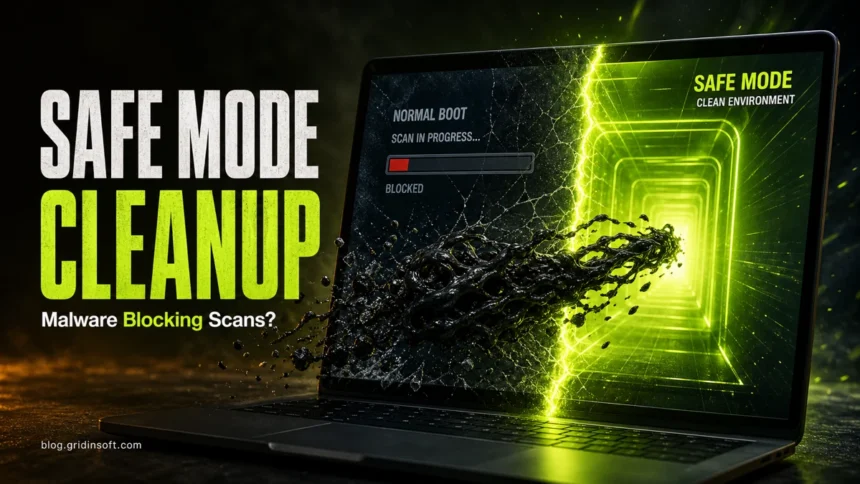
If malware blocks antivirus scans, closes security tools, or comes back after removal, Safe Mode can give you a cleaner Windows session for the first cleanup pass. Boot into Safe Mode, remove obvious startup threats, run a trusted scan, then reboot normally and scan again. If Defender, installers, or admin tools still fail, move to Microsoft Defender Offline or a scanner prepared on a clean device instead of downloading random “virus remover” tools.
How to remove malware in Safe Mode
- Use Safe Mode when normal Windows is unstable or malware blocks scans. It starts Windows with fewer drivers, services, startup apps, and browser components.
- Use Safe Mode with Networking only when you need trusted downloads or updates. Stay offline if redirects, proxy changes, or security-site blocks are part of the infection.
- Use Microsoft Defender Offline when the same threat returns or scans will not complete. It runs outside the normal Windows session and is better for stubborn boot-time interference.
- Check Windows restrictions before blaming malware. S mode, Smart App Control, another antivirus, damaged installers, firewall rules, proxy/hosts changes, and Defender exclusions can all look like “the virus blocks my antivirus.”
- After cleanup, scan in normal mode and review accounts. If the infection came from a crack, mod, fake CAPTCHA, archive, or suspicious installer, treat password/session theft as a separate step.
Which cleanup mode should you use?
| Situation | Best first step |
|---|---|
| PC boots normally, but pop-ups or unknown apps keep returning | Run a full scan in normal Windows, then remove startup apps, browser extensions, scheduled tasks, proxy changes, and unknown uninstallers. |
| Antivirus scan, installer, or cleanup tool closes immediately | Boot into Safe Mode, check Windows restrictions and policy leftovers, then try a trusted scanner again. If the tool closes before it opens, also check for an IFEO Debugger hijack that points the executable to taskkill.exe or another program. |
| Safe Mode works, but networking redirects or security sites are blocked | Stay offline. Download Microsoft Safety Scanner or another trusted installer on a clean device and transfer it by USB. |
| The same detection returns after removal | Run Microsoft Defender Offline, then reboot normally and scan again with updated protection. |
| Admin tools are disabled, offline scans keep finding threats, or rootkit symptoms remain | Back up personal files carefully, check the USB malware removal decision guide, and consider a clean Windows install from trusted media. |
Safe Mode malware removal steps
- Boot into Safe Mode from Windows Startup Settings. Pick the plain Safe Mode option first; use Safe Mode with Networking only when you need internet access for trusted downloads or definition updates.
- Uninstall suspicious apps installed shortly before the infection started, especially fake browser updates, cracked-software helpers, “web protection” apps, unknown VPN/proxy tools, and bundled antivirus trials.
- Remove obvious malicious downloads only when you know the source path. Do not delete random Windows files, drivers, or registry keys just because they look unfamiliar.
- Update Microsoft Defender or your trusted security tool, then run a full scan. If the scan will not start or the PC restarts before it finishes, use Microsoft Defender Offline or Microsoft Safety Scanner from a clean download.
- Check Startup Apps, Task Scheduler, browser extensions, proxy settings, the hosts file, firewall rules, unknown services, and Defender exclusions for suspicious changes.
- Reboot normally, update Windows and the browser, then run another full scan in normal mode. Some threats are easier to see when regular startup behavior is active again.
When Safe Mode is not enough
Safe Mode is useful, but it is still Windows. If a threat loads early, tampers with security settings, or comes back after quarantine, an offline scan is safer than repeating the same Safe Mode scan. Microsoft Defender Offline reboots the PC into a separate scanning environment, while Microsoft Safety Scanner is a fresh on-demand scanner that should be downloaded again when needed because it expires after download.
- Use Defender Offline when Defender detects a threat but cannot remove it, the same item returns, or scans stop before completion.
- Use Safety Scanner from a clean USB when the infected browser blocks security downloads or networking is not trustworthy.
- Escalate to reinstall planning when offline scans keep finding threats, security apps stay disabled, or you suspect bootkit/rootkit behavior.
If security tools or installers are blocked
If your browser closes when you search for antivirus, use the symptom-specific guide to choose between a normal Gridinsoft Anti-Malware scan and restoring access when the installer itself cannot launch.
When a scanner, antivirus installer, or cleanup utility closes immediately, do not start by downloading random renamed copies. First decide whether Windows itself is blocking the app or whether active malware is interfering.
- Check the boring causes first. Windows in S mode restricts apps outside Microsoft Store, Smart App Control can block unknown or unsafe files, and a third-party antivirus may put Microsoft Defender into passive mode.
- Use a clean download path. Get installers from the vendor’s official site. If the infected browser redirects downloads or blocks security sites, download the installer on another trusted device and move it by USB.
- Try Safe Mode with Networking only when needed. If networking itself looks hijacked, keep the PC offline and run Microsoft Defender Offline or a freshly downloaded Microsoft Safety Scanner instead.
- Look for policy leftovers. Check Startup Apps, scheduled tasks, unknown services, proxy settings, the hosts file, firewall rules, and Microsoft Defender exclusions. Remove only entries you can identify or back up first.
- Scan with Gridinsoft Anti-Malware. Once Windows can launch tools again, install Gridinsoft Anti-Malware, update its detection database, and run a Full Scan in normal mode. Review the results, complete cleanup for detected threats, and restart Windows.
- Treat account theft separately. If the infection came from a game mod, crack, fake CAPTCHA, or suspicious archive, follow the infostealer recovery checklist after local cleanup.
- Escalate when cleanup keeps failing. If offline scans still find threats, security apps remain disabled, or admin tools keep closing, prepare a clean Windows install USB from a trusted PC and use the clean-install checklist.
After uninstalling the suspicious app or deleting the visible threat, use Gridinsoft Anti-Malware to check hidden files, startup entries, scheduled tasks, bundled apps, browser changes, and other persistence points that can restore malware.
Download Anti-MalwareFAQ
Does Safe Mode remove viruses by itself?
No. It only starts Windows with fewer components so cleanup is easier.
Why does my antivirus installer close immediately?
It can be active malware, but it can also be S mode, Smart App Control, another antivirus, a damaged installer, or a policy left behind by a previous infection. Verify the source, try Safe Mode with Networking if needed, and use an offline scan if tools still close.
Can I run Microsoft Defender in Safe Mode?
Sometimes, but do not rely on the Windows Security app behaving the same way in Safe Mode. If Defender scans will not start, the scan stops before completion, or the same detection returns, use Microsoft Defender Offline or Microsoft Safety Scanner instead.
When should I use Windows Defender Offline?
Use it when malware may be hiding outside normal startup, interfering with scans, or returning after quarantine. Defender Offline restarts the PC into a separate scan environment, so it is often a better next step than repeating another Safe Mode scan.
Is Safe Mode with Networking safe during malware cleanup?
Use it only when you need internet access for trusted downloads or updates. If the browser redirects, proxy settings look changed, or security sites are blocked, stay offline and use Defender Offline or a scanner downloaded from a clean device.
Should I delete registry entries manually?
Only if you know exactly what they are and have a backup. A wrong registry edit can break Windows.
Still seeing the same malware after Safe Mode cleanup? Use our factory reset malware guide to decide whether a normal reset is enough or a clean Windows reinstall is safer.
References
- Microsoft Support. “Windows Startup Settings.” Microsoft, accessed June 7, 2026. https://support.microsoft.com/en-us/windows/windows-startup-settings-1af6ec8c-4d4a-4b23-adb7-e76eef0b847f
- Microsoft Support. “Virus and threat protection in the Windows Security app.” Microsoft, accessed June 7, 2026. https://support.microsoft.com/en-us/windows/virus-and-threat-protection-in-the-windows-security-app-1362f4cd-d71a-b52a-0b66-c2820032b65e
- Microsoft Learn. “Microsoft Safety Scanner Download.” Microsoft, updated April 4, 2025; accessed June 7, 2026. https://learn.microsoft.com/en-us/defender-endpoint/safety-scanner-download
- Microsoft Support. “Smart App Control Frequently Asked Questions.” Microsoft, accessed June 7, 2026. https://support.microsoft.com/en-gb/windows/smart-app-control-frequently-asked-questions-285ea03d-fa88-4d56-882e-6698afdb7003