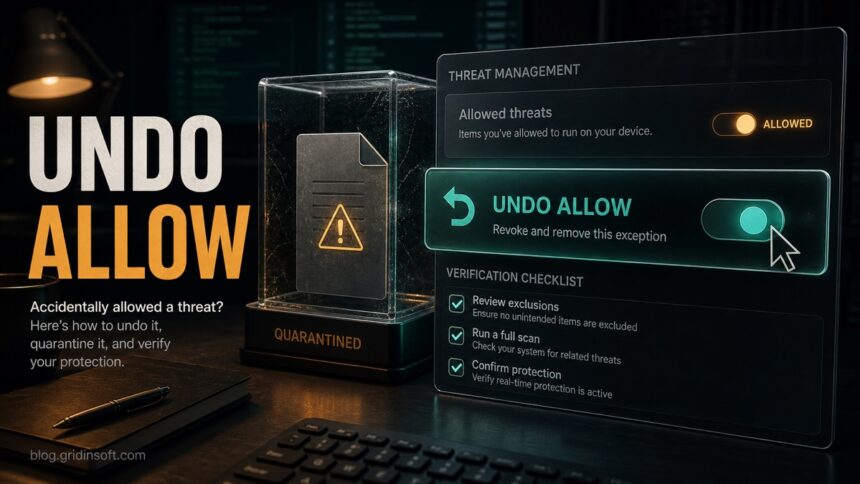
If you accidentally allowed a threat in Windows Defender, reverse the allow entry first, then check exclusions before you trust the result. Open Windows Security, go to Virus & threat protection, open Allowed threats, select the item, and choose Don’t allow if the option is available. After that, remove any suspicious Defender exclusions, update security intelligence, run a full scan, and treat a file that already ran as a cleanup/persistence check rather than a harmless click.
Undo the Allow Decision First
- Open Windows Security.
- Select Virus & threat protection.
- Under the current threats area, open Allowed threats or the relevant Protection history card.
- Select the threat you allowed and choose Don’t allow or remove the allow entry.
- Go to Virus & threat protection settings and review Exclusions.
- Update Microsoft Defender, run a full scan, and investigate the original file path.
If you clicked Allow because a file told you to turn off Defender, stop before adding more exclusions. Use the Windows 11 Defender temporary-disable guide only for trusted, short tasks; unknown downloads should be removed and scanned.
This guide is for the common panic moment: you meant to quarantine or remove a detection, clicked Allow on device, and now Windows Security says the threat or app will not be remediated in the future. The fix is not only finding the hidden “Allowed threats” list. You also need to make sure the click did not leave a file, folder, process, or Defender exclusion that lets the same item come back.
What “Allow on device” changes
When you allow a Defender detection, you are telling Windows Security not to remediate that specific detected item in the same way next time. That is different from quarantine. Quarantine isolates the detected object; allow leaves the decision in your security history and can make a risky file easier to run again.
It is also different from a Defender exclusion. An exclusion is a broader rule for a file, folder, file type, or process. Microsoft warns that exclusions can leave a device and data vulnerable because Defender will no longer check the excluded item during real-time scanning. That is why a mistaken allow should always be followed by an exclusions review, especially if the alert came from a crack, repack, fake update, unknown installer, browser download, or temporary folder.
How to undo an allowed threat in Windows Defender
Use the Windows Security app first. The exact labels vary a little between Windows 10 and Windows 11 builds, but the path is usually close to this:
- Press Start, type Windows Security, and open it.
- Choose Virus & threat protection.
- Look under the scan/status area for Allowed threats. If you do not see it, open Protection history and expand the relevant threat card.
- Select the item you allowed.
- Choose Don’t allow, Remove, or the closest available action that revokes the allow decision.
- Restart Windows Security and check the list again.
If the list is empty, do not assume everything is clean yet. Microsoft notes that Protection History entries can disappear after two weeks, and Windows Security may also show old history differently after updates. Continue with the exclusion and scan checks below.
Check and remove suspicious Defender exclusions
A mistaken allow entry and a malicious exclusion are not the same thing, but they often appear in the same user story: a risky installer asks the user to “allow” it, then creates exclusions so security tools stop checking its folder. Review exclusions manually:
- Open Windows Security > Virus & threat protection.
- Under Virus & threat protection settings, select Manage settings.
- Scroll to Exclusions and choose Add or remove exclusions.
- Remove anything you do not recognize, especially broad folders such as downloads, desktop, temp, game/mod folders, or whole drives.
- Be extra cautious with exclusions pointing to
%USERPROFILE%\Downloads,%TEMP%,%LOCALAPPDATA%,C:\ProgramData, browser profile folders, or a newly created app folder.
Do not create a new exclusion just to make the alert go away. If you believe the file is clean, keep it quarantined while you verify the publisher, hash, source URL, and detection spread. Our false-positive reporting guide explains what evidence to collect before restoring a file.
Use Protection History without clearing useful evidence
Protection History is where Windows Security shows recent actions Defender took, including threats found, quarantined items, and items that need attention. Expand the card before you clear or dismiss anything. Save these details:
- Detection name and severity.
- Affected item path.
- Action status, such as quarantined, removed, failed, allowed, or action needed.
- Date and time.
- Whether the same detection appears again after a reboot or full scan.
This matters because the same alert can mean very different things. A quarantined browser cache file is usually a different cleanup problem from an executable in %LOCALAPPDATA% that already ran. If you are trying to understand a Defender detection name, use our Microsoft Defender detection names guide as the companion reference. For Trojan:MSIL/Jalapeno!MTB, use the affected-path checks to distinguish a cached download from an installer that ran before deciding whether to restore it.
What if the allowed threat is missing?
If you cannot find the item under Allowed threats or Protection History, use a practical fallback checklist:
- Update Defender security intelligence.
- Run a Full scan, not only Quick scan.
- Search the original download or install location if you remember it.
- Check Defender exclusions for broad or unfamiliar entries.
- Look at recent downloads, browser extensions, startup apps, and scheduled tasks created around the same time.
If the original file is gone and full scans are clean, the allow entry may have been only a stale history problem. If the file is still present, was launched, or the alert returns, treat it as an active cleanup case.
If the file already ran, check for persistence
Allowing a file is more serious when it already executed. Defender may flag the visible file while another component creates persistence, changes browser settings, or adds a startup entry. Check these common places before logging back into sensitive accounts:
| Where to check | Why it matters |
|---|---|
| Startup apps and Task Scheduler | Malware and unwanted apps often relaunch after reboot through a startup entry or scheduled task. |
HKCU\Software\Microsoft\Windows\CurrentVersion\Run |
User-level Run entries can start a hidden helper every time you sign in. |
%APPDATA%\Microsoft\Windows\Start Menu\Programs\Startup |
Shortcut-based persistence can be easy to miss in normal app lists. |
| Browser extensions and notification permissions | A fake alert or malicious download can leave browser pop-ups even after the file is gone. |
| Recent remote-access tools | Unexpected support tools can indicate a scam or hands-on-keyboard compromise. |
If the detection followed a crack, repack, activator, fake update, or unofficial game/mod download, do not restore the file just because one scan later looks quiet. Those packages often bundle several components. For that scenario, our repack safety guide explains the extra risk around unofficial installers and account exposure. If the allowed item was flagged as VirTool:Win32/Obfuscator.XZ, also check whether a packed file is being recreated from Temp, Downloads, Startup, or a scheduled task.
Rescan after removing the allow entry
After you reverse the allow decision and remove suspicious exclusions, update Microsoft Defender and run a full scan. If the alert returns, Windows settings keep changing, or the path points to a script/crack/temp folder, consider Microsoft Defender Offline from Windows Security and a second-opinion cleanup scan.
Gridinsoft Anti-Malware is useful here as a persistence check, not as a promise that no exposure happened. It can help find detections, hidden files, scheduled tasks, startup entries, bundled apps, browser changes, and leftovers that recreate the same security warning after the visible file is gone.
Defender can quarantine the visible file, but repeated alerts may mean a loader, scheduled task, service, browser change, or bundled component is recreating it. Scan the PC before trusting the cleanup.
Scan after reversing AllowIf accounts were used after the suspicious file ran, clean the device first, then change passwords and revoke active sessions where possible. Password changes do not remove malware from Windows, and malware cleanup does not automatically invalidate stolen cookies or tokens.
What not to do after a mistaken Allow click
- Do not disable real-time protection to “finish the install.”
- Do not add a whole folder or drive as an exclusion.
- Do not restore a file just because it is part of a game mod, activator, or repack.
- Do not clear Protection History before saving the detection name and affected path.
- Do not assume a missing history card proves the PC was never exposed.
For Defender settings that keep getting restored or disabled, see our DefenderTamperingRestore guide. That is a separate lane: it focuses on settings tampering rather than a single user-approved threat.
FAQ
Is clicking Allow in Windows Defender dangerous?
It can be. If the file was a real threat, allowing it can stop Defender from remediating that item. Revoke the allow entry, remove suspicious exclusions, update Defender, and scan again. If the file already ran, check startup, scheduled tasks, browser changes, and account risk.
Why can’t I find Allowed threats?
Some Windows Security builds show allowed items under the Virus & threat protection screen, while others expose details through Protection History cards. If the item is gone, remember that Protection History is retained for a limited time and continue with exclusions, full scan, and original-path checks.
Should I remove all Defender exclusions?
Remove exclusions you do not recognize or no longer need. Some managed business systems and developer workflows may use intentional exclusions, but broad exclusions for Downloads, Temp, Desktop, browser profiles, or unknown app folders are risky on a home PC.
Can I restore the file if I think it is a false positive?
Only after you verify the source, publisher signature, hash, and vendor response. Keep the file quarantined while you collect evidence. Do not restore cracks, keygens, repacks, fake updates, or unknown installers just to test them.
Do I need to reinstall Windows?
Not automatically. Reinstall becomes more reasonable if the file ran with admin rights, Defender settings keep changing, unknown remote-access tools appear, sensitive accounts were accessed, or scans keep finding new persistence. Start with evidence: affected path, repeat behavior, startup items, tasks, and browser changes.
References
- Microsoft Support. “Virus & threat protection in the Windows Security app.” Microsoft, accessed June 17, 2026. https://support.microsoft.com/en-us/windows/virus-and-threat-protection-in-the-windows-security-app-1362f4cd-d71a-b52a-0b66-c2820032b65e
- Microsoft Support. “Protection History.” Microsoft, accessed June 17, 2026. https://support.microsoft.com/en-us/windows/protection-history-f1e5fd95-09b4-46d1-b8c7-1059a1e09708
- Super User community. “Accidentally allowed threat in Windows Defender, how do I revoke access?” Stack Exchange, accessed June 17, 2026. https://superuser.com/questions/1663066/accidentally-allowed-threat-in-windows-defender-how-do-i-revoke-access