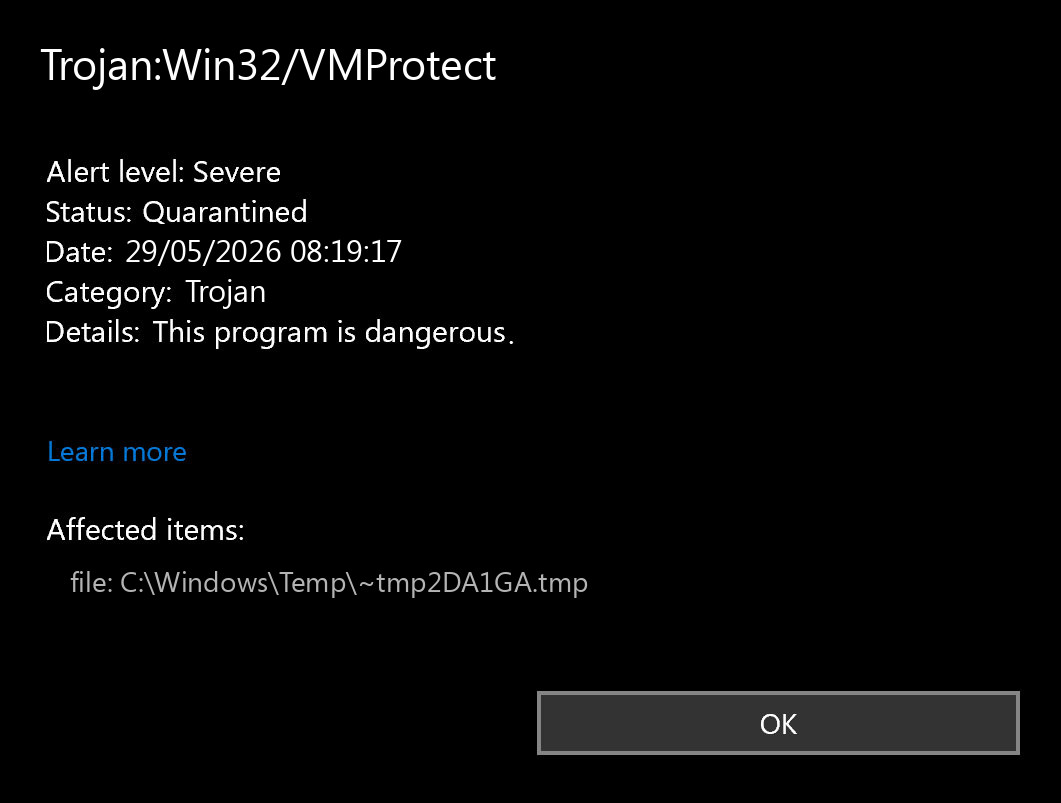
Trojan:Win32/VMProtect is a Microsoft Defender detection for a generic trojan packed or protected with VMProtect. Treat it as dangerous first, because Microsoft says this label is not tied to one fixed malware family and the behavior can vary from sample to sample. The false-positive question is still real: VMProtect is also a legitimate software-protection tool, so your decision should depend on the file source, path, signature, hash, and whether you intentionally installed that program.
Do not restore or whitelist the file just because the word VMProtect appears in the name. Leave the item quarantined, copy the affected path from Protection History, update Defender, and run a full scan. If the file came from a trusted vendor and every verification point supports that it is legitimate, submit it to Microsoft as a possible false positive instead of running it on your main PC.
Quick Verdict
| Detection | Trojan:Win32/VMProtect |
| Platform | Windows / Microsoft Defender Antivirus |
| Main risk | A protected executable may hide trojan behavior from normal inspection. |
| False-positive lane | Possible when the file is a known, signed program from its official source. |
| First action | Keep quarantine, check the path and source, update Defender, and scan the PC. |
What Trojan:Win32/VMProtect Means
Microsoft describes Trojan:Win32/VMProtect as a generic trojan detection for files packed by VMProtect [1]. That wording matters. Defender is not saying that VMProtect itself is the payload. It is saying that the protected file matched a trojan detection where the packer makes the final behavior harder to judge from a quick glance.
VMProtect is a commercial software-protection system that uses virtualization, mutation, and packing to make program code harder to reverse engineer [3]. Those same protection traits can also make malicious files harder to analyze. That is why a file can be both “protected with VMProtect” and still be unsafe.
How to Check if It Is a False Positive
Use this triage before you decide whether to delete the file, keep quarantine, or contest the detection.
- Copy the affected path. In Windows Security, open Virus & threat protection → Protection history, expand the event, and save the path before clearing anything.
- Check where the file came from. A random crack, game cheat, keygen, fake installer, or attachment is high risk. A signed installer from the vendor’s official site is a better false-positive candidate, but still needs verification.
- Inspect the digital signature. Right-click the file → Properties → Digital Signatures. Missing, broken, or unrelated signatures weaken the false-positive argument.
- Compare the hash. If the vendor publishes hashes, compare the SHA-256. If there is no vendor hash, do not treat a clean-looking filename as proof.
- Check the timing. If the alert appeared after a browser pop-up, pirated installer, Discord attachment, or email archive, assume the file is suspicious until scans say otherwise.
- Run a second-opinion scan. Use Gridinsoft Anti-Malware to check for payloads, persistence, suspicious scripts, startup entries, and unwanted browser changes that may be related to the detected file.
- Submit only controlled samples. If the file looks legitimate and business-critical, submit it to Microsoft for analysis as a possible clean false positive. Do not restore it on the main PC just to test it.
When to Remove It Immediately
Remove the detection and scan the system if any of these are true:
- The file is in
Downloads,Temp,AppData, an extracted archive, or an unknown installer folder. - You got it from a crack, mod, cheat, activator, “portable” tool, fake update, or suspicious ad.
- The file has no trusted signature, or the signer does not match the software you expected.
- Defender reports variants such as
Trojan:Win32/VMProtect!MTB,Trojan:Win32/VMProtect!MSR, or another severe suffix and keeps finding related files. - Browser redirects, unknown extensions, startup entries, blocked outbound traffic, or new scheduled tasks appeared around the same time.
Safe Removal Steps
- Leave the item quarantined. Choose remove/quarantine in Defender. Do not restore, exclude, or run the file.
- Update security intelligence. Open Windows Security and update Microsoft Defender definitions, then run a full scan.
- Scan with Gridinsoft Anti-Malware. A second-opinion cleanup scan can find files or persistence left by the packed executable.
- Delete the original source. Remove the downloaded archive, installer, attachment, crack, mod, or folder that introduced the file.
- Check startup persistence. Review Startup Apps, Task Scheduler, Services, browser extensions, and suspicious commands that launch from
AppDataorTemp. - Reboot and rescan. If
Trojan:Win32/VMProtectcomes back, cleanup is incomplete or another file is recreating it. - Change passwords from a clean device if the file ran before quarantine or you saw account, browser, or network symptoms.
After uninstalling the suspicious app or deleting the visible threat, use Gridinsoft Anti-Malware to check hidden files, startup entries, scheduled tasks, bundled apps, browser changes, and other persistence points that can restore malware.
Download Anti-MalwareHow to Submit a Possible False Positive
Microsoft accepts suspicious files and files you believe were incorrectly detected through its Security Intelligence submission site. Microsoft says users can mark a submitted file as clean when they believe it was wrongly identified as malware [2].
Submit a file only when you have a real reason: trusted source, matching vendor signature, expected file path, clean reputation from other checks, and a business need to use it. Keep the file quarantined while you wait. If Microsoft or Defender later changes the verdict, update definitions and scan again before restoring anything.
Why VMProtect Causes Confusion
VMProtect is designed to make code analysis difficult. Legitimate developers use that to protect licensing logic or intellectual property. Malware authors can use the same kind of packing to slow down reverse engineering and hide behavior. That is why the important question is not “Is VMProtect always malware?” but “Do I trust this exact protected file?”
If the file is a known signed app from its official source, a false positive is plausible. If it is a crack, loader, cheat, unknown installer, or attachment, the same VMProtect clue should make you more cautious, not less.
What to Check After Cleanup
- Protection History for the exact path and repeated detections.
- Startup Apps and Task Scheduler for new entries.
- Recently installed apps, browser extensions, and notification permissions.
- Suspicious files in
%TEMP%,Downloads, andAppData. - Account activity if the executable ran before Defender quarantined it.
For related Defender naming context, see our Microsoft Defender detection-name guide. If the alert is another exact label, compare the workflow with Trojan:Script/Wacatac.B!ml, Trojan:Script/Conteban.A!ml, and TrojanDownloader:JS/Nemucod.
FAQ
Is Trojan:Win32/VMProtect definitely malware?
Treat it as malware until verified. Microsoft labels it a severe generic trojan detection packed by VMProtect, but the final decision depends on the exact file source, signature, path, and scan results.
Can a legitimate program use VMProtect?
Yes. VMProtect is a legitimate software-protection tool, but malware can also use protection and packing. A legitimate packer does not automatically make an unknown file safe.
What do !MTB and !MSR mean?
They are Defender suffixes for related VMProtect detections. Do not rely on the suffix alone. Preserve the affected path, quarantine the file, update Defender, and investigate the source.
Should I restore the file if I need the app?
Do not restore it on your main PC just to test it. Verify the source and signature, scan the system, and submit the file to Microsoft if you believe it is a clean false positive.
References
- Microsoft Security Intelligence. “Trojan:Win32/VMProtect threat description.” Microsoft, updated July 24, 2023, accessed May 29, 2026. https://www.microsoft.com/en-us/wdsi/threats/malware-encyclopedia-description?Name=Trojan%3AWin32%2FVMProtect
- Microsoft Learn. “Submit malware, non-malware, and other suspicious files to Microsoft for analysis.” Microsoft, updated April 24, 2024, accessed May 29, 2026. https://learn.microsoft.com/en-us/defender-office-365/submissions-submit-files-to-microsoft
- VMProtect Software. “Introduction: What is VMProtect?” VMProtect, accessed May 29, 2026. https://www.vmpsoft.com/vmprotect/docs/introduction/