Trojan:Win32/Skeeyah.A!rfn is a Microsoft Defender trojan alert that needs a calm, path-based cleanup. If Defender quarantined it from a browser cache, Downloads folder, email attachment, or temporary file and you did not open the file, do not restore it just to test it. Keep the quarantine action, note the affected path, clear the original cache or download, update Defender, and run a full scan.
The detection name alone does not prove that Windows must be reinstalled. It tells you Defender matched a suspicious item. The important questions are where the item was found, whether it was executed, whether the alert returns after cleanup, and whether the PC shows persistence or account-compromise symptoms. If you want a second-opinion cleanup check after Defender quarantines the file, run Gridinsoft Anti-Malware to look for leftover startup entries, hidden droppers, bundled apps, and browser changes.
Quick Verdict
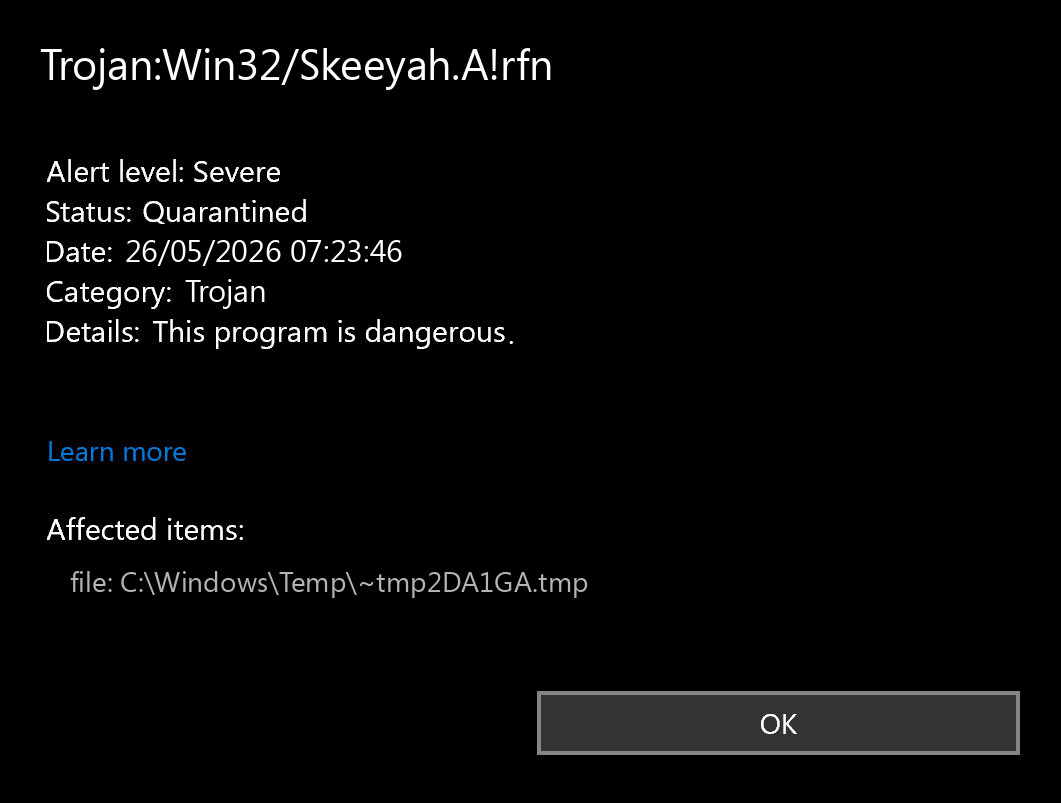
| Detection | Trojan:Win32/Skeeyah.A!rfn |
| Alert source | Microsoft Defender Antivirus / Windows Security |
| Best first action | Keep quarantine or removal, update security intelligence, and run a full scan |
| Browser-cache case | Often means the suspicious item was cached by the browser; it is less serious if it was never opened or executed |
| Reinstall Windows? | Usually no for a one-time quarantined cache/download alert; consider reset or reinstall only when there is evidence of execution, persistence, repeat detections, or compromise |
Why The Browser Cache Location Matters
Many anxious Skeeyah.A!rfn reports start with a path under a browser profile, cache folder, temporary folder, or a file that appeared during a download. That location is important. A cached file can be a blocked download, a malicious HTML page, a script cached by the browser, or a partial file that Defender caught before you used it.
A cache-only detection is not automatically harmless, but it is different from a file that you deliberately ran. Treat it as a warning to remove the source and verify the system, not as proof that every password is stolen or that the drive must be wiped.
| Affected path | What it usually means | What to do |
...ChromeUser Data...Cache..., ...EdgeUser Data...Cache..., or similar |
Browser saved a suspicious web object or partial download | Keep quarantine, clear browser cache, remove the source page/download, rescan |
Downloads, email attachment, archive, game/mod/repack folder |
You likely downloaded a file Defender considers malicious or suspicious | Delete the source package, do not run it, scan the system and the download folder |
AppData, startup folders, unknown executable location |
Higher concern because the file may have been dropped or staged by software | Run full and second-opinion scans, inspect startup entries, consider password rotation if execution is likely |
| Repeated detections after every reboot or scan | Possible remnant, re-download, sync restore, or active persistence | Disconnect from the source, scan in a clean state, and investigate persistence before restoring anything |
What To Do After Defender Quarantines Skeeyah.A!rfn
- Do not restore or allow the item. In Windows Security, open Protection History and confirm the action says quarantined or removed.
- Record the affected path. The path tells you whether the alert came from browser cache, Downloads, Temp, email, an archive, or a program folder.
- Delete the source. Remove the original download, installer, archive, email attachment, or browser cache entry that triggered the alert.
- Update Defender and run a full scan. Open Windows Security, update protection, then use a full scan instead of relying only on the quick scan result.
- Run a second-opinion cleanup scan. Gridinsoft Anti-Malware can help check for related adware, startup entries, hidden scripts, browser changes, or other files Defender did not flag in the same event.
- Check browser and startup persistence. Review suspicious extensions, notification permissions, startup apps, scheduled tasks, and recently installed apps if the alert came from an unknown site or installer.
- Rescan after reboot. If the same detection returns with the same path, something may be restoring the file. If it returns in a new location, broaden the investigation.
What if Trojan:Win32/Skeeyah.A!rfn keeps coming back?
If Trojan:Win32/Skeeyah.A!rfn keeps coming back after quarantine, compare the new alert path with the previous one. The same browser cache, download, email attachment, or archive folder usually means the original source is still being restored, synced, reopened, or extracted again.
If the detection returns in a startup, AppData, scheduled task, or newly created folder after reboot, treat it as higher risk. Check startup entries and recently installed apps before restoring anything, then run a full scan and a second-opinion cleanup scan.
When Should You Change Passwords?
Change important passwords from a clean device if you opened the detected file, ran a cracked installer or unknown executable, saw browser/session hijacking, found new startup items, or noticed account alerts. Prioritize email, password manager, banking, Microsoft, Google, social, and work accounts.
If the alert was a one-time browser-cache detection and Defender quarantined it before you opened anything, password rotation is usually optional. It becomes more important when there is evidence the file executed or when you cannot confidently identify the source.
When Is A Windows Reinstall Justified?
A clean reinstall is not the normal first response to a single Skeeyah.A!rfn cache alert. It can be reasonable when you have multiple signs of compromise: repeated detections from startup locations, unknown admin changes, remote-access tools you did not install, disabled security settings, credential theft symptoms, or malware that returns after full cleanup.
If you decide to reset or reinstall, back up only personal documents and photos first. Avoid backing up cracked installers, unknown scripts, archives that triggered Defender, browser extension folders, and executable files from untrusted sources.
Could It Be A False Positive?
It can be, especially with packed installers, scripts, mods, cracks, development tools, or archived files. But do not prove a false positive by restoring and running the item. Safer checks are:
- Confirm the file came from a trusted vendor and has a valid digital signature.
- Compare the hash with the vendor’s official hash when available.
- Rescan after Defender updates its security intelligence.
- Submit the sample to Microsoft if you are confident it is incorrectly detected.
- Use Gridinsoft Online Virus Scanner for an additional file reputation check when you still have the original file and can handle it safely.
If the file came from a fake update page, pirated game, keygen, random archive, Discord/Telegram attachment, or a browser pop-up download, assume the alert is meaningful until proven otherwise.
Related Defender Guides
If you are comparing several Defender detections, start with the Microsoft Defender detection names guide. Similar exact-alert guides include Trojan:Win32/Suschil!rfn, Trojan:Script/Conteban.A!ml, and Trojan:Script/Wacatac.B!ml. The steps overlap, but the source path and execution evidence should drive your decision.
FAQ
Is Trojan:Win32/Skeeyah.A!rfn always a real infection?
No. It is a Defender detection name for a suspicious item. It may be a real malicious file, a blocked download, a cached web object, or a false positive. Judge it by the affected path, source, signature, and whether the file executed.
Should I delete Protection History?
No. First record the affected path and action. Protection History helps you understand what Defender found. Deleting history without checking the path removes useful evidence.
Can I restore the file to test it?
No. Do not restore or allow a detected item unless you have strong evidence it is clean and you know how to test it safely. For suspected false positives, submit the file for analysis instead.
Why does the detection come back after removal?
The source may still exist, browser sync may restore a cached object, an archive may be rescanned, or another program may be recreating the file. Delete the source, clear cache, reboot, and rescan. Repeated detections in startup or program locations need deeper cleanup.
Another !rfn Defender case: If the alert is Trojan:Win32/Ravartar!rfn, follow this Ravartar exact-detection checklist for Outlook attachment, false-positive, and cleanup decisions.