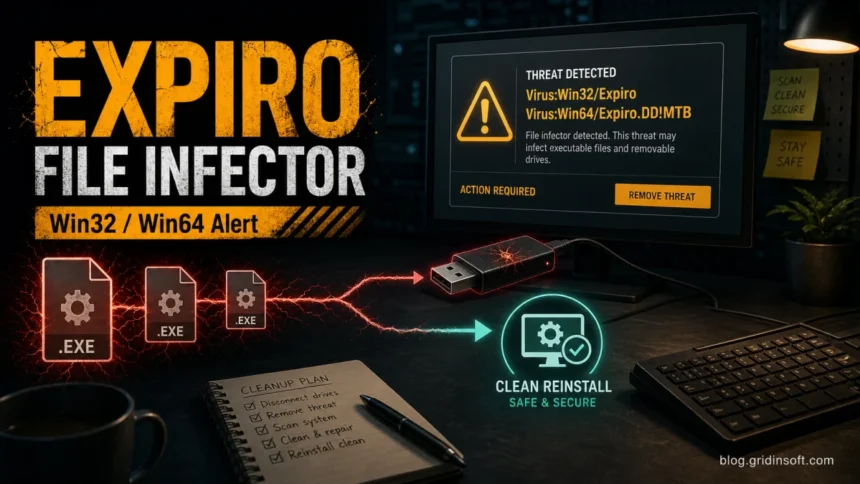
Virus:Win32/Expiro and Virus:Win64/Expiro.DD!MTB are Microsoft Defender detections for the Expiro file-infector family. Treat this alert differently from a normal unwanted-app warning: Expiro can modify executable files on internal drives, external HDDs, USB sticks, and shared folders, so the real cleanup decision is what you can safely keep, what must be replaced, and when a clean reinstall is safer than trying to repair every EXE.
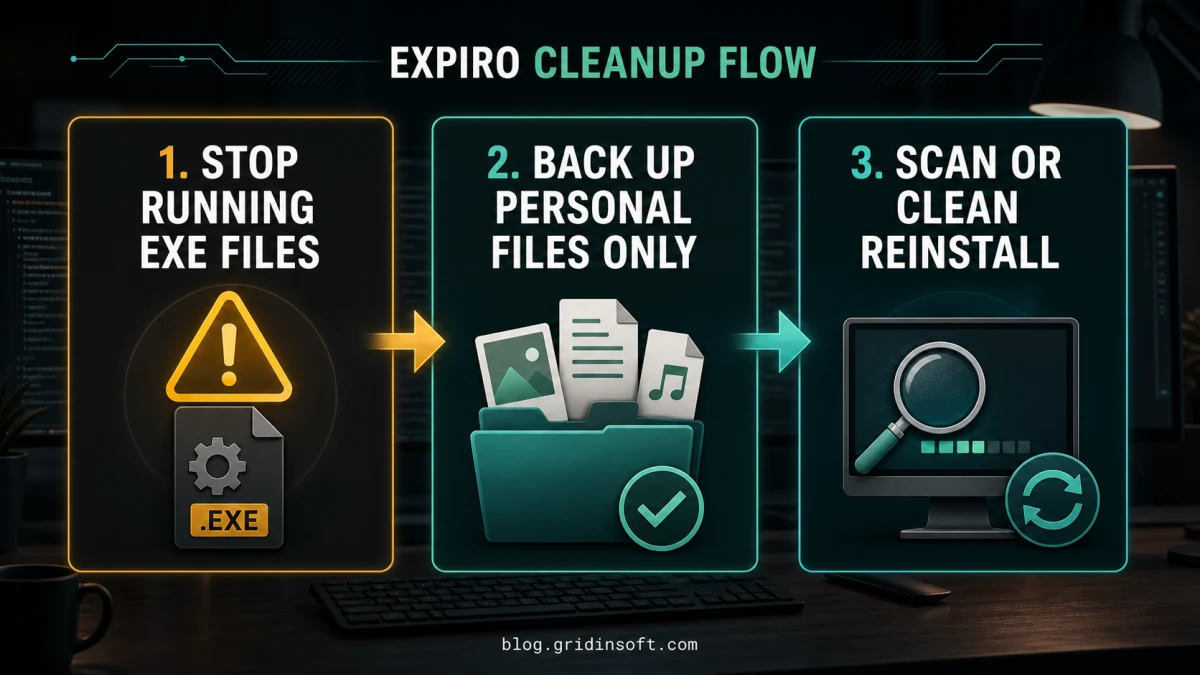
If Defender, Microsoft Safety Scanner, or another security tool reports variants such as Virus:Win64/Expiro.DD!MTB, Virus:Win32/Expiro.EB!MTB, Virus:Win32/Expiro.EK!MTB, Virus:Win32/Expiro.HNW!MTB, or a family-only Virus:Win32/Expiro alert, use the same incident-response logic: stop running programs from the affected drives, scan every storage device, back up personal files only, and replace applications from clean sources.
What should you do first?
- Do not restore or launch infected EXE files. Expiro is a file infector, so a familiar program may be the infected object.
- Disconnect risky storage. Unplug external drives and avoid network shares until you can scan them from a clean Windows environment.
- Back up personal files, not software folders. Documents, photos, videos, PDFs, and plain project files are safer than EXE, DLL, SCR, MSI, BAT, CMD, PS1, VBS, cracks, keygens, and portable apps.
- Use Gridinsoft Anti-Malware to check leftovers and connected drives. Defender may quarantine visible detections, while loaders, startup entries, services, browser changes, or infected program folders can recreate the alert.
- Choose a clean reinstall if detections are widespread or return after reboot. Do not restore old program folders after reinstalling Windows.
| Detection names this guide covers | Virus:Win32/Expiro, Virus:Win64/Expiro.DD!MTB, Virus:Win32/Expiro.EB!MTB, Virus:Win32/Expiro.EK!MTB, Virus:Win32/Expiro.HNW!MTB, and close Expiro variants |
| Threat type | File-infecting virus |
| Main risk | Modified executable files, credential theft risk, reinfection from old programs, external drives, or shared folders |
| High-risk files | .exe, .dll, .scr, .msi, scripts, cracks, keygens, old installers, portable apps, game launchers |
| Best action | Quarantine, scan all drives, keep only safe personal data, replace apps from official sources, and reinstall Windows if infection is broad. |
What is Expiro?
Expiro is a Windows file-infector family. Microsoft describes older Virus:Win32/Expiro.I variants as malware that infects EXE files across drives, collects credentials, allows backdoor access, and changes browser security settings [2]. The newer Microsoft page for Virus:Win64/Expiro.DD!MTB confirms the Defender detection name, says Defender detects and removes it, and lists possible symptoms such as slow performance, modified files, crashes, and reduced storage space [1]. Trend Micro’s Expiro.JMA entry also describes an EXE-based virus that can connect to remote infrastructure, steal information, drop files, and infect .EXE files [3].
The important part for a home user is not the suffix after Expiro. The suffix tells you how Microsoft named a sample or detection variant. The cleanup problem is the family behavior: if executable files were infected, deleting one suspicious download may not remove every unsafe program already on the machine.
Why can Expiro come back after Reset this PC?
Expiro usually returns because an infected executable is run again. That can happen from an external HDD, a USB stick, a backup folder, a portable-app collection, a game launcher, a cracked installer, or an old program directory copied back after reinstalling Windows. A normal reset can also preserve personal files and some user data, which is convenient for common problems but not always enough for a file-infector incident.
If a clean Windows installation only starts showing Expiro after you reconnect a drive or restore old software, treat that drive or backup as the likely reinfection source. If the alert appears immediately after Windows Update and you have not restored anything, update Defender definitions, run a full scan, and submit the exact detected file to Microsoft before assuming all Windows updates are infected.
What about an external HDD or USB drive?
Do not plug an affected external drive into another important PC and start opening programs from it. Scan it from a clean Windows environment first. The biggest risk is executable content, not ordinary photos or documents.
| Usually safer to keep after scanning | Photos, videos, documents, spreadsheets, PDFs, plain text files, source code you can inspect, exported bookmarks |
| Replace instead of keeping | Installed apps, portable tools, old installers, game launchers, cracks, keygens, emulators from unofficial sources, driver installers |
| Handle carefully | ZIP, RAR, and 7z archives because they may contain infected executables; scan before extracting and do not restore executable contents blindly |
| Safer workflow | Scan the drive, copy only personal data, wipe or rebuild software folders, then reinstall applications from official sources. |
How to remove Virus:Win32/Expiro or Virus:Win64/Expiro.DD!MTB
- Disconnect the PC from shared folders and unplug external drives you do not need for the first scan.
- Open Windows Security and write down every affected item path in Protection history. Pay attention to whether detections are in
Downloads,AppData, old program folders, external drive letters, or archives. - Keep Defender actions as Remove or Quarantine. Do not use Allow or restore a detected EXE just because the program name looks familiar.
- Delete the original source if you know it: fake installer, cracked app, game tool, shared executable, or suspicious archive.
- Run a full Gridinsoft Anti-Malware scan and include every connected drive that may contain executables. Remove detections, reboot, and rescan if the same alert returns.
- Uninstall suspicious apps added around the first detection time.
- Check Startup Apps, Task Scheduler, Services, browser extensions, and unknown files in
AppData,Temp, and old program folders. - If many EXE files are detected or detections return after reboot, back up only safe personal files and perform a clean Windows reinstall from trusted installation media.
Defender can remove the visible detection, but repeated Expiro alerts often mean something is still reintroducing infected executable files. Gridinsoft Anti-Malware is useful here because it gives you a focused way to scan the whole system and connected drives for malware leftovers, suspicious startup entries, scheduled tasks, bundled apps, browser changes, and persistence traces before you decide whether reinstalling is necessary.
Use Gridinsoft Anti-Malware to scan the affected PC and connected drives, then remove detected threats. A scan does not repair damaged programs; widespread file infection may still require a clean Windows reinstall.
Download Anti-Malware for WindowsWhen is a clean reinstall the safer choice?
Choose a clean reinstall when the scanner reports many infected executables, the same detection keeps returning after reboot, system tools crash, or you cannot identify which external drive or backup reintroduced the infection. Use Windows installation media created on a clean device, wipe the Windows system partition, and then reinstall apps from official vendors. Our clean Windows install USB after malware guide walks through the safer install-media workflow.
After reinstalling, do not copy old program folders back. Copy personal data first, scan it, and rebuild software from fresh installers. If you need a comparison with another file-infector family, the Neshta file-infector cleanup guide explains similar EXE triage logic.
Could Virus:Win64/Expiro.DD!MTB be a false positive?
False positives are possible with any security product, but do not assume one when the alert involves executable files from cracks, unofficial installers, external drives, old backups, or paths you do not recognize. A safer false-positive check is to record the exact path, verify the file source and digital signature, update Defender definitions, scan with Gridinsoft Anti-Malware, and submit the file to Microsoft if it is from a trusted vendor and you have a real reason to restore it.
If the detected file is an old installer, cracked app, portable tool, or game utility, replacing it is safer than arguing with the detection. If it is a business-critical signed application from a known vendor, isolate the file and verify it before restoring it.
If Expiro names the signed Windows licensing component, use the sppsvc.exe path, signature, and repair checks before deciding whether the System32 file is infected or the alert needs false-positive review.
Should you change passwords?
Yes, if any suspicious file ran. Microsoft’s older Expiro technical notes include credential-theft behavior for Expiro variants [2]. Change passwords from a clean device, starting with email, Microsoft or Google, banking, crypto, Discord, Steam, and any account that reused the same password. Also revoke active sessions where the service offers that option.
Local malware cleanup does not undo account exposure. Treat password rotation and session cleanup as a separate recovery step after the machine is stable.
FAQ
Is Virus:Win64/Expiro.DD!MTB the same problem as Virus:Win32/Expiro?
It is a Microsoft Defender detection name for an Expiro variant. The suffix differs, but the practical cleanup is the same: treat it as a file-infector incident, scan all drives, and avoid restoring executable files from infected storage.
Can Expiro infect ZIP files?
Expiro is known for infecting executable files, not ordinary documents. A ZIP or RAR archive can still be dangerous if it contains infected EXE, DLL, SCR, MSI, or script files, so scan archives before extracting them.
Are photos and videos safe after Expiro?
They are usually safer than executables, but scan them before backup and do not copy unknown program folders, installers, cracks, or portable-app directories along with them.
Is Reset this PC enough for Expiro?
Sometimes it is enough for a single blocked file, but a clean reinstall from trusted USB media is safer when a file infector has touched many executables or the same detection keeps returning.
Can I keep old installers from an infected drive?
No. Replace installers and portable programs from official sources instead of carrying old EXE files into a cleaned or newly installed system.
References
- Microsoft Security Intelligence. “Virus:Win64/Expiro.DD!MTB threat description.” Microsoft, published August 8, 2023, accessed June 16, 2026. https://www.microsoft.com/en-us/wdsi/threats/malware-encyclopedia-description?Name=Virus%3AWin64%2FExpiro.DD%21MTB
- Microsoft Security Intelligence. “Virus:Win32/Expiro.I threat description.” Microsoft, updated September 15, 2017, accessed June 16, 2026. https://www.microsoft.com/en-us/wdsi/threats/malware-encyclopedia-description?Name=Virus%3AWin32%2FExpiro.I
- Trend Micro Threat Encyclopedia. “Virus.Win32.EXPIRO.JMA.” Trend Micro, accessed June 16, 2026. https://www.trendmicro.com/vinfo/us/threat-encyclopedia/malware/virus.win32.expiro.jma