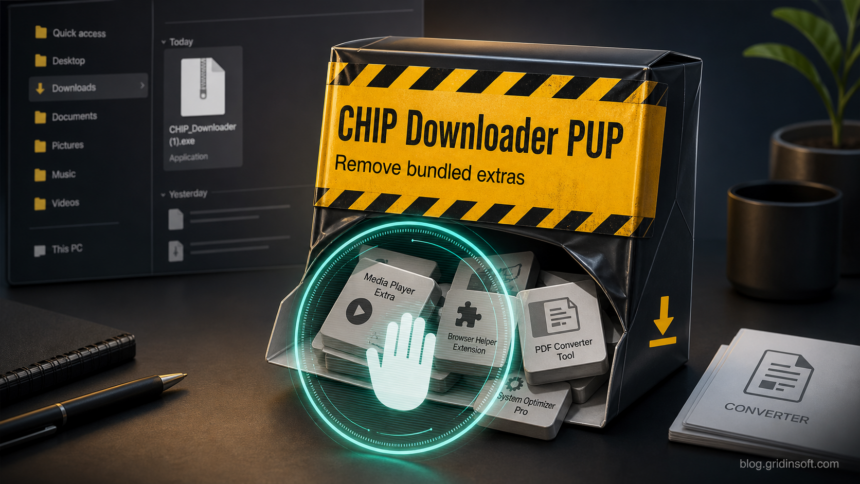
CHIP Downloader PUP is a practical name for a bundled download wrapper such as CHIP-Downloader.exe or a file named Free PDF to Word Doc Converter - CHIP-Downloader(2).exe. It is not the same thing as the PDF converter or other app you wanted. Treat the wrapper as unwanted, remove anything it installed the same day, check your browser and startup entries, and run a full scan if the installer was opened.
What is CHIP Downloader PUP?
CHIP Downloader PUP describes a potentially unwanted downloader tied to the CHIP download-portal wrapper pattern. The risk is the wrapper behavior: it can sit between you and the app you meant to install, offer additional software, change browser settings, or leave extra components that are not obvious from the original file name.
This does not mean every current CHIP page or every PDF converter is malware. The safer way to read the alert is narrower: if the file on your PC contains CHIP-Downloader, came from a download portal instead of the software vendor, or appeared while installing a free converter, handle it like a PUP until you can prove what ran.
If Avast uses the exact generic label, the Win32:PUP-gen guide explains how consent, source, signer, bundled changes, and recurrence decide whether to keep or remove the program. If Microsoft Defender or another security tool used a family-style name instead of the portal name, compare the case with Gridinsoft’s PUA:Win32/DNDownloader.F guide. If the alert mentions InstallCore or a download manager, the InstallCore PUA guide explains that broader bundler pattern.
Why a PDF converter download may trigger an alert
Free converter searches are a common place for download wrappers because the reader wants a quick one-time utility and may click the first download button that looks convenient. A wrapper can deliver the app you expected while also presenting optional offers, browser add-ons, search changes, system optimizers, or advertising components. Security tools classify this behavior as potentially unwanted when the offers are confusing, bundled, persistent, or likely to reduce control of the PC.
Microsoft’s PUA guidance describes these apps as software that can slow the device, show unexpected ads, install additional software, or otherwise affect the user experience. That is why a file can be flagged even when it is not a classic password stealer or ransomware sample.
Remove CHIP-Downloader.exe and bundled extras
- Do not run the installer again. If the file is still in
%USERPROFILE%\Downloads,C:\Windows\CSC\v2.0.6\namespace\..., an archive, or a synced/offline folder, delete the wrapper after you finish any needed evidence notes. - Uninstall same-day additions. Open Windows Settings, sort installed apps by date, and remove unknown converters, browser helpers, media players, PDF tools, search utilities, optimizers, or coupon/adware-style apps added around the time the wrapper ran.
- Check browser extensions. In Chrome or Edge, open
chrome://extensionsoredge://extensions. Remove extensions you did not choose, especially anything that changes search, new tab, PDF handling, shopping, coupons, or “media player” behavior. - Check managed policies if settings return. If the browser says it is managed, inspect
chrome://policyand use the safer workflow in Gridinsoft’s Managed by your organization cleanup guide. Do not delete work or school policies on a managed device. - Review startup persistence. Open Task Manager Startup apps and Task Scheduler. Look for unknown entries created near the install time, especially names matching the converter, downloader, helper, updater, or optimizer.
- Reset affected browser settings. Restore the default search engine, homepage, new tab page, and notification permissions if the downloader added advertising or redirect behavior.
- Run a full scan. If the wrapper was opened, the alert returned after reboot, or you found bundled apps, scan the whole system instead of only deleting the downloaded EXE.
Bundled installers can leave more than the original file: a helper service, scheduled task, startup entry, browser extension, or leftover app may recreate ads or redirects after the visible installer is gone. Run Gridinsoft Anti-Malware from gridinsoft.com/antimalware, remove detected PUP/adware leftovers, reboot, and scan again if browser changes or security alerts return.
What if the file is in Windows CSC or a network cache?
A path under C:\Windows\CSC\v2.0.6\namespace\... usually means Windows Offline Files cached a copy from a network or synced location. The cleanup decision is the same, but you should also remove the source copy from the shared folder, OneDrive/Sync location, or original download folder. Otherwise Windows may keep re-caching the same installer after you delete the local copy.
If this is a work-managed PC, ask the administrator before clearing Offline Files or network-share content. On a personal PC, remove the wrapper from every copy you control, then resync and rescan.
How to tell whether the wanted app is separate from the wrapper
Look at the file name, publisher, install path, and installed-app list. A legitimate PDF converter usually has its own vendor name and a normal installer path. A wrapper often has a portal label, generic downloader name, or extra words such as “installer”, “setup”, “download manager”, “web installer”, or “CHIP-Downloader”.
If you still need the converter, uninstall the bundled copy and download the tool from the developer’s official website or the Microsoft Store. Avoid mirror pages that replace the vendor installer with a custom wrapper. For broader converter-lure risk, read Gridinsoft’s online file converter malware scam warning.
Prevention checklist
- Prefer the vendor’s official download page over a software portal wrapper.
- Choose custom installation only when it exposes clear opt-outs; cancel if the installer hides offers.
- Decline browser extensions, search helpers, PDF toolbars, optimizers, and media-player extras you did not ask for.
- Keep PUA protection enabled in Windows Security and do not allow a PUP just to finish a one-time conversion.
- After using converters or archives from unknown sources, follow Gridinsoft’s safe archive and extraction checklist.
FAQ
Is CHIP Downloader PUP a virus?
Not always. It is better described as a potentially unwanted downloader or bundled installer. Remove it because it can install or promote extras you did not intend to keep, even when it is not a classic destructive virus.
Can I keep the PDF converter and remove only the downloader?
Sometimes, but only if you can identify the converter’s real vendor and confirm no extra apps, extensions, or startup entries were added. In many cases it is cleaner to uninstall the bundled copy and reinstall from the official vendor source.
Why did the alert appear after I deleted the EXE?
The wrapper may have been cached in a synced/offline folder, restored from another download location, or accompanied by a helper app. Check %USERPROFILE%\Downloads, synced folders, C:\Windows\CSC\v2.0.6\namespace\..., browser extensions, installed apps, Startup apps, and Task Scheduler.
Should I reset my browser?
Reset the browser only if search, homepage, new tab, extensions, notifications, or policies changed. If the browser says it is managed on a personal PC, check policy entries first so you remove the cause instead of only resetting the visible setting.
References
- Microsoft. “Block potentially unwanted applications with Microsoft Defender Antivirus.” Microsoft Learn, updated June 19, 2026, accessed July 6, 2026. https://learn.microsoft.com/en-us/defender-endpoint/detect-block-potentially-unwanted-apps-microsoft-defender-antivirus