Xunlei Thunder is a legitimate download manager, but that does not make every installer, browser helper, or “Thunder Network” component safe to keep. If you deliberately installed the current client from Xunlei’s official site and its files have a valid publisher signature, the app’s identity is explainable. If it appeared with another program, triggered a PUP/PUA alert, runs from an unusual path, adds a browser helper you did not choose, or returns after removal, treat it as unwanted until you verify the exact file and clean up the related components.
What to check first
- Record the full alert name and affected file path before clearing security history.
- Confirm whether you downloaded Xunlei yourself from its official site.
- Check the installer and main executable’s digital signature—not only the icon or filename.
- Review browser extensions, startup apps, services, scheduled tasks, and programs installed on the same date.
- If you do not need the client, uninstall it normally, reboot, and then check whether any helper or alert returns.
What Is Xunlei Thunder?
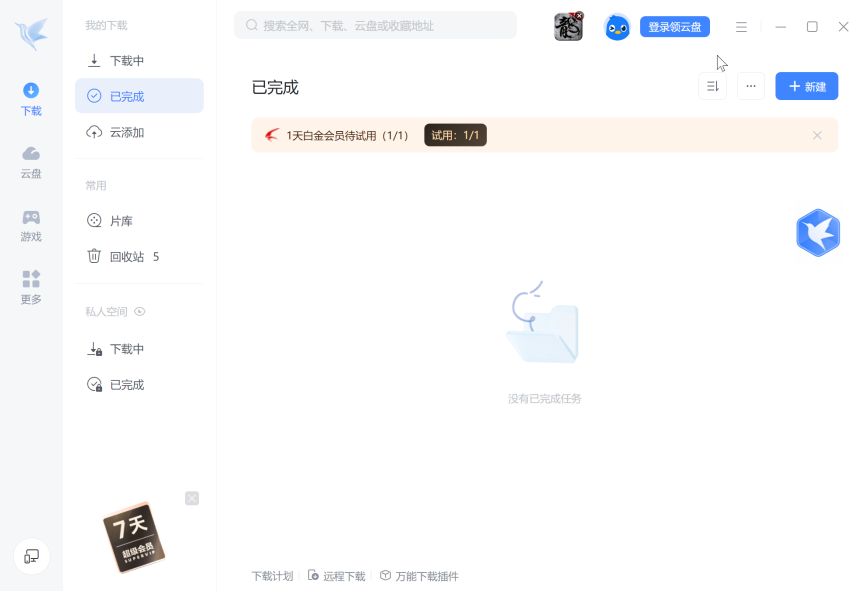
Xunlei, also called Thunder or Xunlei Accelerator, is a download client from Xunlei Limited. The official product page currently offers Xunlei Client for Windows, macOS, and NAS, alongside a browser, player, game accelerator, and other related products.1 The client can handle ordinary downloads and peer-assisted transfers, so network activity and background components are expected while it is in use.
That legitimate product identity is only the starting point. It does not authenticate the copy on your PC, explain an installation you never approved, or make an old browser helper desirable. Use the same source, signature, path, and behavior checks you would use for any unfamiliar executable. Our EXE safety checklist explains how those signals work together.
Is Xunlei Thunder Safe or a PUP?
Match your situation to the next action
- You chose the official client: A valid signature and expected install path support its identity, but keep it updated, review optional browser components, and decide whether you want its background and peer-assisted behavior.
- It arrived with another installer: Treat it as a consent and bundling problem. Remove Xunlei if you did not want it and inspect other programs installed on the same date.
- Security software reports PUP, PUA, or adware: Keep the item blocked while you record the exact detection and path. A PUA label is not automatically a Trojan verdict, but it is a reason to review advertising, bundling, browser changes, and persistence.
- The file is unsigned or stored in a random Temp/AppData folder: Do not trust the name. Quarantine or submit that exact file for analysis; a lookalike can use Xunlei branding without being the official client.
- The process or alert returns after reboot: Look for a remaining service, task, startup entry, extension, bundled app, or updater instead of repeatedly deleting only the visible executable.
This is similar to other legitimate-product-versus-unwanted-install decisions. For example, our Bright VPN safety guide separates a known signed app from an unexpected bundle and a wrong-path lookalike. The product behavior differs, but the verification logic is the same.
Why Xunlei Alerts and Malware Results Appear
Potentially unwanted behavior is not the same as malware
Microsoft describes potentially unwanted applications as the gray area between clean software and malware. They may show unwanted advertising, offer additional apps, or perform behavior a user did not expect.3 That distinction matters: a PUA alert can be valid even when the detected program is not a credential-stealing Trojan. Your decision should consider whether you knowingly installed the app and accept its helpers, ads, network use, and startup behavior.
Search results mix current questions with old incidents
Google results for Xunlei safety mix current product pages and security research with forum stories and incidents more than a decade old. Historical coverage is useful context, but it cannot prove that the current file on your PC is malicious. Likewise, a familiar publisher name cannot prove that an unsigned repack or same-name file is safe. The object in the alert—its path, signature, hash, and behavior—is the evidence that matters.
Researchers documented a large attack surface
In March 2024, security researcher Wladimir Palant published a detailed assessment of Xunlei Accelerator. The report described an outdated Chromium/Electron base, exposed internal interfaces, browser-extension interactions, plugin/update mechanisms, and partial fixes in the versions tested. It also clearly bounded several observations to Xunlei Accelerator 12.0.8.2392 and related component versions from early 2024.2
That research is a reason to avoid stale builds and unnecessary browser integration. It is not evidence that every current Xunlei installation is already compromised, and the report does not establish the state of every later release. If you keep the client, download it from Xunlei, install available updates, remove components you do not use, and avoid opening untrusted downloads or running the app on systems where the risk is not worth the convenience.
How to Verify the Xunlei Installer and Files
- Start with the source. The official English page is
en.xunlei.com. A search ad, mirror, crack site, “portable” repack, or unrelated download portal is not the same source. - Open the affected location from the alert. A path inside the folder of the program you knowingly installed is explainable. A random executable under a temporary folder, another program’s directory, or a misleading user-profile path needs separate analysis.
- Check the digital signature. Right-click the file, open Properties → Digital Signatures, and confirm that Windows reports a valid signature from an Xunlei/Thunder publisher. Compare the publisher and filename with the official installer; do not accept an invalid or missing signature merely because the icon looks right.
- Calculate a hash before uploading anything. A hash lets you identify the exact object without sharing the file. If the file is non-sensitive and still ambiguous, submit that one file to the Gridinsoft Online Virus Scanner.
- Read the complete detection name. PUA, adware, Trojan, and behavior alerts imply different decisions. Our Defender detection-name guide shows how to preserve the family, type, affected path, and action before deciding whether to remove or restore.
$file = "$env:USERPROFILE\Downloads\ThunderSetup.exe"
Get-AuthenticodeSignature -FilePath $file | Format-List Status, StatusMessage, SignerCertificate
Get-FileHash -Algorithm SHA256 -Path $file
A valid signature supports origin and integrity; it does not guarantee that you want every feature or that a signed old version has no vulnerabilities. A missing signature is also not proof of malware by itself, but it removes an important reason to trust a branded installer.
How to Remove Xunlei Thunder from Windows
- Finish or cancel active downloads. Save only files you intentionally downloaded. Do not open a suspicious archive or executable just to test whether it works.
- Quit Xunlei and related windows. Use Task Manager to close the visible client if the normal Exit command does not stop it.
- Uninstall the app normally. Open Settings → Apps → Installed apps, find Xunlei/Thunder and related Xunlei products, select Uninstall, and follow the vendor uninstaller. Do not start by deleting the program folder; that can leave registration and background components behind.
- Remove the browser helper if you do not want it. Check
chrome://extensionsandedge://extensionsfor Xunlei download support or another extension installed at the same time. Remove only the item you can identify; do not delete a browser profile wholesale. - Review same-day programs. Sort Installed apps by date and look for download tools, media players, ad-supported utilities, or other software added with the same installer. The goal is to remove the bundle, not only one visible name.
- Check startup and background entries. Review Task Manager’s Startup apps, Task Scheduler Library, and
services.mscfor entries clearly tied to Xunlei or Thunder Network. Disable an identified leftover before deleting it. Leave ambiguous Microsoft, hardware-driver, and enterprise entries alone. - Remove identified leftovers. After uninstall and reboot, delete a remaining Xunlei/Thunder program folder only when its location and contents clearly belong to the removed app. Do not search the registry and mass-delete every key containing the generic word “Thunder.”
- Reboot and observe. Confirm that the process, extension, pop-up, network activity, or security alert does not return.
If advertising or helper processes keep returning, the pattern is closer to a persistent unwanted-software bundle than a simple uninstall problem. The recurrence checks in our LuDaShi adware removal guide can help you reason about same-day apps, scheduled tasks, services, and browser changes without assuming that every branded file is a Trojan.
Scan and Confirm the Cleanup
Removing the visible client may not remove another application that installed alongside it. If Xunlei appeared unexpectedly, a security alert returns, or a helper/service survives reboot, use a full Gridinsoft Anti-Malware scan to check for detected bundled apps, startup entries, scheduled tasks, browser changes, and other persistence. Remove confirmed detections, reboot, and scan again if the symptom returns. A clean scan cannot prove that every downloaded file was safe or restore credentials after a separate infostealer ran.
Browser reset can remove visible symptoms, but adware may keep a desktop app, extension source, notification permission, or startup task that brings pop-ups and redirects back.
Scan for unwanted componentsWhat If You Already Used Xunlei?
Using a legitimate download manager does not make the downloaded content trustworthy. Scan executables and archives from unfamiliar sources before opening them, and do not disable security protection to force a blocked file to run. If a suspicious installer already executed, isolate the exact file and check for new startup items, tasks, extensions, or account-session warnings.
Password changes are not automatically required just because Xunlei was installed. Change important passwords from a clean device if you also see unauthorized logins, a confirmed stealer/Trojan detection, browser-session theft, or a suspicious file that ran. Consider a clean Windows reinstall when confirmed malware survives repeated cleanup, security settings remain altered, or you cannot establish what executed with administrator rights.
FAQ
Is Xunlei Thunder a virus?
The official Xunlei client is a real download product, not a name that automatically means “virus.” A specific copy can still be unwanted, outdated, bundled, tampered with, or imitated by malware. Verify the source, signature, path, hash, and exact alert.
Why does antivirus call Xunlei a PUP or PUA?
A PUP/PUA label can reflect advertising, bundling, optional helpers, unexpected installation, or other behavior a user may not want. It does not by itself prove a credential-stealing Trojan, but it is a valid reason to review and remove the software if you did not choose it.
Can I delete the Thunder Network folder?
Uninstall the related Xunlei/Thunder application first. After reboot, delete a remaining folder only when its path and contents clearly belong to that removed app. Do not delete unrelated files or registry keys based only on the generic word “Thunder.”
Should I remove the Xunlei browser extension?
Remove it if you do not use Xunlei integration, did not install it knowingly, or are reducing the client’s attack surface. If you keep it, confirm the listed publisher, review its permissions, and keep both the extension and desktop client updated.
What should I do if Xunlei comes back after uninstall?
Check for another bundled app, updater, service, scheduled task, startup entry, or browser helper. Record the returning process and path, scan the system, and remove the component that recreates the visible client rather than repeatedly deleting one executable.
References
- Xunlei Limited. “Xunlei Client.” Xunlei, accessed August 10, 2026. https://en.xunlei.com/
- Wladimir Palant. “Numerous vulnerabilities in Xunlei Accelerator application.” Almost Secure, March 6, 2024, accessed August 10, 2026. https://palant.info/2024/03/06/numerous-vulnerabilities-in-xunlei-accelerator-application/
- Microsoft. “Protect your PC from unwanted software.” Microsoft Support, accessed August 10, 2026. https://support.microsoft.com/