
A SystemSettings.exe crash means the Windows Settings app failed, not that you should replace the EXE. If Settings flashes open and closes, shows a system error, or always fails on the same page, record the failing page and repair the Settings package in the order below. If Task Manager only shows SystemSettings.exe as Suspended with almost no CPU use, that state is usually normal: Windows pauses the app when it is not active.
Do not download a “clean” SystemSettings.exe or DLL from a file site. The genuine component is protected by Windows, and a replacement from the web can create a second problem while hiding the original crash evidence.
First, identify which SystemSettings.exe state you have
| Situation | What it means and what to do next |
|---|---|
| Suspended, near-zero CPU | Usually normal app lifecycle behavior. Reopen Settings and investigate only if it will not resume or keeps closing. |
| Settings flashes and closes | A real app/package or Windows component fault. Test a direct Settings page, then capture the crash record. |
| Only one page crashes | Often a useful clue. Note the page because its data provider, driver, extension, or account state may be the trigger. |
| System error or application error | Record the exact message and faulting module. Repair Windows files; do not delete the named module. |
| EXE outside the Windows folder | Treat it as a different file using a trusted name. Check its path and signature before running it again. |
What is SystemSettings.exe?
SystemSettings.exe is the process behind the modern Windows Settings interface. On a standard Windows 11 installation, its expected file is C:\Windows\ImmersiveControlPanel\SystemSettings.exe. It can start when you open Settings, become inactive, and appear as Suspended after the window is closed or moved into the background.
That suspended label by itself does not prove corruption or malware. A persistent flash-close, error dialog, repeated Reliability Monitor failure, or high resource use is the signal to troubleshoot. This distinction also matters with other Windows shell components: a StartMenuExperienceHost.exe crash can occur alongside Settings trouble, but each process should be diagnosed from its own fault record.
Test Settings without relying on its home page
Press Win+R, enter ms-settings:, and press Enter. If the home page closes, test a specific route:
ms-settings:displayfor Display;ms-settings:networkfor Network & internet;ms-settings:windowsupdatefor Windows Update;ms-settings:appsfeaturesfor Installed apps.
The result narrows the problem. If every route fails, the Settings package or shared Windows components are the stronger suspects. If only Display fails, disconnect a recently added dock or monitor and update or roll back the graphics driver. If Network fails, temporarily remove a recently installed VPN/filtering client and check the network adapter driver. If Installed apps fails, note whether the crash began after installing or removing a package. These are isolation tests, not reasons to permanently disable a device or security tool.
Capture the fault before changing Windows
A fault record prevents random fixes and preserves the details you may need if the crash returns.
- Press Win+R, run
perfmon /rel, and select the red X at the time Settings crashed. - Open View technical details. Record the failing application, faulting module, exception code, and Windows build.
- For more detail, open Event Viewer and go to Windows Logs → Application. Look near the same timestamp for Application Error event 1000 or Windows Error Reporting event 1001.
- Take a screenshot or copy the details before resetting the package.
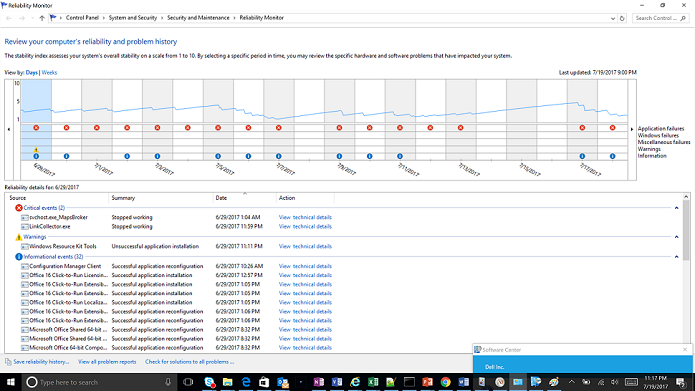
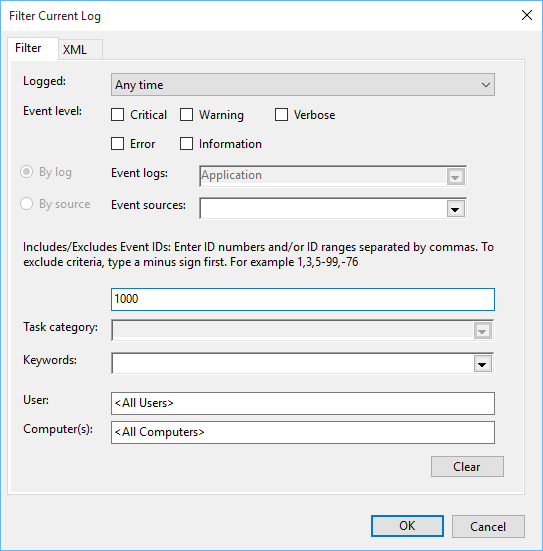
1000 in the event IDs field. Source: Microsoft Learn.The faulting module is a clue, not a deletion target. A Microsoft DLL can be the place where a bad driver, package, or damaged component finally caused the crash. Deleting it can prevent Windows from starting correctly.
Fix a SystemSettings.exe crash in the safest order
1. Restart and finish Windows Update
Restart the PC—not Shut down followed by power-on—and install pending Windows updates. A restart clears the existing Settings process and completes package servicing that may be waiting for a reboot. If Settings itself is unavailable, use the direct ms-settings:windowsupdate route or the power menu to restart first.
2. Remove the page-specific trigger
If only one page fails, undo the newest change related to that page: a graphics driver or dock for Display, a VPN/filter driver for Network, or a recently installed app for Installed apps. Test after one change at a time. A whole-system clean-up at this stage makes the real trigger harder to identify.
3. Reset only the Settings package
Open Windows Terminal or PowerShell as administrator and run:
Get-AppxPackage windows.immersivecontrolpanel | Reset-AppxPackage
Restart Windows and test ms-settings: again. This targets the Settings package rather than re-registering every built-in app. Microsoft community guidance includes a targeted reset of the Settings package. The sequence here starts with that narrower action before re-registration.
4. Re-register Settings if reset did not work
In an administrator PowerShell window, run the targeted command:
Get-AppXPackage -AllUsers -Name windows.immersivecontrolpanel | ForEach-Object { Add-AppxPackage -DisableDevelopmentMode -Register "$($_.InstallLocation)\AppXManifest.xml" }
Restart and test again. The command points Windows back to the existing Settings package manifest. Avoid scripts that re-register every AppX package unless you are repairing a broader Store-app failure and understand the extra changes and error noise they can create.
5. Repair the Windows component store and system files
If Settings still crashes across all pages, run DISM first and SFC second from an administrator Terminal:
DISM.exe /Online /Cleanup-Image /RestoreHealth
sfc /scannow
Let both commands finish even if progress appears paused, then restart. DISM repairs the component source that SFC uses; SFC then verifies protected system files. This is also the appropriate branch when the error names a Windows DLL or when BackgroundTaskHost.exe and other packaged apps fail at the same time.
6. Test a clean boot or a temporary user account
If the crash survives DISM/SFC, test a clean boot to separate Microsoft services from third-party startup software. Also create a temporary local administrator account and open Settings there. If Settings works in the new account, the fault is probably tied to the original user profile or per-user package registration. Move personal files carefully rather than deleting the old profile immediately.
If Settings fails in every account but works during a clean boot, re-enable startup items in small groups until the conflict returns. Similar resource problems in ShellExperienceHost.exe are another reason to examine shell extensions and recently installed desktop customization tools rather than replacing Windows executables.
7. Use an in-place repair installation as the last built-in step
When the package reset, targeted registration, DISM/SFC, clean boot, and new-account test all fail, back up important files and perform an in-place Windows repair using official installation media. Choose the option that keeps personal files and apps. This reinstalls Windows components more comprehensively without making a clean install the first response. Our broader guide to Windows repair options can help you choose the least disruptive recovery path.
When SystemSettings.exe is suspicious
The genuine file should resolve to C:\Windows\ImmersiveControlPanel\SystemSettings.exe and carry a valid Microsoft digital signature. In Task Manager, right-click the process and choose Open file location, then open the file’s Properties → Digital Signatures tab.
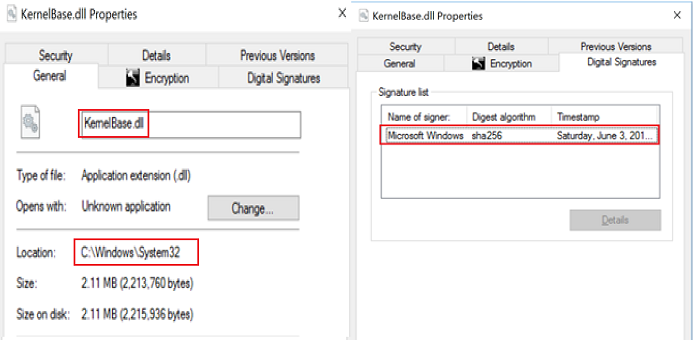
A file named SystemSettings.exe in Downloads, AppData, Temp, a browser extension folder, or an unknown program directory is not the protected Settings binary. An invalid signer, a copy that arrived with an unknown installer, or a process that relaunches from a wrong path justifies isolation and a security scan. Do not delete the protected Windows file. If you need a second check, use the path/signature workflow in our guide to checking whether an EXE is safe.
If the process path is wrong, the name imitates a Windows component, or high CPU started after an unknown installer, scan for hidden miners, services, startup entries, and bundled components.
Scan a suspicious SystemSettings.exe copyFAQ
Is SystemSettings.exe Suspended a problem?
Usually not. Windows may suspend the Settings app when it is in the background. Investigate when it cannot resume, repeatedly crashes, or consumes resources while no Settings page is open.
Can I end SystemSettings.exe in Task Manager?
Yes, ending the task is generally safe when Settings is frozen; Windows can start it again when you reopen Settings. It is only a temporary reset, not a repair for a recurring crash.
Should I download SystemSettings.exe to replace the broken file?
No. Use package reset, targeted re-registration, DISM/SFC, or official Windows repair media. A standalone download may be the wrong version, unsigned, or malicious.
Why does only one Settings page crash?
That page may be loading a specific driver, device, package list, account provider, or third-party filter. Record the page and faulting module, then undo the newest related change before applying whole-system repairs.
What is the difference between resetting and re-registering Settings?
Resetting asks Windows to clear and restore the existing package state. Re-registering points Windows back to that package’s manifest. Try the targeted reset first because it is the narrower action.
References
- Lonelier blank; DaveM121 (answer). “Everytime i try to open the installed app settings, the settings app keeps crashing.” Microsoft Q&A, January 16, 2026; accessed September 9, 2026. learn.microsoft.com
- Microsoft. “Using System File Checker in Windows.” Microsoft Support, accessed September 9, 2026. support.microsoft.com
- Microsoft. “Reinstall Windows with the installation media.” Microsoft Support, accessed September 9, 2026. support.microsoft.com