ShellExperienceHost.exe is a legitimate Windows component that draws parts of the desktop shell, including visual surfaces and flyouts. A short CPU spike when you open a shell panel, change a background, sign in, or reconnect a display can be normal, and Windows may show the process as suspended when it has no work. Persistent CPU or memory use, repeated crashes, or a Start, taskbar, notification, or background failure needs troubleshooting. Do not delete the executable or permanently disable its package.
What is ShellExperienceHost.exe?
Windows Shell Experience Host is a packaged Windows process. Its exact package path can differ between Windows releases, but a legitimate running copy should resolve to a protected folder under C:\Windows\SystemApps and carry a valid Microsoft signature. It is not the same process as StartMenuExperienceHost.exe, which owns the Start menu on current Windows versions, or sihost.exe, the Shell Infrastructure Host.
ShellExperienceHost.exe is demand-driven. Windows can suspend it to save resources and start or resume it when a shell surface needs work. A Suspended label by itself is not an error and is not evidence of malware.
| What you see | What it means and what to do |
|---|---|
| Suspended with near-zero CPU | Usually normal power management. Leave it alone. |
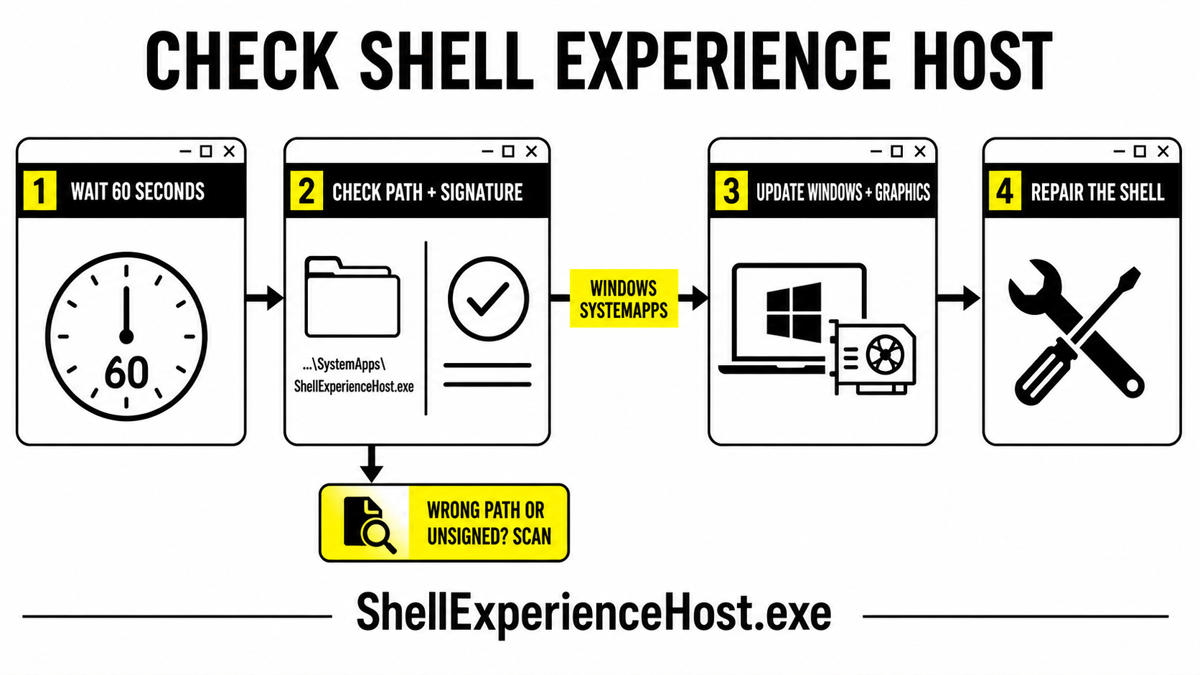
| Brief spike after opening a flyout or changing the desktop | Watch for 30–60 seconds. If usage settles, no repair is needed. |
| CPU or memory stays high while the desktop is idle | Identify the trigger, update Windows and graphics, then isolate shell customizers and profile problems. |
| Repeated crashes with taskbar, notification, or background faults | Check Reliability Monitor and Event Viewer, then repair the package and Windows components. |
| Wrong path or invalid Microsoft signature | Do not treat it as the Windows component. Isolate and scan the copy. |
Find what triggers the high CPU or memory
First confirm that ShellExperienceHost.exe is the process consuming resources rather than similarly named ShellHost.exe, sihost.exe, StartMenuExperienceHost.exe, SearchHost.exe, or a graphics driver process. In Task Manager, sort the Details tab by CPU, note the exact process name and PID, and watch it for at least one minute.
- Close the notification panel, widgets, Settings, and any open shell flyouts one at a time.
- Pause automatic desktop-background changes and set a static image temporarily.
- Disconnect a recently added monitor or dock only after saving work, then test again.
- Exit taskbar, Start-menu, theme, overlay, wallpaper, or Explorer customization tools.
- Record whether the load starts after sign-in, waking the PC, changing displays, or opening one specific shell panel.
This trigger test matters because a generic “high CPU” fix can hide the cause. If the process settles when a shell-modification tool closes, update or remove that tool. If the spike follows display changes, focus on Windows and graphics-driver updates. If it happens only in one Windows account, test the user profile before repairing the whole installation.
Restart the shell safely
Ending the legitimate process is normally safe as a temporary test. Save open work, right-click ShellExperienceHost.exe in Task Manager, and choose End task. Windows should launch or resume it when the shell needs it. You can also restart Windows Explorer from the Processes tab.
If the load returns immediately, repeated termination is not a fix. Move to the update, package, and component checks below. Never take ownership of the protected executable, rename it, or remove its SystemApps folder.
If Task Manager shows Windows Explorer rather than ShellExperienceHost as the process staying busy, use the Explorer.exe high CPU guide to isolate folder views, previews, cloud locations, and third-party Explorer extensions before re-registering the shell package.
Fix ShellExperienceHost.exe high CPU, memory use, or crashes
1. Install Windows and graphics updates
Open Settings → Windows Update, install pending cumulative updates, and restart once. Then install the current graphics driver through Windows Update or the PC/GPU vendor’s official support channel. Shell surfaces depend on graphics composition, so a display-driver problem can make the Windows host look like the cause.
If the issue began immediately after one driver or Windows update, record the exact build and driver version. Roll back only when the timing is clear and the older version is available through Windows or the hardware vendor; do not use random driver-download tools.
2. Remove the triggering shell customization
Temporarily disable third-party taskbar replacements, Start-menu tools, Explorer patchers, animated wallpaper software, overlays, and theme utilities. Test a clean boot if the trigger is unclear. Re-enable items in small groups until the spike or crash returns, then update or uninstall the confirmed conflict.
A clean boot does not prove that Windows is damaged. It separates a packaged shell fault from a non-Microsoft service or startup app. Keep a list of what you disable so normal startup can be restored afterward.
3. Re-register the existing Shell Experience Host package
Use package re-registration when shell panels or icons are broken and the package still exists. Microsoft documents this command for registering Shell Experience Host for all users.[1] Open Windows PowerShell as administrator and run:
Get-AppXPackage -AllUsers | Where-Object {$_.InstallLocation -like "*ShellExperienceHost*"} | Foreach {Add-AppxPackage -DisableDevelopmentMode -Register "$($_.InstallLocation)\AppXManifest.xml"}
Restart Windows after the command finishes. If it returns no matching package or says that the manifest is missing, stop. Do not download a loose copy or create a SystemApps folder manually. A missing package needs a supported Windows repair, restore, or in-place repair path.
4. Repair the component store and protected files
When ShellExperienceHost.exe crashes alongside other Windows features, or package registration reports component errors, run DISM before System File Checker. Microsoft recommends this order because DISM supplies the repair content SFC may need.[2]
DISM.exe /Online /Cleanup-Image /RestoreHealth
sfc /scannow
Let both commands complete and restart Windows. Do not close the terminal at an arbitrary percentage. If DISM cannot repair the image, use an official Windows installation source or an in-place repair rather than replacing individual EXE or DLL files.
5. Test another Windows profile
Create a temporary local account and test the same shell actions. If the process behaves normally there, focus on the original profile’s package registration, wallpaper/theme data, and shell modifications. Move personal files carefully; copying the entire damaged AppData profile can move the problem to the new account.
Diagnose repeated ShellExperienceHost.exe crashes
Open Reliability Monitor with perfmon /rel and select a failure at the time the desktop shell broke. Then open Event Viewer → Windows Logs → Application and check Event IDs 1000 and 1001. Record the faulting module, exception code, Windows build, and whether the crash follows a specific shell action.
- A graphics module plus a display-change trigger points toward the graphics stack or driver.
- A third-party shell DLL points toward the tool that installed it, not toward deleting ShellExperienceHost.exe.
- Package activation or manifest errors support re-registration and Windows-component repair.
- Only one affected account supports a profile-specific cause.
If the popup instead names ShellHost.exe and appears at sign-in, use the ShellHost.exe System Error checks to distinguish a package-load failure, managed-desktop issue, or suspicious copy before applying repairs for a different process.
If the crash affects only the Start menu, use the separate StartMenuExperienceHost.exe repair flow. If a different hosted task is consuming CPU, the taskhostw.exe guide explains how to trace its owner.
If CPU, GPU, or battery activity appears only around locking and unlocking the PC, use the LockApp.exe suspended-state and post-unlock checks before applying shell-package fixes to the wrong process.
Is ShellExperienceHost.exe a virus?
High CPU, memory use, or a crash does not make the process malicious. Verify the running image rather than judging the name. In an elevated PowerShell window, inspect the process path and signature:
$process = Get-Process -Name ShellExperienceHost -ErrorAction Stop
$process.Path
Get-AuthenticodeSignature -LiteralPath $process.Path | Format-List Status,StatusMessage,SignerCertificate
Microsoft’s signature cmdlet reports whether the file has a valid Authenticode signature.[3] A protected C:\Windows\SystemApps path and valid Microsoft signature support the legitimate-process decision. If PowerShell cannot read the path, use Task Manager’s Open file location and Properties → Digital Signatures.
Isolate and scan the computer when the copy runs from Downloads, Temp, AppData, a game or crack folder, or an unfamiliar startup location; lacks a valid Microsoft signature; appeared after an unknown installer; or keeps returning through an unfamiliar task or startup entry. The visible file may be only one part of that persistence, so scanning should check startup entries, scheduled tasks, services, bundled apps, and hidden files rather than promise that deleting one EXE proves the PC clean. For a second verification method, see how to check whether an EXE file is safe.
If the process path is wrong, the name imitates a Windows component, or high CPU started after an unknown installer, scan for hidden miners, services, startup entries, and bundled components.
Scan a suspicious ShellExperienceHost.exe copyFAQ
Is ShellExperienceHost.exe being suspended normal?
Yes. Windows can suspend the packaged process while it has no shell work. Suspended with near-zero CPU is normally a power-saving state, not a crash or infection.
Can I end ShellExperienceHost.exe?
Yes, ending the legitimate process is usually safe as a temporary test. Windows should start or resume it when needed. Repeatedly ending it is not a fix for a persistent loop.
Why does ShellExperienceHost.exe use CPU after sign-in?
It may be initializing shell surfaces, backgrounds, display state, or user package data. A short spike can be normal; sustained idle load should be tested against graphics updates, shell customizers, and the affected user profile.
Should I delete ShellExperienceHost.exe?
No. Do not delete or rename the protected Windows component. Repair the triggering driver, customization, package registration, or Windows component store instead.
Why does Windows Shell Experience Host keep crashing?
Common evidence lanes include a graphics-driver fault, third-party shell DLL, package activation error, damaged Windows components, or one corrupted user profile. Reliability Monitor and Event Viewer help separate them.
References
- Microsoft. “Application shortcuts on the desktop, Start menu, and taskbar show blank icons.” Microsoft Learn, accessed August 28, 2026. learn.microsoft.com
- Microsoft. “Use the System File Checker tool to repair missing or corrupted system files.” Microsoft Support, accessed August 28, 2026. support.microsoft.com
- Microsoft. “Get-AuthenticodeSignature.” Microsoft Learn, PowerShell module reference; accessed August 28, 2026. learn.microsoft.com