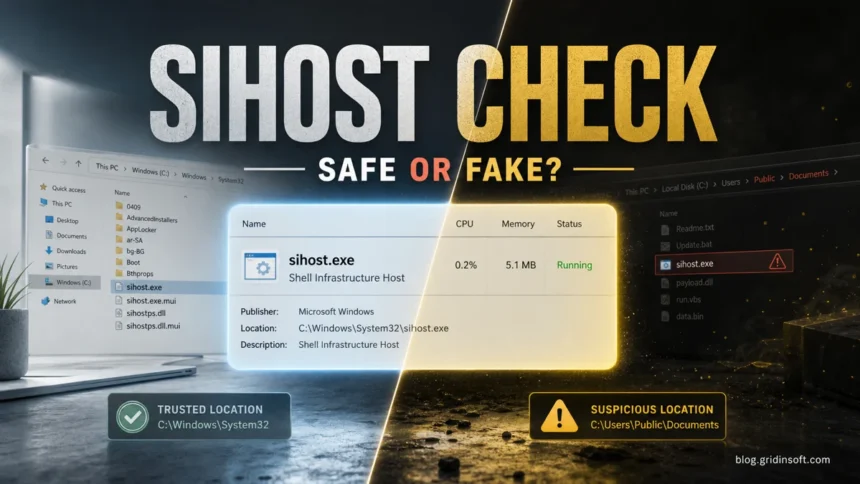
sihost.exe, also shown as Shell Infrastructure Host, is a legitimate Windows process that helps the desktop shell work: Start, taskbar, notifications, background visuals, and other interface pieces. It is normally safe when it runs from C:\Windows\System32\sihost.exe and has a Microsoft Windows signature. Treat it as suspicious only when the file is outside System32, has an unknown publisher, keeps returning after removal, or appears together with malware symptoms.
sihost.exe quick check
- Safe file:
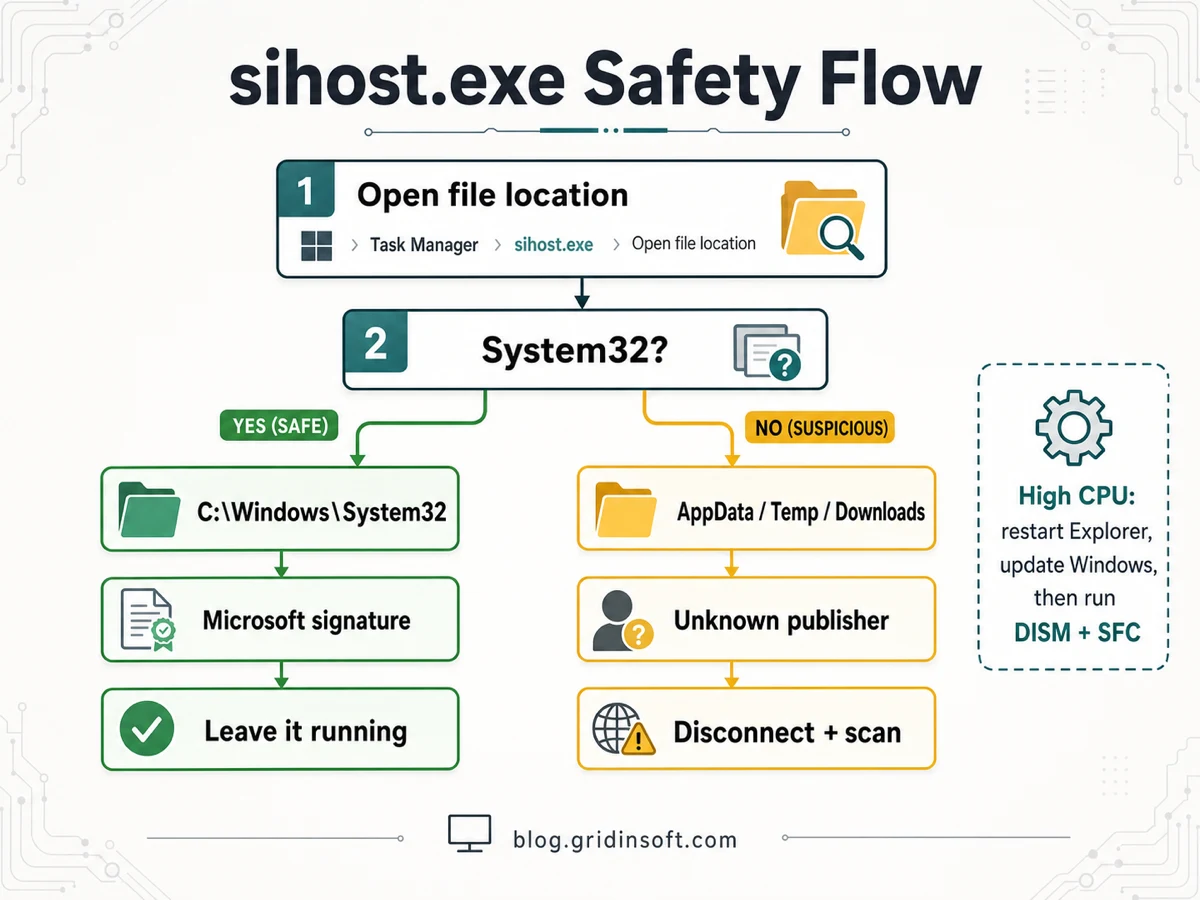
C:\Windows\System32\sihost.exe, Microsoft signature, low background resource use. - Do not delete the real file: ending it may reset the desktop; removing it can break the Windows shell.
- Suspicious copy:
AppData,Temp,Downloads,Public, or another user-writable folder. - High CPU path: restart Explorer, update Windows, repair system files, test startup apps, then scan if the file path or behavior looks wrong.
| Process | sihost.exe |
| Full name | Shell Infrastructure Host |
| Normal location | C:\Windows\System32\sihost.exe |
| Normal owner | Microsoft Windows |
| Normal behavior | Runs quietly after sign-in with brief spikes during desktop, Start, notification, theme, or File Explorer activity. |
| Risk signal | Wrong folder, unknown signature, duplicate process in a user folder, suspicious startup entry, or repeated high CPU with security alerts. |
What is sihost.exe?
Shell Infrastructure Host is part of the Windows shell experience. It helps Windows coordinate visual and interaction pieces around the desktop, taskbar, Start/menu behavior, notifications, background and theme changes, and related shell components. You do not normally open it yourself; Windows starts it as part of a normal user session.
The reason sihost.exe gets searched so often is simple: it is always running, it has a technical-looking name, and it may show a CPU or memory spike when the desktop shell is busy or broken. The process name alone does not prove anything. The folder, publisher, command line, and behavior decide whether it is normal Windows activity or a copycat file.
Is sihost.exe a virus?
The real sihost.exe is not a virus. It becomes a concern when malware uses the same name to blend into Task Manager. That is common with Windows-looking names: attackers do not need to replace the real System32 file if they can place a similarly named executable in a user folder and start it at login.
| Usually safe | C:\Windows\System32\sihost.exe, valid Microsoft signature, no strange startup entry, resource use settles after login. |
| Suspicious | C:\Users\...\AppData, Temp, Downloads, Public, random folders, unknown publisher, or a name such as sihost64.exe. |
| Needs repair | Start menu freezes, taskbar restarts, black desktop, Unknown Hard Error, repeated shell crashes, or sustained high CPU from the real System32 file. |
How to check if sihost.exe is safe
- Open Task Manager. Press
Ctrl+Shift+Esc, open Details, and findsihost.exe. - Open the file location. Right-click the process and choose Open file location. The real file should open in
C:\Windows\System32. - Check the publisher. Right-click the file, open Properties, and look for a Microsoft Windows digital signature. If the signature is missing or the publisher is unknown, treat the file as suspicious.
- Check whether there is more than one copy. One normal
sihost.exeunder System32 is expected. A second copy inAppData,Temp,Downloads, orPublicis not normal. - Look at the timing. If it appeared after a cracked installer, fake update, mod, browser popup, or email attachment, scan the system before trusting it.
If you are checking another Windows-looking process at the same time, compare the same folder-and-signature logic with our guides to csrss.exe, TextInputHost.exe, and AggregatorHost.exe. The safe answer is rarely the name alone; it is the name plus the correct Windows location and behavior.
Why sihost.exe uses high CPU or memory
A short spike after sign-in, a theme change, notification activity, or heavy File Explorer work is usually harmless. Sustained high CPU or memory points to something else: a shell extension, Windows update issue, damaged thumbnails, a Photos/default app loop, corrupted system files, a broken user profile, third-party startup software, or malware impersonation.
High CPU from the real System32 file is usually a Windows troubleshooting problem first, not a reason to delete the file. High CPU from a copy in a user folder is a security problem first.
How to fix sihost.exe high CPU, crashes, or freezes
- Wait one minute after login. If usage falls quickly, it may only be shell startup work.
- Restart Windows Explorer. In Task Manager, right-click Windows Explorer and choose Restart. If the desktop recovers and
sihost.exedrops, the issue is probably shell/UI related. - Install Windows updates. Shell bugs and Microsoft app issues are often fixed through cumulative updates and Store app updates.
- Check Photos, thumbnails, and recent folders. If high CPU appears while opening image folders, switching wallpapers, or browsing many pictures, change the default photo viewer temporarily, clear thumbnail-heavy folders, or test another Windows account.
- Repair Windows files. Open Terminal or Command Prompt as administrator and run
DISM /Online /Cleanup-Image /RestoreHealth. After it finishes, runsfc /scannow. Microsoft recommends these tools for repairing Windows image and system-file corruption. - Test a clean boot. Hide Microsoft services, disable third-party startup items, restart, and see whether the issue stops. Re-enable items gradually so you can find the shell extension or background app that triggers the spike.
- Test a new local Windows profile. If the problem happens only in one account, profile data or user-specific shell settings may be damaged.
- Scan if the path, signature, or timing is suspicious. A System32 file with a valid Microsoft signature is normally repaired, not removed. A copy in a user folder should be scanned and isolated.
What to do if sihost.exe is in AppData, Temp, or Downloads
Do not double-click it to “see what happens.” Disconnect from the internet if you also see popups, new startup items, unknown scheduled tasks, browser redirects, or outbound-connection alerts. Then scan the file and the whole system.
- Right-click the suspicious file and note its full path.
- Check Startup Apps, Task Scheduler, and
HKCU\Software\Microsoft\Windows\CurrentVersion\Runfor entries that launch that same path. - Upload the file to a trusted file-checking workflow or scan it locally with a security tool.
- Remove the startup entry only after you know what launches the file. Deleting a file while persistence remains can make it come back.
- Run a full system scan and reboot; then confirm the user-folder copy does not return.
Gridinsoft Anti-Malware is useful here as a second-opinion scan when the file is outside System32, the publisher is unknown, or the same suspicious copy returns after reboot.
After uninstalling the suspicious app or deleting the visible threat, use Gridinsoft Anti-Malware to check hidden files, startup entries, scheduled tasks, bundled apps, browser changes, and other persistence points that can restore malware.
Download Anti-Malwaresihost.exe Unknown Hard Error or black desktop
sihost.exe Unknown Hard Error, black desktop after sign-in, or repeated Explorer crashes usually point to Windows shell corruption, update trouble, disk problems, or a damaged profile. Start with recovery and repair steps before assuming the real System32 file is malware. If Start specifically flashes closed or will not open while the rest of the desktop works, follow the StartMenuExperienceHost.exe crash repair order before changing the broader shell.
- Boot into Safe Mode or sign into another administrator account if the desktop is unusable.
- Back up important files before repair attempts if the system is unstable.
- Run DISM and SFC from an elevated terminal.
- Check Windows Update history and uninstall a very recent broken update only if the timing clearly matches.
- Check the disk health if repair commands fail repeatedly or Windows cannot complete recovery.
- Scan for malware if the error started after a suspicious download or if you find a second
sihost.exeoutside System32.
Can I delete or disable sihost.exe?
No, not if it is the real file in System32. Ending the process may restart parts of the desktop, but deleting or disabling it can break normal Windows interface behavior. If the file is suspicious because it is outside System32, isolate that copy through a scanner or recovery environment instead of removing the Microsoft system file.
FAQ
Why is sihost.exe running in Task Manager?
It runs because Windows needs Shell Infrastructure Host for desktop shell features. Seeing it in Task Manager is normal.
Is sihost.exe safe in C:\Windows\System32?
Yes, when it is the Microsoft-signed file in C:\Windows\System32. Troubleshoot high CPU from that file, but do not delete it.
Is sihost.exe in AppData malware?
It is suspicious. The legitimate Windows file belongs in System32, not AppData, Temp, Downloads, or Public folders. Scan the file and check startup entries.
What is sihost64.exe?
sihost64.exe is not the normal Windows Shell Infrastructure Host filename. Treat it as suspicious unless you can prove it belongs to a trusted installed program.
Can sihost.exe connect to the internet?
The normal Shell Infrastructure Host is a local Windows shell process. If a user-folder copy named sihost.exe triggers outbound-connection alerts, treat that as a security warning and scan the system.
Should I end sihost.exe to fix high CPU?
You can restart Windows Explorer or sign out and back in, but ending random system processes is only a temporary test. If high CPU returns, repair Windows files, test startup apps, and check the file path.
References
- Microsoft Support. “Use the System File Checker tool to repair missing or corrupted system files.” Microsoft, accessed June 11, 2026. https://support.microsoft.com/en-us/topic/use-the-system-file-checker-tool-to-repair-missing-or-corrupted-system-files-79aa86cb-ca52-166a-92a3-966e85d4094e
- Microsoft Support. “How to perform a clean boot in Windows.” Microsoft, accessed June 11, 2026. https://support.microsoft.com/en-us/topic/how-to-perform-a-clean-boot-in-windows-da2f9573-6eec-00ad-2f8a-a97a1807f3dd
- Microsoft Learn. “Microsoft Defender Offline scan in Windows.” Microsoft, accessed June 11, 2026. https://learn.microsoft.com/en-us/defender-endpoint/microsoft-defender-offline