
SysMain high disk usage needs a cause check before you disable the service. SysMain, also associated with the older name Superfetch, helps Windows prepare data for use. Brief disk activity after startup or an app launch is different from a drive that stays busy while the PC freezes. Confirm the service and its process ID, compare disk active time with response time and transfer speed, then use a temporary stop only as a reversible test.
The useful question is not simply whether the Disk column falls. It is whether the same work becomes responsive, whether the improvement repeats, and whether another process or a storage problem explains the slowdown.
What SysMain does—and what its name cannot tell you
SysMain is a Windows service associated with Superfetch performance optimization. Its activity can involve preparing data ahead of later access. Microsoft documents different service choices for specialized environments such as virtual desktops; those recommendations are not a rule to disable SysMain on every home PC or every SSD. [1]
In Task Manager, it may appear as Service Host: SysMain or inside a service-host group. The host is usually svchost.exe. A busy host can contain more than one service, so a group name alone is not enough to assign the disk activity to SysMain.
Read the three disk measurements together
Press Ctrl + Shift + Esc, open Performance, and select the disk that is busy. Note whether Windows identifies it as an HDD or SSD and whether it is the drive containing Windows. Then compare these measurements during the actual slowdown:
- Active time: how busy the drive is during the sampled period. A reading of 100% does not mean the drive has run out of storage space.
- Read/write speed: how much data is moving each second. A drive can be busy handling small requests while transferring relatively few megabytes.
- Average response time: how long disk requests take to complete. Watch for a sustained increase that coincides with freezes, rather than treating one brief spike as a diagnosis.
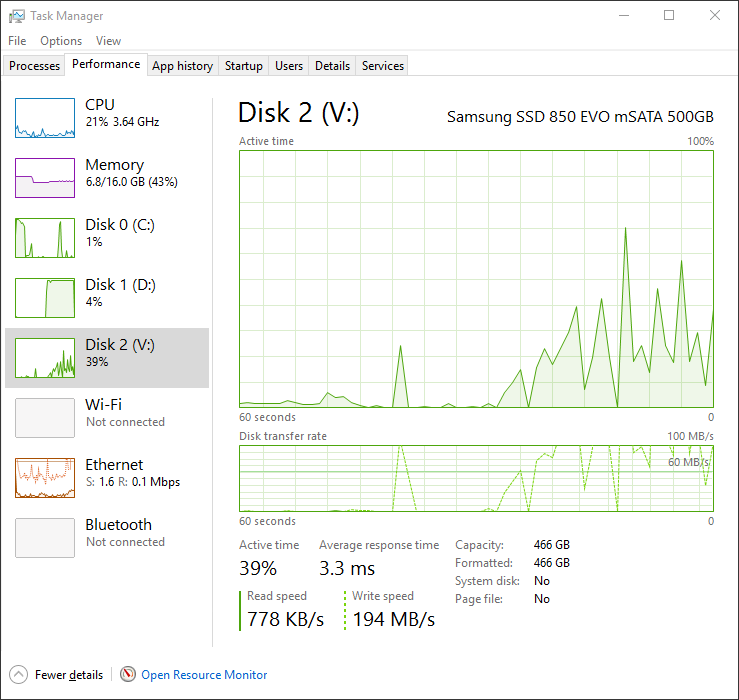
Read the example above in this order: 39% active time describes busyness; 3.3 ms describes response time; 778 KB/s read and 194 MB/s write describe throughput. These are separate measurements, not competing descriptions of the same percentage. The screenshot is an older Windows 10 interface example from Microsoft Press, not a measurement of a SysMain fault. Windows 11 arranges the navigation differently. [2]
Example: if your own drive shows 100% active time but only a small transfer rate while apps freeze, do not assume Task Manager is wrong. Investigate the requests and their latency. A large file copy and many small reads can produce very different transfer rates even when both keep a drive busy. An HDD can struggle with scattered requests; an SSD can also become slow for reasons that a SysMain toggle will not repair.
1. Match SysMain to the current process and files
- On Task Manager’s Processes page, sort by Disk while the problem is occurring. Expand the busy Service Host entry if it has an expansion control.
- Open Services in Task Manager, find SysMain, and record its current PID. Match that number on the Details page. If SysMain is stopped, do not start it just because this guide mentions it.
- For another read-only check, run
tasklist /svc /fi "SERVICES eq SysMain"in Command Prompt. The result identifies the host process; it is not a per-service disk-usage breakdown. - Press Win + R, enter
resmon, and open the Disk tab. In Processes with Disk Activity, match the PID and select its checkbox. Expand Disk Activity to inspect the file paths, read/write rates and response times. - Write down the time and trigger: just after login, opening a particular app, an update, a backup, or continued activity after those tasks finish. Recheck the PID after a restart because it can change.
If the host contains several services, matching the PID narrows the investigation but does not prove SysMain is the one doing the work. Likewise, activity attributed to System, PID 4 is not automatically SysMain. The Service Host identification guide explains how to separate a group label from the service responsible.
2. Check for storage trouble before a service experiment
A drive-health warning, repeated read errors, disappearing storage, or severe freezes during ordinary file access changes the priority. Preserve important data on a separate device or backup destination before running lengthy repair scans or stress tests. If files are already unreadable or the drive repeatedly disconnects, stop repeated experiments and get help with data recovery or the device.
Windows can display critical health warnings for supported NVMe SSDs in Settings → System → Storage → Advanced storage settings → Disks & volumes, under the drive’s properties. Microsoft recommends backing up when a critical warning appears. This built-in health view does not monitor every drive type; no warning there is not an all-clear for a SATA SSD or HDD. [3]
Check Event Viewer → Windows Logs → System for storage errors around the time of the freeze, and use the computer or drive manufacturer’s diagnostics when appropriate. Keep the error details. A file-system check such as chkdsk is not a complete hardware-health verdict, and changing a service cannot repair failing storage.
3. Run a temporary SysMain comparison, then restore it
Use this test only after confirming that SysMain is running in the relevant host, checking for storage trouble, and letting any progressing update or installation finish. Save your work first. On a managed work PC, give IT the measurements instead of changing the service yourself.
- Record the original state. Press Win + R, enter
services.msc, open SysMain, and note its service status and exact startup type. Leave the startup type unchanged. - Capture a baseline. Observe a short idle period, then perform one ordinary action that reliably causes the slowdown. Record active time, response time, read/write speed and whether the app responds. Note other active work, such as a backup.
- Stop only SysMain. In its Properties window, select Stop; administrative permission may be required. Do not end the whole
svchost.exeprocess or stop unrelated services. If Windows refuses, record the error rather than forcing it. - Repeat the same workload. Keep the other apps and conditions as similar as possible. Compare responsiveness and the three disk readings over a similar observation period.
- Restore the original state. If SysMain was running, select Start after the comparison. Confirm that the recorded startup type is unchanged. If you changed it earlier, restore the exact original value rather than guessing a default.
- Repeat after restoration. See whether the problem returns under the same action. Keep the before, stopped and restored observations together.
A drop after stopping is a lead, not a complete diagnosis. An update may have finished in the meantime, and reopening an app can be faster because data is already cached. A repeatable improvement in both response time and usability makes SysMain-related activity worth investigating; a quieter graph alone does not justify permanent disablement.
If restoring the service consistently brings the problem back, retain the observations, Windows build, disk model and trigger for support. Check for applicable Windows and manufacturer storage-driver updates. Do not delete the Prefetch folder or apply a collection of registry tweaks to make the test look successful.
If the disk stays busy, follow the observed workload
- SysMain stops, but the slowdown barely changes. Restore it and return to the top I/O process and file paths. Use the broader 100% disk-usage guide to identify other branches.
- SearchIndexer.exe is doing the work. Check indexing status and scope with the SearchIndexer troubleshooting guide.
- Cryptographic Services is the identified busy service. Use the CryptSvc guide to distinguish update activity from a recurring catalog problem.
- Memory pressure and paging accompany the slowdown. Reduce the identified app workload and inspect memory demand. The memory-compression guide explains the relevant memory readings.
- A known update, backup or security scan is progressing. Let it finish, then repeat the measurement. Do not disable protection or updates just to lower the disk graph.
- The drive reports errors or becomes unresponsive. Prioritize backup and storage diagnostics. Do not keep testing service changes against a potentially failing drive.
When a malware check is relevant
SysMain’s name and high disk usage alone are not signs of infection. A malware check becomes useful when the slowdown follows an unknown installer or fake update, security warnings recur, or unwanted browser and startup changes appear at the same time.
In that situation, download and install Gridinsoft Anti-Malware, update its database, run a Full Scan, review and remove detected threats, then restart. A bundled program or remaining scheduled task can keep unwanted activity running even after one visible file is removed.
If the process path is wrong, the name imitates a Windows component, or high CPU started after an unknown installer, scan for hidden miners, services, startup entries, and bundled components.
Run a malware checkRepeat the original workload afterward. A clean scan does not diagnose a storage or Windows performance fault, and it does not prove that every possible threat is absent.
FAQ
Should I disable SysMain because I have an SSD?
No blanket rule follows from having an SSD. Leave the service configuration alone unless you have a specific problem to investigate. If you test a temporary stop, compare the same workload and restore the original state afterward.
Why does disk usage rise again after restarting?
Stopping a service does not change its startup type, so SysMain may run again after a restart. Startup apps, updates and other disk work also return. Match the current PID and workload again instead of assuming the returning percentage identifies the cause.
Is SysMain high CPU the same problem as high disk usage?
No. CPU time and storage activity are different resources. Sort Task Manager by the resource that stays busy during the symptom, then identify the service and trigger. A fix for a disk bottleneck need not resolve sustained CPU load.
References
- Microsoft. “Optimizing Windows configuration for VDI desktops.” Microsoft Learn; accessed October 13, 2026. SysMain and environment-specific service configuration.
- Ed Bott. Windows 10 IT Pro Essentials: Top 10 Tools. Microsoft Press, 2016, p. 75, Figure 5-11; accessed October 13, 2026. Task Manager disk-performance example.
- Microsoft. “What to do about a critical warning for a storage device.” Microsoft Support; accessed October 13, 2026. Drive warnings and supported storage types.