If EXE files open in Notepad instead of starting, Windows may be sending executable files to the wrong application. Do not select another app in the chooser or download a registry “fix” immediately. First establish whether the problem affects several trusted programs, one download, or only a shortcut. For a widespread failure that began after a settings change, a suitable System Restore point can provide a recovery route—even when normal programs will not launch.
Seeing Edit in Notepad in a right-click menu is different. The problem described here is that your normal attempt to launch a program opens its contents as text, or Windows asks which app should open the executable.
Match the symptom before changing Windows
- Several previously working programs open in Notepad or another app. A changed executable association is a strong possibility. Check whether a trusted Windows utility can still start, then use the diagnosis or recovery route below.
- Only one downloaded file fails. Check its full extension, source and compatibility. A broken download or a file that is not actually an executable does not justify changing every EXE association.
- A desktop shortcut fails, but the installed program launches from its own folder. The shortcut is the narrower problem. Repair or recreate it from the trusted installed program; do not reset EXE handling globally.
- A warning says Windows protected your PC or an administrator blocked the app. Follow the matching security-warning guide. Changing a file association is not the answer to a deliberate security block.
- Notepad opens only after you choose Edit in Notepad. You explicitly selected an editor. Close it without saving over the program; this alone does not establish a broken default association.
Use two familiar, previously working local programs for comparison—not additional unknown downloads. In File Explorer, enable file-name extensions and inspect the full name. A file named setup.exe.txt is a text file; changing its name does not turn its contents into a working program. If it is an unfamiliar executable, use our EXE file safety checks before trying to run it.
For explicit warnings, see Windows protected your PC or This app has been blocked for your protection. On a workplace or school PC, give IT the exact message and affected program names.
Check the association without changing it
If Task Manager still opens with Ctrl + Shift + Esc, its Run new task control may let you start the trusted Windows command interpreter at C:\Windows\System32\cmd.exe. If that also opens an editor or fails, skip to recovery. Do not keep trying unfamiliar executables to work around the failure.
In Command Prompt, run these two inspection commands, one at a time. They contain no assignment operator and do not change the association. Microsoft documents both commands for Windows 10 and Windows 11. They are Command Prompt commands, rather than native PowerShell commands. [1] [2]
assoc .exe
ftype exefile
assoc .exe reports the file type assigned to the extension. ftype exefile reports the open command associated with that file type. If the results name an editor or an unexpected launcher, save the output for troubleshooting. An error or missing association is useful evidence too.
These are clues, not a complete audit of every Windows launch setting. Apparently normal output does not rule out a per-user override, a damaged shortcut or a different launch problem. Compare it with what actually happens when you launch trusted programs.
Do not append an equals sign to experiment: these commands can also modify settings. Do not set Notepad, Explorer or Command Prompt as the default app for EXE files. Executables are programs to run, not documents that need a replacement viewer. Avoid importing registry files from a different computer or applying a forum recipe without checking its Windows-version and user-profile assumptions.
Recover when ordinary programs will not start
Before recovery, save accessible work and back up important files. Have your BitLocker recovery key available if the device is encrypted. Choose a restore point from before the launch problem—not merely the newest entry.
Microsoft’s System Restore rolls back system files, registry settings and installed programs while leaving personal files alone. It requires an available restore point; review Scan for affected programs before committing. It is not a personal-file backup or a malware-removal operation. [3]
- If Windows tools still run, open Control Panel → Recovery → Open System Restore.
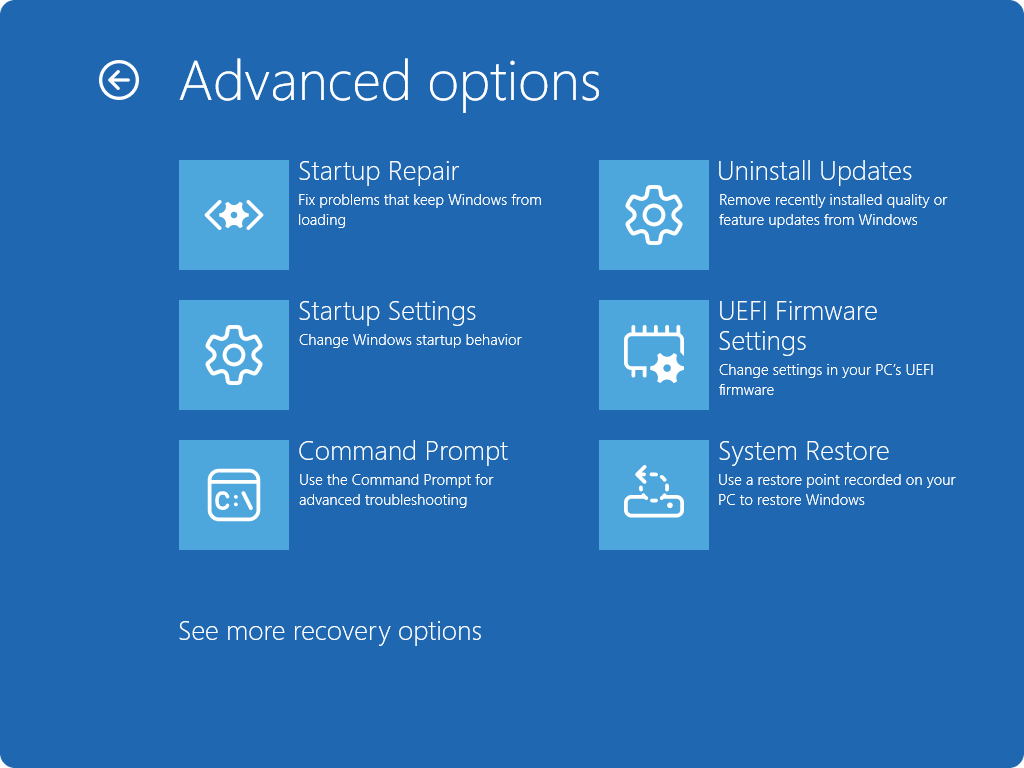
- If normal launching is broken, hold Shift while selecting Power → Restart to enter Windows Recovery Environment. [4]
- Choose Troubleshoot → Advanced options → System Restore.
- Select a pre-change point, review affected programs, and follow the confirmation prompts. Let recovery finish and Windows restart.
Use the option named System Restore. Other recovery options can have different effects on apps and personal files. Menu appearance varies by Windows version.
If no suitable restore point exists, the tool cannot manufacture one. Stop cycling through registry downloads. Keep the exact error, the names of affected programs, and any command output; ask Microsoft support, your device vendor or IT for a repair path appropriate to that installation. Back up accessible data before a repair installation or reset, and establish which apps, settings and files the chosen procedure preserves. A factory reset is a substantial change, not a diagnostic first step.
When a malware scan belongs in the recovery
A mistaken association does not, by itself, mean malware. The security branch matters when the problem followed an unknown installer, a security-tool detection, or changes that return after restarting. Restoring application launching and removing an infection are separate tasks.
Once trusted tools can run, Gridinsoft Anti-Malware can check for related threats: install it from the official source, update its database, run a Full Scan, review detections, apply the selected cleanup, and restart. A loader, startup entry or bundled component may remain after the visible download is removed and recreate unwanted changes. Scanning does not guarantee that EXE associations are repaired.
If the process path is wrong, the name imitates a Windows component, or high CPU started after an unknown installer, scan for hidden miners, services, startup entries, and bundled components.
Check for related threatsIf your security tool specifically reports Neshta file-infector activity, use that separate cleanup guide. A named file-infector detection across programs calls for a different response from an accidental Open With choice.
Confirm the repair after a restart
- Launch the same trusted programs that failed earlier. They should start normally without an editor or app chooser.
- Check the original shortcut separately. If the program works but its shortcut does not, address the shortcut.
- If you used System Restore, check the affected-program list before reinstalling needed software from its official source.
- If the wrong handler returns, record what changed immediately beforehand. Recurrence needs investigation; do not repeatedly import the same registry repair.
Keep the diagnosis narrow: one bad download, an intentional security block and a system-wide association change need different remedies. Restoring normal launching is the success test.
References
- Microsoft. “assoc.” Microsoft Learn, updated September 8, 2026; accessed October 22, 2026. Command syntax and applicability.
- Microsoft. “ftype.” Microsoft Learn, updated February 3, 2023; accessed October 22, 2026. Inspecting open-command strings.
- Microsoft. “System Restore.” Microsoft Support, accessed October 22, 2026. Restore points and recovery steps.
- Microsoft. “Windows recovery environment.” Microsoft Support, accessed October 22, 2026. Entering Windows RE and its recovery tools.