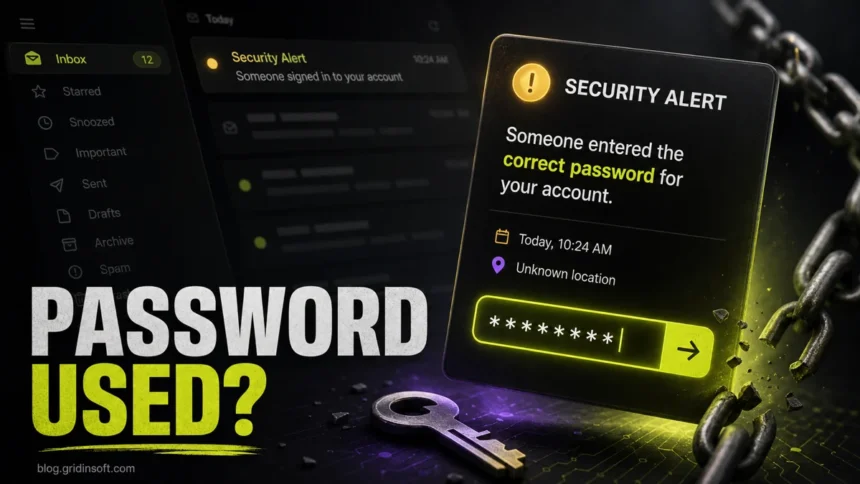
“Someone Entered Correct Password For Your Account” is a phishing email scam. The message pretends to be a security alert and says someone used the correct password for your email account from an unknown device or IP address. The goal is to scare you into clicking a fake “review activity” or “secure account” link and entering your login credentials on a phishing page.
| Scam name | “Someone Entered Correct Password For Your Account” email scam |
| Threat type | Phishing, fake security alert, credential theft, social engineering |
| Fake claim | Someone entered the correct password for your account from an unknown IP address or device. |
| What the link does | It leads to a fake login page that can steal your email, Microsoft, Google, Yahoo, or other account password. |
| Best first action | Do not click the email link. Open the account provider directly and check security activity from the official site or app. |
Is This a Real Security Alert?
Usually no. The scam email copies the language of real account alerts, but the link points to a phishing page. A real security alert from Google, Microsoft, Apple, Yahoo, or another provider should be verified by opening the official website or app yourself, not by following a link in the message.
If the email says someone entered the correct password, do not panic and do not use the button in the email. Go directly to your account security page, review recent sign-ins, change the password if needed, and enable two-factor authentication.
How the Scam Works
The message usually says that a sign-in attempt was detected from an unfamiliar device, browser, location, or IP address. It may claim that the password was correct but access was blocked because extra security checks were enabled.
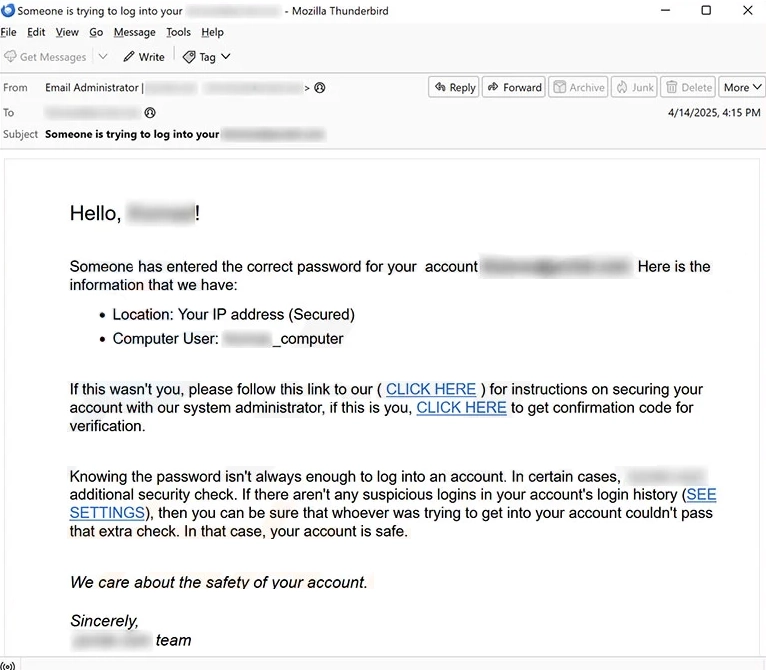
That wording is chosen carefully. It makes the threat feel urgent, but it also gives the scammer a reason to send you to a “review activity” page. The phishing page then imitates a login screen and records whatever you type.
Common Red Flags
- The email asks you to click a “CLICK HERE,” “Review activity,” “Secure account,” or “Reactivate account” link.
- The link goes through a shortener, a random domain, a compromised website, or a domain that does not belong to the provider.
- The message uses generic wording instead of the provider’s normal security-alert format.
- The sender address does not match the real service domain.
- The email creates urgency but does not give a safe way to verify from the official app.
- The IP address, device name, or username looks fake, generic, or oddly formatted.
- The login page asks for your password after you clicked from the email instead of from the official site you typed yourself.
Fake Alert vs Real Account Alert
| Question | Fake phishing alert | Real alert behavior |
| Where does the link go? | Unknown domain, short link, compromised site, or lookalike login page. | Official provider domain, but you should still verify by opening the app or site directly. |
| Does it ask for credentials? | Yes, often immediately after clicking. | Legitimate providers may ask you to sign in, but you can access the same page from account settings. |
| Does it threaten account closure? | Often yes, with urgent wording. | Real alerts usually focus on reviewing activity or changing security settings. |
| How should you verify? | Do not use the link. | Open Gmail, Microsoft account, Apple ID, Yahoo, or the service app manually and check security activity. |
What If Someone Really Entered the Correct Password?
If the alert is real, it means your password may be known to someone else or reused from a breached website. The correct response is account security, not clicking random email links.
- Open the official account website or app yourself.
- Check recent sign-ins, devices, sessions, and security events.
- Change the password to a unique one you do not use anywhere else.
- Enable two-factor authentication or passkeys.
- Sign out of all devices if the provider offers that option.
- Review recovery email, recovery phone, forwarding rules, and connected apps.
Start with your email account because it can reset passwords for many other services. Then check banking, social media, cloud storage, shopping, work, and password-manager accounts.
What If You Clicked the Link?
If you clicked but did not enter a password, close the page and do not continue. In most cases, simply opening the page is not enough to compromise your account, but it can confirm that your email address is active.
If you entered your password, act quickly:
- Change the password from the official website or app.
- Enable two-factor authentication.
- Sign out of other sessions.
- Check forwarding rules and filters in your mailbox.
- Remove unknown connected apps, app passwords, and OAuth access.
- Check whether the same password was reused on other accounts and change those too.
What If You Downloaded a File?
Most versions of this scam focus on stealing credentials, but some phishing campaigns add attachments or fake security tools. If you downloaded or opened a file, scan the device before changing important passwords on it.
After uninstalling the suspicious app or deleting the visible threat, use Gridinsoft Anti-Malware to check hidden files, startup entries, scheduled tasks, bundled apps, browser changes, and other persistence points that can restore malware.
Download Anti-MalwareAfter the scan, check startup apps, browser extensions, recently installed programs, and scheduled tasks if the device behaves strangely.
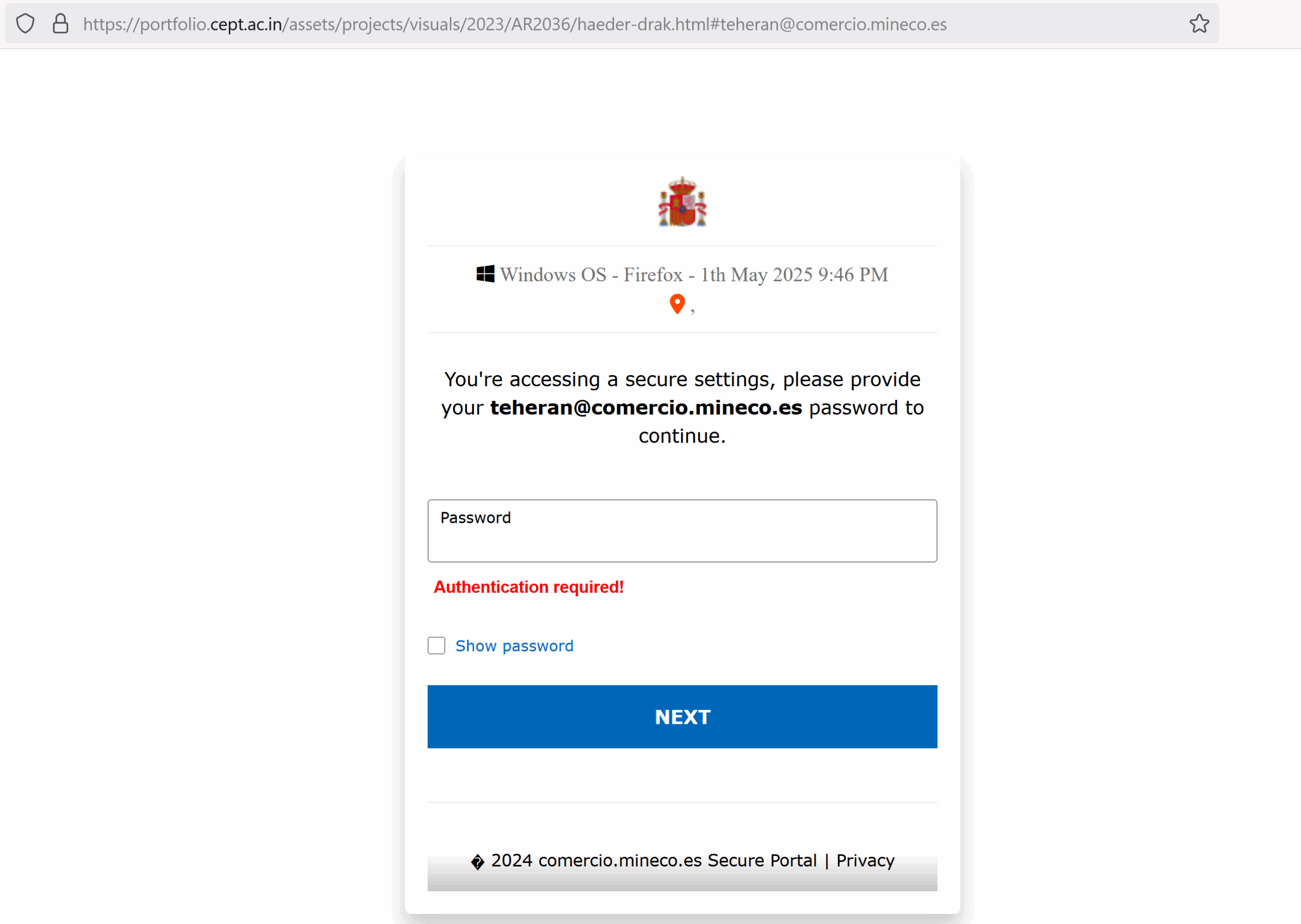
Example Phishing Page
The phishing link can open a page that imitates an email login screen. It may be hosted on a compromised website or a domain unrelated to the service being impersonated.
How to Check Real Security Activity
Use the official provider settings instead of email links:
- Google/Gmail: open your Google Account and check Security > Recent security activity and Your devices.
- Microsoft/Outlook: open your Microsoft account and check Security > Sign-in activity.
- Apple ID: open Apple Account settings and review trusted devices, password, and sign-in/security options.
- Yahoo/AOL: open account security settings and review recent activity, recovery methods, and connected apps.
If the official account page shows no matching sign-in attempt, the email was almost certainly a phishing lure.
How to Report the Email
Report the message as phishing in your mail app. Microsoft says suspicious messages can be reported from Outlook, and phishing can also be reported to the FTC or forwarded through official reporting channels. In the U.S., fraud can be reported at ReportFraud.ftc.gov.
If money was stolen, accounts were taken over, or the attacker is impersonating you, preserve the email headers, phishing URL, screenshots, and any account activity logs before deleting the message.
FAQ
Is “Someone Entered Correct Password For Your Account” always fake?
The email campaign using that exact wording is usually fake. But a real provider can send genuine sign-in alerts. Verify by opening the provider’s official website or app yourself and checking security activity.
Why does the scam say the password was correct?
That phrase creates urgency. It makes you feel that the attacker almost got in, so you are more likely to click the phishing link without checking the domain.
Can a phishing email know my real password?
Sometimes scammers use passwords from old data breaches. If a password shown in an email is real, change it everywhere it is still used and enable two-factor authentication.
What if I entered my password on the fake page?
Change the password immediately from the official site, enable two-factor authentication, sign out of other sessions, and check forwarding rules, recovery options, and connected apps.
Can clicking the link alone hack my account?
Usually not if you did not enter credentials or download anything. Still, close the page, do not continue, and be alert for follow-up phishing emails.
Should I use the email link if it looks like Gmail or Microsoft?
No. Type the address yourself, use a bookmark, or open the official app. Phishing pages can copy logos and layouts very closely.
Bottom Line
The “Someone Entered Correct Password For Your Account” email is built to make you click before you verify. Do not use the link in the message. Check the account directly from the official site, change reused passwords, enable two-factor authentication, and scan the device if you downloaded or opened anything from the email.
Related scam guides
Related: For a general checklist, see how to spot a phishing email, or analyze a suspicious message with GridinSoft Email Checker.