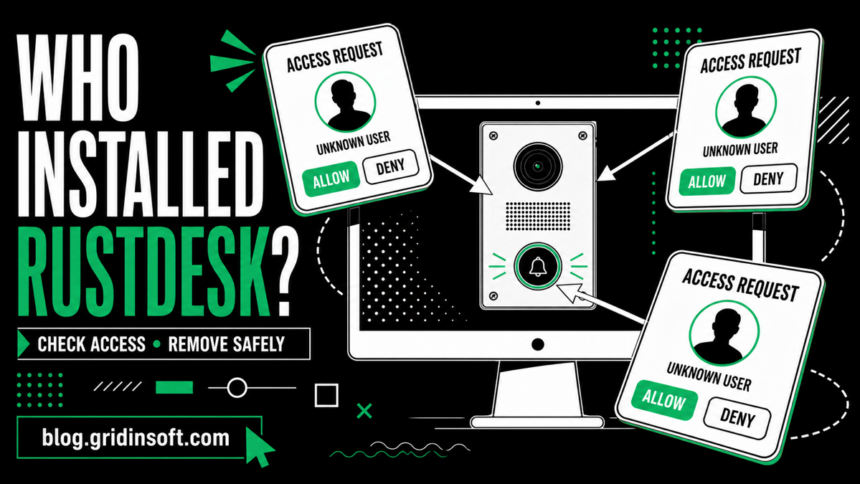
RustDesk is legitimate remote-control software, but finding it on a Windows PC when you did not install or approve it deserves an immediate check. An unexpected request does not prove that someone controlled the computer: a connection normally still needs approval or valid unattended-access credentials. Until you identify the installer, however, treat the app, service, or repeated requests as possible unauthorized remote access. Deny new requests, preserve the relevant logs, check whether a session was accepted, and then remove RustDesk if it is not authorized.
What an unknown RustDesk request means
A request window means another RustDesk client reached your device and asked to connect. If you clicked Deny, closed the window, or never approved it, that request alone is not evidence that the other person saw your screen. The more serious cases are an accepted request, a saved permanent password, unattended access, or an unknown service that starts with Windows.
RustDesk maintainers documented automated requests labeled “Go Client” in early 2026. Their guidance was to reject unknown connections, review access logs, and strengthen password or access-control settings. This makes repeated requests worth investigating, but it does not mean every request is personally targeted.
| What you found | What to do |
|---|---|
| You denied an unknown request | Preserve the time and requester details, check the logs, disable RustDesk if unused, and change its access settings before reconnecting it. |
| You accepted a request | Disconnect the PC, preserve evidence, remove unauthorized access, scan the system, and secure any accounts exposed during the session. |
| A permanent password or unattended access is enabled | Disable it immediately, replace reused passwords, review logs and configuration, and ask the device owner or administrator who set it. |
| It is a company-managed installation | Do not delete it blindly. Confirm the publisher, server configuration, and deployment with IT; report unknown requests to the security team. |
| A caller told you to install it | End the call, disconnect remote control, contact the bank or affected service through an official channel, and follow the accepted-session recovery steps below. |
| You downloaded it from an unofficial site | Assume the installer may contain something besides RustDesk. Remove the client, run a full malware scan, and change important credentials from a clean device. |
Preserve evidence before removing RustDesk
If a session may have been accepted, spend a few minutes collecting evidence before uninstalling the program. Take screenshots of the request, note the displayed requester name or ID and the exact time, and record whether files, banking pages, email, password managers, or work systems were open. Do not contact the requester or accept another connection to “test” it.
Copy RustDesk logs to a separate folder or removable drive. If this is a work computer, stop and contact IT before changing files: the logs and installed service may be needed for an incident investigation. Do not post raw logs or configuration files publicly. They can reveal device identifiers, server addresses, and connection details.
Was RustDesk portable or installed?
RustDesk can run as a temporary executable or as an installed Windows application. It also supports silent installation and a permanent-password option, so the absence of a normal setup window does not prove that it appeared by itself.
- Open Task Manager, find any RustDesk process, right-click it, and choose Open file location. A file in Downloads, Desktop, or a temporary folder suggests portable use. The normal installed location is commonly
C:\Program Files\RustDesk. - Open Settings > Apps > Installed apps and search for RustDesk. Note its installation date before removing it.
- Press Win+R, enter
services.msc, and look for a RustDesk service. Record its status and startup type. Do not disable unrelated services with similar words. - Right-click the executable, open Properties > Digital Signatures, and verify its publisher. A valid signature helps identify the file, but it cannot tell you who authorized the installation.
- Check browser download history, the Downloads folder, support tickets, and Windows user accounts around the installation time. If the filename or source is unfamiliar, use a dedicated guide to check whether the EXE is safe.
On a managed computer, an administrator may have deployed RustDesk legitimately. Confirm that through a known company channel rather than trusting a message inside the remote-access app.
Check RustDesk access logs and configuration
Review the logs before uninstalling. RustDesk documents different Windows paths depending on how the client ran:
- Portable client:
%AppData%\RustDesk\log\RustDesk_rCURRENT.log - Installed client, controlled side:
C:\Windows\ServiceProfiles\LocalService\AppData\Roaming\RustDesk\log\server\ - Installed client, control side:
%AppData%\RustDesk\log\RustDesk_rCURRENT.log
Search around the time of the popup for connection attempts, accepted sessions, requester identifiers, and errors. A denied request and an authenticated session are different events. The public RustDesk relay does not provide you with a central access-history portal, so local logs are important.
Also review RustDesk settings for an unexpected permanent password, unattended access, or a custom ID/relay/server configuration. A custom server can be legitimate in an organization, but it should match a server your administrator recognizes. Photograph suspicious settings before changing them, then disable remote access and replace any permanent password. Never send the password or the configuration file to an unknown helper.
How to remove RustDesk completely on Windows
If RustDesk is not authorized, remove it in a controlled order. Disconnect Wi-Fi or Ethernet first if a session is active or you suspect the operator still has access.
- Quit RustDesk from its window and notification-area icon. Use Task Manager to end remaining RustDesk processes.
- Open Settings > Apps > Installed apps, select RustDesk, and choose Uninstall. If it was only a portable copy, delete the executable after preserving its source and hash when an investigation may be needed.
- Restart Windows. Then check Task Manager and
services.mscagain. No RustDesk process or service should return. - If the uninstaller is complete and this is not a managed device, inspect
%AppData%\RustDeskandC:\Windows\ServiceProfiles\LocalService\AppData\Roaming\RustDesk. Remove leftover RustDesk data only after saving needed logs and confirming the folders belong to this client. Older versions have been reported to leave service-profile configuration behind. - Review Settings > Apps > Startup, Task Scheduler, Windows Firewall allowed apps, and recently installed programs for an unknown item that could relaunch or reinstall the client.
- Restart once more and verify that the program, service, and unexpected request do not return.
Do not use a registry cleaner or delete every entry containing “remote.” That can damage legitimate Windows features and destroy useful evidence. If Windows blocks the normal uninstaller, preserve the error message and use your administrator or incident-response process rather than downloading a third-party removal utility.
Scan for what may have installed it
Uninstalling RustDesk removes the remote-control client; it does not necessarily remove the downloader, bundled program, scheduled task, or credential-stealing malware that placed it there. Run a full system scan when the source is unknown, RustDesk returns after reboot, a stranger guided the installation, or the file came from an unofficial download page.
Gridinsoft Anti-Malware can check for malicious installers, persistence, and other unwanted components that a manual RustDesk uninstall would miss. A clean scan cannot prove that no remote session occurred, so keep the account-recovery steps separate from malware removal.
If the process path is wrong, the name imitates a Windows component, or high CPU started after an unknown installer, scan for hidden miners, services, startup entries, and bundled components.
Check for remote-access leftoversIf someone connected or watched your screen
Assume information visible during an accepted session may have been exposed. From a different, trusted device, change the passwords for email, banking, cloud storage, work accounts, and any password manager that was open. Sign out other sessions, enable multi-factor authentication, and review recovery addresses, forwarding rules, newly added devices, and payment details.
If money, card information, or online banking was visible, call the financial institution using the number on its official site or your card. Tell it that a remote-access session may have occurred. If work data was accessible, contact your employer immediately. For a broader recovery sequence, follow our account hacked checklist.
Consider a professional incident review or a clean Windows reinstall if the remote user had administrator rights, installed additional software, disabled security tools, or accessed highly sensitive data. Do not reconnect the suspected PC to important accounts until you have reasonable confidence that persistence is gone.
Official RustDesk versus a fake download
The official RustDesk project is not the same thing as a trojanized download using its name. Malwarebytes documented a January 2026 campaign in which the fake domain rustdesk[.]work delivered a working RustDesk client together with the Winos4.0 backdoor. That finding applies to the fake site and installer, not to software obtained from the official rustdesk.com project.
If you used that fake domain or cannot confirm the source, preserve the downloaded installer, disconnect the PC, scan it, and change credentials from a clean device. Do not revisit the fake site to compare files.
How to prevent another unexplained remote-access client
- Allow remote-help tools only when you initiated support through a verified channel.
- Keep a written list of approved remote-access software on family and work PCs.
- Disable unattended access when it is not required and use a unique, strong permanent password when it is.
- Remove unused remote clients and review installed applications regularly.
- Never share a RustDesk ID or accept a request because an unsolicited caller claims to be your bank, Microsoft, an employer, or a government agency.
- For a wider lockdown checklist, see how to block remote-access scam software on Windows.
If you reinstall RustDesk for legitimate support, download it only through the official project, verify the publisher, update it, and configure access deliberately. On a work device, use only the package and server settings approved by your administrator.
FAQ
Is RustDesk malware?
No. RustDesk is legitimate remote-desktop software, but scammers and intruders can misuse legitimate tools. A fake download can also bundle malware with a working client, so the installation source and authorization matter.
Can someone access my PC if I denied the RustDesk request?
A denied request alone does not show that a session started. Check local logs and settings anyway, especially for a permanent password or unattended access that might allow a different connection path.
Why did RustDesk appear without an installation window?
It can run as a portable executable, and administrators can deploy it silently. Check the executable location, Installed Apps, the RustDesk service, browser download history, and your IT deployment records to identify how it arrived.
Will uninstalling RustDesk stop all remote access?
It should remove that client when the uninstall completes, but it does not remove another remote tool or the program that installed it. Reboot, verify the service is gone, review startup and scheduled tasks, and scan the PC when the source is unknown.
Should I change my passwords after an unknown request?
If you only denied a request and logs show no session, password changes are usually not the first step. If you accepted access, exposed credentials, found unattended access, or ran a suspicious installer, change important passwords from a clean device and revoke active sessions.
References
- RustDesk. “RustDesk Client.” Official installation, portable-use, configuration, and command-line documentation.
- RustDesk. “FAQ: Access Logs.” Official Windows paths for portable, controlled-side, and control-side logs.
- RustDesk maintainers. “Security Alert: ‘Go Client’ botnet attack.” GitHub discussion, January 2026.
- Stefan Dasic, Malwarebytes. “How real software downloads can hide remote backdoors.” January 14, 2026.