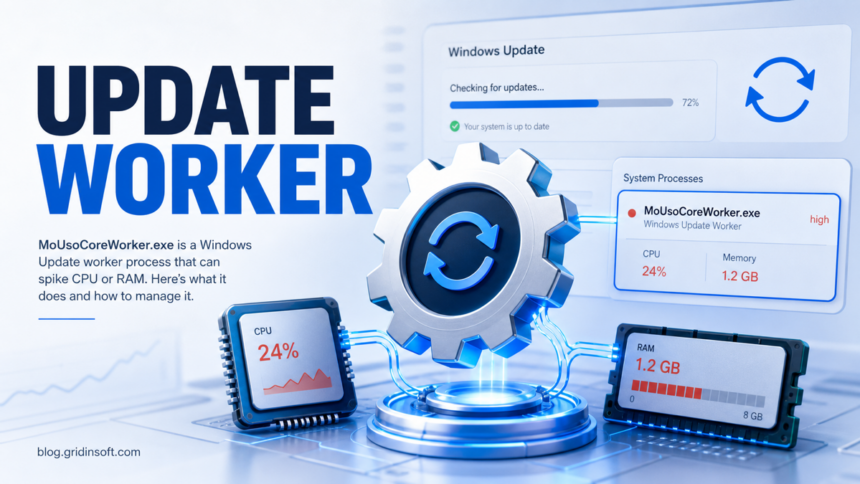
MoUsoCoreWorker.exe is normally a Microsoft-signed Windows Update worker, not malware. Choose the next step by symptom: let a short update-related CPU, RAM, disk, or network spike finish; repair Windows Update if the activity stays high after a restart; run powercfg /requests if the PC will not sleep; and investigate a copy that is unsigned or starts from AppData, Temp, Downloads, or another user-writable folder.
Start in Settings > Windows Update. If Windows is downloading, installing, or waiting for a restart, let it finish and reboot when prompted. If Windows Update shows an error and the process remains busy after the restart, run the update troubleshooter. Do not delete the signed system file or permanently disable Windows Update to hide the symptom.
What Is MoUsoCoreWorker.exe?
MoUsoCoreWorker.exe is commonly shown as the MoUSO Core Worker Process. The USO part refers to Update Session Orchestrator, the Windows Update component that coordinates update scans, downloads, installation order, and restart handling. Microsoft documents Windows Update as part of the Unified Update Platform model used for Windows servicing, but it does not publish a reader-friendly page for every internal executable name.
That lack of a simple Microsoft process page is why users worry when they see the file. The important point is practical: a Microsoft-signed MoUsoCoreWorker.exe running from a Windows system update location is expected behavior. A same-named copy in a random folder is not automatically trusted.
MoUsoCoreWorker.exe: Safe vs Suspicious
| What you see | Likely meaning and first safe action |
|---|---|
| A Microsoft-signed copy is active while Windows Update is downloading or installing, and the CPU, RAM, disk, or network spike is brief. | Expected update activity. Let the update finish and reboot if Windows requests it. |
| CPU, RAM, or disk use stays high after a restart and Windows Update shows a repeated error. | Likely a stuck update session. Run the Windows Update troubleshooter; use DISM and SFC only if the failure continues. |
The PC will not enter sleep and powercfg /requests lists MoUsoCoreWorker.exe. |
An active update power request is blocking sleep. Finish pending updates, reboot, and run the command again. |
The file is unsigned, starts from AppData, Temp, Downloads, Desktop, or unfamiliar persistence. |
Possible masquerade. Scan the file and investigate its launch chain before removing anything. |
Why MoUsoCoreWorker.exe Uses High CPU, RAM, Or Disk
High resource usage usually means Windows Update is doing work or is stuck trying to do work. Common causes include a pending cumulative update, a failed update retry, a large feature update, corrupted update cache, damaged system files, or a restart that has not been completed yet.
The process can also appear after the computer resumes from sleep because Windows checks whether it can continue an update session. If the update stack is healthy, the spike should fall after the scan or installation stage ends. If it keeps running for hours or consumes memory until other apps slow down, the update session needs troubleshooting.
How To Check Whether It Is Legitimate
- Open the file location. In Task Manager, right-click
MoUsoCoreWorker.exeand choose Open file location. A legitimate copy should be under a Windows system update location, not in your user profile, Downloads, or a random temporary folder. - Check the digital signature. Right-click the file, open Properties, and inspect Digital Signatures. A real Windows copy should be signed by Microsoft; a missing or different publisher is a reason to investigate the file further.
- Check Windows Update. Open Settings > Windows Update. Look for downloading, installing, pending restart, paused updates, or repeated error codes.
- Review the command line. In Task Manager’s Details tab, add the Command line column. A same-named EXE launched from a script, archive, crack installer, or Startup folder is suspicious.
- Look for persistence. Check Task Scheduler, Startup apps, Startup folders, and Registry Run keys only for entries that point to a wrong-folder copy. Do not disable Windows Update services blindly.
- Scan the suspicious copy. If the path or signature is wrong, scan the file, the parent folder, and recent downloads before removal.
Gridinsoft Anti-Malware can help verify a wrong-folder MoUsoCoreWorker.exe copy and the surrounding files. This is most useful when the file appeared after a fake update, cracked app, game mod, unknown installer, or browser pop-up.
After uninstalling the suspicious app or deleting the visible threat, use Gridinsoft Anti-Malware to check hidden files, startup entries, scheduled tasks, bundled apps, browser changes, and other persistence points that can restore malware.
Download Anti-MalwareHow To Fix MoUsoCoreWorker.exe High CPU, RAM, Or Disk
- Check Windows Update first. Open Settings > Windows Update. If an update is downloading or installing, let that stage finish instead of interrupting the process.
- Complete the pending restart. Reboot when Windows requests it, then check Task Manager again. A session that is waiting for restart can keep update components busy.
- Run the Windows Update troubleshooter after an error. Use Microsoft’s built-in troubleshooting flow when the update page shows a failure or the same update keeps retrying.
- Repair Windows components only if failures continue. From an elevated Command Prompt, run
DISM /Online /Cleanup-Image /RestoreHealth, wait for it to finish, and then runsfc /scannow. - Check for malware only when evidence points there. A wrong path, missing Microsoft signature, unfamiliar persistence, browser redirects, blocked security tools, or a recent unknown download is stronger evidence than resource use alone.
If Task Manager shows DISM Host Servicing Process or dismhost.exe during the same update loop, use the DISM Host Servicing Process high CPU guide to check whether Windows servicing is still working or stuck.
If Task Manager identifies TiWorker.exe or Windows Modules Installer Worker instead, follow the TiWorker.exe high CPU decision guide to separate normal component servicing from a failed update loop or a wrong-path copy.
Do not permanently disable Windows Update just to stop MoUsoCoreWorker.exe. That may quiet the process, but it also leaves the device without security fixes. Fix the failed update state or remove the fake copy instead.
If the same update still fails after DISM and SFC
Write down the failed update’s KB number, error code, and time from Settings > Windows Update > Update history. If the signed MoUsoCoreWorker process keeps retrying the same failed update after a restart, repeating scans or stopping the worker does not repair that update.
On supported Windows 11 PCs, Microsoft provides Settings > System > Recovery > Fix problems using Windows Update > Reinstall now. It reinstalls the current Windows version to repair system files and components while preserving apps, files, and settings [4]. Back up important files first, save your work, and keep the PC connected to power and the internet throughout the repair. This is a later recovery option, not the first response to a short CPU spike.
If the option is missing, it may be unavailable on an older Windows 11 installation or a device whose updates are managed by work or school. Contact the administrator or follow Microsoft’s update troubleshooting route for the recorded error. Do not disable update policies or use an unknown repair utility to force the option to appear.
Verify the result: after the repair and restart, check that Windows Update no longer repeats the same error and that resource use settles after update activity finishes. For a sleep problem, rerun powercfg /requests when the PC is idle. If another process is listed, investigate that request; MoUsoCoreWorker’s disappearance alone does not prove the original update failure is fixed.
What If It Prevents Sleep Or Restarts The PC?
First separate two different symptoms: a PC that never enters sleep and a PC that sleeps but wakes again. Use these read-only checks from Windows Terminal or Command Prompt:
- Check what is blocking sleep now. Run
powercfg /requests. Only attribute the block toMoUsoCoreWorker.exeif the process appears in the output; if it is absent, investigate the other listed process or driver. - Resolve the update state. If the process is listed while Windows Update is downloading, installing, or waiting for a restart, finish that step and reboot.
- Retest after the restart. Run
powercfg /requestsagain. If the process remains listed and Windows Update shows an error, run the troubleshooter and then use DISM/SFC only if the failure continues. - Check a real wake separately. If the PC entered sleep and then woke, run
powercfg /lastwaketo see the last wake source andpowercfg /waketimersto list active wake timers. Another device, driver, or scheduled task may be responsible.
Do not use powercfg /requestsoverride, disable UsoSvc, or permanently disable Windows Update as the first fix. Those actions can hide the power request while leaving the failed update state unresolved. For planned restarts, review Windows Update restart settings and active hours instead.
When The Same Name Can Be Malware
Malware often uses Windows-looking file names to lower suspicion. A fake MoUsoCoreWorker.exe may arrive through a fake update prompt, cracked software installer, bundled adware, malicious archive, or remote-access Trojan. The name alone proves nothing; the path, signature, launch chain, and symptoms decide the risk.
Remove only the suspicious chain after confirming it is not the Microsoft-signed Windows component:
- wrong-folder
MoUsoCoreWorker.execopies; - scheduled tasks, Startup entries, or Run keys that relaunch the wrong copy;
- companion scripts, DLLs, archives, or installers from the same folder;
- recent browser extensions or apps that created the folder;
- downloads tied to fake updates, cracks, game mods, or suspicious pop-ups.
For related Windows process checks, compare this guide with Gridinsoft’s articles on UserOOBEBroker.exe, SecurityHealthSystray.exe, TextInputHost.exe, and DWM.exe high memory usage. If the suspicious file appeared after a game, crack, or mod download, also review the infostealer after game or mod checklist.
What Not To Do
- Do not delete a Microsoft-signed Windows system copy just because it appears in Task Manager.
- Do not download “MoUsoCoreWorker.exe fix” tools from random websites.
- Do not block all Windows Update network traffic unless you are intentionally managing updates in an enterprise environment.
- Do not restore a suspicious file from quarantine just because the name looks like a Windows component.
- Do not reset important passwords on a PC that may still have an active infostealer or remote-access Trojan.
FAQ
Is MoUsoCoreWorker.exe a virus?
Usually no. MoUsoCoreWorker.exe is normally connected to Windows Update. It becomes suspicious when it is unsigned, runs from a user-writable folder, launches from strange persistence, or appears with other malware symptoms.
Can I end MoUsoCoreWorker.exe in Task Manager?
Ending the task may stop the current activity temporarily, but it is not a repair. Check Windows Update, complete pending restarts, and troubleshoot a visible update error if the process keeps returning with high CPU, RAM, or disk use.
Why does MoUsoCoreWorker.exe wake my computer?
If powercfg /requests lists the process, an active update request is preventing sleep. If the PC already slept and woke again, use powercfg /lastwake and powercfg /waketimers to identify the actual wake source before changing update settings.
Where should MoUsoCoreWorker.exe be located?
A legitimate copy should be in a Windows system update location and signed by Microsoft. A copy in AppData, Temp, Downloads, Desktop, or a random app folder should be scanned as a possible masquerade.
References
- Microsoft Support. “Troubleshoot problems updating Windows.” Microsoft, accessed July 22, 2026. https://support.microsoft.com/en-us/windows/troubleshoot-problems-updating-windows-188c2b0f-10a7-d72f-65b8-32d177eb136c
- Microsoft Learn. “Manage device restarts after updates.” Microsoft, updated October 1, 2025, accessed July 22, 2026. https://learn.microsoft.com/en-us/windows/deployment/update/waas-restart
- Microsoft Learn. “Powercfg command-line options.” Microsoft, accessed July 22, 2026. https://learn.microsoft.com/en-us/windows-hardware/design/device-experiences/powercfg-command-line-options
- Microsoft. “Fix issues by reinstalling the current version of Windows.” Microsoft Support, accessed October 20, 2026. https://support.microsoft.com/en-us/windows/deployment/install-upgrade/fix-issues-by-reinstalling-the-current-version-of-windows