TextInputHost.exe: safe or suspicious?
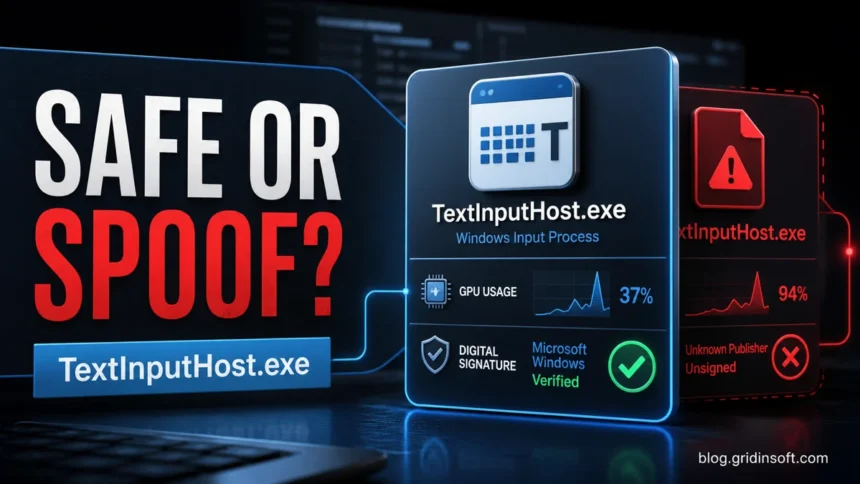
TextInputHost.exe is normally a safe Microsoft Windows input process, not a virus. It powers the touch keyboard, emoji panel, handwriting, dictation, and modern text input in Windows 10 and Windows 11. GPU activity or a system error does not automatically mean malware, but it does mean you should check the file path, Microsoft signature, and recent driver or Windows changes.
The legitimate file should be Microsoft-signed and stored under a Windows SystemApps folder, commonly C:\Windows\SystemApps\MicrosoftWindows.Client.CBS_cw5n1h2txyewy or its InputApp subfolder. Treat it as suspicious if it launches from Temp, AppData, Downloads, a random program folder, or has an unknown publisher.
Do not delete or rename the Windows file as a first fix. If TextInputHost.exe is using the dedicated GPU, crashing, or showing a system error, start with Windows updates, system file repair, graphics preference changes, and a malware scan only when the location or signature looks wrong.
| File name | TextInputHost.exe |
| What it does | Handles Windows text input, touch keyboard, emoji/GIF panel, handwriting, and related input features. |
| Usually safe? | Yes, when Microsoft-signed and stored in a Windows system app location. |
| Best first check | Open file location, verify the Microsoft digital signature, then troubleshoot GPU or system-error symptoms. |
| Disable it? | Only temporarily for troubleshooting; disabling it can break normal typing and input features. |
| Virus warning signs | Unknown publisher, random folder, high resource use with suspicious startup entries, or no Microsoft signature. If a Windows Security tray startup entry is the concern, compare it with our SecurityHealthSystray.exe safe-or-malware guide. |
What does TextInputHost.exe do in Windows?
TextInputHost.exe belongs to the Windows text input stack. It manages input from physical keyboards, touch keyboards, touchscreens, stylus pens, handwriting, dictation, and the emoji panel. You may notice it in Task Manager as Microsoft Text Input Application or as a background process inside the Windows Feature Experience Pack.
Under normal conditions it uses little CPU, memory, or GPU time and starts only when Windows input features need it. If it keeps waking the dedicated GPU, repeatedly crashes, or appears from a non-Windows folder, use the checks below before deciding whether this is a Windows problem or a suspicious copy.
Check TextInputHost.exe in this order
- Open file location: Task Manager → Details → TextInputHost.exe → Open file location.
- Confirm the path: a normal Windows copy is under
C:\Windows\SystemApps\MicrosoftWindows.Client.CBS_cw5n1h2txyewyorInputApp. - Verify the signer: Properties → Digital Signatures should show a valid Microsoft Windows signature.
- Match the symptom: GPU use points to graphics/input UI settings; random folders, unknown publisher, or persistence entries point to a malware scan.
Fix TextInputHost.exe system error, crashes, or high GPU use
Most TextInputHost.exe complaints fall into three buckets: a Windows system error, repeated crashes, or constant dedicated-GPU activity on laptops. The fixes are different, so avoid deleting the file and follow the symptom that matches your case.
TextInputHost.exe System Error
TextInputHost.exe system errors typically manifest after system changes, such as Windows updates or system restores. These errors can be caused by corrupted system files, software conflicts, or incomplete update installations. To resolve these issues, try the following steps:
1. Check for Windows Updates: Microsoft regularly releases patches for known issues with system components. Ensuring your system is up-to-date may resolve the problem automatically:
- Open Settings (Windows key + I)
- Navigate to Update & Security (Windows 10) or Windows Update (Windows 11)
- Click “Check for updates” and install any available updates
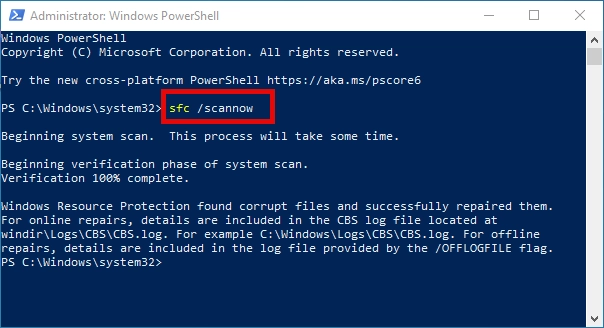
2. Perform a System File Checker Scan: The SFC utility can identify and repair corrupted system files:
- Right-click the Start menu and select “Windows PowerShell (Admin)” or “Windows Terminal (Admin)”
- Type the command: sfc /scannow and press Enter
- Wait for the scan to complete (this may take several minutes)
TextInputHost.exe Crashing
Frequent crashes of TextInputHost.exe can significantly disrupt your Windows experience. These crashes may result from file corruption, driver conflicts, or incompatible third-party software. While a simple system restart may resolve temporary issues, persistent crashes require more thorough troubleshooting:
1. Use System File and Disk Repair Tools: If the SFC scan didn’t resolve the issue, try these additional repair commands in PowerShell (Administrator):
dism /online /cleanup-image /CheckHealth
dism /online /cleanup-image /restorehealth
chkdsk /f /r /b
Run these commands one at a time, pressing Enter after each line. The DISM commands repair the Windows component store, while CHKDSK scans and repairs disk errors that might be causing file corruption.
2. Perform a Clean Boot: Isolate the problem by temporarily disabling non-Microsoft services and startup programs:
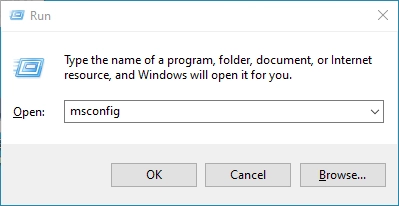
- Press Windows key + R to open the Run dialog
- Type msconfig and press Enter
- In the System Configuration window, go to the Services tab
- Check “Hide all Microsoft services” and click “Disable All”
- Click Apply, then OK, and restart your computer
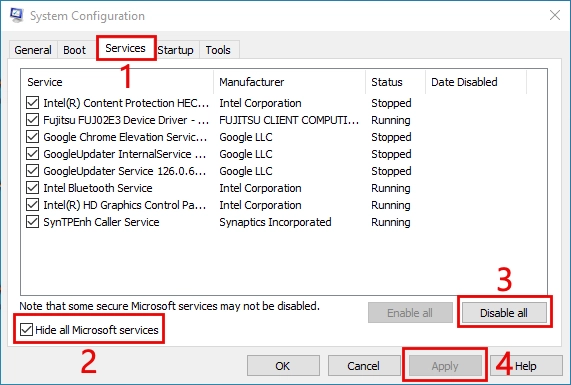
If the problem resolves after a clean boot, you can gradually re-enable services and startup items to identify the specific program causing the conflict. Once identified, consider updating or uninstalling the problematic software.
TextInputHost.exe High GPU Usage
On some laptops, TextInputHost.exe or nearby Windows UI processes can wake the dedicated NVIDIA or AMD GPU and hurt battery life. That is usually a graphics preference or driver behavior, not proof of malware. If the file path and signature are legitimate, try these GPU-specific fixes first:
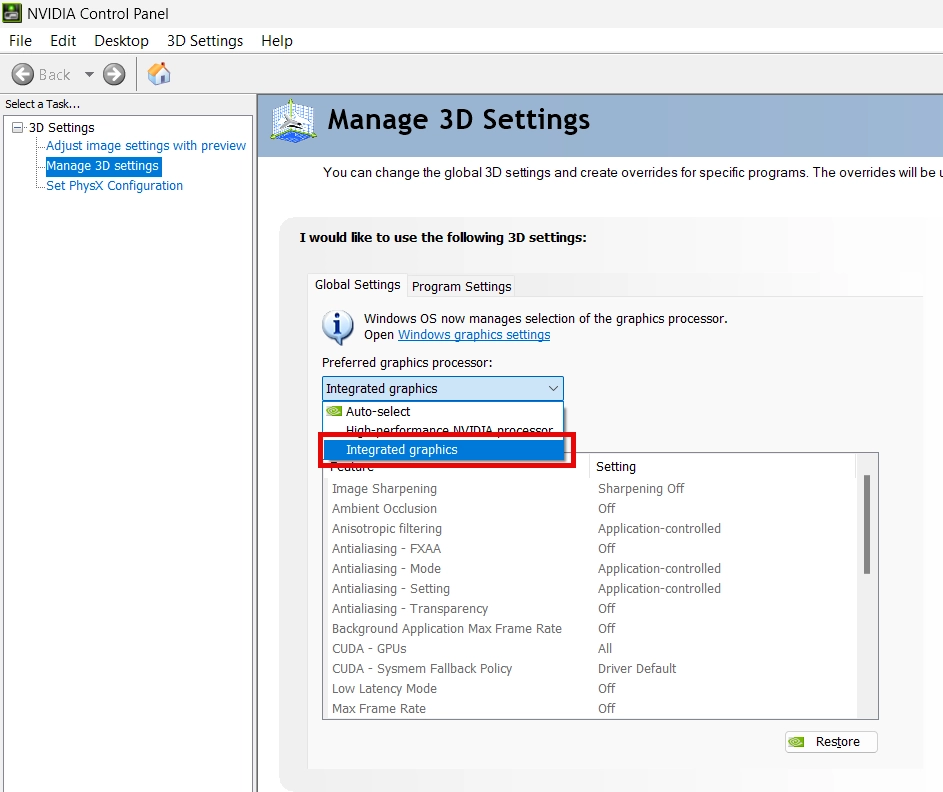
1. Configure NVIDIA Graphics Settings:
- Open NVIDIA Control Panel
- Navigate to “Manage 3D settings” → “Global Settings”
- Set “Preferred graphics processor” to “Integrated Graphics”
- Apply changes and check if the problem resolves
If this fixes the issue, you can then set specific applications (like games) to use the NVIDIA GPU by configuring them individually in the “Program Settings” tab.
2. Use Windows Graphics Settings:
- Right-click on the desktop and select “Display settings”
- Scroll down and click “Graphics settings”
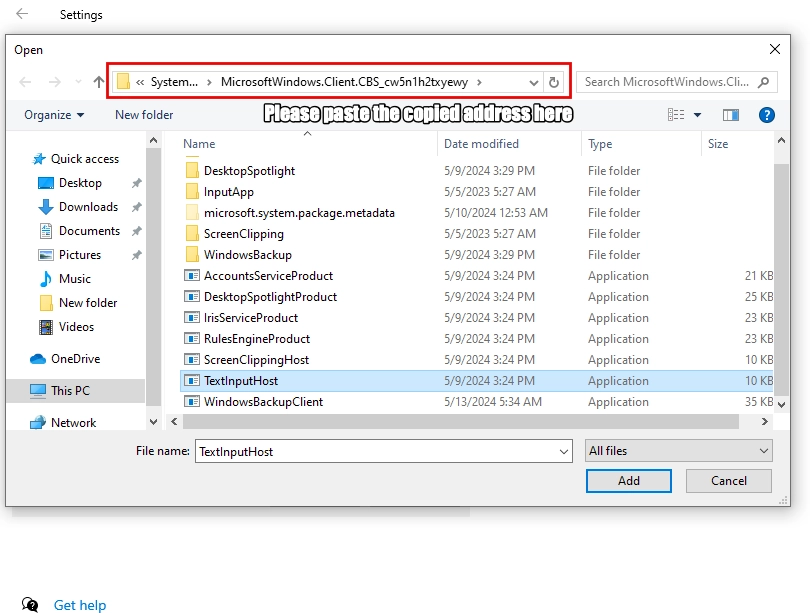
- Locate TextInputHost.exe by following these steps:
- Open Task Manager (Ctrl+Shift+Esc)
- Go to the Details tab
- Find TextInputHost.exe, right-click it, and select “Open file location”
- Copy the file path from the address bar in File Explorer
- In Graphics settings, click “Browse” and paste the copied path
- Select TextInputHost.exe and click “Add”
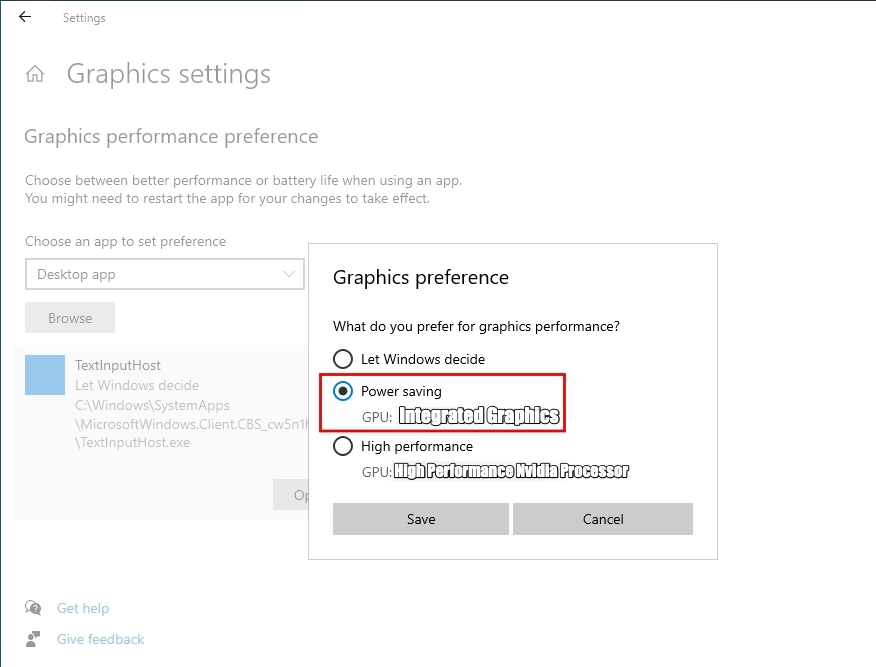
- Click on the added TextInputHost.exe entry, select “Options”
- Choose “Power saving” and click “Save”
- Restart your computer to apply the changes
Can you disable TextInputHost.exe?
You can temporarily stop related input features for troubleshooting, but disabling TextInputHost.exe is not a clean long-term fix. It can break the touch keyboard, emoji panel, handwriting, and some app text input. Try GPU preferences and system repair first; use the service change below only when you need to confirm whether the input stack is causing the problem.
If Task Manager shows ctfmon.exe or CTF Loader as the busy process, use the ctfmon.exe high-CPU guide to isolate the keyboard layout or IME before disabling the shared input service.
1. Disable the Touch Keyboard and Handwriting Service:
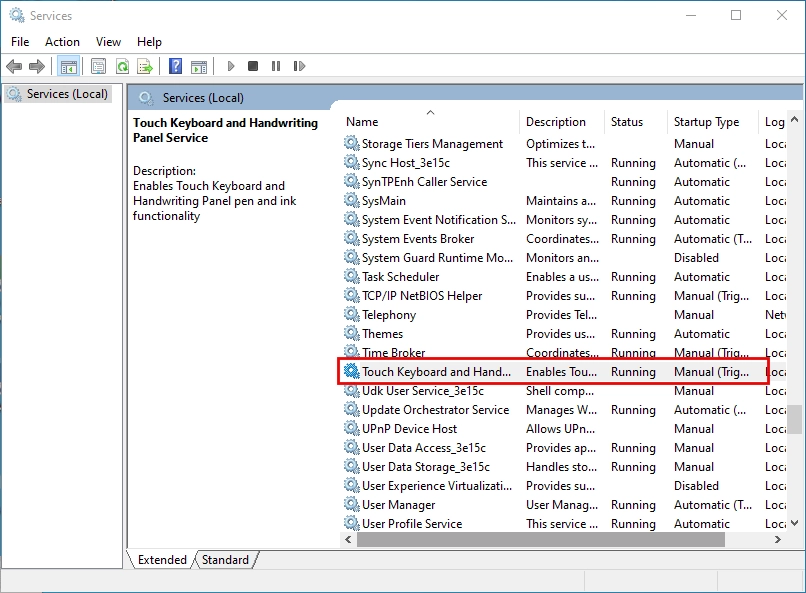
- Press the Windows key, type “services”, and open the Services app
- Scroll down to find “Touch Keyboard and Handwriting Panel Service”
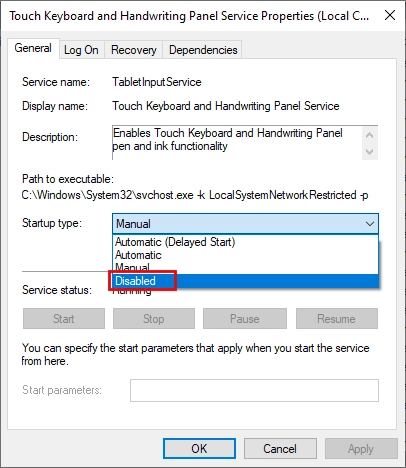
- Right-click and select “Properties”
- On the General tab, change “Startup type” to “Disabled”
- Click “Apply” then “OK”
- Restart your computer
2. Avoid renaming the Windows system file unless a support technician specifically asks you to. Renaming files inside C:\Windows\SystemApps can break Windows input components and may be reversed by updates. If the file is outside the Windows folder or unsigned, treat it as a suspicious copy and scan the system instead of renaming the legitimate component.
Be aware that disabling this process will impact various text input functions, including emoji selection and potentially touch keyboard functionality. It’s recommended to re-enable the service if you encounter any unexpected issues with text input.
Is TextInputHost.exe a Virus?
TextInputHost.exe is not a virus when it is the Microsoft-signed Windows component. Malware can still imitate the name to look normal in Task Manager, especially when a miner, loader, or unwanted app wants to hide behind a familiar Windows process name.
To verify whether your TextInputHost.exe is legitimate, check these characteristics:
1. File Location
The genuine TextInputHost.exe file should only be located in one of these directories:
C:\Windows\SystemApps\MicrosoftWindows.Client.CBS_cw5n1h2txyewy\InputApp\TextInputHost.exe
C:\Windows\SystemApps\MicrosoftWindows.Client.CBS_cw5n1h2txyewy\TextInputHost.exe
If you find TextInputHost.exe in any other location, especially under C:\Users\...\AppData\Local\Temp, C:\Users\...\Downloads, a browser cache folder, or a random program directory, treat it as suspicious until a full scan proves otherwise.
2. Digital Signature
The legitimate TextInputHost.exe file is digitally signed by Microsoft. To check the digital signature:
- Right-click on TextInputHost.exe and select “Properties”
- Go to the “Digital Signatures” tab
- Verify that “Microsoft Windows” is listed as a signer
- Select the signature and click “Details”
- Confirm that the signature is valid
If the path or signature is wrong, do not stop at deleting the visible file. A fake TextInputHost.exe can be launched again by a hidden startup entry, scheduled task, service, browser component, or bundled app. Run a full Gridinsoft Anti-Malware scan, remove detections, reboot, and scan again if the process or alert returns.
If the process path is wrong, the name imitates a Windows component, or high CPU started after an unknown installer, scan for hidden miners, services, startup entries, and bundled components.
Download Gridinsoft Anti-Malware| Characteristic | Legitimate TextInputHost.exe | Malicious Impostor |
|---|---|---|
| File Location | C:\Windows\SystemApps\MicrosoftWindows.Client.CBS_cw5n1h2txyewy or its InputApp subfolder |
AppData\Local\Temp, Downloads, browser cache folders, random program folders, or unsigned copies |
| Digital Signature | Signed by Microsoft with valid certificate | Unsigned or signed with invalid/suspicious certificate |
| Resource Usage | Minimal CPU/GPU usage when idle | Consistently high CPU/GPU usage regardless of input activity |
| Network Activity | Minimal or no unexpected network connections | Frequent connections to unknown servers |
| File Size | Consistent with Microsoft’s official file size | May differ significantly from the legitimate file size |
FAQ
Is TextInputHost.exe safe?
Yes, TextInputHost.exe is safe when it is Microsoft-signed and stored under C:\Windows\SystemApps. Check the file location and digital signature if you found it while investigating high GPU use, crashes, or a security alert.
Why is TextInputHost.exe using GPU?
Short GPU activity can happen when Windows renders the touch keyboard, emoji panel, handwriting UI, input suggestions, search, widgets, or overlays. Constant dedicated-GPU use is more often a graphics driver or Windows UI preference issue than malware, especially when the file is Microsoft-signed.
Can I disable TextInputHost.exe?
You can temporarily disable related input services for troubleshooting, but it is not recommended as a permanent fix. Disabling it can break the touch keyboard, emoji panel, handwriting, dictation, and some modern app input features.
Can I end TextInputHost.exe in Task Manager?
You can end it temporarily if it is frozen, but Windows may restart it automatically. If you need to end it repeatedly, repair Windows components, update graphics drivers, and check whether another app is triggering the input UI.
When should I scan TextInputHost.exe for malware?
Scan the system if TextInputHost.exe runs from a user folder, temporary folder, Downloads, a random program directory, or has no valid Microsoft signature. Also scan if high resource usage comes with unknown startup entries, browser changes, suspicious network activity, or other malware symptoms.
For another Windows shell component that users often confuse with malware, see our sihost.exe safety guide; the same System32, publisher, and behavior checks apply.