
LockApp.exe is the legitimate Windows process that displays the lock screen. Seeing it marked Suspended with near-zero CPU is normally a power-saving state, not a crash or infection. A short CPU or GPU spike while you lock, wake, or unlock the PC can also be normal. Investigate when the process keeps using resources after the desktop is idle, crashes repeatedly, or runs from a user-writable folder with an invalid signature. Do not delete or rename the protected Windows file.
| What Task Manager shows | What it means | Best next step |
|---|---|---|
| Suspended and 0% CPU | Normally idle and conserving resources | Leave it alone |
Brief activity during Win + L, wake, or sign-in |
The lock screen is drawing its background, widgets, and sign-in transition | Watch whether usage settles after unlock |
| CPU, GPU, or battery activity continues after unlock | A background, widget, graphics driver, session, or Windows component may be stuck | Run the trigger and repair checks below |
| Repeated crashes or a blank/frozen lock screen | The lock-screen package, display stack, or protected files may need repair | Update, isolate, then run DISM and SFC |
| Wrong path, invalid signature, or a lookalike name | Suspicious copy or damaged file | Contain it and scan the PC |
What is LockApp.exe?
LockApp.exe owns the visual lock-screen experience before the sign-in controls take over. It can display the background, time and date, status information, Windows Spotlight content, and widgets. Microsoft documents those lock-screen choices under Settings → Personalization → Lock screen.[1]
The process is demand-driven. Windows can start or resume it when the lock screen is visible and suspend it when there is no work. That is why Suspended with no measurable CPU is the expected state for many users. It is also why the process may be absent from Task Manager after unlock: absence does not mean the executable was deleted.
LockApp is separate from ShellExperienceHost.exe, which draws other Windows shell surfaces, and from dwm.exe, the Desktop Window Manager. A graphics problem can make more than one of these processes look busy, so confirm the exact process before applying a fix.
How to check whether LockApp.exe is safe
The normal executable is in the protected package folder below. Windows versions can update the package, but a running legitimate copy should resolve under C:\Windows\SystemApps and carry a valid Microsoft signature.
C:\Windows\SystemApps\Microsoft.LockApp_cw5n1h2txyewy\LockApp.exe
- Open Task Manager with
Ctrl + Shift + Esc. - Open Details, find
LockApp.exe, right-click it, and choose Open file location. - Open Properties → Digital Signatures and check for a valid Microsoft signer.
- If the process is not running, lock the PC with
Win + L, unlock it, and check again. Do not download a loose copy just because the process was absent.
You can also query the path and signature in an elevated PowerShell window. Microsoft documents Get-AuthenticodeSignature as the cmdlet that reports a file’s Authenticode status.[2]
$process = Get-CimInstance Win32_Process -Filter "Name='LockApp.exe'"
$process | Select-Object ProcessId, ExecutablePath

if ($process.ExecutablePath) {
    Get-AuthenticodeSignature -LiteralPath $process.ExecutablePath |
        Format-List Status, StatusMessage, SignerCertificate
}
A protected SystemApps path and Status : Valid with a Microsoft signer support the legitimate-file decision. A wrong path or invalid signature needs investigation, but corruption can also invalidate a protected file. Use multiple signals rather than declaring malware from one failed check.
Why is LockApp.exe suspended?
Suspension lets Windows keep a packaged app ready without allowing it to consume CPU while it has no work. For LockApp, this makes sense after you sign in: the lock screen is no longer visible, so the process can remain dormant. The label itself is not a reason to end the task, disable the package, or run a cleanup tool.
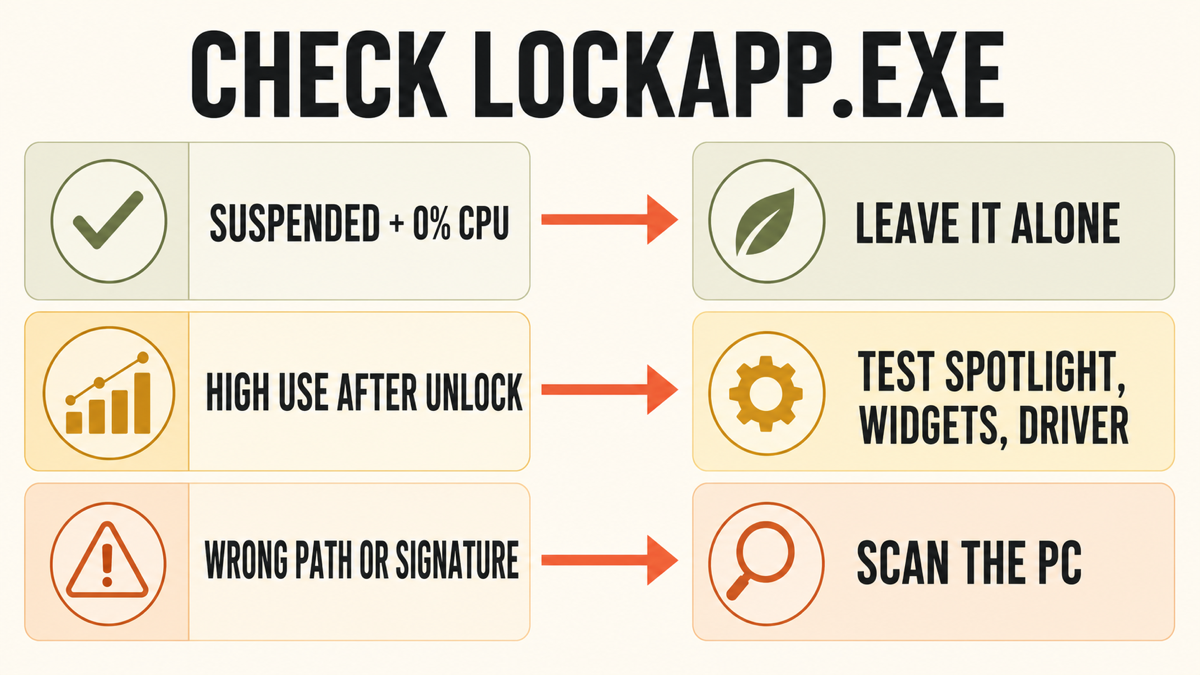
The important distinction is state plus activity:
- Suspended + 0% CPU: normal idle state.
- Running briefly during lock or unlock: usually normal rendering and content work.
- Running continuously after unlock: test backgrounds, widgets, graphics, and the user session.
- Repeatedly restarting or crashing: check Reliability Monitor and repair Windows components.
Fix LockApp.exe high CPU, GPU, or battery use
1. Prove that LockApp.exe stays busy
Sort Task Manager’s Details tab by CPU and enable the GPU and GPU engine columns. Lock the PC with Win + L, wait 30 seconds, unlock it, and watch the exact process for two to five minutes. A brief spike that falls back to zero is different from sustained use on an idle desktop.
If DWM, ShellExperienceHost, a widget process, a browser, or a graphics-driver service remains busy instead, troubleshoot that owner. Do not apply LockApp package commands to a different process merely because the symptom began at the lock screen.
2. Test a static background and no lock-screen widgets
Open Settings → Personalization → Lock screen. Change Windows spotlight or a slideshow to a single Picture for one test cycle. Turn lock-screen widgets off, and disable background motion if that option is available. Microsoft documents each of these settings on its current lock-screen support page.[1]
Lock and unlock the PC again. If resource use settles, re-enable one feature at a time. This identifies the trigger without renaming a package folder or disabling the lock screen globally.
3. Restart, update Windows, and check the graphics driver
Restart Windows once rather than repeatedly ending LockApp.exe. Install pending Windows updates, then install the current graphics driver from Windows Update or the PC/GPU vendor’s official support channel. If the problem began immediately after a display-driver update, use Device Manager to roll back that driver when the previous version is available.
Also test without third-party wallpaper engines, lock-screen customizers, overlays, display utilities, or aggressive debloat scripts. Close one confirmed suspect at a time so the result remains attributable.
4. Separate a system-wide problem from one user profile
Sign out and test a temporary local Windows account. If LockApp.exe behaves normally there, focus on the original account’s lock-screen settings, Spotlight state, widgets, and customization tools. Do not copy the entire old AppData profile into the test account, because that can move the same damaged state.
5. Repair protected Windows components
When the lock screen crashes, stays blank, or fails alongside other Windows features, open Command Prompt as administrator and run DISM before System File Checker. Microsoft recommends this order because DISM supplies repair content that SFC may need.[3]
DISM.exe /Online /Cleanup-Image /RestoreHealth
sfc /scannow
Let both commands finish, restart Windows, and test the same lock/unlock sequence again. If repairs fail or the package is missing system-wide, use an official Windows recovery or in-place repair path. Do not replace LockApp.exe with a file from an EXE download site.
Can you disable or delete LockApp.exe?
Ending the legitimate task is acceptable as a temporary test, but Windows may start it again the next time the lock screen is needed. Permanently renaming the Microsoft.LockApp folder, taking ownership of SystemApps, or deleting the executable can break the lock/sign-in transition and may be undone by servicing.
If the goal is to reduce activity, change the supported lock-screen settings instead: use a static picture, disable widgets or motion, update the display driver, and repair Windows. Organization-managed lock-screen policies should be changed by the administrator who owns them.
What to do with a suspicious LockApp.exe copy
Treat the file as suspicious when it runs from AppData, Temp, Downloads, a browser folder, a random program directory, or another user-writable location; when its signature is missing or invalid; or when a lookalike name starts automatically. Do not delete the legitimate protected copy because another file borrowed its name.
- Disconnect the PC from sensitive work or financial activity if the suspicious file already ran.
- Keep an antivirus or security-tool detection quarantined. Do not add an exclusion to make the warning disappear.
- Download and install Gridinsoft Anti-Malware using the button below, update its database, and run a Full Scan. On a managed PC, involve IT before installing cleanup software.
- Review detections and their file paths, apply cleanup to confirmed threats, and keep uncertain files quarantined rather than adding exclusions.
- Restart Windows and recheck the original suspicious activity. If it returns, update and scan again, then use the optional targeted checks below or ask support to review the logs.
Removing the visible executable may leave the installer, scheduled task, service, exclusion, or bundled module that recreates it. A Full Scan can check those persistence points and related detections together; you do not need to hunt for or remove them manually before choosing this cleanup route. A scan cannot prove that no compromise occurred.
If the process path is wrong, the name imitates a Windows component, or high CPU started after an unknown installer, scan for hidden miners, services, startup entries, and bundled components.
Scan suspicious LockApp.exe activityOptional diagnosis if identity is uncertain or activity returns: record the file path, signer, parent process, creation time, and any startup task or service that launches it. Identify the installer, crack, fake update or bundled app that introduced the copy; remove it only when that connection is established. Scheduled tasks, services, startup entries, browser changes and exclusions are targeted follow-up checks, not an extra mandatory cleanup sequence. Do not delete the protected Windows copy.
If the scan finds credential theft, remote access, or broader persistence, follow the post-malware Windows security audit and change important passwords from a clean device.
FAQ
Is LockApp.exe being suspended normal?
Yes. Suspended with near-zero CPU is normally the idle, power-saving state after the lock screen has no work. It is not a crash or malware signal by itself.
Can I end LockApp.exe in Task Manager?
You can end it as a temporary test. Windows may start or resume the process when the lock screen is needed again. Repeatedly ending it does not fix persistent CPU, GPU, battery, or crash symptoms.
Why does LockApp.exe use GPU or battery?
The lock screen can render a background, Spotlight content, motion, widgets, and the sign-in transition. Brief activity can be normal. Sustained activity after unlock should be tested with a static picture, widgets off, updated graphics drivers, and a second user account.
Should LockApp.exe access the internet?
Windows Spotlight and lock-screen widgets can retrieve changing content. Network access therefore needs timing and destination context. A wrong-path unsigned copy contacting unknown infrastructure is a different incident and should be contained and scanned.
Is LockApp.exe in AppData or Temp a virus?
Those are not expected locations for the protected Windows lock-screen executable. Keep the file contained and use the Full Scan cleanup route above. Signature and startup-source checks are optional diagnosis if identity is uncertain or activity returns. Do not delete the real SystemApps copy.
References
- Microsoft. “Customize the Lock Screen in Windows.” Microsoft Support, accessed August 28, 2026. https://support.microsoft.com/en-us/windows/experience/personalization/customize-the-lock-screen-in-windows
- Microsoft. “Get-AuthenticodeSignature.” PowerShell documentation, accessed August 28, 2026. https://learn.microsoft.com/en-us/powershell/module/microsoft.powershell.security/get-authenticodesignature?view=powershell-7.5
- Microsoft. “Use the System File Checker tool to repair missing or corrupted system files.” Microsoft Support, accessed August 28, 2026. https://support.microsoft.com/en-us/windows/experience/backup-recovery/use-the-system-file-checker-tool-to-repair-missing-or-corrupted-system-files