
WSHelper.exe is normally a helper installed with older Wondershare software, not a Windows system process. If it runs from a Wondershare folder and has a valid Wondershare signature, you can usually disable its startup entry when you do not need it at sign-in. If a popup started after Filmora or another Wondershare app was removed, uninstall or repair the parent package and clear the stale startup entry instead of deleting or downloading a replacement EXE or DLL.
What is WSHelper.exe?
WSHelper.exe is associated with Wondershare Helper Compact and has appeared with Wondershare products such as Filmora. It is an application component, not a file that Windows needs to boot, sign in, or run its core services.
Older installations commonly place it under a Wondershare folder in C:\Program Files (x86)\Common Files\Wondershare\. The exact subfolder can vary by product generation, so a familiar-looking path is only context. The stronger check combines the full location, digital signature, installed parent app, startup command, and behavior.
Keep, disable, repair, or scan?
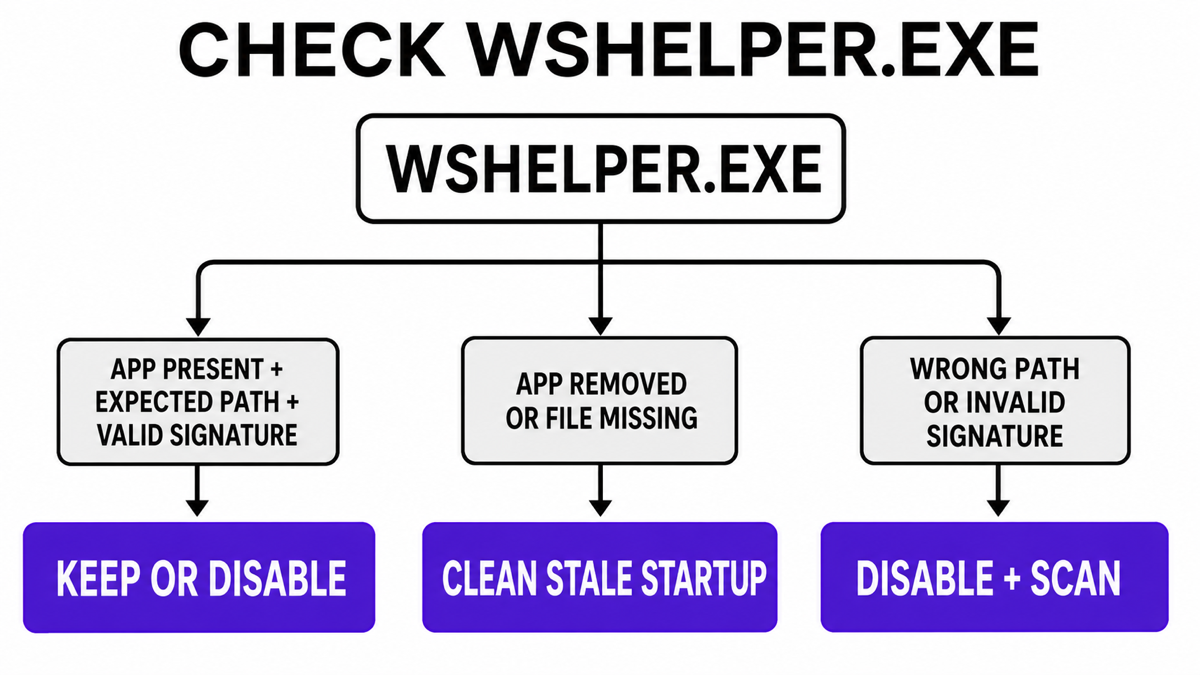
| What you find | Risk and what to do |
|---|---|
| A Wondershare product is installed, the file is inside its program/Common Files folder, and the digital signature is valid. | Usually legitimate. Keep it, or test disabling only its startup entry if you do not need the helper at sign-in. |
The signed file shows an Application Error, System Error, or missing DAQExp.dll while you still use the parent app. |
Repair, update, or reinstall the Wondershare product from its official installer. Do not replace one DLL manually. |
| You removed the Wondershare product, but WSHelper.exe still appears or Windows says the file cannot be found. | Usually a stale startup entry or incomplete uninstall. Disable the entry, finish uninstalling the parent components, and reboot. |
The file runs from %APPDATA%, %TEMP%, Downloads, a browser folder, or another unexplained location; the signer is missing or unrelated. |
Treat it as suspicious. Record the launcher, disable it, and scan before deleting files. |
How to verify WSHelper.exe safely
- Open its location. In Task Manager, right-click
WSHelper.exeor its Startup apps entry and choose Open file location. A copy inside an installed Wondershare folder is plausible; one in a user-writable or random folder needs more scrutiny. - Check the signature. Open Properties → Digital Signatures. The signer should match Wondershare Software or the installed vendor package, and Windows should report the signature as valid.
- Match the parent app. Open Settings → Apps → Installed apps and look for Filmora or another Wondershare product you recognize. If none is installed, the entry may be a leftover or a same-name copy.
- Inspect what starts it. In Task Manager, enable the command-line column when available. Microsoft Sysinternals Autoruns gives a fuller view of Logon entries, scheduled tasks, services, and missing-file startup values.
- Compare behavior. A quiet vendor helper at sign-in is different from a process that returns after being disabled, opens unrelated sites, launches scripts, or consumes resources after an unknown installer ran.
You can also check the file signature in an administrator PowerShell window:
Get-AuthenticodeSignature -FilePath "C:\Program Files (x86)\Common Files\Wondershare\Wondershare Helper Compact\WSHelper.exe" |
  Format-List Status, StatusMessage, SignerCertificate
A different installation path does not prove malware, and a valid signature does not prove that you still need the component. Use the signer together with the parent app and startup command. The broader EXE safety checklist explains how to compare those signals without running an unknown file again.
Can I disable WSHelper.exe at startup?
Usually yes. Disabling the helper at sign-in does not remove Wondershare software and does not disable a Windows service. It is a reversible test.
- Open Settings → Apps → Startup or Task Manager → Startup apps.
- Find the Wondershare or WSHelper entry and record its displayed publisher and command path.
- Select Disable, then restart Windows once.
- Open the Wondershare app you still use and test its normal launch, editing, export, or update functions.
- Leave the startup item disabled if the app works and the popup is gone. Re-enable it if a required product function clearly depends on it.
If the item is missing from the simple Startup apps list, use the suspicious startup apps checklist to inspect its Run key, Startup folder, scheduled task, service, or Autoruns entry without mass-deleting startup values.
Fix WSHelper.exe Application Error, System Error, or DAQExp.dll missing
These errors often indicate an incomplete or mismatched Wondershare installation: the startup command still launches WSHelper.exe, but the helper or a companion file is missing, damaged, or left from a different product version. The safe fix depends on whether you still use the parent software.
If you still use Filmora or another Wondershare app
- Save projects and close all Wondershare applications.
- Download the current installer only from the official Wondershare product or support page.
- Run the installer and use its repair/reinstall path when offered. If it has no repair option, uninstall the affected product, restart, and install a clean current copy.
- Restart Windows and confirm that both the app and its startup behavior work.
Do not download WSHelper.exe or DAQExp.dll from an EXE/DLL mirror. A loose file can be the wrong version, wrong architecture, or malicious, and it does not repair the package registration that caused the error.
If you no longer use Wondershare software
- Open Settings → Apps → Installed apps and uninstall each Wondershare component you recognize and no longer need. Wondershare also documents using the product’s own uninstaller.
- Restart Windows before judging the result.
- If the popup remains, open Autoruns and search for
WSHelper,Wondershare, or the exact missing path. - Uncheck the matching non-Microsoft entry first, restart, and verify that the error is gone.
- Delete the stale startup entry only after you have confirmed that its parent product is removed and the path is no longer needed.
A cleanup tool can show many shared folders and Registry entries. Review them rather than selecting everything; the uninstall leftovers guide explains where aggressive cleanup can remove unrelated data.
Why WSHelper.exe can appear after uninstall
An application uninstaller and a Windows startup launcher are separate pieces. The main program may be gone while a Run value, shortcut, scheduled task, or companion component still points to WSHelper.exe. Windows then tries to launch a file that is damaged or no longer present, producing an error at sign-in.
A yellow or file-not-found entry in Autoruns commonly indicates this orphaned state. It is not proof of active malware. Confirm the exact command and missing path, disable it, restart, and remove only that verified leftover. If the executable itself returns after removal, switch to the suspicious-copy branch instead.
A similar legacy-updater case is ISUSPM.exe, where disabling its startup scheduler is separate from uninstalling the parent application.
When WSHelper.exe looks suspicious
The filename alone cannot establish trust. Investigate when the copy is outside a plausible Wondershare install folder, has no valid Wondershare signature, starts even though no Wondershare product is installed, or arrived after an unknown installer, crack, fake update, or browser download.
- The executable runs from
%APPDATA%,%LOCALAPPDATA%,%TEMP%, Downloads, a browser profile, or a random public folder. - The publisher is missing, invalid, or unrelated to Wondershare.
- A scheduled task, service, script, or another unknown process recreates the entry after reboot.
- The same time window includes redirects, new browser extensions, blocked outbound traffic, security warnings, or other unfamiliar startup items.
Do not remove only the visible EXE in that situation. A launcher, scheduled task, service, bundled app, or browser change may restore it. Disable the suspicious launcher, run a full Gridinsoft Anti-Malware scan, remove confirmed detections, reboot, and scan again if the entry returns.
If the process path is wrong, the name imitates a Windows component, or high CPU started after an unknown installer, scan for hidden miners, services, startup entries, and bundled components.
Scan a suspicious WSHelper.exe copyWhat not to do
- Do not delete
WSHelper.exebefore checking which installed app and startup entry use it. - Do not download a replacement EXE or missing DLL from a file library.
- Do not remove every Wondershare folder or Registry key without reviewing shared components and user projects.
- Do not call every WSHelper.exe copy malware; a signed helper in the expected vendor context is normally an application component.
- Do not trust the name alone when the path, signer, launcher, or behavior is wrong.
FAQ
Is WSHelper.exe a virus?
Not by name alone. It is normally associated with Wondershare software. A copy in an unexpected folder, with an invalid signer or an unexplained launcher, should be treated as suspicious and scanned.
Does Windows need WSHelper.exe?
No. It is not a Windows system file. It belongs to application software, so Windows can run without it.
Is it safe to disable WSHelper.exe in Startup apps?
Usually yes. Disable only its startup entry, restart, and test the Wondershare product you use. This is safer and more reversible than deleting the executable.
Why does WSHelper.exe appear after I uninstalled Filmora?
A stale Run value, shortcut, scheduled task, or separate Wondershare component may still point to the helper. Disable and verify the exact orphaned entry before removing it.
How should I fix a missing DAQExp.dll error?
Repair or reinstall the official parent Wondershare product if you still need it. If you no longer use the product, uninstall its remaining components and clear the verified stale startup entry. Do not download the DLL separately.
References
- Wondershare. “How to Uninstall Filmora?” Wondershare Support, accessed August 28, 2026. Wondershare uninstall guidance.
- Microsoft. “Configure Startup Applications in Windows.” Microsoft Support, accessed August 28, 2026. Windows startup-app guidance.
- Mark Russinovich. “Autoruns v14.3.” Microsoft Sysinternals, published June 17, 2026; accessed August 28, 2026. Microsoft Autoruns documentation.