
A SearchProtocolHost.exe application error usually means Windows Search could not safely read one indexed data source through its protocol handler. The failing source may be an Outlook mailbox, a third-party store, a damaged index, or a Windows component. Record the faulting module first, then restart the affected app and Windows Search, narrow the indexing scope, and rebuild only if the error continues. Do not delete SearchProtocolHost.exe or download a replacement copy.
- Application error or Event ID 1000: identify the faulting module and the app or data store active at the time.
- Crash appears with Outlook: close Outlook, let Windows Search settle, then repair Office or the Outlook profile before touching PST or OST files.
- High CPU: check whether the Pending count is falling; useful indexing should make progress and then settle.
- Unknown hard error: install Windows updates, check the index and storage state, then use DISM and SFC if the earlier checks do not isolate a handler.
- Suspicious copy: verify the Windows path and Microsoft signature before allowing, deleting, or scanning the file.
What is SearchProtocolHost.exe?
SearchProtocolHost.exe is a Windows Search host process. Windows uses protocol handlers to open items in stores that the indexer cannot treat as ordinary files, such as Outlook mail accessed through the MAPI protocol. Microsoft isolates those handlers inside host processes so a failed handler does not have to bring down the indexing service or expose one user’s data to a system-context process.
It is related to, but different from, SearchIndexer.exe, which maintains the catalog, and SearchHost.exe, which presents the Windows Search interface. Fixing the wrong component wastes time: rebuilding the index does not repair every Outlook add-in, and ending SearchHost does not diagnose a protocol-handler crash.
Windows may start more than one SearchProtocolHost.exe instance because handlers can run under different security contexts. A process that appears briefly while indexing is not automatically suspicious. Repeated error dialogs, a consistent faulting module, or CPU that stays high without indexing progress are the useful signals.
Record the failure before rebuilding Windows Search
A popup title alone does not reveal which handler failed. Event Viewer can usually narrow the problem:
- Press Win + R, enter
eventvwr.msc, and press Enter. - Open Windows Logs → Application.
- Use Filter Current Log and look around the crash time for Application Error, commonly Event ID 1000.
- Confirm that the faulting application is
SearchProtocolHost.exe. - Record the faulting module name, exception code, and whether Outlook, File Explorer, a sync client, or another indexed app was active.
If the same non-Windows DLL or handler appears each time, update, repair, or temporarily remove the associated application rather than repeatedly rebuilding the whole index. If the event points to a Microsoft or Windows module, continue through updates, search repair, DISM, and SFC in that order. A one-off crash during an update is less concerning than the same module failing after every sign-in.
Check whether indexing is making progress
Open Settings → Privacy & security → Searching Windows. Note the Indexed and Pending counts, the Classic or Enhanced scope, and excluded folders. A large Pending number that steadily falls explains temporary process activity. A counter that never changes, repeated maintenance messages, or a new crash at the same item suggests a store, file type, or database problem.
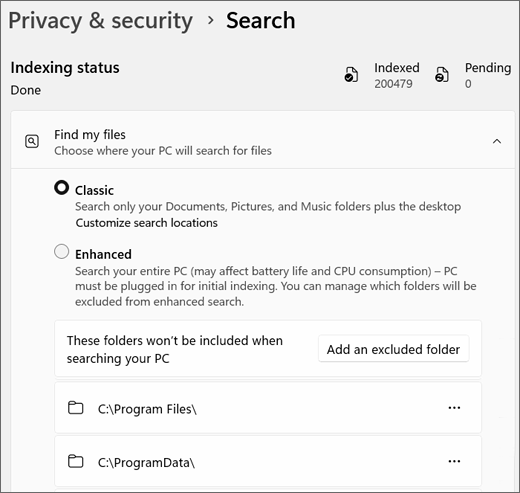
If Enhanced mode includes a large development tree, backup mirror, virtual-machine folder, or archive collection, exclude only the high-churn location you do not need in search. Do not exclude an Outlook data store or delete the index merely because activity appears after mail synchronization; first confirm which source is failing.
Fix SearchProtocolHost.exe application errors and crash loops
1. Restart the affected app and install updates
Close the application that was active at the crash time, restart Windows, and install pending Windows and Microsoft 365 updates. This clears a stale handler process and replaces known component versions before you make broader changes. If the problem began immediately after a third-party search connector or file-management tool was installed, update or remove that tool first.
2. Isolate Outlook and other indexed stores
Outlook registers mail stores with Windows Search. If the error appears only while Outlook is open, close Outlook and watch whether SearchProtocolHost.exe settles. Then open Outlook in safe mode to exclude add-ins, check its indexing status, and use the supported Office Repair or profile-repair path if the crash returns.
Do not delete a PST or OST file as a first test. A PST may contain the only local copy of messages, and removing an OST can trigger a large resynchronization without fixing the underlying handler. Back up important PST data before repair work and let a managed Microsoft 365 account administrator handle organization-controlled profiles.
3. Restart the Windows Search service
Open services.msc, find Windows Search, and choose Restart. Its normal startup type is Automatic (Delayed Start). Restarting is a diagnostic reset, not a permanent solution: if the same faulting module crashes again, continue with that module or data store rather than stopping the service after every boot.
4. Rebuild the index only when the evidence points there
Use Advanced indexing options → Advanced → Rebuild when search results remain missing, the Pending count is stuck, or crashes continue after the affected handler and service have been checked. A rebuild discards the catalog and creates a new one, so search results may be incomplete and CPU or disk activity may rise until it finishes.
Do not start another rebuild while the first one is progressing. Repeatedly resetting the database can create the appearance of an endless indexing problem because Windows never gets enough time to complete a clean pass.
5. Repair Windows components with DISM and SFC
If Event Viewer points to a Windows component, or an unknown hard error continues after updates and index repair, open Terminal or Command Prompt as administrator. Run DISM.exe /Online /Cleanup-Image /RestoreHealth, let it finish, and then run sfc /scannow. DISM repairs the component store that SFC uses; SFC then checks protected system files.
Restart after both tools complete and check for a new event rather than assuming the command fixed every handler. If crashes remain, use Microsoft’s current Windows Search reset procedure or an in-place Windows repair only after backing up important data.
What to do when SearchProtocolHost.exe uses high CPU
Short bursts are normal when a handler enumerates new mail or another data store. Watch the process for several minutes together with Indexed and Pending counts. If Pending falls and the process returns to low use, let the pass finish. If CPU stays high while the counter is frozen, close the associated app, inspect the faulting module, and narrow that data source.
If SearchIndexer.exe—not SearchProtocolHost.exe—owns most of the CPU or disk time, follow the separate SearchIndexer guide. If SearchHost.exe consumes memory or GPU while the catalog is quiet, troubleshoot the Search interface instead. When SearchFilterHost.exe has high CPU, keeps crashing, or logs Event 10024, isolate the file-content filter or extension rather than the data-store protocol. Task Manager’s process name and Event Viewer’s faulting application prevent these similarly named components from being confused.
Is SearchProtocolHost.exe safe or malware?
The legitimate file is a Microsoft Windows component normally found under Windows system folders such as C:\Windows\System32; a 32-bit host may also appear under C:\Windows\SysWOW64 on 64-bit Windows. Open the file’s Properties and verify a valid Microsoft Windows digital signature. Do not treat the filename or one high-CPU snapshot as proof of malware.
A copy in AppData, Temp, Downloads, or another user-writable folder is not the normal Windows host. The same applies when the signature is missing or belongs to an unrelated publisher, the process appeared after an unknown installer, or it returns with a new scheduled task, service, startup entry, or unexplained network traffic. Preserve the path and use the EXE safety checklist before deleting anything.
When those suspicious conditions exist, run a full Gridinsoft Anti-Malware scan, remove confirmed detections, reboot, and scan again if the process or related activity returns. A scan can find same-name malware and persistence; it does not repair a legitimate Outlook handler or damaged Windows Search catalog.
If the process path is wrong, the name imitates a Windows component, or high CPU started after an unknown installer, scan for hidden miners, services, startup entries, and bundled components.
Scan a suspicious SearchProtocolHost.exe copyActions to avoid
- Do not download SearchProtocolHost.exe from an EXE library or another PC.
- Do not delete or rename the legitimate System32/SysWOW64 file.
- Do not permanently disable Windows Search before identifying the faulty handler.
- Do not delete PST or OST files to test an Outlook-related crash.
- Do not rebuild repeatedly while Indexed/Pending counts are moving.
- Do not restore or allow a wrong-path copy only because its name looks familiar.
FAQ
Can I end SearchProtocolHost.exe in Task Manager?
Windows can restart it when indexing needs a protocol handler, so ending it is temporary. Use the action only to stop a runaway instance while you record the failing app or module; then fix the handler, search service, or index.
Why does SearchProtocolHost.exe crash when Outlook is open?
Outlook exposes mail stores to Windows Search through a MAPI protocol handler. An Office component, add-in, profile, or data-store problem can therefore surface as a SearchProtocolHost.exe crash. Repair Outlook or Office before deleting mail data.
Does rebuilding the index fix every application error?
No. It helps when the catalog is damaged or stuck. A consistent third-party faulting module, Outlook handler problem, or corrupted Windows component needs its own update or repair.
Is an unknown hard error proof of malware?
No. It can follow component, storage, or indexing failures. Check the executable path and signature, Event Viewer details, and recent software changes. Treat a wrong-path or unsigned copy as suspicious evidence, not every error dialog.
References
- Microsoft. “Indexing process in Windows Search.” Microsoft Learn, accessed September 1, 2026. learn.microsoft.com
- Microsoft. “Search indexing in Windows.” Microsoft Support, accessed September 1, 2026. support.microsoft.com
- Microsoft. “Fix problems in Windows Search.” Microsoft Learn, updated February 12, 2026; accessed September 1, 2026. learn.microsoft.com