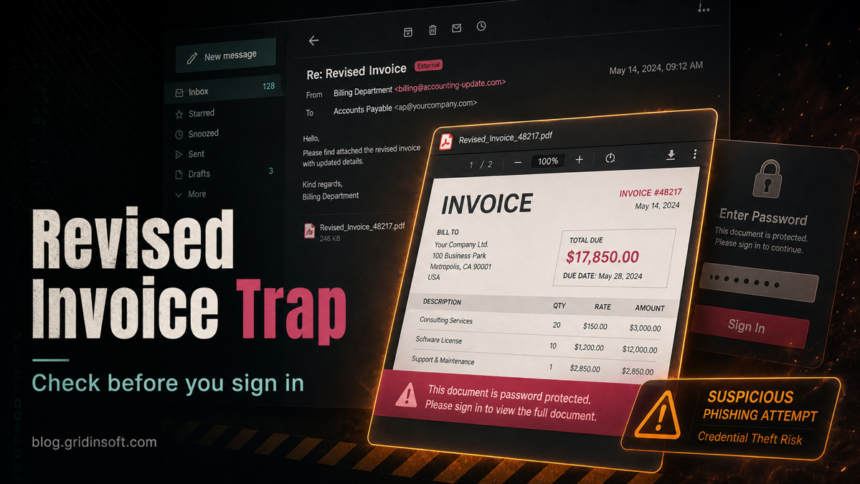
An email about a Revised Invoice with the subject Financial Management_Policy_v4 is a phishing lure when it sends you to a protected PDF viewer and asks for a corporate email password. Do not sign in from the message. Open your accounting, procurement, or document portal from a saved bookmark, verify the request with the sender through a known channel, and change your mailbox password if you already entered it.
The reported lure pretends to come from Portfolio and Financial Management. It points to an item named Approve_Operational Tender Invoice PDF, then shows a fake document viewer for Approve_Operational_Policy_v4.pdf. The unsafe part is not the word “invoice” itself. It is the extra sign-in page that asks for your Corporate Identity (Email) and password before showing the document.
What the Revised Invoice email looks like
The message uses normal business language rather than a loud prize or malware warning. That is why finance, purchasing, and operations staff should treat it as a verification task instead of a routine click.
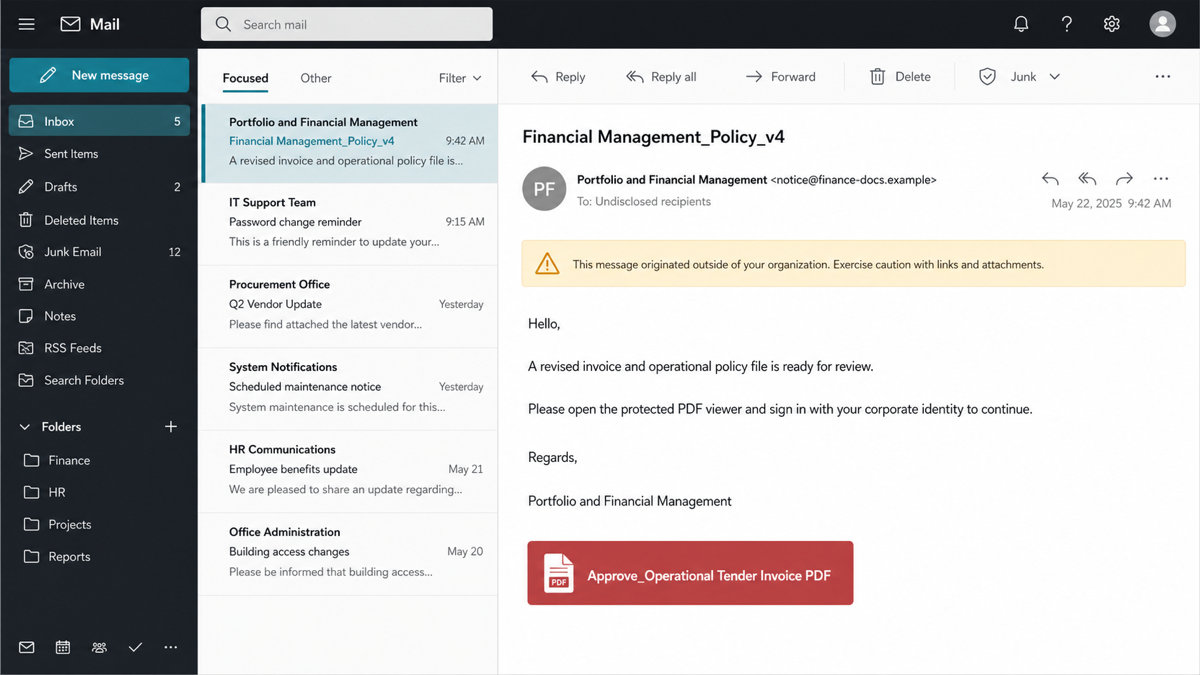
Common warning signs in this variant include:
- a vague sender name such as Portfolio and Financial Management instead of a known person or vendor;
- the subject Financial Management_Policy_v4 paired with an invoice or tender document;
- a link or button labelled Approve_Operational Tender Invoice PDF;
- a document viewer that looks like a PDF service but is hosted on an unrelated domain;
- a pop-up that claims the document is locked and asks for mailbox credentials.
Example
Subject: Financial Management_Policy_v4
From: Portfolio and Financial Management <notice [at] finance-docs [dot] example>
Hello,
Please find attached the revised invoice V4 pertaining to the above-mentioned project for your reference. Kindly acknowledge receipt.
Approve_Operational Tender Invoice PDF
Best Regards,
Portfolio and Financial Management
A real invoice workflow should not make you enter your mailbox password into a random PDF viewer. If a document requires authentication, start from the official vendor portal, your company document system, or a saved sign-in page, not from the email button.
Why this fake PDF page is dangerous
The goal is mailbox credential theft. Once attackers get an email password, they can read invoice threads, create forwarding rules, reset other accounts, impersonate the employee, and send better phishing messages from a trusted mailbox. That can turn one fake PDF click into a business email compromise problem.
This version also borrows the look of document-review tools. Adobe says suspicious emails, websites, or pop-ups that falsely claim to represent Adobe can be reported to its phishing contact, and FTC guidance warns users not to click invoice links from suspicious messages. Use those ideas as a rule: verify the sender and the domain first, then open the document through a known route.
What to do if you received it
- Do not click the PDF button again. Close the message and do not reply to the sender.
- Report it internally. Use your company’s phishing-report button or forward the message as an attachment to the security or IT team.
- Verify the invoice outside the email. Contact the vendor, project owner, or finance team through a saved address or phone number.
- Block or delete the message after reporting. Keeping it in the inbox increases the chance of a later accidental click.
- Warn affected coworkers. If the message was sent to a shared finance mailbox or distribution list, tell the mailbox owners what to avoid.
What to do if you entered your password
Act as if the mailbox is compromised, even if the page later showed an error or a blank PDF.
- Change the password from a clean device. Do not reuse the old password anywhere else.
- Sign out active sessions. Use your mailbox or identity-provider security page to revoke unknown sessions and devices.
- Enable or reset MFA. Prefer phishing-resistant MFA where your organization supports it.
- Check mailbox rules and forwarding. Remove unknown inbox rules, forwarding addresses, delegated access, and app passwords.
- Review recent sent mail and deleted items. Look for invoice replies, password reset messages, or messages sent to suppliers and customers.
- Tell IT or the service owner. They may need to review sign-in logs, block the phishing domain, and notify affected contacts.
If the fake page downloaded a file, browser extension, remote-support tool, or script, treat the device as exposed too. For non-confidential files you can check the sample with the Gridinsoft Online Virus Scanner. If anything was opened or installed, run a local scan with Gridinsoft Anti-Malware and remove detections before signing back into sensitive accounts from that computer.
How to verify a revised invoice safely
- Open your ERP, accounting, procurement, or document portal from a bookmark or typed address.
- Compare the sender domain with a previous known-good invoice thread.
- Call the vendor or internal requester using a saved contact, not the phone number in the suspicious email.
- Look for changed payment details, new urgency, odd file names, and password prompts that do not match your normal process.
- For PDFs, check the file before opening it and avoid any embedded login page or “protected viewer” that appears outside your trusted portal.
If you often receive PDF invoices, see our guide on checking suspicious PDF files safely. If the message looks like a signing request rather than a revised invoice, compare it with the Outstanding Invoice email scam and the Adobe Acrobat Secure Document email lure. For broader staff training, keep the phishing scam recognition checklist handy.
Prevention for finance and operations teams
- Require out-of-band approval for new payment details or unexpected invoice portals.
- Use shared-mailbox reporting so finance teams can flag suspicious invoices quickly.
- Block newly observed phishing domains at the email gateway and DNS layer when your security team confirms them.
- Audit mailbox forwarding rules after any credential incident.
- Train staff that a “locked PDF” asking for mailbox credentials is a sign-in trap unless it opens from a known document platform.
FAQ
Is the Revised Invoice email real?
Treat it as fake if it asks you to open a protected PDF from an unfamiliar domain and enter your corporate email password. Verify the invoice through your normal finance or vendor portal instead.
Can I get malware just by opening the email?
Reading the message is usually not the main risk. The danger starts when you click the link, enter credentials, download a file, install a tool, or approve a browser extension.
What if I clicked but did not enter a password?
Close the page, report the email, and clear the suspicious tab from your browser history. If the page downloaded anything, delete the file or scan it before opening.
What if I entered my work email password?
Change the password from a clean device, revoke active sessions, check forwarding rules, enable MFA, and tell your IT or security team so they can inspect sign-in logs and mailbox activity.
Should I report the fake Adobe-style viewer?
Yes. Report it to your organization first. If the page falsely claims to be Adobe or abuses Adobe branding, Adobe also provides phishing and abuse reporting contacts.
References
- Federal Trade Commission. “Phishers send fake invoices.” FTC Consumer Advice, February 2018, accessed June 24, 2026. https://consumer.ftc.gov/consumer-alerts/2018/02/phishers-send-fake-invoices
- Federal Trade Commission. “How To Recognize and Avoid Phishing Scams.” FTC Consumer Advice, accessed June 24, 2026. https://consumer.ftc.gov/articles/how-recognize-avoid-phishing-scams
- Adobe. “Notifying Adobe of Security Issues.” Adobe Help Center, accessed June 24, 2026. https://helpx.adobe.com/security/alertus.html