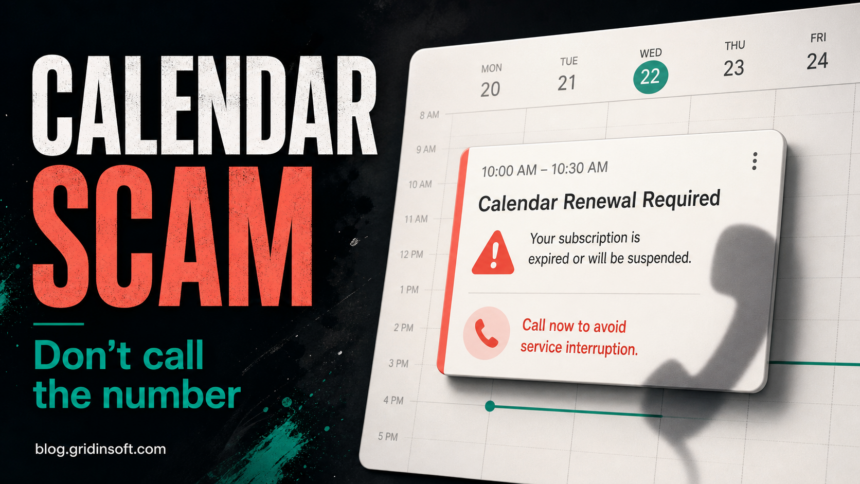
A Google Calendar renewal warning is suspicious when it appears as an unexpected event, claims a security or antivirus subscription was charged, and tells you to call a billing number. Do not call, do not click links in the event, and do not reply to the invite. Open the event details, report it as spam when that option is available, then check your calendar invitation settings so unknown senders cannot keep placing events on your calendar.
The event itself does not prove that your card was charged or that malware is on your device. The scam starts when you call the number, open a link, share card details, or install a remote-support app because the invite made the charge look urgent.
What the Google Calendar Renewal Scam Is
This scam abuses a trusted notification surface. Instead of sending only a normal email, the attacker sends a calendar invitation or recurring event with a subject such as renewal notice, antivirus billing, invoice reminder, or payment confirmation. Because calendar reminders feel routine, the notice can look more official than a spam email.
The safest way to read it is simple: a real support or billing team does not need you to call a number from an unsolicited calendar event to cancel a charge. If you recognize the company name, check your account and bank statement directly from a browser you opened yourself. For broader fake invoice patterns, compare the event with our Norton scam email, McAfee subscription payment failed scam, and PayPal charge email scam guides.
A separate business-themed path starts with an authentic Google Calendar invitation rather than a billing callback. Our Google Calendar phishing investigation follows the fake DocuSign viewer, downloaded script, and unauthorized Level.io remote-access agent.
What to Do Before You Delete It
- Do not call the phone number. Callback scams are designed to move you from a written warning into a live pressure call.
- Do not click event links or attachments. Treat links in the description like links in a phishing email.
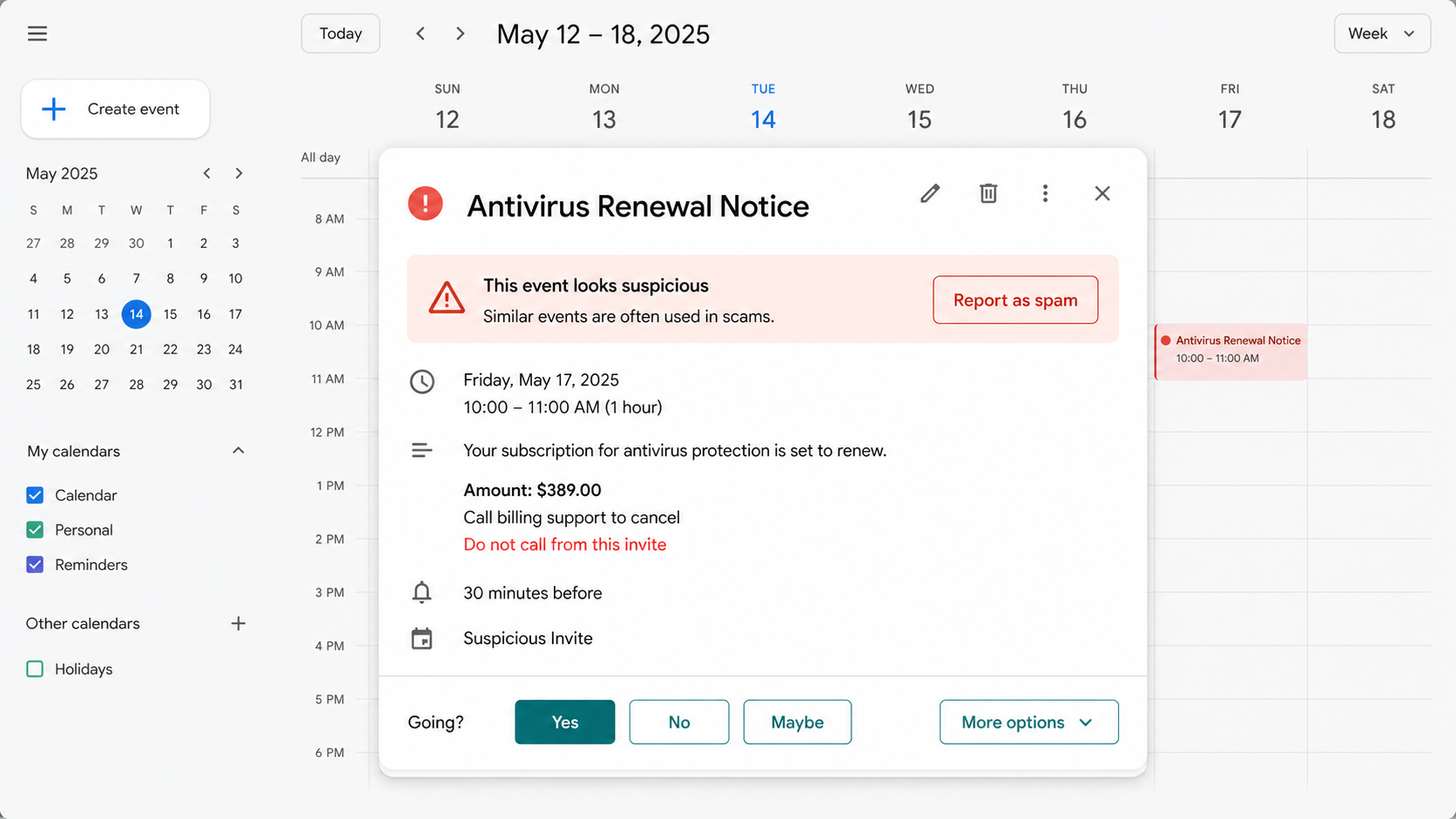
- Report the event as spam first. In Google Calendar on desktop, open the event, use the three-dot menu, and choose Report as spam when the option is shown. Reporting can remove the recurring series and notify Google.
- Then remove the event from your view. If the spam-report option is not available because the event came from another provider or synced calendar, delete it without sending a response.
- Check whether it was an email-backed invite. Search your mailbox for the same subject or sender. If the message is present, mark it as spam or phishing there too.
- Verify billing independently. Open the real company account or your card portal manually. Do not use the number, link, or attachment in the event.
Change the Calendar Setting That Lets Unknown Invites Appear
Google’s own Calendar guidance recommends changing Add invitations to my calendar to Only if the sender is known when suspicious invitations appear. On desktop, open Google Calendar, go to Settings, choose Event settings, then change Add invitations to my calendar. This reduces drive-by calendar spam from unknown senders, although it may also change how legitimate first-time invites appear.
If you use a work or school Google account, your administrator may control parts of this behavior. In that case, report the event to IT and include the sender, event title, time, and any attached link or phone number. Do not forward the invite to other users as a warning; screenshots or copied text are safer.
What the Fake Calendar Invite May Say
The exact wording changes, but the script usually combines a large charge, a short deadline, and a phone number.
Title: Antivirus Renewal Notice
Organizer: Billing Support
Amount: $389.00
Message: Your antivirus protection is set to renew today.
Call billing support to cancel this charge.
Deadline: Contact us before the event time to avoid payment.
Red flags include a sender you do not know, a company you did not buy from, odd grammar, several fake customer or transaction IDs, a recurring event series, and a number that appears only inside the calendar description.
If You Already Called the Number
Hang up and separate the recovery tasks by what happened during the call:
- You only called and shared nothing: block the number if possible, report the event and message, and watch for follow-up calls.
- You shared card or bank details: call your bank from the number on the card, ask about reversing unauthorized transactions, and request a card replacement if needed.
- You gave account passwords or one-time codes: change passwords from a clean device, revoke unknown sessions, and enable multi-factor authentication. Our guide on what to do if a scammer has your email address can help with account follow-up.
- You installed remote-support software or a downloaded tool: disconnect the device from the internet, uninstall the tool, review startup apps and browser extensions, and scan before you keep using saved sessions.
If the call led to a download, a remote-access session, or recurring pop-ups, the calendar event is no longer just spam. A scammer may have left an unwanted app, browser change, scheduled task, or leftover installer. After the manual checks, run a full Gridinsoft Anti-Malware scan, remove detections, reboot, and check again if warnings or remote-access prompts return.
If the page or email made you download an invoice, coupon, tracking app, browser extension, or support tool, scan the PC before opening it again or logging into sensitive accounts.
Scan after a scam calendar callIs This a Calendar Virus?
On most systems, a Google Calendar renewal warning is calendar spam or phishing, not a virus by itself. It becomes a malware problem only if you follow the link, install a file, allow a browser notification, or let someone control your computer. If the same kind of spam appears inside Apple Calendar on an iPhone, use our iPhone Calendar Virus Fix guide for subscribed-calendar cleanup. If the message opens a browser page that says your computer is infected, use the fake virus alert removal workflow.
How to Prevent the Next One
- Keep calendar invitations from unknown senders out of your calendar when your workflow allows it.
- Do not treat a calendar reminder as proof of a bill, refund, support case, or malware infection.
- Search the sender domain and company account directly instead of using links from the invite.
- Teach family members that a phone number in a renewal warning is a high-risk sign, especially if the event says a charge is already pending.
- Use separate recovery steps after interaction: banking help for payments, password/session cleanup for credential sharing, and malware scanning after downloads or remote access.
FAQ
Can a Google Calendar invite charge my card?
No. The invite itself cannot charge your card. Scammers write it to look like a receipt so you call, click, or share payment details.
Should I click No or Maybe on the event?
Do not respond unless you know the sender. Reporting as spam is better when the option is available because it removes the event and can include the recurring series.
Why did the event appear without me accepting it?
Calendar systems can show invitations automatically depending on your settings, sender history, account type, and synced providers. Changing invite settings can reduce events from unknown senders.
Do I need to scan my computer?
Scan if you clicked a link, downloaded a file, installed a support app, allowed remote access, or see new pop-ups and browser changes. If you only saw and reported the event, scanning is optional.
References
- Google Calendar Help. “Report inappropriate calendar invitations & events.” Google, accessed July 7, 2026. https://support.google.com/calendar/answer/13155911
- Berkeley Information Technology. “Preventing Scams and Phishing in Google Calendar.” University of California, Berkeley, October 6, 2025, accessed July 7, 2026. https://technology.berkeley.edu/news/preventing-scams-and-phishing-google-calendar
- Federal Trade Commission. “How To Spot, Avoid, and Report Tech Support Scams.” FTC Consumer Advice, updated September 2025, accessed July 7, 2026. https://consumer.ftc.gov/articles/how-spot-avoid-and-report-tech-support-scams