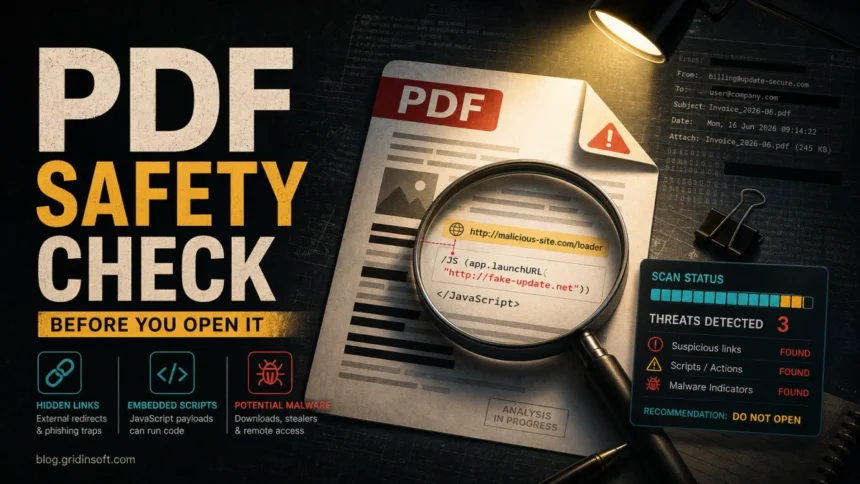
Yes, a PDF can have a virus or another malicious payload, but the real risk depends on what happened next. A suspicious PDF may hide JavaScript actions, embedded attachments, phishing links, QR-code traps, or an exploit for an outdated reader. If an antivirus flags an old statement, tax form, insurance form, or other archived document as PDF.Exploit.JS, handle it as a local file-safety decision first: do not upload sensitive PDFs to public scanners, and replace the file from the original portal if you cannot verify it.
For a quick check, use the Gridinsoft Online Virus Scanner for non-confidential files, or run Gridinsoft Anti-Malware for Windows locally when the PDF came from an unknown sender, opened a strange site, downloaded another file, or left symptoms after reboot.
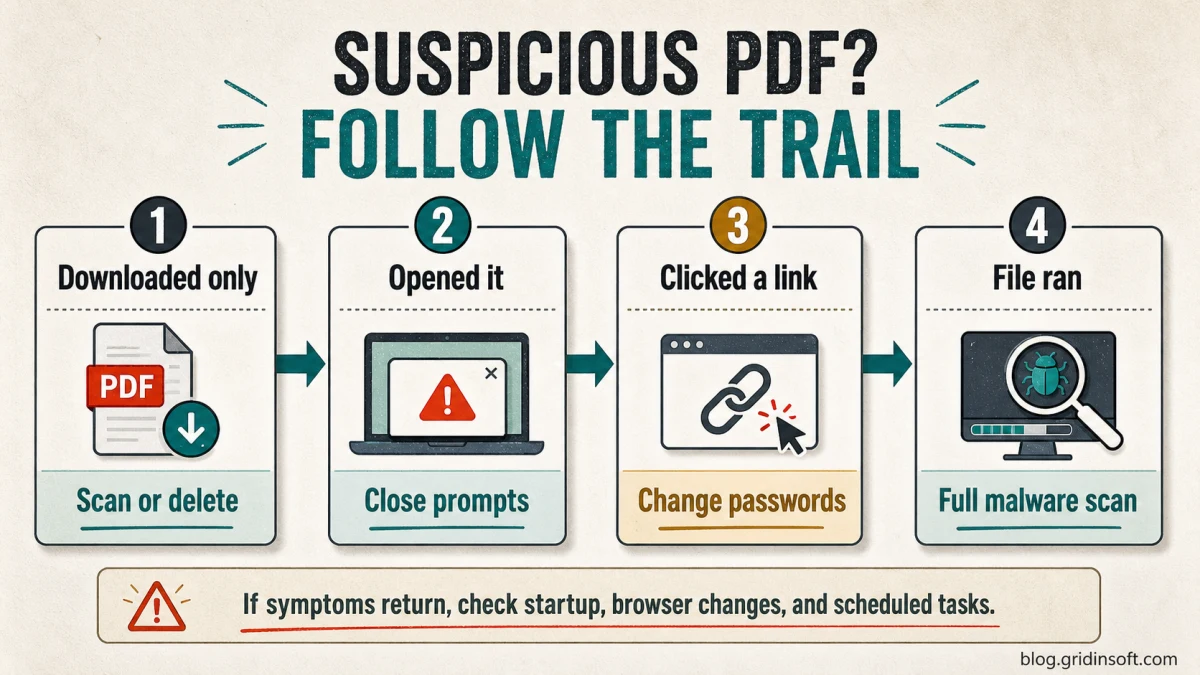
PDF Safety Check: Which Situation Are You In?
Use the first matching situation. The more interaction happened, the more you should move from file checking to account and device cleanup.
Can a PDF Have a Virus?
A PDF is a document format, not an executable program by default. That is why many people treat PDFs as safer than EXE, BAT, or script files. The problem is that PDFs are not always static images of text. They can contain interactive forms, embedded files, clickable links, JavaScript actions, and metadata that a reader application must parse. Adobe’s public PDF-safety guidance notes that PDFs can be abused through JavaScript, hidden objects, phishing links, and other malicious content [1].
In everyday language, people say “PDF virus” for several different threats: a malicious PDF that exploits a reader bug, a PDF that uses JavaScript to trigger a download, a document that hides a phishing link, or a file named like invoice.pdf.exe to fool users who hide file extensions. The result can be malware, credential theft, spyware, or a trojan downloader.
Why Attackers Still Use PDF Files
PDFs are trusted in daily work. People expect invoices, resumes, contracts, tax forms, delivery notices, and manuals to arrive as PDF attachments, so attackers use that familiarity to lower suspicion. A malicious PDF can also look clean during a quick preview because the real danger may be a link, button, or script that activates only after the user interacts with the document.
How PDFs Become Malicious
| PDF technique | What it can do |
|---|---|
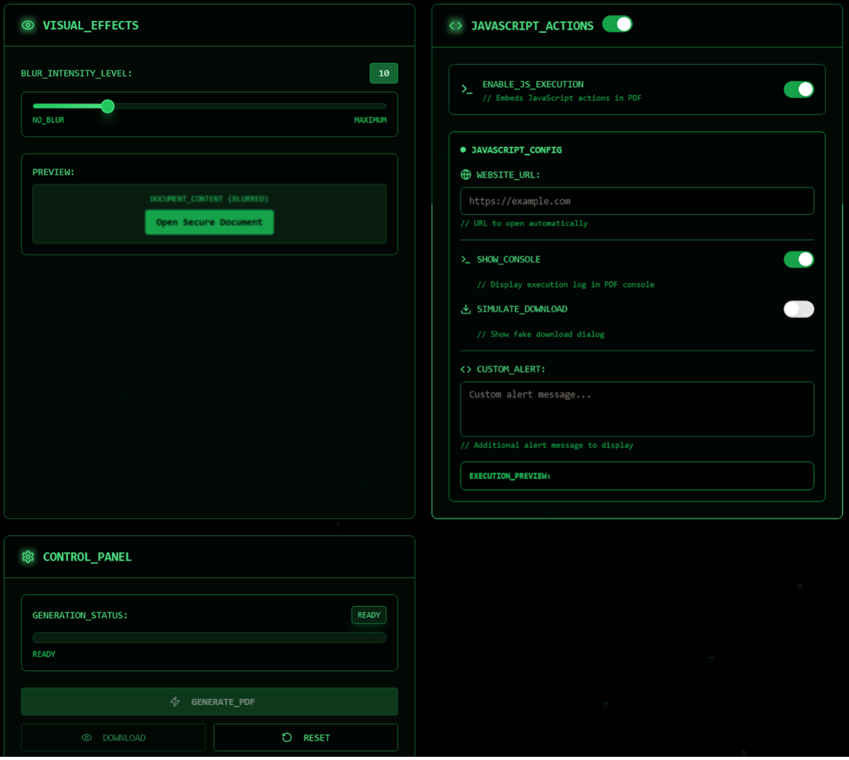
| Embedded JavaScript | Runs document actions, opens URLs, changes form behavior, or tries to abuse an outdated reader. |
| Old form with scripts | May contain legitimate form logic, stale XFA/actions, or exploit-like JavaScript that security tools label as PDF.Exploit.JS. |
| Reader exploit | Uses a vulnerability in Adobe Acrobat, a browser PDF viewer, or another reader to execute code. |
| Hidden attachment | Packs another file inside the PDF, such as a script, archive, or executable payload. |
| Phishing link or form | Sends the user to a fake login, payment, delivery, or document portal. |
| Double extension trick | Names an executable file like a PDF so Windows shows it as a harmless document. |
Embedded JavaScript and Actions
JavaScript in PDFs is legitimate when it supports forms or document automation. Attackers abuse the same feature to open external URLs, display fake prompts, or try to trigger behavior in the PDF reader. Adobe Enhanced Security is designed to limit untrusted PDF actions, including attempts to communicate with other domains [1].
When Old Forms Trigger PDF.Exploit.JS
A PDF.Exploit.JS alert does not automatically mean a bank, insurance, HSA, beneficiary, assessment, or tax document was created by an attacker. Older interactive PDFs can include JavaScript, XFA form logic, submit buttons, launch actions, or unusual objects that modern scanners treat cautiously. The risk decision is different from a random invoice attachment: you may need the record, but you should not trust the flagged copy blindly.
| What you see | Safer decision |
|---|---|
Old financial, insurance, medical, or tax PDF flagged as PDF.Exploit.JS |
Keep it quarantined, scan locally, update the PDF reader, and download a fresh copy from the official bank, insurer, employer, or tax portal when possible. |
| The PDF came from an email, archive, file-sharing link, or unknown sender | Treat it as suspicious, do not click form buttons or links, and use the phishing/malware cleanup path below. |
| The PDF is sensitive and contains account, payroll, health, tax, or customer data | Do not upload it to a public multi-scanner. Use local security software or ask the issuing organization for a clean replacement. |
| The alert returns after deletion or another file/process appeared | Scan the device for persistence and review downloads, startup entries, browser changes, and recently installed apps. |
If the document is only an archived record, deleting the flagged copy and restoring it from the official source is usually safer than trying to “repair” it. If it is irreplaceable, keep an offline backup, open it only in a fully updated protected reader, and avoid enabling scripts, links, submit buttons, or embedded attachments.
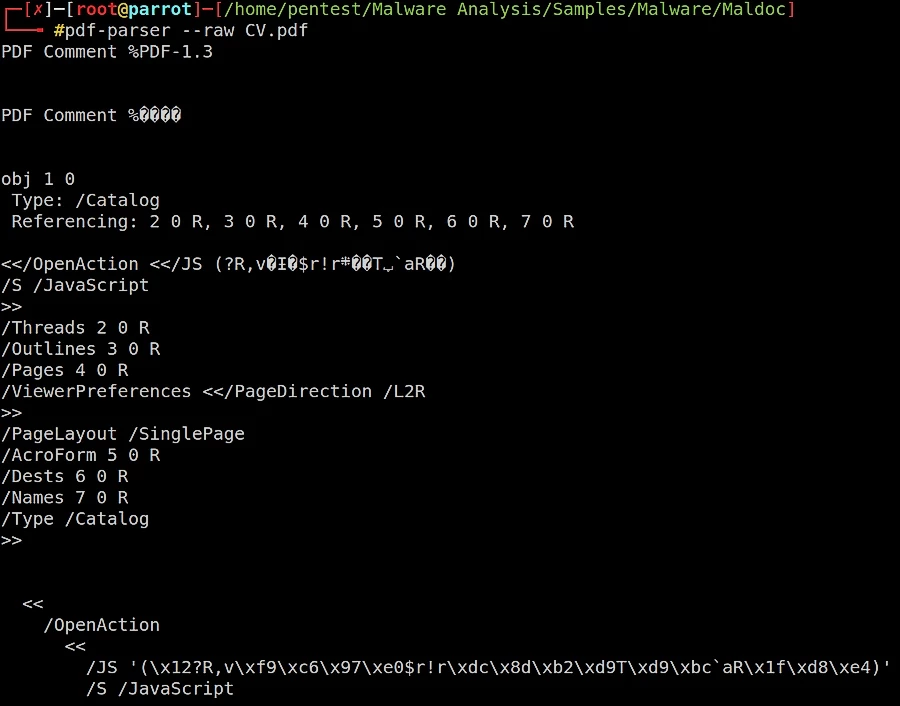
Modern malicious PDFs often rely on user interaction rather than automatic infection. In 2025, Varonis documented MatrixPDF, a toolkit that can add blurred overlays, fake “Open Secure Document” prompts, JavaScript actions, and redirect buttons to ordinary-looking PDFs [3]. That kind of attack may pass basic attachment checks because the binary payload is not inside the document until the victim clicks.
If Microsoft Defender names the file Trojan:PDF/Phish.A, use our Trojan:PDF/Phish.A removal guide for the quarantine, clicked-link, and repeat-alert path. For email-lure patterns around fake invoices and shared documents, compare the message against our phishing email warning signs.
Phishing Links in PDF Files
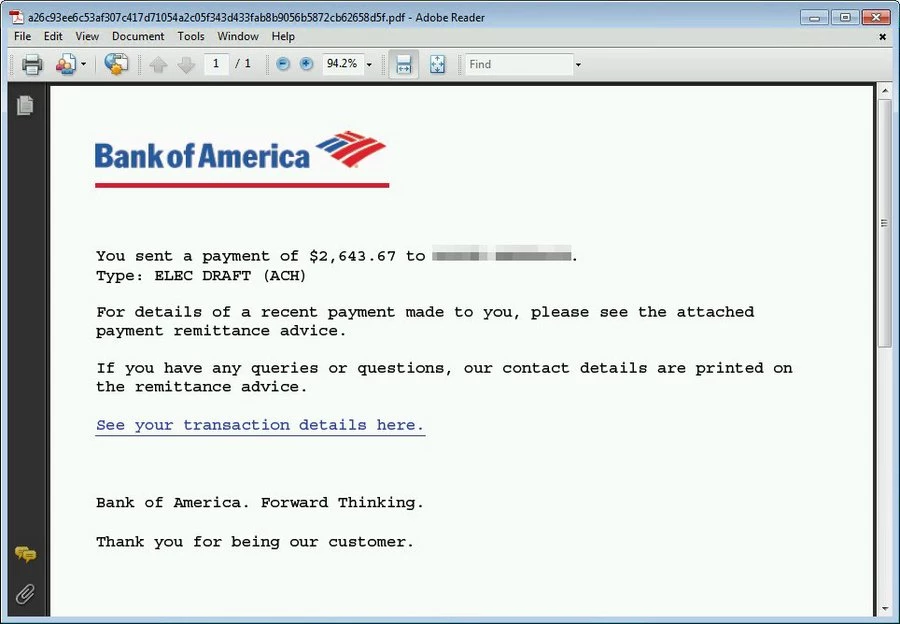
A malicious PDF does not need to exploit software to be dangerous. It may simply contain a convincing button or link that opens a fake Microsoft 365, bank, courier, payroll, or invoice page. Browser and security-tool warnings can help, but they do not make every PDF link safe. CISA warns users to treat unexpected links and attachments in suspicious messages as phishing signals [2].
Outdated PDF Readers
PDF readers and browser PDF viewers process complex file structures. If the reader is outdated, a malicious document may exploit a known vulnerability. This is why protected mode, protected view, browser sandboxing, and regular updates matter. If you use Adobe Acrobat or Reader, keep Protected View and Enhanced Security enabled for files from the internet [1][2].
Browser add-ons can create a separate exposure even when no suspicious PDF is opened. The patched Adobe Acrobat Chrome extension flaw affecting WhatsApp Web is a useful reason to check extension versions as well as the desktop PDF reader.
Signs a PDF May Be Malicious
- The PDF arrives unexpectedly, especially as an invoice, delivery notice, legal document, resume, refund note, or shared file.
- The sender address, domain, or message wording does not match the organization it claims to represent.
- The file asks you to click “Open Secure Document”, “Enable Content”, “View Invoice”, or a similar button.
- The document opens a browser tab, download prompt, login page, or permission dialog.
- The link target does not match the visible company name when you hover over it.
- The file name uses a double extension, such as
statement.pdf.exeorinvoice.pdf.scr. - The PDF reader warns about JavaScript, external connections, embedded files, or untrusted content.
- Your security tool flags the PDF, the download URL, or a process launched after opening it.
How to Check a PDF for Viruses Before Opening It
- Verify the sender first. If the PDF came by email or messenger, confirm through a separate channel before opening it.
- Check the full file name. Enable file extensions in Windows and make sure the file really ends in
.pdf, not.pdf.exe. - Scan the file. Use your installed security tool or the Gridinsoft Online Virus Scanner before opening a suspicious non-confidential document. If an old PDF contains private contracts, payroll, medical, insurance, financial, or tax data, scan locally instead of uploading it to any public scanner.
- Open only in a protected reader. Use a current browser PDF viewer or Adobe Reader/Acrobat with Protected View and Enhanced Security enabled.
- Do not click embedded buttons or links. If the document says it is “locked” and asks you to open a separate website, treat that as suspicious.
- Keep scripts disabled when possible. If you do not need interactive PDF forms, disabling JavaScript in the PDF reader reduces attack surface.
What to Do If You Opened a Suspicious PDF
For a business-email example where a fake protected PDF viewer asks for mailbox credentials, see the Revised Invoice email scam and handle it as a password-theft incident, not only a file-safety question.
- Close the PDF and any page it opened. Do not approve prompts, downloads, macro-like actions, or login requests.
- Disconnect if something downloaded or ran. If a file launched, a terminal flashed, or a strange process appeared, disconnect from the network until you scan the device.
- Run a full scan on an affected Windows PC. Use Gridinsoft Anti-Malware to check for trojans, spyware, stealers, and persistence.
- Change passwords only from a clean device. If you entered credentials on a page opened by the PDF, reset them from another trusted computer or phone and enable MFA.
- Check browser downloads and startup items. Delete unexpected downloads and review recently installed apps or browser extensions.
- Report the message. Forward the suspicious email to your IT/security team, mail provider, or the organization being impersonated.
On Windows, if the PDF launched another download, opened a fake login page, or the warning returns after deletion, a local scan is easier than manually chasing every leftover. Gridinsoft Anti-Malware checks detections, hidden files, startup entries, scheduled tasks, bundled apps, browser changes, and other persistence points that can survive after the visible PDF is gone.
If a PDF launched another file on Windows, or security warnings return after deletion, scan the PC for unwanted software. The check addresses what ran beyond the document, not just the PDF left in Downloads.
Scan this Windows PCCan You Get Infected Just by Downloading a PDF?
Usually, downloading a PDF without opening it is less risky than opening it, clicking links inside it, or allowing it to run actions. The danger increases when a PDF reader parses the file, when the user interacts with a malicious prompt, or when another file hidden behind the PDF name is actually executed. Still, if the file came from a suspicious source, scan it before opening and delete it if the sender cannot be verified.
Are PDFs Safer on Phones?
Phones are not immune. Mobile PDF viewers are sandboxed, but PDF phishing still works on iPhone and Android because the attack may only need a click to open a fake login page. Keep the OS and apps updated, avoid installing APKs or apps offered by a PDF link, and do not enter passwords into pages opened from an unexpected document.
If a PDF link led to an Android app installation, use Trojan Scanner for Android to scan the installed apps, review findings and confirm unwanted-app removal. The concern here is the installed app; a password submitted on a linked page still needs account recovery.
How to Reduce PDF Virus Risk
- Keep Windows, browsers, Adobe Reader/Acrobat, and other PDF readers updated.
- Use Protected View, Enhanced Security, and browser sandboxing for files from the internet.
- Disable PDF JavaScript unless you need it for trusted business forms.
- Do not open unexpected invoices, resumes, legal notices, or delivery documents without verifying the sender.
- Hover over PDF links before clicking, and avoid shortened URLs or domains that do not match the claimed company.
- Use endpoint protection that scans downloaded files, URLs, and suspicious behavior.
- Back up important files so a malware incident does not become a data-loss incident.
FAQ
Can a PDF have a virus if it only contains text?
It is less likely, but appearance alone is not enough. A PDF that looks like plain text can still contain hidden links, objects, scripts, or malformed structures. Scan unexpected files and use a protected reader.
Can opening a PDF install malware automatically?
It is possible, especially with an outdated or vulnerable reader, but many current attacks require a click, permission prompt, or redirect. Keep readers updated and do not approve actions requested by an unexpected document.
Can a PDF steal passwords?
Yes, commonly through phishing. The PDF may link to a fake login page or show a button that pretends to unlock a secure document. If you entered credentials, change them from a clean device and enable MFA.
Should I scan every PDF?
You do not need to scan every trusted document from a known workflow, but you should scan PDFs from unknown senders, unexpected emails, public downloads, file-sharing links, or messages that create urgency.
What should I do if antivirus says PDF.Exploit.JS?
Quarantine the file first. If it is an old sensitive form or statement, scan it locally, update your PDF reader, and try to download a fresh copy from the original organization. Do not upload private financial, medical, payroll, or tax PDFs to public scanners just to verify the alert.
Can a PDF virus affect Mac or Android?
Yes, but the risk depends on the exploit, viewer, and user action. Even when malware execution is harder, phishing links and fake login pages work across Windows, macOS, iPhone, and Android.
References
- Adobe. “Can PDFs have viruses? Keep your files safe.” Adobe Acrobat Resources, last updated June 18, 2026, accessed June 20, 2026. https://www.adobe.com/acrobat/resources/can-pdfs-contain-viruses.html
- Cybersecurity and Infrastructure Security Agency. “Recognize and Report Phishing.” CISA, accessed June 20, 2026. https://www.cisa.gov/secure-our-world/recognize-and-report-phishing
- Daniel Kelley. “MatrixPDF Puts Gmail Users at Risk with Malicious PDF Attachments.” Varonis, September 30, 2025, accessed June 20, 2026. https://www.varonis.com/blog/matrixpdf