Audiodg.exe is the Windows Audio Device Graph Isolation process. It is a legitimate Microsoft component that lets Windows run audio effects, enhancements, spatial sound, and third-party audio processing outside the main Windows audio service. When it behaves normally, you may barely notice it. When an audio driver, enhancement, headset utility, or malware impostor is involved, audiodg.exe can cause high CPU, high memory usage, audio crackling, lag in games, or fan noise.
| Process name | audiodg.exe |
| Display name | Windows Audio Device Graph Isolation |
| Legitimate location | C:\Windows\System32\audiodg.exe |
| Normal purpose | Runs audio effects and audio processing in a separate process so the main audio service stays stable. |
| Common problem | High CPU or memory usage caused by enhancements, drivers, spatial sound, headset software, VoIP apps, or an impostor file. |
| Best first action | Confirm the file path, then disable audio enhancements and spatial sound for the active playback device. |
Is Audiodg.exe a Virus?
No, the real audiodg.exe is not a virus. The legitimate file lives in C:\Windows\System32 and is part of Windows audio processing. You should not delete it, block it, or try to permanently disable it.
It becomes suspicious when the file is outside System32, has no Microsoft signature, appears with a misspelled name, runs from AppData, Temp, Downloads, or a random program folder, or keeps using CPU when no audio device or audio app is active.
What Audiodg.exe Does in Windows
Windows uses Audio Device Graph Isolation to separate audio effects from the core Windows Audio service. This isolation is useful because a faulty audio enhancement, virtual surround effect, or third-party driver component can crash without taking down all Windows audio.
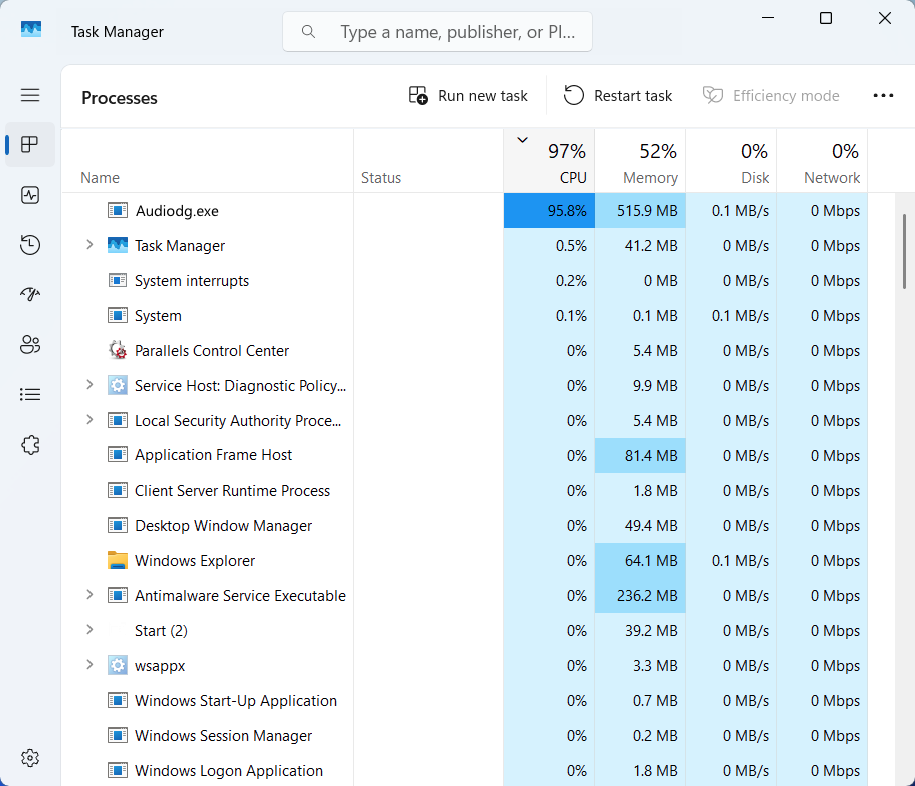
Microsoft documentation for Windows audio testing also refers to a helper Audio Device Graph process, audiodg.exe, launched for audio work. In normal daily use, this process often wakes up when you play sound, join a call, use a headset profile, enable spatial audio, or run an app that applies real-time audio effects.
Why Audiodg.exe Uses High CPU or Memory
High CPU from audiodg.exe usually means Windows is spending too much time processing sound effects or dealing with a bad audio driver path. The process is visible, but the real trigger is often one layer below it.
| Likely cause | Typical clue | Best fix to try first |
| Audio enhancements or spatial sound | CPU rises while music, video, Discord, Zoom, or games play sound. | Turn off audio enhancements and spatial sound. |
| Buggy or mismatched audio driver | Problem started after Windows Update, driver update, headset install, or motherboard utility update. | Update, roll back, or reinstall the audio driver from the device maker. |
| Third-party audio software | Logitech G HUB, Nahimic, Sonic Studio, Razer, Dolby, DTS, Voicemeeter, or headset software is active. | Disable the audio suite temporarily and retest. |
| High sample rate or exclusive mode | CPU spikes with certain apps, DAWs, games, or USB audio devices. | Use 16-bit/24-bit 44.1 or 48 kHz and test exclusive mode off. |
| Malware using the same name | File is not in System32, unsigned, or runs from a user folder. |
Disconnect from suspicious downloads and run a full malware scan. |
How to Check If Audiodg.exe Is Legitimate
Start with the file path. This is the fastest way to separate a Windows process from an impostor.
- Press Ctrl+Shift+Esc to open Task Manager.
- Find Windows Audio Device Graph Isolation or
audiodg.exe. - Right-click it and choose Open file location.
- Confirm the path is
C:\Windows\System32\audiodg.exe. - Right-click the file, open Properties, and check that the digital signature is from Microsoft Windows.
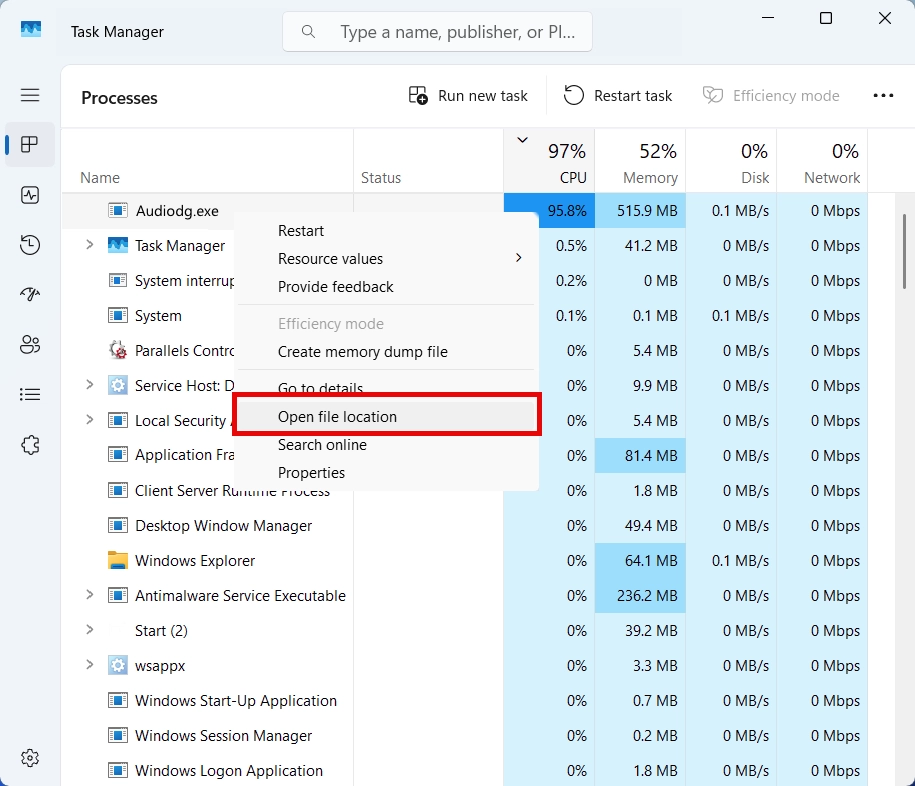
If the file opens from another folder, do not delete random files manually first. Stop interacting with suspicious downloads, keep a copy of the path, and scan the system. Malware often uses familiar Windows process names to look harmless in Task Manager.
After uninstalling the suspicious app or deleting the visible threat, use Gridinsoft Anti-Malware to check hidden files, startup entries, scheduled tasks, bundled apps, browser changes, and other persistence points that can restore malware.
Download Anti-MalwareHow to Fix Audiodg.exe High CPU Usage
Use these steps in order. The first fixes are low-risk and solve most real cases. Reboot or restart audio services after each major change so you can tell which step worked.
1. Disable audio enhancements and spatial sound
This is the most common fix. Enhancements, virtual surround sound, loudness equalization, noise suppression, and headset effects often run through audiodg.exe.
- Right-click the speaker icon and open Sound settings.
- Choose your active playback device.
- Open the device properties.
- Turn Audio enhancements off.
- Turn Spatial sound off.
- Apply the change and test audio again.
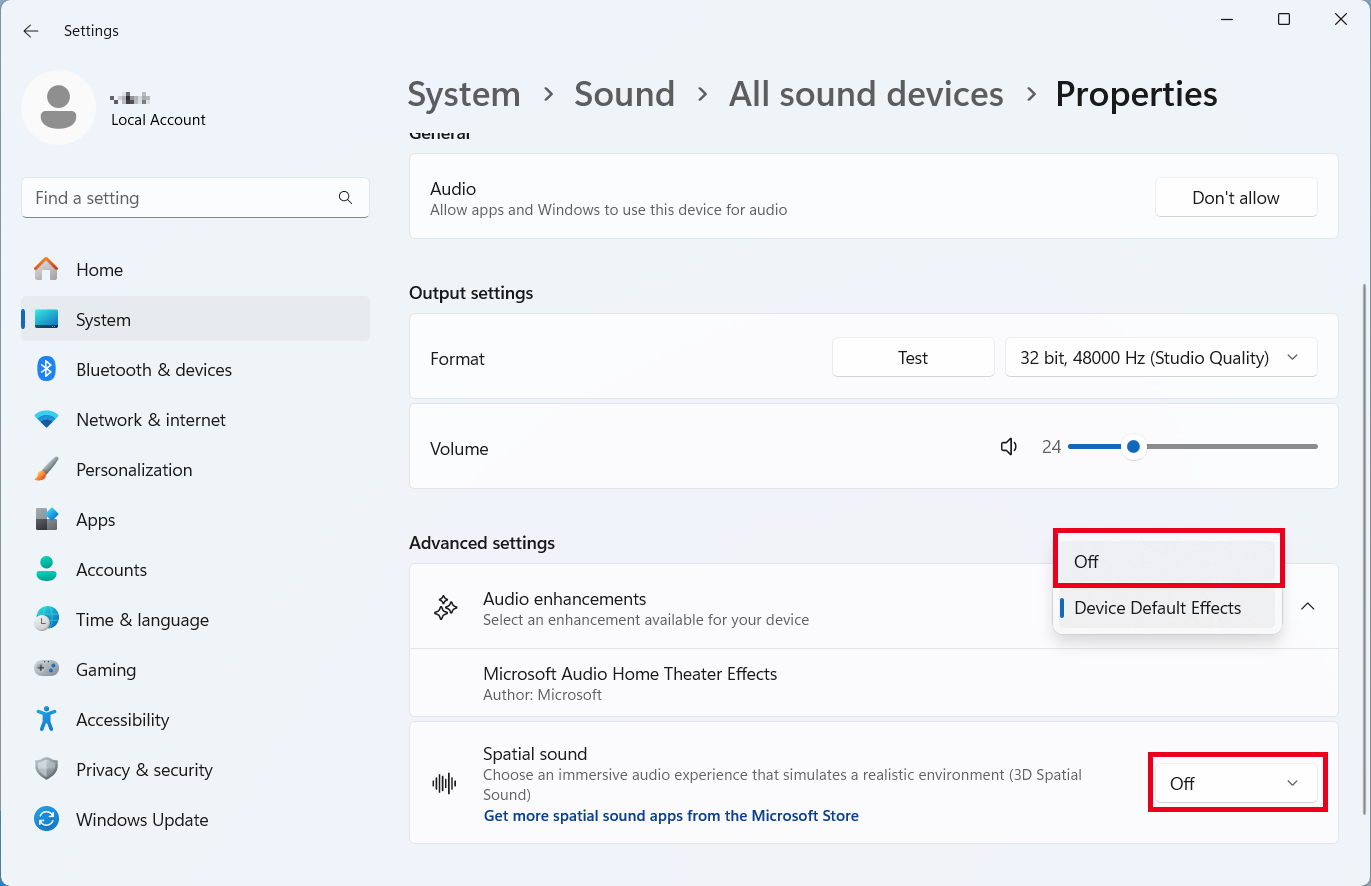
If you have multiple devices, repeat this for speakers, headset, monitor audio, Bluetooth output, and microphone devices that apply noise suppression or effects.
2. Restart Windows audio services
If CPU usage suddenly jumped after sleep, a call, a device reconnect, or a game crash, restarting audio services can clear a stuck audio graph.
- Press Win+R, type
services.msc, and press Enter. - Find Windows Audio.
- Right-click and choose Restart.
- Also restart Windows Audio Endpoint Builder if Windows allows it.
Your audio may briefly stop while the services restart. That is expected.
3. Lower the default format sample rate
Very high sample rates can increase CPU usage, especially with USB headsets, virtual audio devices, DAW software, or surround effects.
- Open Sound settings.
- Select your playback device.
- Open More sound settings or device properties.
- Go to the Advanced tab.
- Try 16-bit, 44100 Hz or 24-bit, 48000 Hz.
- Apply and test CPU usage while playing audio.
For normal speakers, calls, browser video, and gaming, 44.1 kHz or 48 kHz is usually enough. Avoid extreme formats unless you specifically need them.
4. Update, roll back, or reinstall the audio driver
If a USB Audio Class 1.0 device lost sound after the September 2026 Windows update, first distinguish a playback failure from high CPU: the KB5129195 audio update fixes multichannel playback, while Code 10 and no-output failures remain a separate known issue.
If the issue started after an update, the newest driver is not always the best driver for your hardware. Try the route that matches your situation:
- After a Windows update: check the PC, motherboard, or headset manufacturer site for a newer audio driver.
- After a driver update: use Device Manager to roll back the driver if the button is available.
- After installing headset software: uninstall the audio device from Device Manager, reboot, then install the vendor driver cleanly.
- If the vendor driver keeps failing: temporarily test the generic Windows High Definition Audio driver.
Realtek, Intel SST, USB headset drivers, Bluetooth audio stacks, and motherboard audio utilities are common places to look first.
If Task Manager shows RAVBg64.exe using CPU alongside audio glitches, check the RAVBg64.exe Realtek process guide before reinstalling drivers or deleting files, because that process has its own safe-path and signature checks.
If Task Manager points to NahimicSvc64.exe itself, use the NahimicSvc64.exe high CPU guide to test the service reversibly and repair the matching OEM package without deleting the audio component.
5. Disable third-party audio tools temporarily
Audio suites can load effects into the Windows audio graph. Temporarily disable or uninstall tools such as Nahimic, Sonic Studio, Dolby Access, DTS, Razer audio utilities, Logitech G HUB audio profiles, SteelSeries Sonar, Voicemeeter, virtual cables, or sound-card control panels.
If CPU drops after disabling one of them, reinstall the latest version or keep only the audio features you actually use.
6. Check microphone effects and communication apps
Do not check only speakers. Microphone effects can also push work into the audio graph: echo cancellation, noise suppression, voice changers, studio effects, and virtual microphone filters.
Test with Discord, Zoom, Teams, OBS, browser calls, and game voice chat closed. Then open them one by one and watch audiodg.exe in Task Manager.
7. Scan for malware if the path or behavior is suspicious
Run a full scan when the file is outside System32, the CPU usage stays high with no audio playing, Task Manager shows a misspelled process name, or the problem began after a crack, fake update, browser extension, or unknown installer.
Also check startup apps, scheduled tasks, and recently installed programs. A malicious impostor may use a familiar Windows name while launching from a user-writable folder.
Should You Disable Audiodg.exe?
No. Disabling or deleting the real audiodg.exe is not the fix. It is part of Windows audio. If you end the task, Windows will usually recreate it when audio is needed, or your sound may stop until services restart.
Fix the trigger instead: enhancements, drivers, sample rate, third-party audio filters, or malware impersonation.
When High CPU Is Normal
Short CPU spikes are normal when starting audio, switching devices, joining a call, launching a game, enabling surround sound, or changing output devices. It becomes a problem when usage remains high for minutes, keeps returning after reboot, causes audio crackling, or consumes memory continuously.
FAQ
What is Windows Audio Device Graph Isolation?
It is the Windows audio process behind audiodg.exe. It isolates audio effects and processing from the main Windows Audio service so a bad effect or driver does not crash all audio.
Why is audiodg.exe using 20-30% CPU?
The usual causes are audio enhancements, spatial sound, headset software, virtual audio devices, high sample rate settings, or a buggy audio driver. First verify the file path, then disable enhancements and test drivers.
Where should audiodg.exe be located?
The legitimate file should be at C:\Windows\System32\audiodg.exe. A copy running from AppData, Temp, Downloads, or a random program folder is suspicious.
Can I end audiodg.exe in Task Manager?
You can end it temporarily, but that is not a real fix. Windows may recreate it, or audio may stop until Windows Audio services restart.
Why does audiodg.exe spike when I use Discord, Zoom, or games?
Calls and games often use microphone processing, echo cancellation, noise suppression, spatial sound, or headset effects. These features can increase work inside the audio graph.
Can malware pretend to be audiodg.exe?
Yes. Malware can use the same file name to hide. The strongest quick check is the file location and Microsoft digital signature. If the path is wrong, scan the system immediately.
Bottom Line
Audiodg.exe is normally safe, but high CPU or memory usage means something in the audio chain is misbehaving. Confirm the file is the real Microsoft process, disable enhancements and spatial sound, test drivers and third-party audio tools, lower extreme sample rates, and scan for malware if the file path or behavior looks suspicious.