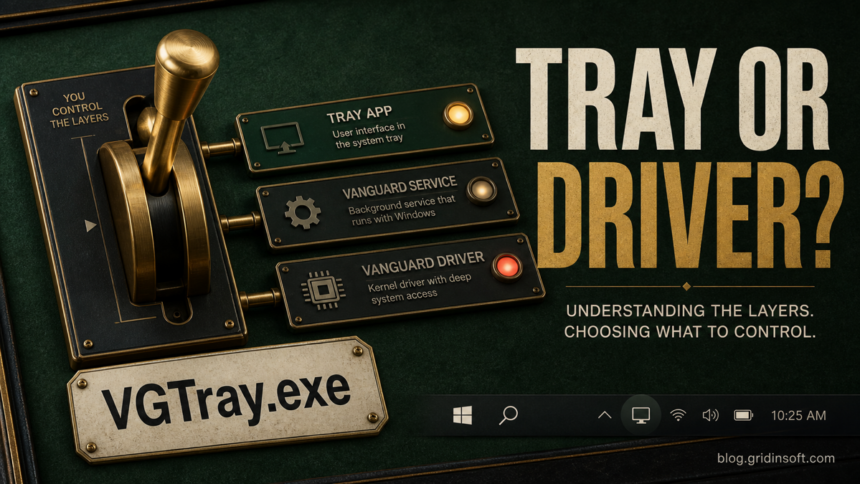
VGTray.exe is normally a legitimate Riot Vanguard component. Its usual location is C:\Program Files\Riot Vanguard\vgtray.exe, and a genuine copy should have a valid Riot Games, Inc. digital signature. It is the tray and onboarding interface—not the same thing as the vgc service or the vgk.sys kernel driver. Disabling VGTray.exe in Startup Apps may hide the icon, but it does not prove Vanguard stopped. Use Riot’s On-Demand option when your PC offers it, exit Vanguard for the current session, or uninstall Vanguard only when no installed Riot game needs it.
What is VGTray.exe?
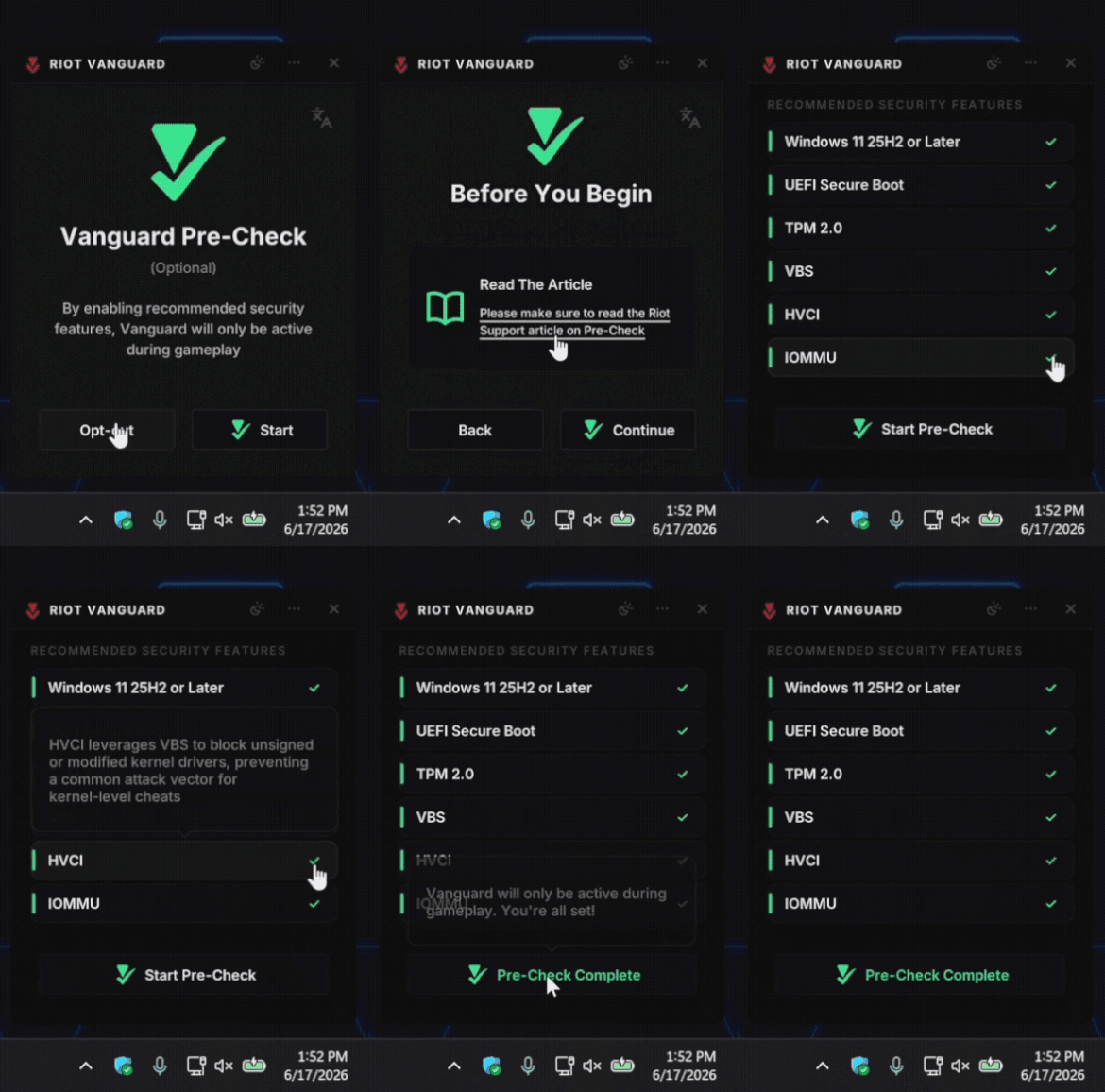
VGTray.exe displays Riot Vanguard’s notification-area interface. Depending on your Vanguard version and Windows security configuration, it can show status, provide the Exit Vanguard action, or guide you through Vanguard Pre-Check for the newer On-Demand mode.
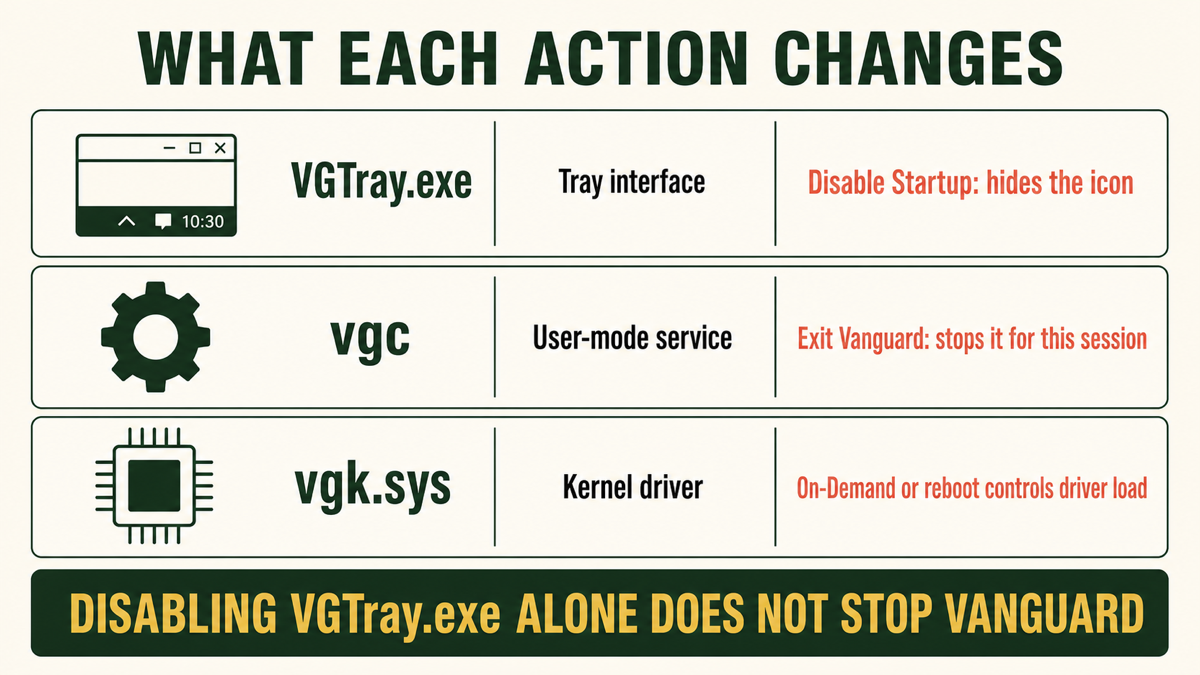
The process name is easy to misunderstand because Vanguard has separate layers:
| Component | What it does |
|---|---|
VGTray.exe |
Shows the tray interface, status, and Pre-Check onboarding. Ending or disabling this process can remove the visible controls without stopping every Vanguard component. |
vgc |
Runs Vanguard’s user-mode service when it is needed. |
vgk.sys |
Runs Vanguard’s kernel driver. A separate vgk.sys BSOD guide covers crashes and driver repair. |
Check VGTray.exe in 60 seconds
- Open Task Manager, find Vanguard tray notification or
VGTray.exe, right-click it, and choose Open file location. - Expect a Riot Vanguard installation path, normally
C:\Program Files\Riot Vanguard\vgtray.exe. A copy inDownloads,%TEMP%,%APPDATA%,C:\Windows, or a game-mod folder needs a separate check. - Open Properties → Digital Signatures. Select the Riot Games signature and confirm Windows reports it as valid.
- If you prefer PowerShell, run the command below. The status should be
Valid, and the signer certificate should identify Riot Games.
Get-AuthenticodeSignature -LiteralPath 'C:\Program Files\Riot Vanguard\vgtray.exe' | Select-Object Status, StatusMessage, SignerCertificate
Microsoft documents Get-AuthenticodeSignature as the Windows cmdlet for reading a file’s Authenticode signature.[3] A valid signature is useful evidence, but still match the path and installed application. Do not download a replacement VGTray.exe from a file library.
Choose the action that matches your goal
1. Use Vanguard On-Demand when it is available
Riot introduced optional Vanguard On-Demand on June 24, 2026. On an eligible PC, Vanguard’s driver no longer needs to launch with Windows; it can start with a Riot game and stop afterward. Riot says the option requires at least Windows 11 25H2 plus Vanguard Pre-Check security requirements such as UEFI/Secure Boot, TPM 2.0, VBS/HVCI, and IOMMU.[1]
If Vanguard shows an On-Demand or Pre-Check button, use that supported path instead of service commands. Some settings live in firmware, so follow the PC or motherboard manufacturer’s documentation. Do not change BIOS options only to remove a tray icon when you are unsure what they control.
2. Disable only the tray startup entry
If you only want to test whether the tray app affects sign-in time, open Settings → Apps → Startup or Task Manager → Startup apps and disable Riot Vanguard or Vanguard tray notification. This is reversible: return to the same screen and enable it again.
This choice can hide the icon while vgc or vgk.sys still runs. It can also remove the tray menu you would otherwise use to exit Vanguard. The broader startup-app safety guide explains how to inspect a startup command before disabling or deleting its file.
3. Exit Vanguard for the current Windows session
When the Vanguard icon is visible, right-click it and choose Exit Vanguard. Confirm the warning. Riot notes that games requiring Vanguard will not run while it is disabled, and restoring the anti-cheat can require restarting Windows.[2]
Use this option when you want Vanguard inactive temporarily. Do not substitute unverified service commands or delete vgk.sys by hand; that can leave the product in a broken state without giving you a reliable security benefit.
4. Uninstall Vanguard when you no longer need it
Open Settings → Apps → Installed apps → Riot Vanguard → Uninstall, then restart Windows. Check first whether VALORANT, League of Legends, or another installed Riot title requires Vanguard. Removing the anti-cheat can stop those games from launching until the Riot Client reinstalls Vanguard and Windows is restarted again.
Uninstall the product rather than deleting VGTray.exe alone. A normal uninstall removes the relationship among the tray app, service, and driver; deleting one executable does not.
If the tray icon is missing or a Riot game will not launch
- Check Startup apps and re-enable the Vanguard tray entry if you disabled it.
- Restart Windows. Starting VGTray.exe manually does not necessarily recreate the driver state a Vanguard-protected game expects.
- Open the Riot Client and install pending Riot/Vanguard updates.
- If the problem began after an update or file deletion, uninstall Riot Vanguard through Settings, restart, let the Riot Client reinstall it, and restart again.
- If Windows crashes with a named
vgk.sysstop code, preserve the code and use the Vanguard driver crash checklist rather than repeatedly toggling VGTray.
When VGTray.exe may be suspicious
The filename alone does not prove that a process belongs to Riot. Treat a copy as suspicious when it runs from a user-writable folder, has no valid Riot Games signature, appears on a PC that never had a Vanguard-protected game, opens network or browser activity unrelated to Riot, or returns after Riot Vanguard was uninstalled.
Preserve the full path and signer, then use the EXE safety checklist. If the file is not private, the Gridinsoft Online Virus Scanner can check the specific sample. If an unsigned or wrong-path copy already ran, a full Gridinsoft Anti-Malware scan can look for related startup entries, scheduled tasks, bundled apps, and other persistence instead of judging only the visible filename.
If the process path is wrong, the name imitates a Windows component, or high CPU started after an unknown installer, scan for hidden miners, services, startup entries, and bundled components.
Check this VGTray.exe copyFAQ
Is VGTray.exe safe?
Usually yes. The normal copy belongs to Riot Vanguard, runs from the Riot Vanguard folder under Program Files, and has a valid Riot Games digital signature. A same-named file elsewhere needs verification.
Can I disable VGTray.exe at startup?
Yes, if your goal is to hide or test the tray interface. The change is reversible, but it does not necessarily stop the vgc service or vgk.sys driver.
Why is Vanguard still running after I disable VGTray.exe?
VGTray.exe is only the visible interface. Vanguard’s service and kernel driver have separate startup behavior, so a tray-only change is not a full Vanguard shutdown.
What is Vanguard On-Demand?
It is Riot’s optional mode for eligible Windows 11 25H2 systems that pass Vanguard Pre-Check. In that mode, the driver can start with a Riot game instead of at Windows startup and stop afterward.
Do I need to restart after exiting Vanguard?
Plan to restart before playing a Riot game that requires Vanguard. A reboot lets the required Vanguard components load in the expected order.
References
- Koskinas, Phillip. “Incoming: Vanguard On-Demand.” Riot Games, June 24, 2026, accessed August 5, 2026. Riot Games.
- Riot Games Player Support. “Uninstall and Disable Vanguard.” Riot Games, living support page, accessed August 5, 2026. Riot Games Player Support.
- Microsoft. “Get-AuthenticodeSignature.” PowerShell documentation, accessed August 5, 2026. Microsoft Learn.