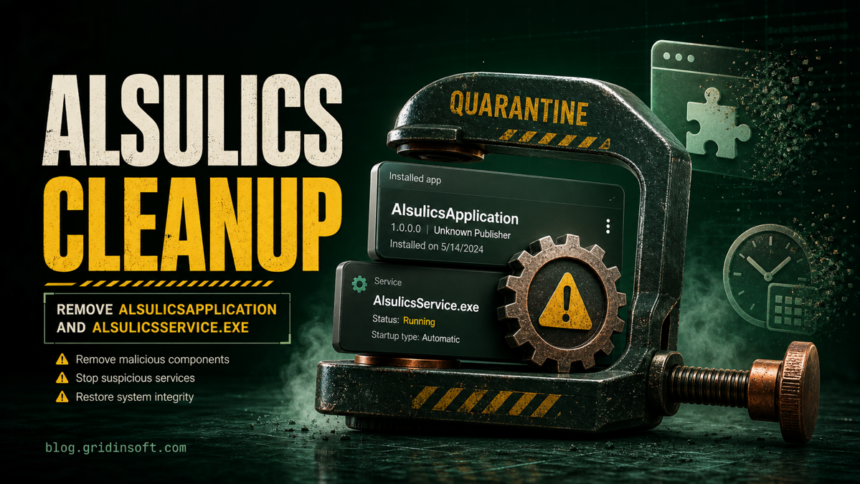
AlsulicsApplication is not a normal Windows component. If it appears in Installed Apps, under C:\Program Files (x86)\alsulicsapplication\, or beside a service named AlsulicsService.exe, treat the system as a bundled unwanted-app or Altruistik cleanup case until you prove otherwise. The useful fix is not to delete one file at random; uninstall the visible app, stop the service if it remains, remove browser and task leftovers, then scan if the warning comes back after reboot.
In a recent cleanup case, the same install cluster included AlsulicsApp.exe, AlsulicsUninstaller.exe, AlsulicsHelper.dll, Alsulicsdt.dt, a Chrome extension ID fbgcedjacmlbgleddnoacbnijgmiolem, Web Companion installer files, a DealPly-related service, and a scheduled task named proactivescan. That mix is why this guide focuses on the whole bundle, not only the executable name.
What Is AlsulicsApplication?
AlsulicsApplication is a user-visible program name tied to an unwanted software cluster that may also trigger Altruistik-family detections. Users usually notice it because a security tool reports Trojan.Win64.Altruistik or a similar name, a service remains after uninstall, Chrome settings change, or the PC suddenly contains several same-day apps they did not choose clearly.
The name alone is not enough to diagnose every file on every PC. The stronger signal is the combination of a suspicious install folder, a persistent service, same-day browser changes, and other bundled components. If the folder, service, and Chrome extension all appeared together, handle it as a cleanup incident.
Files And Leftovers To Check
Start with the exact places users can inspect safely. Do not delete random Windows files; compare names, folders, and install dates first.
- Installed app: AlsulicsApplication or a similar Alsulics/Altruistik entry in Settings > Apps.
- Main folder: C:\Program Files (x86)\alsulicsapplication\.
- Service file: AlsulicsService.exe, especially if Windows Services shows an Alsulics-related service.
- Companion files: AlsulicsApp.exe, AlsulicsUninstaller.exe, AlsulicsHelper.dll, and Alsulicsdt.dt.
- Browser extension: Chrome or Edge extension ID fbgcedjacmlbgleddnoacbnijgmiolem, or any same-day search/coupon/safety extension you did not install deliberately.
- Scheduled task: a task named proactivescan or another recently added task with a vague updater/scanner name.
- Co-installed PUA: OneBrowser or OneBUpdate, Web Companion, DealPly, WisePCDoctor, SpecialSearchOffer, or PremierOpinion with pmservice.exe. If the same install also created
C:\ProgramData\PluckyPositiveFire\fortimex.exeor servicefortimexsvc, include it in the same full-bundle cleanup.
How To Remove AlsulicsApplication
- Disconnect risky sessions first. If this started after a cracked installer, game mod, fake cleaner, or unknown download, close browsers and avoid signing into banking, crypto, email, or admin accounts until cleanup is complete.
- Uninstall the visible app. Open Settings > Apps > Installed apps, sort by install date, and uninstall AlsulicsApplication plus other unknown programs installed the same day. If the uninstaller asks to keep settings, decline.
- Check Services. Press Win+R, type services.msc, and look for AlsulicsService or a same-day unknown service. Stop it only if it clearly points to the Alsulics folder, then continue cleanup from Apps or a scanner rather than deleting files blindly.
- Review Task Scheduler. Open Task Scheduler and check recently created tasks, especially proactivescan, vague updater names, or entries pointing into AppData, ProgramData, Temp, or the Alsulics folder.
- Remove browser changes. In Chrome and Edge, open Extensions and remove unknown IDs, including fbgcedjacmlbgleddnoacbnijgmiolem if present. Then check the default search engine, startup page, notification permissions, and site permissions.
- Reboot and re-check. After reboot, confirm the app entry, service, folder, extension, and scheduled task did not return.
If the app or browser changes return, a visible uninstall did not remove the whole bundle. That is the point where a full system scan is more useful than chasing one filename. Gridinsoft Anti-Malware can check for detections, hidden files, scheduled tasks, startup entries, bundled apps, browser changes, and persistence left behind by the same installer.
Start a full scan with Gridinsoft Anti-Malware to check for AlsulicsService.exe, bundled unwanted apps and related startup entries. Review the results and remove detected threats as part of the cleanup.
Download Anti-Malware for WindowsWhen Is AlsulicsService.exe Dangerous?
AlsulicsService.exe is risky when it lives under the AlsulicsApplication folder, runs as a service, or appears with Altruistik detections. It is especially suspicious if the file was created on the same date as browser changes, Web Companion leftovers, DealPly, or unknown scheduled tasks.
A service can restart an app after reboot, restore browser settings, or keep a cleanup loop alive. That does not mean every same-named file on the internet is identical, but on a home Windows PC there is no reason to keep an unknown Alsulics service unless you can tie it to trusted software you intentionally installed.
Browser Extension And Notification Cleanup
Alsulics cleanup should include browser checks because bundled installers often change more than the Windows app list. In Chrome or Edge, open chrome://extensions or edge://extensions, enable Developer mode, and compare extension IDs. Remove unknown search, coupon, protection, PDF, cleaner, or driver-tool extensions.
Then review notification permissions. Go to browser settings, search for Notifications, and remove sites you do not recognize. If pop-ups keep returning, also reset the browser search engine and startup page. For a broader extension-ID workflow, use the Gridinsoft guide to browser hijacker removal and keep this page focused on the Alsulics cluster.
What To Do After Cleanup
- Change passwords only after the PC is clean if you ran a suspicious installer or browser extension.
- Check browser sync. A bad extension can return through synced profiles if it was added before cleanup.
- Remove downloaded installers that started the problem, especially cracks, fake cleaners, driver tools, and PDF utilities.
- Run a second scan after reboot if the first scan removed many detections or if the service/task returned once.
- Keep screenshots or detection names before deleting everything if you may need support or billing dispute evidence.
FAQ
Is AlsulicsApplication a virus?
Treat it as unwanted or malicious when it appears unexpectedly, installs a service, changes browsers, or is detected as Altruistik. The safer wording is that it belongs to a suspicious bundled cleanup cluster rather than a trusted Windows component.
Should I delete AlsulicsService.exe manually?
Do not start by deleting one file. Uninstall the parent app, stop the related service if it is still running, check scheduled tasks and browser extensions, then scan. Manual deletion alone can leave the service entry, task, or browser change behind.
Why did Web Companion or DealPly appear at the same time?
Bundled installers often install several programs in one session. If Web Companion, DealPly, a driver tool, or a browser extension appeared on the same date as AlsulicsApplication, clean the whole install batch instead of assuming each item is unrelated.
Can AlsulicsApplication come back after reboot?
Yes, if a service, scheduled task, updater, or browser extension remains. Reboot is an important test: if the folder, service, extension, or warning returns, run a deeper cleanup scan and inspect startup locations.
References
- Microsoft Support. “Protect your PC from potentially unwanted applications.” Microsoft, accessed June 23, 2026. https://support.microsoft.com/en-US/security/protect-your-pc-from-potentially-unwanted-applications