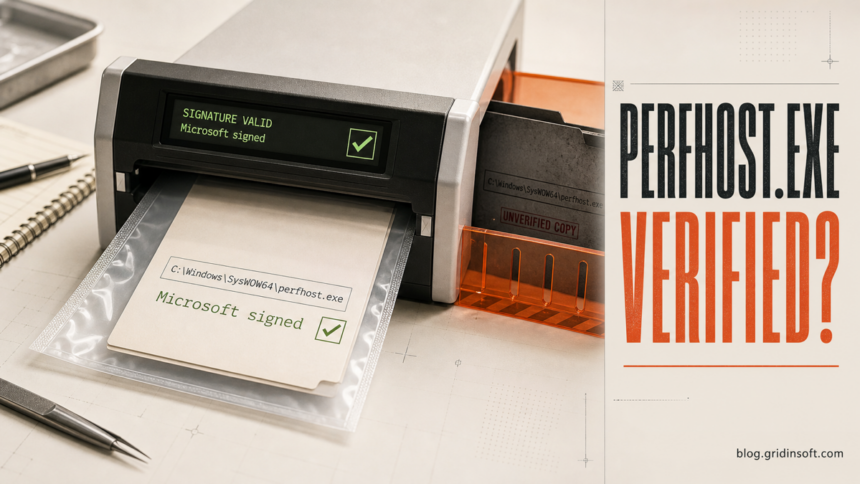
PerfHost.exe is normally a legitimate Windows component called x86 Performance Counter Host, used by the Performance Counter DLL Host service. On a 64-bit Windows PC, the expected copy is C:\Windows\SysWOW64\perfhost.exe and should carry a valid Microsoft Windows signature. It may start briefly when a 64-bit app or remote management tool asks for performance data supplied by a 32-bit counter DLL. A copy in a user folder, an invalid signature, persistent high CPU, or unexplained startup and network activity needs investigation. Do not delete the genuine Windows file simply because it appeared in Task Manager.
The name is confusing for two reasons. First, SysWOW64 contains many 32-bit Windows components on a 64-bit installation; the folder is not suspicious by itself. Second, malware can reuse a trusted filename. The decision therefore depends on the path, signer, service context, and behavior together—not on perfhost.exe alone.
What is PerfHost.exe?
PerfHost.exe hosts older 32-bit performance-counter providers so that 64-bit processes and authorized remote users can query their data. Microsoft lists the service name as PerfHost, the display name as Performance Counter DLL Host, and its startup type as Manual.1 That manual setting matters: the service is designed to start when something requests it, not necessarily to run continuously from boot.
Legitimate triggers can include Performance Monitor, an administrative monitoring console, a server-management agent, or software that reads Windows performance counters. This explains why PerfHost.exe may appear briefly and disappear again without any warning or user action.
PerfHost.exe: safe file or suspicious copy?
| What you find | What it means and what to do |
|---|---|
C:\Windows\SysWOW64\perfhost.exe, valid Microsoft Windows signature, service name PerfHost, brief activity |
This matches the normal 32-bit Performance Counter host on 64-bit Windows. Leave it in place and identify which monitoring app or counter query started it if you are troubleshooting. |
The file is in Downloads, Temp, AppData, a browser profile, a game/mod folder, or another user-writable location |
The location does not match the expected Windows component. Do not run or allow the copy; scan it and investigate how it arrived. |
| The file has no signature, an invalid signature, or a signer other than Microsoft Windows | Treat the identity as unverified. Compare the exact path and file properties, then scan the file and the computer before allowing it. |
| CPU stays high, the process returns immediately after you end it, or it starts without a performance-monitoring trigger | Check the parent process, command line, service path, scheduled tasks, and recent installs. The cause may be a broken counter provider, a monitoring app loop, or a same-name malicious copy. |
| Security software detects the file or it makes unrelated outbound connections | Keep the file quarantined, disconnect sensitive sessions if it already ran, and perform a full scan for the loader and persistence—not only the visible executable. |
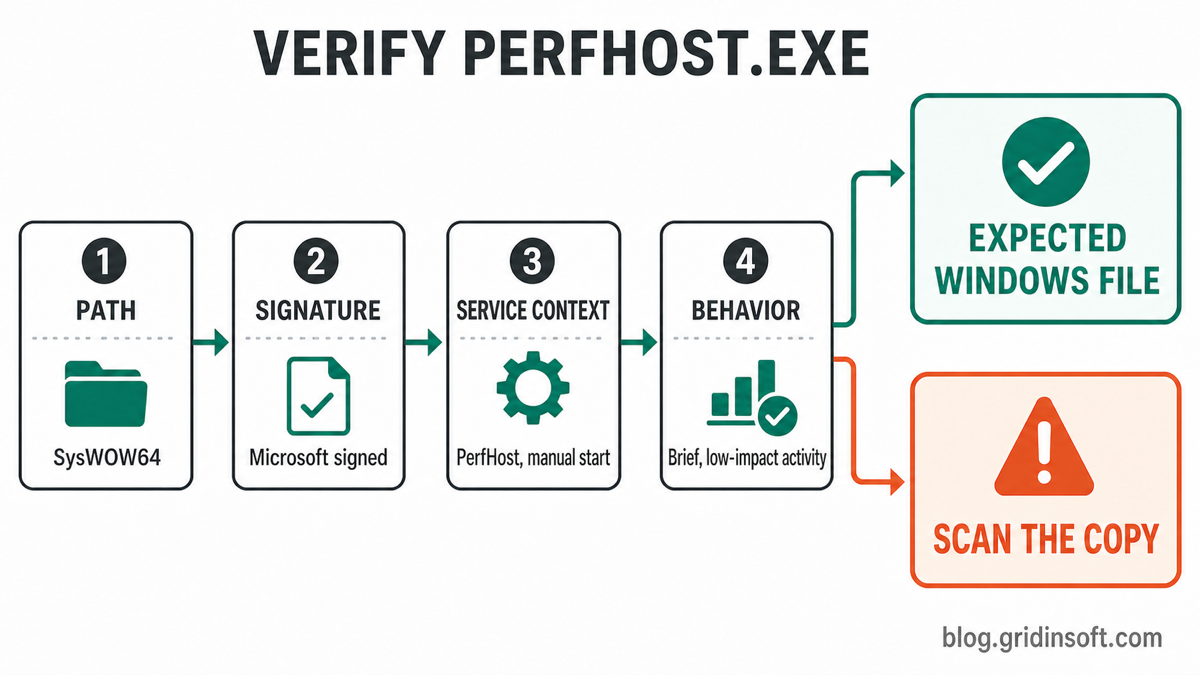
How to verify PerfHost.exe
1. Open the process location
In Task Manager, open the Details tab, right-click perfhost.exe, and select Open file location. On 64-bit Windows, the expected location is:
C:\Windows\SysWOW64\perfhost.exeDo not judge the file by its name or icon. If the folder is user-writable or belongs to an unrelated application, follow the suspicious-copy branch below. For a broader pre-run checklist, see how to check whether an EXE file is safe.
2. Check the digital signature
Right-click the file, choose Properties, and inspect the Digital Signatures tab. The expected Windows copy should show a valid Microsoft Windows signature. You can also check it in PowerShell:
Get-AuthenticodeSignature "$env:WINDIR\SysWOW64\perfhost.exe" |
  Select-Object Status, StatusMessage, SignerCertificate
Microsoft documents Get-AuthenticodeSignature as the cmdlet for retrieving Authenticode signature information.2 A valid signature is strong evidence, but still compare the path and behavior. An unsigned file is not automatically malware in every context; it simply does not prove that this copy is the protected Windows component.
3. Confirm the service context
Open PowerShell as administrator and inspect the service:
Get-CimInstance Win32_Service -Filter "Name='PerfHost'" |
  Select-Object Name, State, StartMode, PathName
The name should be PerfHost, the start mode should normally be Manual, and the path should agree with the Windows file you inspected. A service with a similar display name but a different executable path is a separate item and needs its own verification.
4. Correlate the activity with what you were doing
Think about the minute before PerfHost.exe appeared. Did you open Performance Monitor, a hardware dashboard, a server console, a diagnostic report, or another app that reads performance data? Close that tool and watch whether PerfHost.exe settles or exits. Brief, low-impact activity tied to a clear request is much less concerning than a process that consumes a CPU core continuously or relaunches with no monitoring software open.
What to do if PerfHost.exe uses high CPU
Sustained high CPU is not the normal reason to label the process a virus. First establish whether the genuine host is stuck because a counter provider or monitoring application keeps querying it.
- Record the path and signer before ending the process. This preserves the most useful identity evidence.
- Close monitoring and hardware utilities one at a time. Look for the app whose closure stops the activity.
- Restart the affected app and Windows. A one-time provider or counter-query failure may clear after a normal restart.
- Install current Windows and vendor updates. If one monitoring product consistently triggers the spike, repair or update that product instead of deleting a Windows file.
- Repair Windows only when system-file corruption is plausible. Run
DISM.exe /Online /Cleanup-image /Restorehealth, thensfc /scannowfrom an elevated Command Prompt. Microsoft recommends this order for damaged Windows components.3
Do not permanently disable the Performance Counter DLL Host service as a first fix. Stopping it prevents remote users and 64-bit processes from querying counters supplied by 32-bit DLLs. Finding the app or provider that generates the bad query preserves monitoring features and fixes the real cause.
If the path or signature is wrong
Do not replace or delete the legitimate SysWOW64 file. Instead, isolate the mismatched copy and investigate its launch mechanism:
- Disconnect from sensitive accounts and networks if the unknown file already ran and shows suspicious network activity.
- Keep any antivirus detection quarantined; do not restore it merely because the filename resembles Windows.
- Inspect Task Manager’s command line and parent process, the service
PathName, Startup apps, Task Scheduler, and recently installed software. - Scan the exact file, then run a full system scan. The visible copy may have been placed by a loader or may return through a scheduled task, service, startup entry, or bundled application.
- Reboot and scan again if the process or alert returns.
When the identity checks fail, Gridinsoft Anti-Malware can check the computer for detections, hidden files, startup entries, scheduled tasks, services, bundled apps, and other persistence associated with the suspicious copy. A clean scan lowers risk, but it cannot prove that credentials were never exposed if an unknown executable already ran.
If the process path is wrong, the name imitates a Windows component, or high CPU started after an unknown installer, scan for hidden miners, services, startup entries, and bundled components.
Scan a suspicious PerfHost.exe copyPerfHost.exe is not PerfMonHost.exe
The extra Mon changes the filename. PerfHost.exe is the Windows Performance Counter DLL Host discussed on this page. PerfMonHost.exe is not the same binary and should not inherit the genuine file’s trust. If Task Manager shows the longer name—especially from a user folder with high CPU or repeated Notepad activity—use the separate PerfMonHost.exe malware check and cleanup guide.
FAQ
Is PerfHost.exe a virus?
Usually not. The expected C:\Windows\SysWOW64\perfhost.exe file with a valid Microsoft Windows signature is a legitimate performance-counter host. A same-name file elsewhere or with an invalid signature needs investigation.
Why is PerfHost.exe in SysWOW64?
On 64-bit Windows, SysWOW64 contains 32-bit system components. PerfHost exists to let 64-bit processes and remote users query counters supplied by 32-bit provider DLLs, so that location fits its role.
Can I stop PerfHost.exe?
Ending a stuck instance for troubleshooting is different from permanently disabling the service. A legitimate on-demand instance may return when an app requests performance counters again. Identify the requesting app or broken provider before changing the service configuration.
Why does PerfHost.exe keep coming back?
A legitimate copy can return because a monitoring tool repeatedly asks for counter data. A suspicious copy can return through a service, scheduled task, startup entry, or loader. The path, signature, service command, and parent process distinguish those cases.
Does a valid Microsoft signature prove the file is safe?
It is strong identity evidence when the file is also in the expected Windows path and behaves like the PerfHost service. Still check all three signals. Do not trust a screenshot, filename, or copied file-properties text by itself.
References
- Microsoft. “Security guidelines for system services in Windows Server: Performance Counter DLL Host.” Microsoft Learn, accessed July 20, 2026. learn.microsoft.com.
- Microsoft. “Get-AuthenticodeSignature.” PowerShell documentation, accessed July 20, 2026. learn.microsoft.com.
- Microsoft. “Using System File Checker in Windows.” Microsoft Support, accessed July 20, 2026. support.microsoft.com.