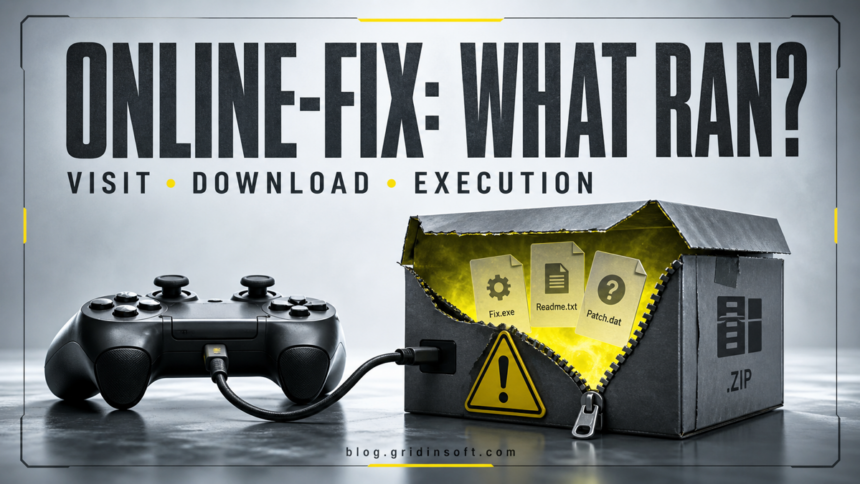
Online-fix.me should not be treated as a trusted Windows download source. A warning about the domain or a file named OnlineFix64.dll does not prove that every file is malicious, but forum claims that every alert is a false positive are not proof of safety either. The correct response depends on whether you only visited the page, downloaded an archive, extracted it, or actually ran a fix, launcher, installer, or game.
If something ran, stop testing the package, keep the exact alert name and file path, remove the whole same-download chain, scan Windows, reboot, and scan again. Secure email, gaming, and browser accounts from a clean device if you see unknown sessions, Discord spam, recovery changes, or a stealer/loader detection.
Check Windows before continuing
If you only visited the site or deleted an unopened download, use the exposure checklist below. If a launcher, installer, or game from the package ran, stop using it and keep the warning details; checking only OnlineFix64.dll is too narrow.
After downloading: install Gridinsoft Anti-Malware, activate the trial if eligible, update its database, and run a Full Scan. Review detections, clean the items you confirm, then restart Windows. If the same symptom returns, use the source and persistence checks below.
Is Online-fix.me safe?
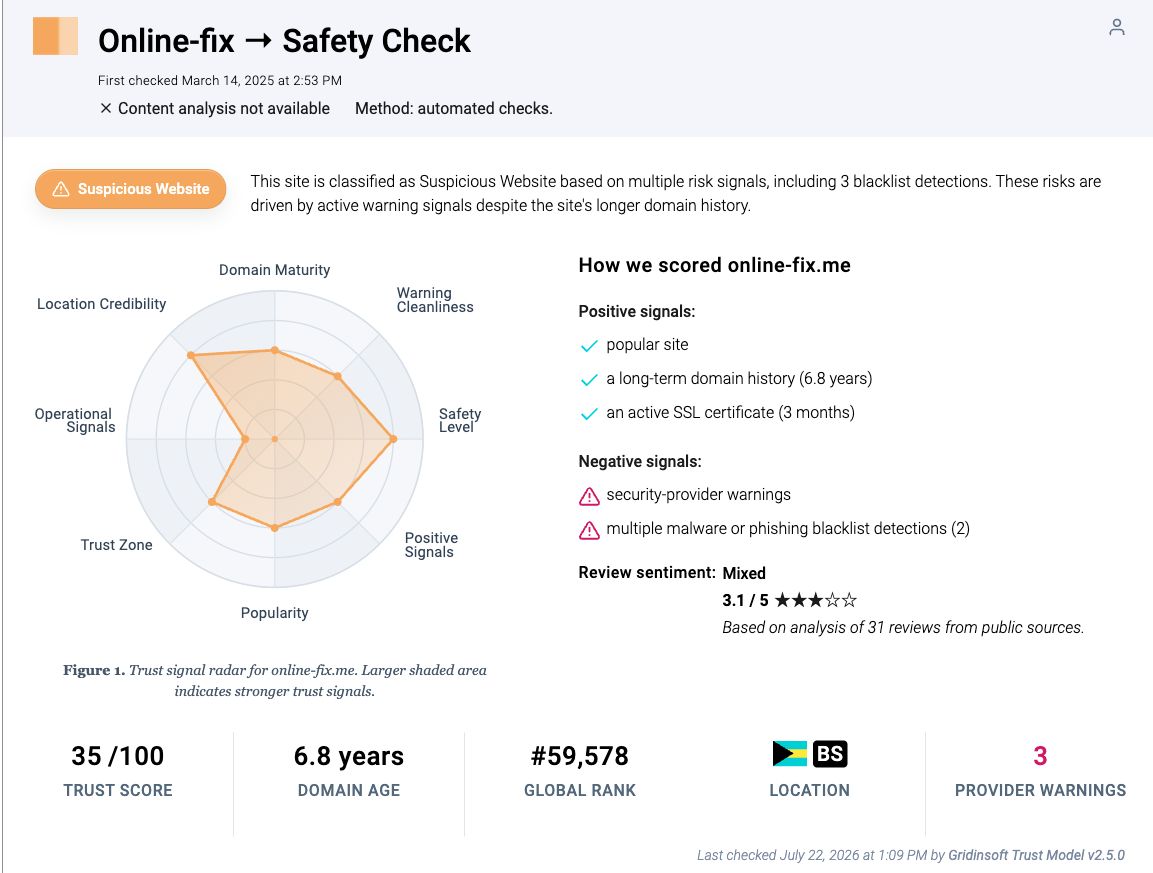
Gridinsoft’s Online-fix.me reputation report currently classifies the domain as suspicious, with a 35/100 trust score and multiple provider warnings. That is enough reason to avoid downloads and redirects from the site. It is not a forensic verdict on every archive or DLL, because a domain result cannot identify which mirror, ad, file host, archive, or executable reached your PC.
Google results make the decision look simpler than it is. Some forum posts say the expected fix DLL is harmless, while reviews describe redirects, extra downloads, antivirus alerts, and account problems. The useful question is not “which comment sounds confident?” It is “what did this specific file do, where did it come from, and what changed after it ran?”
Match the response to what happened
| What happened | Risk and what to do |
|---|---|
| You only opened the page | Close it. Remove any notification permission or extension you accepted. A normal page visit without a download, browser exploit, or accepted prompt does not by itself prove Windows was infected. |
| An archive downloaded but stayed unopened | Delete or quarantine it and scan the download folder. Risk is lower because its contents did not execute, but do not open it only to check whether an alert appears. |
| You extracted the archive | Scan both the original archive and extracted folder. Do not launch a shortcut, script, patcher, crack DLL, setup helper, or executable to “test” the package. |
| You ran a fix, launcher, installer, or game | Treat Windows as potentially changed. Remove the full download chain, review new apps and persistence, run full scans, reboot, and scan again. |
| You see repeated alerts, redirects, an unknown browser or service, high CPU, or account activity | Escalate to active cleanup. Disconnect the PC if abuse is continuing, use a clean device for urgent account recovery, and check for bundled software and persistence outside the game folder. |
Does an OnlineFix64.dll alert mean a virus?
OnlineFix64.dll is associated with modified game packages, so security tools may flag behavior such as code patching, injection, authentication bypass, packing, or obfuscation. That can produce a HackTool or GameHack-style warning without proving that the file stole data. It also does not make the DLL safe. The same techniques can hide unwanted or malicious behavior, and a familiar filename can be copied onto an unrelated file.
If the same DLL arrived inside an AnkerGames package, use the AnkerGames safety and cleanup guide to verify the exact domain, download chain, and post-execution state before restoring anything.
Judge the exact object, not the name alone. Record the full path, file size, cryptographic hash, detection labels, download URL, archive name, and whether the file was digitally signed. Compare the result with the safe-file verification checklist. A lower-risk case is limited to one expected component inside the game folder, with no unrelated apps, security exclusions, startup entries, browser changes, or additional detections. A Trojan, loader, stealer, miner, script, or executable in AppData, Temp, Startup, or a new scheduled task is a different pattern.
Leave an uncertain file quarantined while you investigate it. If Windows blocked the launch with an operation-did-not-complete warning, use the blocked-file decision flow instead of disabling protection or restoring the item because a comment says it is required.
Remove the whole same-download chain
- Stop execution. Close the game, launcher, installer, archive tool, and download tabs. If account abuse, remote control, rapid file changes, or disabled security is visible, disconnect Wi-Fi or Ethernet.
- Preserve the useful evidence. Note the alert, filename, full path, time, source page, and hash before deleting anything. Do not upload private documents, save files, browser profiles, or customer data to public scanners.
- Keep detections quarantined. Do not select Allow on device, restore the file, add the game folder to exclusions, or turn off SmartScreen or real-time protection.
- Delete the source chain. Remove the original archive, extracted folder, torrent leftovers, duplicate copies, small downloader, and any separate “required update” or setup helper that came from the same path.
- Review apps by install date. Open Settings → Apps → Installed apps and look for programs added at the same time. Remove only items you can connect to the download; do not delete random Windows or driver components.
- Check persistence. Review Startup apps, Task Scheduler, services, Windows Security exclusions, browser extensions, notification permissions, proxy settings, and recently created files under
%USERPROFILE%\Downloadsand%LOCALAPPDATA%\Temp.
Unexpected bundled software needs its own cleanup path. If an unfamiliar Chromium-style browser appeared, follow the OneBrowser removal guide. If you see AlsulicsApplication or AlsulicsService.exe, use the AlsulicsApplication cleanup steps. A driver utility or repeated “outdated driver” prompt belongs in the fake driver updater cleanup, not in a random-driver deletion session.
Scan the whole download chain
Update Windows Security intelligence and run a Full scan. If the same detection returns after reboot, security tools cannot finish remediation, or an unknown process interferes with scans, save your work and use Microsoft Defender Offline. Microsoft documents Offline scan as a restart-based option that makes persistent malware more difficult to hide.[1]
Quarantining the visible DLL or installer may still leave a downloader, service, scheduled task, browser change, security exclusion, or bundled app outside the game folder. Use the early cleanup steps to run a full Gridinsoft Anti-Malware scan, remove confirmed detections, reboot, and scan again if symptoms return. A scan can find files and persistence; it cannot recover stolen passwords or prove that no data was exposed.
Secure accounts when the evidence justifies it
You do not need to reset every password because an archive finished downloading and remained unopened. Use a clean phone or another trusted computer when an executable ran, a loader or stealer was detected, an alert was allowed, browser sessions were active during suspicious behavior, or you see unknown logins and recovery changes.
- Secure the primary email account and password manager first.
- Review recent security events, recovery methods, forwarding rules, and connected apps.
- Sign out unfamiliar or all sessions where the service offers that option.
- Change unique passwords for Steam, Discord, Google, Microsoft, social, shopping, banking, work, and wallet-related accounts that were saved or used on the affected PC.
- Enable a passkey, authenticator app, or hardware-key MFA after access is stable.
Google’s compromised-account guidance recommends reviewing security events and devices, removing harmful software, changing reused passwords, and enabling stronger verification.[2] For the full order after a suspicious game, mod, launcher, or crack ran, use the game-download infostealer recovery checklist.
When is a reinstall safer?
A clean Windows reinstall is not required for every blocked DLL or unopened archive. It becomes the safer choice when a stealer, rootkit, ransomware, unknown administrator script, or remote-access tool ran; security settings will not stay enabled; detections or tasks return after Offline scan; unknown administrator accounts appear; or you cannot determine what the installer changed.
Back up documents, photos, and essential project files. Leave behind executables, scripts, shortcuts, browser profiles, archives, installers, and the downloaded game folder from the same incident. Restore from a backup created before the suspicious install when possible.
What not to do
- Do not follow instructions to disable antivirus, add broad exclusions, paste commands, or run the file as administrator.
- Do not assume a green domain check certifies every mirror, ad, file host, archive, or executable.
- Do not assume a familiar DLL name or a forum vote proves a false positive.
- Do not keep launching the package to see whether the alert returns.
- Do not change important passwords on the PC while possible stealer activity remains.
- Do not delete random services, registry values, or system files without identifying their owner.
FAQ
Am I infected if I only visited Online-fix.me?
Usually not from a normal page visit alone. Close the site and check notification permissions, extensions, and downloads. Use the higher-risk response if you accepted a prompt, downloaded a helper, the browser auto-opened a file, or Windows changed afterward.
Should I restore OnlineFix64.dll from quarantine?
Not because a forum calls it a false positive. Keep it quarantined while you check the exact hash, path, source, detection mix, and surrounding system changes. A filename alone cannot establish safety.
What if Online-fix.me keeps opening tabs or redirects?
Remove the site’s notification permission, close unexpected extensions, restore browser search and startup settings, and scan Windows if the behavior continues after a browser reset. A desktop app, task, or bundled browser may be recreating the redirects.
Should I change Steam and Discord passwords?
Change them from a clean device if a file ran, a loader or stealer was detected, browser sessions were active, or you see unknown logins, messages, trades, recovery alerts, or connected apps. Also revoke sessions and secure the linked email account.
References
- Microsoft Support. “Virus and Threat Protection in the Windows Security App.” Microsoft, accessed July 23, 2026. Microsoft Support.
- Google Account Help. “Secure a Hacked or Compromised Google Account.” Google, accessed July 23, 2026. Google Account Help.