AvastUI.exe is associated with Avast’s user interface. If it will not open or Windows reports an application error, first check which antivirus Windows says is protecting the PC, then repair the installed Avast product. A missing window and a stopped protection engine are different problems; the presence of AvastUI.exe in Task Manager does not settle either one. Avoid downloading a replacement EXE or disabling protection to force the window open. The useful first distinction is whether you have a broken shortcut, a crashing application, or a file that does not belong to your Avast installation.
Check protection before troubleshooting the window
Open Windows Security → Settings → Manage providers and expand Antivirus. Check the named provider and its reported status. This view identifies the security application looking after the device; it is separate from whether Avast’s own dashboard opens.[1]
- Avast is reported active, but its window crashes: work through the interface repair below. Do not stop the antivirus service just to make the dashboard disappear from Task Manager.
- Windows reports that protection is off or needs attention: resolve that warning as well as the interface failure. Pause new downloads and software installation until a trusted provider is active.
- The PC is managed by your employer or school: send the exact error and provider status to IT. A local repair may conflict with their managed installation.
A green status report is useful operational information, not a malware scan result. After repair, check the provider again and verify that the product can update and start a scan.
Match the symptom to the next step
Before changing anything, record the complete message, including any numeric error code, and the name of the installed Avast product under Settings → Apps. Save your work and restart Windows once if an update or installation was interrupted. Then use the branch that matches what happens:
- The desktop shortcut does nothing, but Avast opens from Start. The interface can launch. Inspect the old shortcut’s target and replace the shortcut using the installed application. Do not reinstall the antivirus merely to repair one stale link.
- AvastUI.exe appears briefly, then closes, or an “Application Error” dialog appears. Treat this as an application-start failure. Keep the exact code and use Repair for the installed product. Do not assume that every code has the same cause or copy an old forum’s service changes without matching its product and version.
- The window says “Sorry, our screen didn’t load,” “Sorry, we’ve crashed,” or “Well, this is embarrassing.” These are errors Avast documents. Follow the antivirus branch of its loading-error guidance; that page also contains different instructions for VPN, Cleanup, and other products.[2]
- A startup error names AvastUI.exe after Avast was uninstalled. Check whether the message points to a file that no longer exists. If so, investigate the obsolete startup shortcut or app entry rather than fetching the missing executable. Use the supported Avast removal path if the installation was left incomplete. Do not use a registry cleaner to remove every entry containing “Avast.”
- The executable runs from an unexpected folder, or Avast is not installed. Follow the suspicious-copy checks below before repairing or allowing that file. A familiar name is not enough to identify its publisher.
If the dashboard opens normally and your main problem is sustained CPU or disk use by AvastSvc.exe, use the separate Avast Service resource-use guide. If the window works but repeatedly reports detections, follow the recurring “Threat Secured” troubleshooting path. Those symptoms need different evidence from an interface that cannot launch.
Repair Avast without opening its dashboard
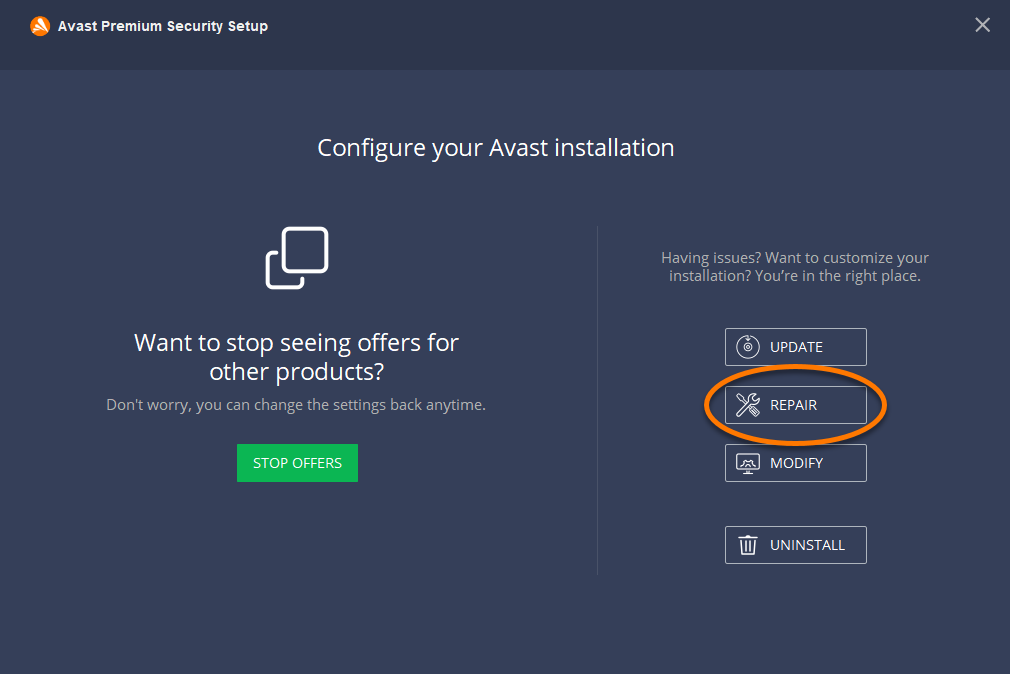
For Avast Free Antivirus and Avast Premium Security, the official repair route starts from Windows’ installed-app controls, so the broken dashboard does not have to open. Save your work and close other applications first. Some customized Avast settings may return to their defaults during repair.[3]
- Open Settings → Apps → Installed apps in Windows 11, or Apps & features in Windows 10.
- Find the exact Avast antivirus product. Open its options and choose Uninstall to launch Avast Setup; respond to the Windows permission prompt for that installed application.
- In Avast Setup, choose Repair, then confirm the repair request. Do not select the final uninstall action when your intention is to repair.
- Allow the operation to finish and restart if requested. Launch Avast from Start, check for updates, and confirm its protection status.
Avast One is a separate product: use the Avast One instructions linked from the official repair reference below. If your setup window has different controls, verify the product and follow its current instructions rather than guessing. Likewise, changing the Avast SecureLine VPN or Avast Cleanup service will not repair the antivirus interface just because those steps appear on the same support page.
If Repair does not fix the application error
Repeat the launch once after the required restart and note the result. An unchanged error calls for a different next step, not repeated repairs or progressively broader exclusions. Keep the Avast product/version, Windows version, exact error, and whether it began immediately after an update. These details let vendor support distinguish a recurring crash from an incomplete installation.
Use the vendor-supported reinstall route linked from Avast’s loading-error guidance if Repair fails. Keep account or subscription details available, obtain the installer from the vendor, and use the official removal tool only when the documented uninstall route requires it. Do not remove individual Avast services or replace AvastUI.exe by hand. During a product change, check Windows Security for an active antivirus provider before resuming normal downloads and browsing.
If several unrelated applications also fail to start, record those names and errors too. That pattern warrants Windows or IT troubleshooting beyond the Avast installation; it does not establish that AvastUI.exe itself is malicious.
Check an unexpected AvastUI.exe copy
In Task Manager, right-click the relevant process and choose Open file location. An expected installation may place the file at a path such as C:\Program Files\Avast Software\Avast\AvastUI.exe, but product and version differences mean a path alone is not a verdict. Compare it with the installed Avast package, then open the file’s Properties → Digital Signatures and inspect the signer and signature status. The EXE safety checklist explains how source, signature, path, and behavior work together.
A copy in %LOCALAPPDATA%\Temp, a download folder, or an unrelated application directory needs investigation, especially if its signature is invalid or the file appeared after an unknown installer. A missing signature alone does not establish malware. Do not launch an unfamiliar copy to test it or add an exclusion to silence an alert.
If there are signs of a malicious lookalike—such as an unexpected publisher together with recurring alerts, unexplained connections, or new browser changes—use Gridinsoft Anti-Malware to check the file and related activity. Download and install it from Gridinsoft, update it, run a Full Scan, review the detections, apply the appropriate cleanup, and restart. Recheck the original symptom; if it returns, retain the detection details for further investigation.
Removing one visible file may leave a launcher, bundled component, or startup entry that brings it back. That is the reason to scan in this branch. A routine interface crash with an otherwise matching installation does not, by itself, call for malware removal. A scan also cannot recover stolen credentials or prove that the PC was never exposed.
If the process path is wrong, the name imitates a Windows component, or high CPU started after an unknown installer, scan for hidden miners, services, startup entries, and bundled components.
Scan suspicious filesConfirm that the repair solved the right problem
The useful outcome is that Avast opens from Start, the original error no longer appears after a restart, the application can update and start a scan, and Windows reports an active antivirus provider. If only an old shortcut still fails, fix that shortcut. If protection remains off, keep working on the provider warning even when the window opens. Leave self-defense and shields enabled, and avoid permanent exclusions or downloaded replacement EXEs as interface fixes.
References
- Microsoft. “Windows Security App Settings.” Microsoft Support, accessed September 18, 2026. Security-provider settings ↗
- Avast. “Troubleshooting When Avast Applications Fail to Load.” Official Avast Support, accessed September 18, 2026. Application-loading errors ↗
- Avast. “Repairing Avast Antivirus.” Official Avast Support, updated September 22, 2025; accessed September 18, 2026. Installation repair instructions ↗