An ai.exe - Bad Image message when Word, Excel, or PowerPoint opens is a reason to inspect the DLL named in the dialog before reinstalling Office. The heading identifies the process that could not load a component; the message below identifies the file to investigate. If that file belongs to an endpoint-security product, Office repair may leave the conflict untouched. If it belongs to Office, repairing the suite is a more relevant next step. The warning alone does not establish a malware infection. Save the complete DLL path and error status, then follow the matching branch below.
Read the DLL path, not just “ai.exe”
Keep the error open long enough to capture its title, filename, folder, and status code. A screenshot is useful for your own support request; redact personal folder names before sharing it publicly. Record which app triggered it and whether the app opens after you dismiss the dialog.
- The DLL is inside an endpoint-security product’s folder. Match the installed product and version to its vendor guidance. On a work or school PC, send the details to IT before changing protection settings.
- The DLL is part of the Microsoft Office installation. Check pending Office updates, restart after saving work, and use the suite’s supported repair options if the error remains.
- The DLL’s owner is unclear. Check its Properties and installed-software context. Do not assume a file in
C:\Windows\System32belongs to Microsoft solely because of the folder. Give support the full path rather than guessing a replacement download. - The executable is an unexpected copy, especially after an unknown installer or an antivirus alert. Verify its location and signature, then use the suspicious-file branch below. Do not delete the legitimate Office component just because it has the same name.
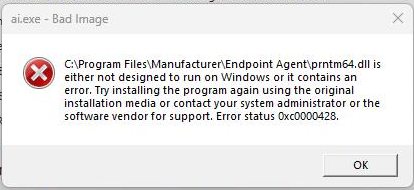
In Broadcom’s documented case, the important clue is prntm64.dll in an Endpoint Agent folder, accompanied by 0xc0000428. That points the investigation toward the installed DLP agent—software used to control data leaving a device—rather than toward a missing PowerPoint presentation. It does not mean every ai.exe error has this cause.[1]
What are ai.exe and aimgr.exe in Office?
In the Office context, ai.exe hosts local artificial-intelligence functionality used by desktop applications. An accepted Microsoft Q&A explanation describes it as a separate process that communicates with Office; aimgr.exe manages instances of that host.[2] The familiar filename is therefore not, by itself, a reason to remove it.
Office installations can contain architecture-specific copies under the Microsoft Office\root\vfs tree, including a Microsoft Shared\Office16 folder. The exact location varies with the installation. Check the running file through Task Manager → Details → right-click the process → Open file location, then inspect Properties → Digital Signatures. If the process exits too quickly, use the recorded error details or ask IT to identify it; do not launch a copy found on a download site.
The path and Microsoft signature help establish whether you are examining an Office component. They do not explain every load failure. A legitimate executable can still reject an incompatible library, and the DLL named in the dialog can belong to a different company.
When the DLL belongs to security software
Some endpoint tools load their own library into an application process to monitor activity. A compatibility problem at that boundary can produce a Bad Image message even when Office itself is installed correctly. This is why repeating the same Office repair is not a useful diagnostic loop when the dialog keeps naming the same third-party DLL.
For the Broadcom DLP example, KB387840 covers affected 16.x, 25.x, and later environments and describes a narrowly scoped application-monitoring adjustment for the Print/Fax channel.[1] An administrator should verify the current article against the actual agent, policy, and executable. It is not a direction to turn off DLP, exclude all Office apps, or disable antivirus.
For 0patch, its support article reports ai.exe and aimgr.exe errors and suspects process mitigations are preventing its loader from being injected. The vendor also explains that excluding those processes prevents its protection from patching them.[3] That tradeoff belongs in an administrator’s compatibility decision. Do not copy an exclusion command or change Office file permissions simply to silence the popup.
If your dialog names another vendor, identify that product from the installed agent and file properties. A workaround for prntm64.dll is not interchangeable with one for another library. Give the vendor the file name, exact error status, and product version; ask for the supported update or configuration for that combination.
What to send IT or vendor support
A useful ticket lets the administrator reproduce the boundary that failed. Include:
- The complete dialog, including whether the heading says
ai.exeoraimgr.exe, the DLL path, and the status code. - The affected Office app and action: launch, opening a document, or another operation. Note whether a blank document also triggers it.
- The Office product, version/build, architecture, and update channel where shown in File → Account → About.
- The Windows version/build and the endpoint agent’s product and version. IT may also need its management-extension version and policy.
- When the error began, the relevant update or installation immediately before it, and whether other managed devices are affected.
- What you already tried and whether the same DLL and code returned afterward.
Send this through your organization’s approved support channel. A private document, memory dump, or full disk export is not needed just to report the error.
When Office repair is the right next step
Use this branch when the named component belongs to Office, when an Office update failed, or when support has ruled out the third-party compatibility branch. Save your documents and close Office apps first. On a managed device, let IT handle updates and repair if your organization controls them.
- Finish or check Office updates. In an app that opens, look under File → Account → Update Options. If updates are managed or the control is unavailable, ask IT instead of changing services or policy.
- Restart and reproduce once. Open the same app and check whether the identical DLL and status return. If the named file changes, record the new message rather than treating it as the same result.
- Open the installed Office product’s repair control. In Windows Settings, find Microsoft 365 or Office under installed apps and choose Modify. The wording varies with Windows and installation type.
- Choose the applicable repair. Click-to-Run installations offer Quick Repair and Online Repair; Microsoft describes Quick Repair as the faster damaged-file pass and Online Repair as the more complete option. MSI installations instead offer Repair.[4]
- Retest after repair completes. If the same vendor DLL still appears, return to its owner. If an Office component still fails, give Microsoft or IT the recorded build and repair result before attempting a reinstall.
Repair applies to the Office suite, even if only PowerPoint showed the problem. Arrange an Internet connection for Online Repair and allow time without using Office. If repair itself cannot run or the servicing process stays busy, our OfficeClickToRun.exe troubleshooting guide covers that separate servicing problem.
Do not download individual replacement DLLs, copy ai.exe from another computer, or delete files from the Office tree. Those shortcuts bypass the package that owns the component. Our guide to DLL download risks explains why a matching filename is not enough.
When a malware check is appropriate
A Bad Image dialog with a known vendor DLL is not a reason to diagnose malware. Investigate further if the executable runs from an unrelated user-writable folder such as %USERPROFILE%\Downloads, has an unexpected or invalid signer, appeared after an unknown installer, or is accompanied by a security-tool alert. Use our EXE safety checklist to evaluate the actual file rather than its name.
In that suspicious-copy situation, removing one visible file may leave a bundled program or startup mechanism that brings it back. Download and install Gridinsoft Anti-Malware, update its database, run a Full Scan, review detected items, apply cleanup, and restart. Check whether the suspicious process or alert returns. On a managed PC, coordinate this with IT before installing another security tool.
If the process path is wrong, the name imitates a Windows component, or high CPU started after an unknown installer, scan for hidden miners, services, startup entries, and bundled components.
Scan for threats and persistenceA malware scan addresses suspected unwanted software; it does not repair a legitimate Office/DLP compatibility conflict. If an untrusted file ran and accounts show unusual activity, handle account recovery separately from the DLL error.
Confirm that the original problem is resolved
After the chosen repair or administrator-approved change, open the app that originally failed, then check another Office app if it was affected. Restart once and repeat the original action. The useful result is that the same error no longer recurs while the required Office features and endpoint protection remain working.
If the popup returns, compare the process, DLL, and status with your first record. An unchanged vendor DLL points back to that compatibility branch; a new file needs fresh identification. This comparison is more useful than repeating repairs without knowing which component Windows rejected.
FAQ
Can I delete ai.exe or aimgr.exe to stop the error?
Do not delete the legitimate Office files or change their permissions as a general fix. That can prevent components from running while leaving the underlying compatibility issue unresolved. Identify the named DLL and repair or escalate the product that owns it.
Does 0xc0000428 mean I should disable signature checks?
No. Preserve the exact code and named file for diagnosis. Broadcom’s documented case includes that status, but it does not justify turning off Windows integrity checks or applying the same exception to every PC.
Why did reinstalling Office not fix the error?
The failing DLL may belong to a separate endpoint agent. Reinstalling Office can leave that agent and its policy unchanged. Compare the DLL path before and after repair, then follow the owning vendor’s supported resolution.
References
- Broadcom. “Error: Ai.exe – Bad Image pop-up message when running a Microsoft Office application.” Knowledge Base, article 387840; accessed October 26, 2026. Vendor case and error dialog.
- Microsoft Q&A. “OFFICE16 ai.exe.” Accepted community answer, January 1, 2023; accessed October 26, 2026. Office component explanation.
- 0patch Help Center. “Ai.exe or aimgr.exe Reporting Bad Image.” Updated October 26, 2025; accessed October 26, 2026. Loader compatibility and protection tradeoff.
- Microsoft Support. “Repair an Office application.” Accessed October 26, 2026. Supported Office repair options.