The FlixHQ name alone does not prove that a website, embedded player, mobile app, APK, browser extension, or payment page belongs to one trusted operator. Search results currently mix changing domains, community reports, app listings, domain scanners, and contradictory safety claims. Treat the exact thing you opened as untrusted if it redirects you, asks for notification permission, requires software, requests a login, or takes payment. Merely opening and closing a page is a lower-risk event than installing an app or extension, running a file, entering a password, or submitting a card.
This guide does not list mirrors or explain how to reach FlixHQ. It helps you identify what you actually interacted with and choose the right recovery step.
Why 16 FlixHQ-Named Domains Are Not One Website
On August 15, 2026, a Gridinsoft Inspector search for FlixHQ returned 16 matching domain reports.[5] That count means the reports match the same brand term. It does not prove that all 16 domains are mirrors, share an operator, use the same player, or deserve the same safety verdict.
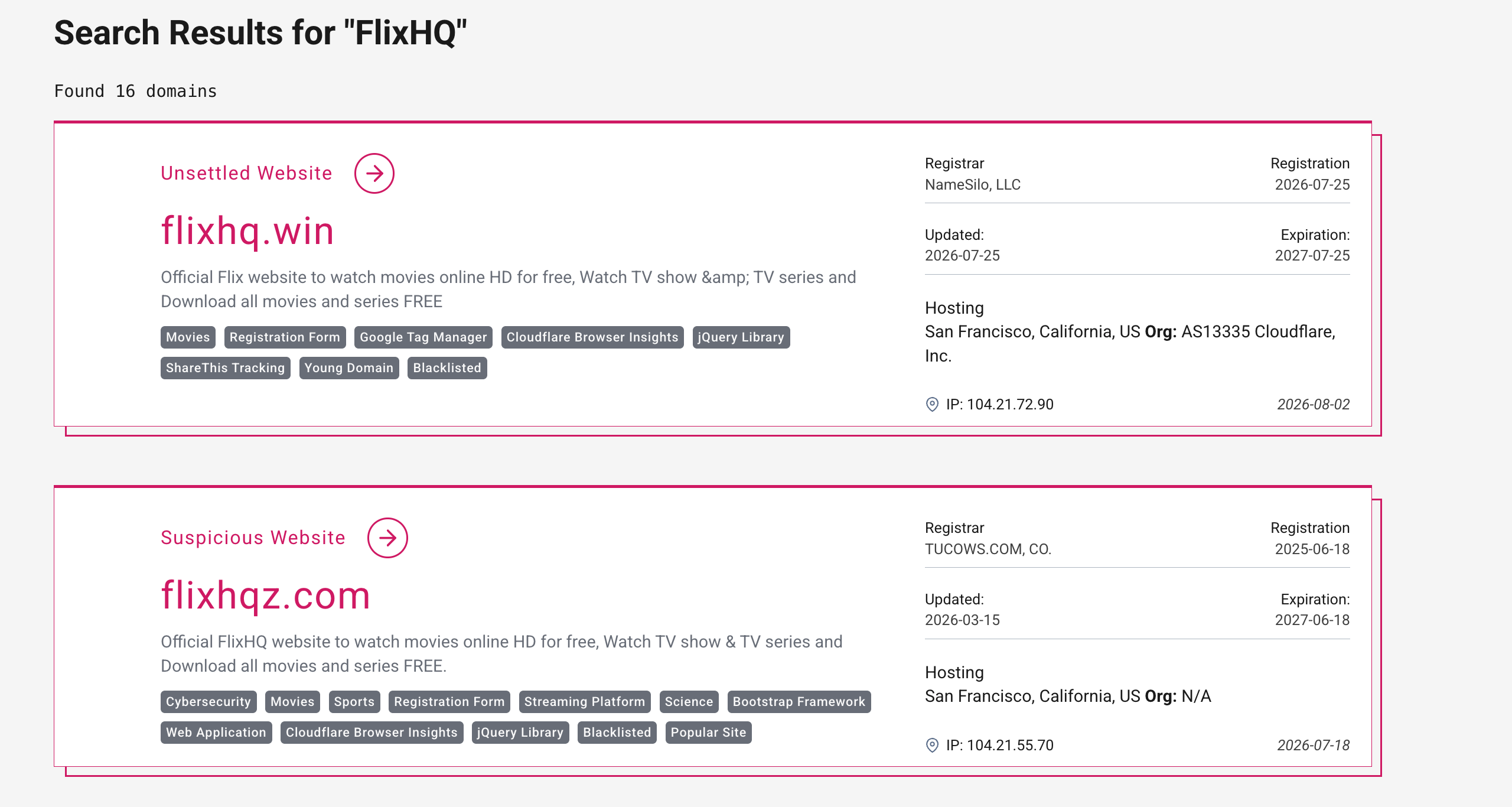
The five newest matches exposed by the current public search surfaces already differ in age, registrar, score, and warning evidence:
| Exact domain | Point-in-time report signals—and the limit |
|---|---|
flixhq.win |
18/100 and “Unsettled Website” in the current search response; registered July 25, 2026; tagged young, blacklisted, and as using a registration form. Those are risk signals for this hostname, not evidence about another FlixHQ domain. |
flixhqz.com |
35/100 and “Suspicious Website”; registered June 18, 2025; two provider warnings plus blacklisted, registration-form, and web-app signals. Its popularity signal does not cancel those warnings. |
flixhq.ink |
48/100 in the current search response; registered May 12, 2026 and tagged as a young domain. A search card without a suspicious label still does not authenticate ownership or a different FlixHQ hostname. |
flixhq.best |
1/100 and classified as a scam website in its report; registered April 9, 2026 with six provider warnings at the recorded check. Avoid credentials, payments, and downloads. |
flixhq.one |
27/100 in the current search response and classified as suspicious in its report; registered April 25, 2026 with a provider warning. Recheck the live report before acting because scores can change after rescans. |
This spread is the practical lesson: a high or low score applies to the exact hostname and the recorded check, not to the FlixHQ name as a whole. Shared Cloudflare hosting also does not establish common ownership; unrelated customers can use the same reverse-proxy network. Compare the report date, domain age, registrar, warning providers, page behavior, external player hosts, and the hostname that receives a login or payment.
The FlixHQ Name Does Not Identify One Product
A page can display the same name and artwork as another service without sharing its owner, code, advertising partners, embedded player, or payment processor. Even the address bar only identifies the current hostname. A Play button can move the session to a different host, and an app or extension can come from a publisher unrelated to the site you first opened.
| What you see | What it proves—and what it does not |
|---|---|
| A FlixHQ-branded domain | It identifies only that hostname. It does not authenticate a different TLD, mirror, player host, download, or merchant. |
| HTTPS and a padlock | The connection to that address is encrypted. It does not certify the operator, ads, redirects, files, or payment request. |
| A third-party video player | The stream or next click may be controlled by another host. Judge that destination separately. |
| A Google Play app | It identifies a store listing and developer. It does not automatically prove affiliation with a streaming domain. |
| An APK, EXE, ZIP, codec, or extension | It is software that needs its own publisher, signature, permissions, and security checks. The page name is not enough. |
| A checkout or “verification” charge | It identifies the merchant shown by the payment provider—not necessarily the page brand or player you expected. |
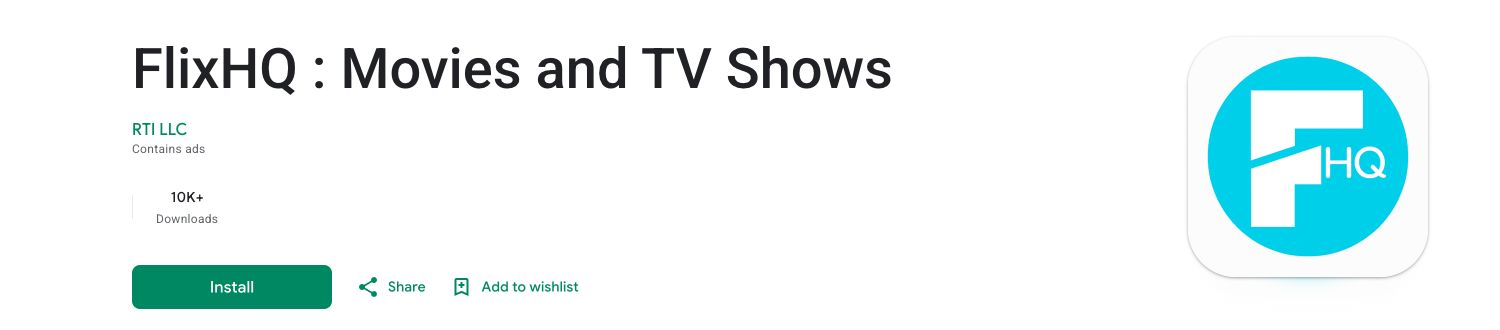
The Google Play listing above is a useful identity clue, not a blanket safety certificate. It names RTI LLC as the developer and describes the app as a movie-discovery and trailer product that “does not stream or host” movies or TV shows.[1] That is materially different from a webpage offering streams. Do not assume that a same-name APK from another site, a browser extension, or a changing FlixHQ domain belongs to this developer.
Your Risk Depends on the Action, Not the Logo
| What happened | Risk and next step |
|---|---|
| You opened a page and closed it | Usually a browser-session event, not proof of infection. Close extra tabs and check Downloads. |
| Play opened another domain | Close the redirected tab. Do not interact with alerts, surveys, support numbers, updates, or payment prompts on it. |
| You clicked Allow for notifications | The exact sender can push scam alerts after the tab closes. Remove its notification permission. |
| A file downloaded but never ran | Do not open it. Verify the real extension, delete it if unexpected, or scan it before any decision. |
| You installed an app, APK, extension, player, or codec | Remove it, review permissions and recent changes, scan the device, reboot, and check whether symptoms return. |
| You entered a password or payment | Secure the device first if software ran, then change credentials and contact the card issuer or payment provider. |
If You Only Visited or Were Redirected
- Close the original page and every tab it opened. Do not click inside a fake virus alert or call a number shown by the popup. If the page will not close, end the browser from Task Manager or Force Quit and reopen without restoring that tab.
- Check the browser Downloads list. Delete an unexpected player, codec, extension package, APK, ZIP, or installer. If a file arrived but never ran, use the unopened suspicious download checklist before escalating.
- Review recent site permissions. A redirected host—not the first FlixHQ-named page—may hold the notification, pop-up, clipboard, camera, or microphone permission.
- Watch for a changed browser state. A new search engine, homepage, startup tab, extension, managed-browser message, or redirects after reboot justify a deeper cleanup.
Do not use a VPN as proof that the page is safe. A VPN changes the network path and visible IP address; it does not authenticate a domain, inspect a download, validate a merchant, or undo a permission you granted. The free movie streaming scam guide explains the broader fake-player and redirect pattern without listing access routes.
Remove FlixHQ-Related Notifications and Pop-Ups
Browser notifications can continue after the original tab is closed. Google Chrome provides separate controls for notification permission and for pop-ups/redirects, so blocking one does not necessarily remove the other.[3] Remove permission for the exact domain shown on the unwanted notification, plus unfamiliar domains allowed during the same session.
If flixhq keeps showing unwanted pop-ups, you likely granted it permission to send notifications. To stop them, you need to revoke that permission in your browser settings.
- Copy and paste this into the address bar:
chrome://settings/content/notifications - Scroll down to the Allowed to send notifications list.
- Find flixhq.
- Click the three dots (...) next to it and select Remove (or Block).
- Open Safari and go to Settings (or Preferences).
- Click the Websites tab and select Notifications on the left.
- Find flixhq in the list on the right.
- Select it and click Remove (or change "Allow" to "Deny").
- Copy and paste this into the address bar:
about:preferences#privacy - Scroll down to Permissions and click Settings... next to Notifications.
- Type flixhq in the search bar or find it in the list.
- Select the site and click Remove Website.
- Copy and paste this into the address bar:
edge://settings/content/notifications - Look under the Allow section.
- Find flixhq.
- Click the three dots (...) next to it and select Remove (or Block).
- Copy and paste this into the address bar:
brave://settings/content/notifications - Scroll to the Allowed to send notifications list.
- Find flixhq.
- Click the three dots (...) and select Remove (or Block).
- Copy and paste this into the address bar:
opera://settings/content/notifications - Check the Allowed to send notifications list.
- Find flixhq.
- Click the three dots next to it and select Remove.
If alerts still open websites, review extensions and reset browser settings that changed without permission.
- Launch Chrome.
- Click the three dots (...) in the top right corner.
- Select Extensions > Manage Extensions.
- Click Remove next to the extension you want to delete.
Quick Access: Type chrome://extensions/ in the address bar.
- Open Safari.
- In the menu bar, click Safari and select Settings (or Preferences).
- Click on the Extensions tab.
- Select the extension and click Uninstall.
- Click the menu button, select Add-ons and themes.
- Go to the Extensions tab.
- Click the three dots (...) next to the extension and select Remove.
Quick Access: Type about:addons in the address bar.
- Launch Microsoft Edge.
- Click the three dots (...) in the top right corner.
- Select Extensions.
- Find the extension and click Remove.
Quick Access: Type edge://extensions/ in the address bar.
- Launch Brave browser.
- Click the menu icon > Extensions.
- Find the extension and click Remove.
Quick Access: Type brave://extensions/ in the address bar.
- Launch Opera.
- Click the Opera logo in the top left corner.
- Select Extensions > Extensions.
- Click the X or Remove button next to the extension.
Quick Access: Type opera://extensions/ in the address bar.
Open Extensions/Add-ons again and remove any entry linked to flixhq or clearly out of place.
- Tap on the three dots (...) in the top right corner and Choose Settings.
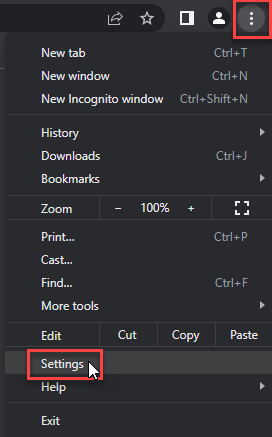
- Choose Reset and Clean up and Restore settings to their original defaults.
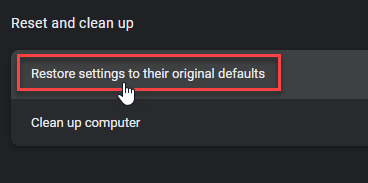
- Tap Reset settings.
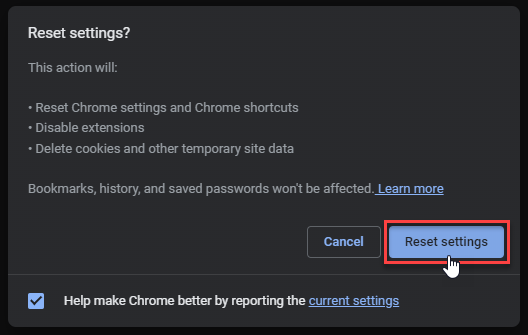
Quick Access: Type chrome://settings/reset in the address bar.
- Open Safari.
- In the menu bar, click Safari > Clear History.
- Select all history and click Clear History.
- Go to Safari > Settings (or Preferences).
- Click the Privacy tab and select Manage Website Data... > Remove All.
- In the Advanced tab, check Show features for web developers.
- In the menu bar, select Develop > Empty Caches.
- Launch Brave browser.
- Click the menu icon in the top right corner and select Settings.
- Click Additional settings > Reset settings.
- Tap Restore settings to their original defaults.
- Confirm by clicking Reset settings.
Quick Access: Type brave://settings/reset in the address bar.
- In the upper right corner tap the three-line icon and Choose Help.
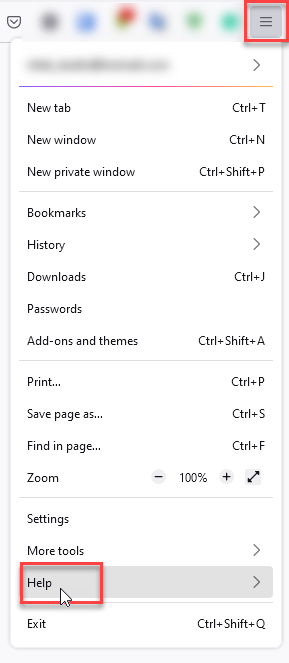
- Choose More Troubleshooting Information.
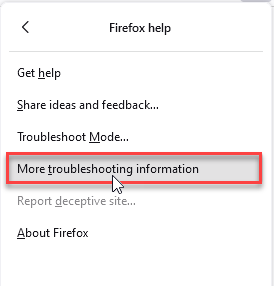
- Choose Refresh Firefox... then Refresh Firefox.
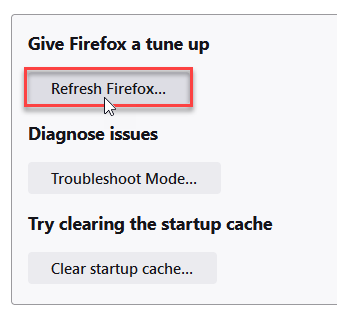
Quick Access: Type about:support and click Refresh Firefox.
- Tap the three dots.
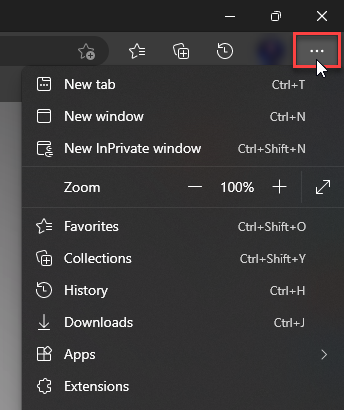
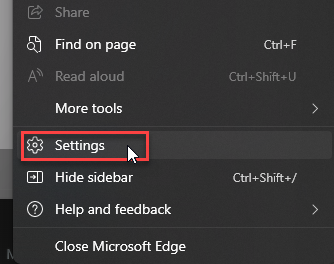
- Choose Settings.
- Tap Reset Settings, then Click Restore settings to their default values.
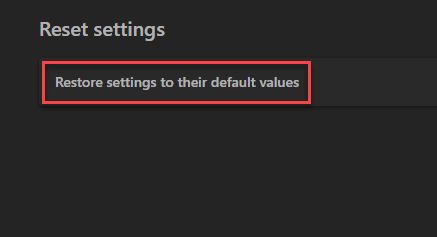
Quick Access: Type edge://settings/reset in the address bar.
- Launch the Opera browser.
- Click the Opera menu button in the top left corner and select Settings.
- Scroll down to the Advanced section in the left sidebar and click Reset and clean up.
- Click Restore settings to their original defaults.
- Click Reset settings to confirm.
Quick Access: Type opera://settings/reset in the address bar.
After reset, verify that flixhq is no longer set as your default search engine or homepage.
If You Installed an App, APK, Extension, or Player
- Disconnect from the page. Close it and do not grant more permissions, disable security controls, or paste a verification command.
- Uninstall the newly added item. Remove the app, player, codec, VPN, downloader, or extension installed during the session. On Windows, sort installed apps by date; on Android, review the app’s permissions and installation source.
- Keep Android protections enabled. Google says Play Protect checks apps from Google Play and can also check potentially harmful apps installed from other sources.[2] Do not disable Play Protect to force a sideloaded APK through a warning.
- Verify Windows downloads before opening them. Check the real filename extension, digital signature, publisher, hash, and source. The EXE safety checklist explains these checks without running the file.
- On Windows, run a full scan if anything executed. A visible installer can leave browser changes, bundled apps, startup entries, scheduled tasks, or hidden files after the main item is removed.
If you see flixhq or other suspicious applications that you don't remember installing, you should remove them as well.
- Right-click the Start button and select Installed Apps (or Apps & Features).
- Scroll through the list to find flixhq or any other unfamiliar program.
- Click the three dots (...) next to it and select Uninstall.
- Open Finder and go to the Applications folder.
- Locate flixhq or any app you don't recognize.
- Drag it to the Trash.
- Empty the trash to remove it permanently.
- Go to Settings > Apps > See all apps.
- Find flixhq or any suspicious app in the list.
- Tap on it and select Uninstall.
If a FlixHQ APK installed a player on Android, use Trojan Scanner for Android to scan installed apps, review suspicious findings and confirm unwanted-app removal. Check the software added to the phone rather than treating a polished player icon as proof of safety.
On Windows, if a FlixHQ-related app, extension, installer, or verification command ran—or redirects and security warnings return after reboot—use Gridinsoft Anti-Malware to check for malicious files, bundled applications, browser policies, scheduled tasks, startup entries, and persistence. Remove detections, reboot, and scan again if the same symptom returns. A scan can find local leftovers; it cannot recover exposed passwords or reverse a payment.
If You Entered a Password or Payment
If software ran, clean the device before changing important passwords. Then use a clean device to change the email password that can reset other accounts, replace every reused password, sign out other sessions, and enable multi-factor authentication. Review recovery addresses and forwarding rules if you entered an email password.
If you entered card details or paid an unverified page, contact the issuer through the number printed on the card or the official banking app. The FTC recommends telling the card issuer or bank about a fraudulent charge and asking whether it can be reversed; it also advises changing a password that was given to a scammer.[4] Preserve the exact hostname, receipts, transaction descriptor, date, and screenshots. The scam recovery checklist covers account, payment, identity, and evidence steps in one place.
If you paid with cryptocurrency, contact the exchange or wallet provider immediately and preserve the transaction ID and destination address. Ignore anyone who promises guaranteed recovery for another fee.
How to Make a Safer Decision Next Time
- Compare the exact hostname, app-store publisher, package name, extension publisher, and payment merchant instead of trusting the FlixHQ name.
- Reject notification permission, new-tab players, fake update prompts, clipboard commands, and software required to “verify” that you are human.
- Install Android apps through a trusted store, keep Play Protect enabled, and avoid APKs offered by a streaming page or redirect.
- Update the browser and operating system through their built-in update menus. A page that asks you to run a command or install a codec matches the fake browser update pattern.
- Do not enter an existing password or card into an unverified player, clone, or “small verification charge” page.
FAQ
Is there one official FlixHQ domain?
The current search landscape does not provide a reliable basis for treating one changing domain as a permanent official owner. Verify the exact hostname and every external player separately; do not carry a verdict from one TLD to another.
Is the FlixHQ app on Google Play the same as the website?
Do not assume that. The observed Google Play listing names RTI LLC and says the app provides movie information and official trailers without streaming or downloading. A same-name website, APK, or extension needs separate publisher and permission checks.
Can visiting FlixHQ infect a device by itself?
Opening and closing a page without granting permissions, downloading or running files, installing software, or entering data is lower risk and does not prove infection. Escalate when redirects persist, settings change, notifications continue, or something installed or ran.
Does a clean URL scan prove FlixHQ is safe?
No. A scan describes one hostname at one point in time. It cannot certify other domains, embedded players, advertisements, future content, apps, APKs, extensions, downloads, or payment pages.
References
- Google Play. “FlixHQ: Movies and TV Shows,” developer RTI LLC, updated October 30, 2025; accessed August 14, 2026. play.google.com/store/apps/details?id=com.flixqui.traillermoviess
- Google Play Help. “Use Google Play Protect to help keep your apps safe & your data private.” Google, accessed August 14, 2026. support.google.com/googleplay/answer/2812853
- Google Chrome Help. “Use notifications to get alerts.” Google, accessed August 14, 2026. support.google.com/chrome/answer/3220216
- Federal Trade Commission. “What To Do if You Were Scammed.” Consumer Advice, July 2022; accessed August 14, 2026. consumer.ftc.gov/articles/what-do-if-you-were-scammed
- Gridinsoft Inspector. “Search Results for FlixHQ,” 16 matching domain reports; accessed August 15, 2026. inspector.gridinsoft.com/search?q=FlixHQ