
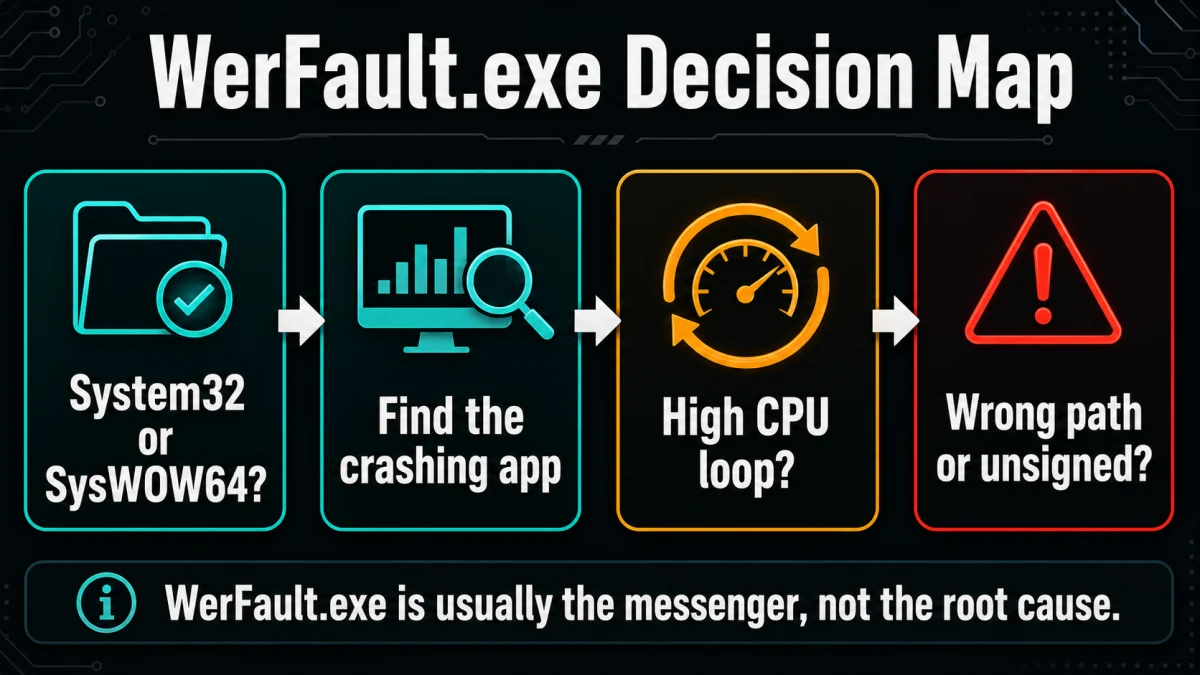
WerFault.exe application error usually means Windows Error Reporting is reacting to another crash, not that WerFault.exe itself is broken. The Microsoft-signed file is normally safe in C:\Windows\System32 or C:\Windows\SysWOW64. If the message appears once, close or update the failed app. If it returns at startup, creates a high-CPU loop, or runs from a user folder, find the crashing app first, repair Windows components, then scan suspicious copies before deleting anything.
WerFault.exe quick checks
- Normal file:
C:\Windows\System32\WerFault.exeorC:\Windows\SysWOW64\WerFault.exe, signed by Microsoft. - Normal trigger: an application crashes, freezes, or fails to start, and Windows opens its error-reporting handler.
- Suspicious signs: a copy in
AppData,Temp,Downloads, startup folders, or a process that keeps returning after removal. - Best first move: identify the faulting app in Reliability Monitor or Event Viewer before running broad repairs.
- Do not download WerFault.exe from EXE-download sites. Repair Windows instead.
What is WerFault.exe?
WerFault.exe belongs to Windows Error Reporting (WER), the Windows component that gathers information about application crashes, hangs, and system faults. Microsoft describes WER as an event-based feedback infrastructure that can collect problem details and offer available solutions for hardware and software issues [1].
That means WerFault.exe is often a messenger, not the root cause. When a browser, game, driver utility, Office app, shell component, or malware-related process crashes repeatedly, WerFault.exe may be the window you notice even though another program caused the failure.
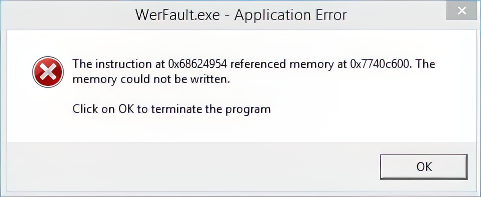
What the WerFault.exe error usually means
| You see it once after an app closes | Usually a normal crash report. Update or repair the app if it happens again. |
| It appears on every startup | A startup program, service, scheduled task, or driver may be failing. Use clean boot and Task Scheduler checks. |
| WerFault.exe uses high CPU, disk, or memory | A crash loop is creating reports repeatedly. Find the faulting application before disabling services. |
The error says “Bad Image” or uses code 0xc0000142/0xc0000005 |
Common causes include damaged system files, missing runtimes, broken app files, memory problems, or a bad update. |
| WerFault.exe runs from a user folder | Treat it as suspicious. Verify the path, signature, parent process, and startup entries, then scan the system. |
Check whether WerFault.exe is the real Windows file
- Open Task Manager, right-click
WerFault.exe, and choose Open file location. - Expected locations are
C:\Windows\System32and, on 64-bit Windows,C:\Windows\SysWOW64. - Right-click the file, open Properties, and check Digital Signatures. A legitimate copy should be signed by Microsoft.
- If the file is in
AppData,Temp,Downloads, a browser cache folder, or a random startup folder, scan it before deleting anything.
Malware can imitate Windows process names or abuse legitimate reporting tools after a crash. The filename alone is not enough; path, signature, parent process, command line, and persistence tell the real story.
How to fix WerFault.exe application error in Windows 10/11
1. Find the app that is actually crashing
Start with the crash source. Press Windows key, type Reliability Monitor, and open View reliability history. Look for red failure marks at the time the WerFault.exe message appeared. The failed application name is more useful than the WerFault.exe window title.
You can also open Event Viewer → Windows Logs → Application and filter for Error. Look for entries around the same time with fields such as Faulting application name, Faulting module name, and Exception code. Repair, update, or reinstall that application first.
2. Restart Windows Error Reporting safely
If the same report keeps looping, restart the reporting service instead of deleting system files.
- Press Windows key + R, type
services.msc, and press Enter. - Find Windows Error Reporting Service.
- Right-click it and choose Restart. If it is stopped, start it and keep the startup type at the Windows default.
- Reboot and check whether the message returns.
Disabling Windows Error Reporting can hide the symptom, but it does not fix the crashing app. Use it only as a short diagnostic step when a support engineer specifically asks for it.
3. Repair Windows files with DISM and SFC
Microsoft recommends using DISM and System File Checker when Windows files may be missing or corrupted [2]. Open Command Prompt or Terminal as administrator and run:
DISM.exe /Online /Cleanup-image /Restorehealth
sfc /scannow
Run DISM first, then SFC. Restart Windows after the scans finish. If SFC reports that it repaired files, test the app that triggered the WerFault.exe error again.
4. Update Windows, drivers, and the crashing app
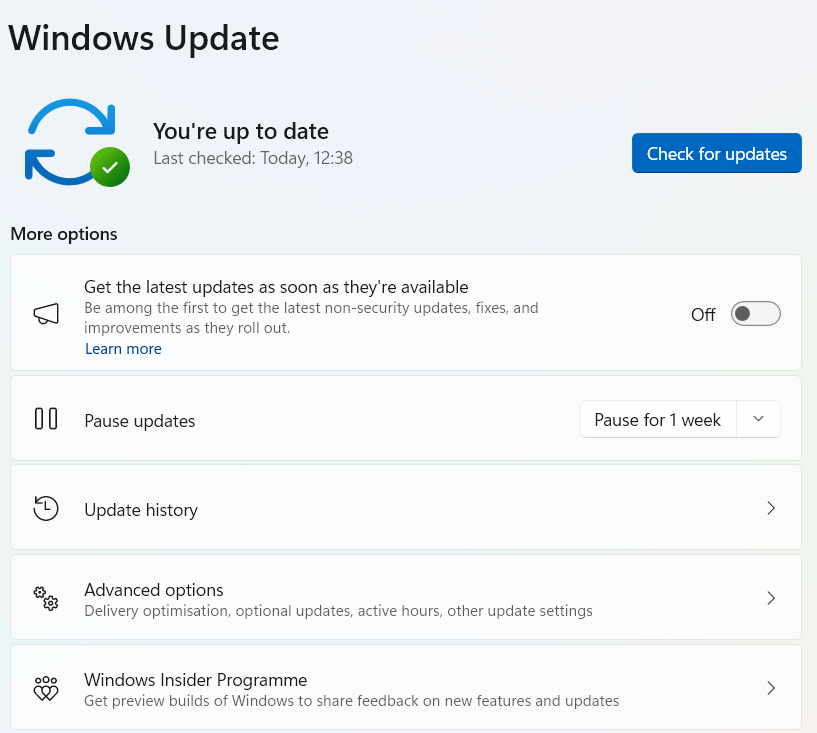
Open Settings → Windows Update and install pending updates. Then update the application named in Reliability Monitor or Event Viewer. If the crash started after a GPU, audio, printer, VPN, or chipset driver update, install the latest vendor driver or roll back that driver in Device Manager.
5. Use clean boot to isolate startup software
If WerFault.exe returns at startup, use a clean boot to test whether a background app or service triggers the crash [3]. On a work or school PC, ask your administrator first. Save your work and record the currently enabled services and startup apps before changing them; screenshots help you restore your configuration.
- Open
msconfigas an administrator. On Services, select Hide all Microsoft services, then Disable all and Apply. Leave advanced boot options alone. - On Startup, open Task Manager. Record and disable the enabled startup apps, close Task Manager, and select OK in System Configuration.
- Restart and repeat the action that caused the error. If it stops, restore the disabled items in groups and restart between tests to isolate the trigger. If it continues, return to the faulting app or module identified earlier instead of disabling more unrelated software.
Finish the test: reopen msconfig, select General → Normal Startup, and restore the services and startup apps you changed. Use your saved list: do not blindly enable previously disabled or unknown items. Keep an identified faulty item disabled while you update, repair, or uninstall its owning app. Restart again and retest the original action. A quiet clean boot is a diagnostic result; the repair is confirmed only when the app works in your restored configuration.
6. Scan for malware if the path or behavior is suspicious
WerFault.exe is legitimate when it is the Microsoft-signed Windows file, but malware can crash repeatedly, imitate the name, or use Windows tools to blend into normal activity. Scan when you see a wrong file path, an unknown parent process, repeated outbound blocks, strange scheduled tasks, or the error returning after you remove an app.
Before cleanup, write down the file path, parent process, scheduled task name, and any security-tool alert. Gridinsoft Anti-Malware can help check whether the WerFault.exe message is only a side effect of a broken app or part of a broader infection.
After uninstalling the suspicious app or deleting the visible threat, use Gridinsoft Anti-Malware to check hidden files, startup entries, scheduled tasks, bundled apps, browser changes, and other persistence points that can restore malware.
Download Anti-MalwareIf you are comparing WerFault.exe with other trusted Windows utilities that malware can abuse, the RegAsm.exe safe path guide and the mshta.exe malware removal guide show the same path-signature-launcher approach.
7. Use Repair Mode only when Windows itself is unstable
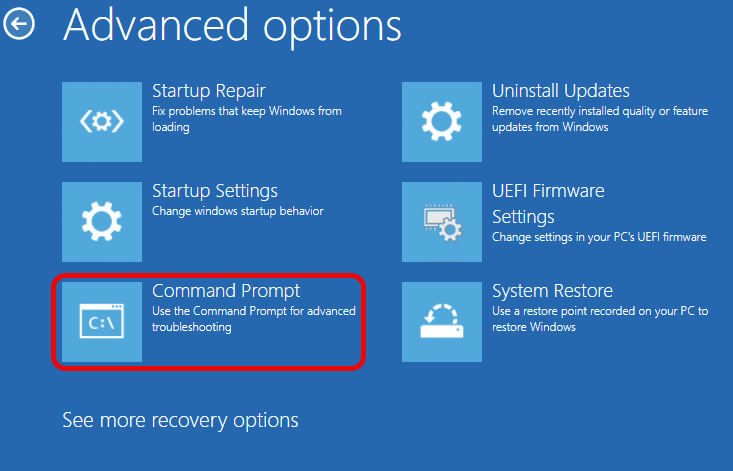
Use Windows Recovery Environment when Settings, Task Manager, or core apps will not open, or when WerFault.exe errors appear together with boot failures. Hold Shift while selecting Restart, then choose Troubleshoot → Advanced options. Start with Startup Repair, System Restore, or Uninstall Updates before using command-line boot repairs.
What not to do
- Do not delete the Microsoft-signed
WerFault.exefromSystem32orSysWOW64. - Do not download a replacement
WerFault.exefrom random file sites. - Do not treat disabling Windows Error Reporting as a full fix.
- Do not ignore a recurring error from an unsigned copy in a user folder.
- Do not run boot repair commands unless Windows is actually failing to boot.
If the faulting app is Taskmgr.exe and the crash began after installing Claude Desktop, check our Claude Desktop and Task Manager crash guide before treating WerFault.exe as the problem.
FAQ
Is WerFault.exe a virus?
The real Microsoft-signed WerFault.exe in the Windows system folder is not a virus. A copy with the same name in AppData, Temp, Downloads, or Startup is suspicious and should be checked.
Why does WerFault.exe keep popping up?
Usually another app or service is crashing repeatedly. Check Reliability Monitor or Event Viewer for the faulting application name, then repair that app, driver, or startup item.
Can I disable Windows Error Reporting?
You can disable it temporarily for diagnosis, but it only hides crash reporting. It does not repair the app, driver, corrupted file, or malware that caused the loop.
How do I fix WerFault.exe high CPU or disk usage?
High usage usually means Windows is generating crash reports repeatedly. Find the faulting app, restart the Windows Error Reporting Service, run DISM and SFC, then use clean boot if the loop continues.
Should I download WerFault.exe if it is missing?
No. Repair Windows with DISM/SFC, Windows Update, System Restore, or an in-place repair. Third-party EXE-download sites can replace one problem with a malicious or incompatible file.
References
- Microsoft. “About WER.” Microsoft Learn, accessed June 6, 2026. https://learn.microsoft.com/en-us/windows/win32/wer/about-wer
- Microsoft. “Using System File Checker in Windows.” Microsoft Support, accessed June 6, 2026. https://support.microsoft.com/en-us/windows/using-system-file-checker-in-windows-365e0031-36b1-6031-f804-8fd86e0ef4ca
- Microsoft. “How to perform a clean boot in Windows.” Microsoft Support, accessed October 15, 2026. https://support.microsoft.com/en-us/windows/experience/startup-boot/how-to-perform-a-clean-boot-in-windows