AgtaBackup RAT removal needs to address both the malware and any unauthorized remote-management access that delivered it. If a security alert identifies this RAT, stop using the PC for sensitive work and disconnect it from the network. Unit 42’s investigation describes a hidden Windows service backed by two scheduled watchdog tasks, which explains why deleting a visible file can fail. A signed remote-support installer alone does not establish that AgtaBackup is present: first separate what was downloaded, what was installed, and what your security tool actually found.
Choose the recovery path that matches your evidence
Start with the situation you can establish, then move to a stronger response if new evidence appears. On a work or school PC, contact the real IT team before removing management software or changing recovery settings.
1. You downloaded an installer but did not run it.
Do not open it to investigate. Remove the unwanted download and use the app publisher’s official site or store. This alone does not establish installed remote access. If you cannot tell whether it ran, treat that uncertainty as a reason to scan and review recent installations.
2. You accepted an unexpected remote-management installation.
Disconnect the PC and verify who authorized the management relationship. An authentic digital signature does not identify the person controlling it. Have IT investigate a managed device; on a personal PC, address the unauthorized client and run the full scan below. A missing AgtaBackup alert does not settle whether other commands ran.
3. A security tool confirms the RAT, or several specific artifacts match.
Keep the machine isolated, save the detection name and affected paths, and follow the cleanup path below. Secure important accounts from another trusted device. Do not restore a quarantined component just because its filename sounds like a Windows feature.
4. Cleanup fails, the relevant activity returns, or access remains blocked.
Stop repeating the same deletion. Preserve the scan report and recurrence details, then seek qualified help or plan a clean rebuild. If evidence or irreplaceable files matter, obtain help before wiping the drive. An incomplete inspection is not a successful cleanup.
The signed installer and the RAT are separate stages
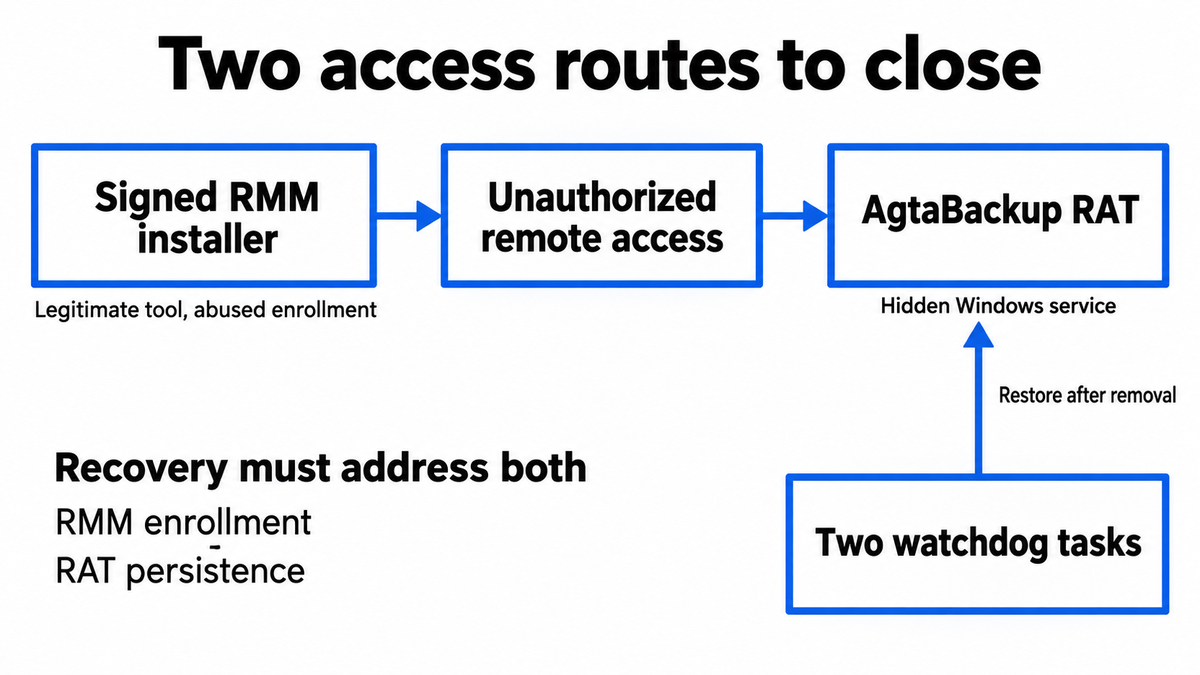
In the campaign documented by Unit 42, a fake software page delivered a legitimately signed RMM installer. RMM means remote monitoring and management: tools such as LogMeIn Resolve and ConnectWise ScreenConnect are used legitimately by support teams. Here, enrollment gave an attacker access; the operator deployed the separate AgtaBackup payload later.
That distinction changes the recovery checklist. Removing an unwanted remote-support client does not establish that a second payload was removed. Conversely, quarantining a RAT file does not establish that the original management relationship is closed. For help assessing an unexpected client, see our ScreenConnect remote-access removal guide.
AgtaBackup artifacts to record, not delete blindly
Unit 42 identifies this cluster in the analyzed campaign:
- Service:
AgtaBackupAgentSvc. - Install directory:
C:\Program Files\Agta Backup, includingCredential Guard.exe. - Scheduled tasks:
AgtaBackupAgentWatchdogandAgtaBackupAgentGuardian.
The report describes restrictive service permissions that conceal it from non-SYSTEM users, including local administrators, and watchdog tasks that can restore it after removal. Therefore, a normal-looking Services window or one missing file is a weak stopping point. Preserve what your security tool reports; do not change service permissions or delete similarly named Windows components to force a match.
These names are useful together with a detection, installation history, and file location. They are not a universal filename test. A generic security-sounding name, an unfamiliar service, or a legitimate RMM installation by itself is insufficient to label a PC infected. For the broader distinction, see what a remote access trojan does.
Scan the PC and close unauthorized access
For a personal PC that you can still use safely, begin with brief containment: disconnect networking, stop entering passwords, and note the alert and the installer you accepted. If an organization owns the device, let its response team decide what to preserve and how to scan it.
For a personal-device cleanup, use Gridinsoft Anti-Malware to check for the RAT and other malicious components. Prepare the installer using a trusted device if necessary. Coordinate any connection needed for installation or updates with your recovery plan; do not leave a confirmed compromised PC online for ordinary browsing.
- Download Gridinsoft Anti-Malware from its official download path, install it, and update its detection database.
- Run a Full Scan. Review the reported threats and affected paths, then apply the recommended cleanup to confirmed detections.
- Address any confirmed unauthorized RMM client through its supported uninstall or administrator-assisted removal process. Do not remove your employer’s approved tools based only on their product names.
- Restart when cleanup requires it, then check the original alert and scan again if activity returns. Save any failure or access-denied message.
A recurring alert can mean persistence or an additional access route remains. A full scan is more useful than repeatedly deleting the same visible executable, but no scanner can promise detection of every build or undo earlier account access.
If the process path is wrong, the name imitates a Windows component, or high CPU started after an unknown installer, scan for hidden miners, services, startup entries, and bundled components.
Download Gridinsoft Anti-MalwareWhen to escalate instead of repeating cleanup
Escalate if a scan cannot complete, a confirmed component returns after restart, or you cannot establish whether unauthorized remote access has ended. Give the technician the detection name, path, scan result, and sequence of events. Avoid experimenting with SYSTEM permissions or running removal scripts supplied by an unknown person.
If the installer or scanner cannot run, supported Windows recovery or Safe Mode may help regain access; it is a fallback, not a mandatory first step. A firmware boot menu and Windows Safe Mode are different things. A missing power option or failure to boot from USB needs its own diagnosis and does not identify AgtaBackup or prove firmware infection.
For a confirmed compromise that cannot be assessed or cleaned reliably, a fresh installation from trusted media can be the more practical way to restore the Windows installation. Review our clean-install USB guide after malware before erasing anything. Preserve needed documents and evidence, scan restored files, and reinstall applications from trusted sources rather than restoring the old software environment wholesale.
Device cleanup and account recovery are different jobs
Unit 42 reports credential and cookie theft capabilities. If the RAT ran, use another trusted device to secure your primary email and other important accounts. Change affected passwords, revoke active sessions where the service allows it, review recovery methods and recent activity, and enable multifactor authentication. A password change alone may leave an existing session active.
If access to your Microsoft account has already changed, follow the Microsoft account recovery steps after malware. Report unauthorized transactions or messages through the affected service’s legitimate support channel. A clean scan cannot recover stolen credentials or tell you everything an intruder did earlier.
Before returning to sensitive use, confirm that cleanup completed, the original symptoms did not recur, and the unwanted management relationship has been addressed. Keep unresolved questions in the handoff to your technician rather than treating a quiet desktop as proof of recovery.
References
- Ofek Lahiani, Palo Alto Networks Unit 42. “AgtaBackup RAT Campaign.” September 28, 2026; accessed October 23, 2026. Technical report and indicators.