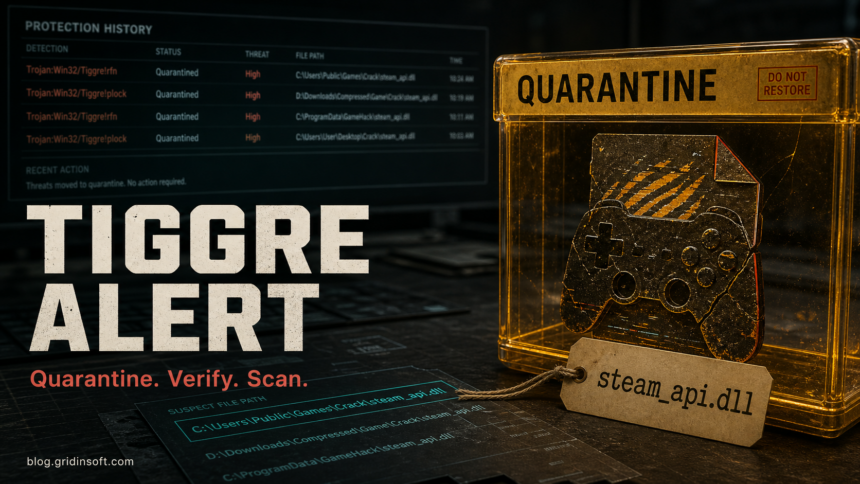
Trojan:Win32/Tiggre!rfn is a severe Microsoft Defender detection for a trojan-style threat. Keep the item quarantined, do not restore or allow it just because it came from a game, visual novel, crack, repack, or steam_api.dll, and first check the affected path, file source, and whether the alert returns after reboot.
The Tiggre name appears in several Defender labels, including Trojan:Win32/Tiggre!rfn and Trojan:Win32/Tiggre!plock. The exact suffix matters less than the safety decision: a one-time quarantine from a trusted, signed file can be reviewed carefully, but an alert from AppData, Temp, a fake service folder, a crack DLL, or a repeated Protection History entry should be treated as active risk until cleanup is confirmed.
What Is Trojan:Win32/Tiggre!rfn?
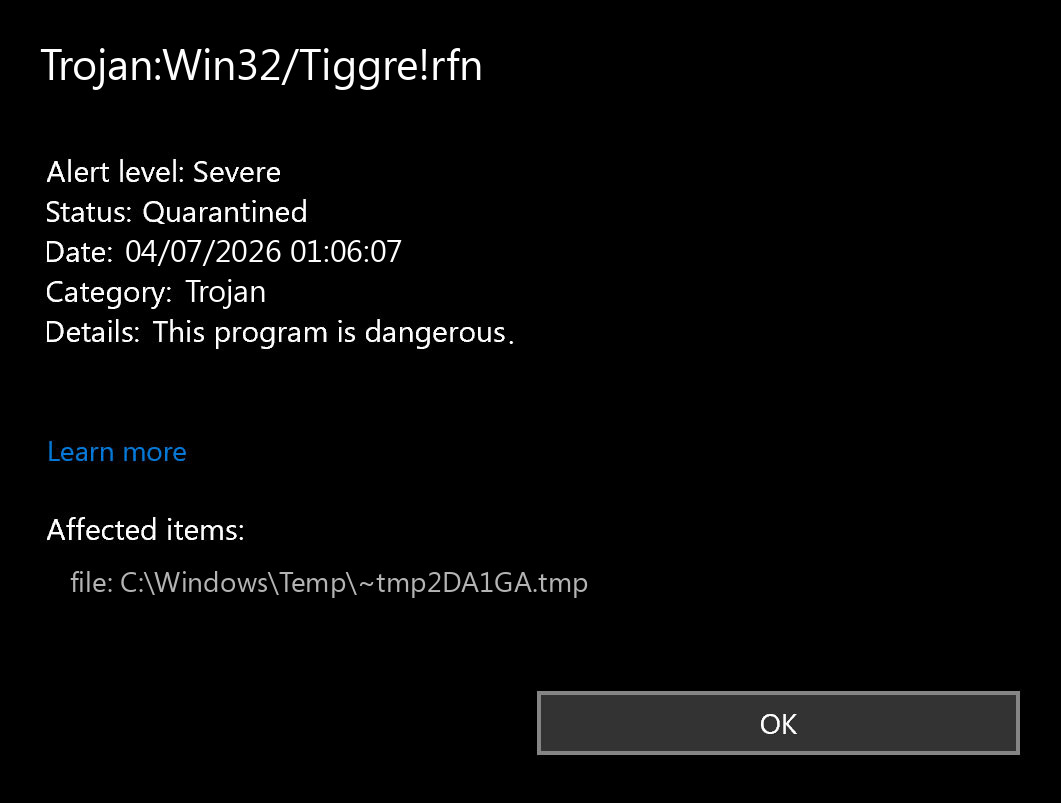
Trojan:Win32/Tiggre!rfn is the exact label Microsoft Defender Antivirus uses for one Tiggre detection. Microsoft Security Intelligence lists the alert as a Defender-detected trojan and says this type of threat can perform actions chosen by a malicious actor on the device [1]. Microsoft publishes a separate Tiggre!plock page with the same practical takeaway: Defender detects and removes the threat, but public technical details are limited.
That limited public detail is why the path and source matter. A Tiggre alert in a pirated installer, patched game DLL, fake update, browser download, or random user-profile folder is not something to whitelist. A false positive is possible, but it should be reviewed only when the file comes from a trusted source, has a valid signature or reproducible clean download, and the alert does not return after updated scans.
What To Do First
- Open Windows Security > Virus & threat protection > Protection history and leave the Tiggre item quarantined or removed.
- Expand the detection card and copy the affected item path. Do not clear the history before saving the path.
- Update Microsoft Defender security intelligence, then run a full scan.
- Delete the original archive, installer, crack, trainer, or downloaded setup file if it came from an untrusted source.
- If the alert returns after reboot or appears from Startup, Task Scheduler, Services, browser profile folders,
%LOCALAPPDATA%,%APPDATA%, or%TEMP%, treat it as incomplete cleanup rather than an old notification.
If you clicked Allow before checking the file, undo the allowed threat first. Our Windows Defender allow-list cleanup guide explains where to remove allowed items before you rescan.
Use The Affected Path To Judge Risk
| Where Defender found Tiggre | What it means and what to do |
|---|---|
%USERPROFILE%\Downloads, Desktop, extracted ZIP/RAR, or a torrent folder |
Keep quarantine, delete the source archive or installer, and scan before opening anything from the same package. |
Game folders, repacks, patched DLLs, steam_api.dll, trainers, or activators |
Do not assume it is safe because the game launches. Treat it like a crack/repack risk and avoid restoring the file to keep the software working. |
%APPDATA%, %LOCALAPPDATA%, %TEMP%, random service-like folders, or fake names such as WindowsActiveServices |
Higher risk. Check startup entries, scheduled tasks, services, and browser changes because a loader or persistence item may remain. |
| A trusted vendor installer, developer tool, or old utility downloaded from the official source | Possible false-positive lane. Re-download from the official source, check the digital signature, update Defender, and submit the file to Microsoft before restoring it [2]. |
False Positive or Real Malware?
Use a strict rule: restore only when you can explain why the file is expected. A file from a vendor site, a matching hash from a trusted release, and a valid publisher signature are reasons to review. A forum comment, a cracked-game instruction, or a detection name that other people say is “normal for repacks” is not enough.
Do not restore the file if any of these are true:
- the file came from a crack, keygen, activator, trainer, repack, fake game patch, or password-protected archive;
- Defender shows Remediation incomplete, Action needed, or repeated Tiggre entries;
- the affected path points to
AppData,Temp, Startup, Task Scheduler, a browser profile, or a suspicious service folder; - the PC ran hot, opened unknown command windows, changed browser settings, added Defender exclusions, or showed account login alerts after the file ran.
If you still think it is a false positive, do the review from a clean copy of the file. Do not restore the quarantined item just to test it. Microsoft provides a file submission route for security intelligence review, and that is safer than guessing from a removal-guide comment [2].
Cleanup Steps If Tiggre Returns
- Disconnect from risky accounts and stop using the PC for banking, crypto, game trading, or password-manager changes until scans are clean.
- Remove the original installer, archive, mounted ISO, extracted folder, or copied DLL that produced the alert.
- Open Task Manager and check for unknown processes launched from
AppData,Temp, Downloads, or random user folders. - Review Task Scheduler and Services for new or odd entries created around the same time as the detection.
- Check Defender exclusions and allowed threats. Remove anything you did not intentionally create.
- Run a full Defender scan. If cleanup still looks incomplete, use Microsoft Defender Offline from Windows Security to scan outside the normal Windows session [3].
- After Windows starts again, run a second scan and confirm that Protection History does not create a new Tiggre entry.
Security tools can quarantine the visible payload while a loader, scheduled task, fake service, browser change, or Defender exclusion remains. If the Tiggre alert came from a crack/repack, AppData, Temp, Startup, Task Scheduler, or a file that already ran, run a full Gridinsoft Anti-Malware scan after the manual checks, remove detections, reboot, and scan again if the alert returns.
Defender can quarantine the visible file, but repeated alerts may mean a loader, scheduled task, service, browser change, or bundled component is recreating it. Scan the PC before trusting the cleanup.
Scan before restoring Tiggre filesIf The Tiggre File Already Ran
Once a suspicious file has executed, the question is no longer only “was the detection removed?” Check what the file could have touched. Change passwords from a clean device if you entered credentials after running the file, if a browser extension or homepage changed, if Discord/Steam/email sessions behaved oddly, or if you saw unknown remote-access prompts.
For cracked-game cases, also read our DODI repack safety guide for the mirror and archive risk model, and the Occamy.C Defender guide for a similar steam_api.dll and crack/repack decision path. For the detection-name pattern itself, the Microsoft Defender detection names guide explains how to read labels such as Trojan:Win32/...!rfn.
When Is A Windows Reset Needed?
A full Windows reset is not the first step after every Tiggre quarantine. It becomes reasonable when the file definitely ran, alerts keep returning after offline scan and cleanup, Defender settings were tampered with, unknown admin accounts or remote-access tools appear, or the device is used for business, banking, crypto, or sensitive work and you cannot establish a clean state.
If you reset, choose the approach based on risk. A normal reset may be enough for a home PC with clean scans and no account symptoms. A clean reinstall from trusted installation media is safer when you saw persistence, security-tool tampering, suspicious services, or repeated high-severity detections.
FAQ
Is Trojan:Win32/Tiggre!rfn always a real virus?
No detection name is perfect, but Tiggre!rfn is a severe Defender trojan label. Treat it as real until the file source, path, signature, and repeat behavior support a safe false-positive review.
Can I restore Tiggre if it came from a game or visual novel?
Do not restore it only because the file is tied to a game. Cracks, repacks, patched DLLs, fake installers, and copied game folders are common places for trojan loaders. Re-download only from the official source and review the clean file instead.
Why does Tiggre keep coming back after quarantine?
A repeated alert can mean the original archive is still present, a scheduled task or startup entry recreates the file, a browser or downloader keeps fetching it, or Defender history is showing an old action. The affected path and timestamp tell you which case is more likely.
Should I change passwords after Tiggre?
Change passwords from a clean device if the file ran, if you allowed it, if browser/account symptoms appeared, or if the alert came from a crack, fake update, or unknown installer. Start with email, banking, password manager, Steam, Discord, and crypto accounts.
References
- Microsoft Security Intelligence. “Trojan:Win32/Tiggre!rfn threat description.” Microsoft, accessed July 3, 2026. https://www.microsoft.com/en-us/wdsi/threats/malware-encyclopedia-description?Name=Trojan%3AWin32%2FTiggre%21rfn&ThreatID=2147723625
- Microsoft Security Intelligence. “Submit files for malware analysis.” Microsoft, accessed July 3, 2026. https://www.microsoft.com/en-us/wdsi/filesubmission
- Microsoft Support. “Virus & threat protection in the Windows Security app.” Microsoft Support, accessed July 3, 2026. https://support.microsoft.com/en-us/windows/virus-and-threat-protection-in-the-windows-security-app-1362f4cd-d71a-b52a-0b66-c2820032b65e