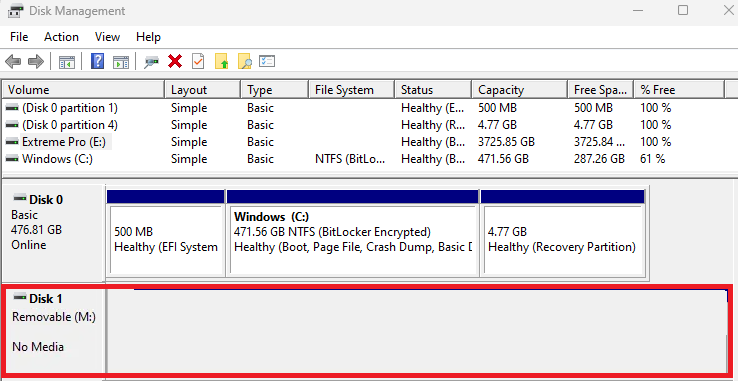
When a USB drive shows No Media and 0 bytes in Disk Management or DiskPart, Windows can see a USB device or controller but cannot access usable storage capacity. That is different from a RAW or unallocated drive that still reports its real size. Do not run CHKDSK, initialize the disk, format it, or use DiskPart clean yet. First rule out an empty card reader, cable or enclosure trouble, and a PC-specific USB problem. If the same flash drive remains 0 B on another computer and the files matter, stop DIY repair and ask a professional recovery lab.
The distinction matters because many popular “fixes” require an accessible disk or volume. A drive letter can point to a volume; CHKDSK checks a volume’s file system; formatting creates a file system on available media. None of those operations can work normally when Windows reports that no media exists behind the USB interface.
What “No Media” means in Windows
| What Windows shows | Meaning and safest next step |
|---|---|
Empty card reader says No Media |
Usually normal. Insert the correct memory card and check again. |
USB enclosure says No Media |
Check its cable, power, bridge, and the drive inside. Test the drive through another known-good connection when possible. |
Flash drive says No Media and 0 B |
Windows sees the USB interface but no usable storage. Test another direct port and computer; protect the data decision before any destructive step. |
| Drive reports its real capacity as RAW | Media is present, but the file system is unreadable or unrecognized. Do not format if the files matter. |
| Drive reports its real capacity as Unallocated | Media is present, but no usable partition is mapped. Creating a new volume writes new metadata and can hurt recovery. |
| Drive reports its real capacity but is read-only | Use the separate write-protected USB diagnosis; a readable, full-capacity device is not the same as No Media. |
Protect the data decision before troubleshooting
Decide first whether the files are replaceable. If they are the only copy of family photos, work, research, or legal records, do not experiment with initialization, formatting, controller firmware, “mass production” utilities, or repeated full scans. Those actions can overwrite metadata, reset a controller, or add stress without making the storage readable.
A true 0-byte result does not prove that every NAND cell is blank. It means normal Windows software has no addressable capacity to read. File-recovery apps also need an accessible device or image; they cannot scan sectors that the controller does not expose. A lab may use controller-level or chip-level methods, but success and cost depend on the device, failure mode, encryption, and condition of the flash. There is no guaranteed recovery.
Run these non-destructive checks
- Identify the device. Confirm whether it is a one-piece flash drive, an empty multi-card reader, a memory card in an adapter, or a disk inside a USB enclosure. An empty reader reporting No Media is expected.
- Connect it directly. Remove hubs and docks. Try another built-in USB port. For an enclosure, use a known-good cable and the required power supply. SanDisk specifically recommends a direct port, a snug connection, another cable where applicable, and another computer.[1]
- Try one other trusted computer. If only the first PC fails, its USB driver, port, power, or policy is a plausible cause. If the same device reports No Media and 0 B elsewhere, the fault follows the device or enclosure.
- Open Disk Management. Press
Win + Xand choose Disk Management. Match the device by connecting and disconnecting it once. Never assume that Disk 1 is the USB. - Inspect, but do not change, DiskPart. Open Terminal as administrator and list disks:
diskpart
list disk
exit
Microsoft documents that DiskPart commands act on the object currently in focus, so selecting the wrong disk before a destructive command can affect another drive.[2] For this diagnosis, list disk is enough. Record whether the device shows its real size or 0 B.
Connection, reader, and enclosure branches
An empty card reader
Internal and USB card readers often appear as removable devices even without a card inserted. In that state, No Media is descriptive, not a failure. Insert a supported card, make sure an SD adapter is fully seated, and test the card in another reader. Do not format the empty reader entry.
A removable enclosure or adapter
The USB-to-SATA or USB-to-NVMe bridge can respond while the disk behind it is disconnected, underpowered, or failed. Change the cable and port, verify external power, and—only if you can do so safely—test the disk through another compatible enclosure or direct connection. Do not keep power-cycling a disk that clicks, smells burned, overheats, or spins up and down.
A one-piece USB flash drive
If a flash drive shows No Media and 0 B on two computers, there is no cable or removable bridge to swap. SanDisk states that the condition can occur when the flash inside the drive has failed and advises data recovery or warranty replacement after basic connection checks.[1] Stop if the files justify professional recovery; otherwise replace the drive.
Why common fixes do not fit true No Media
CHKDSK
Microsoft defines CHKDSK as a tool that checks a volume and its file-system metadata. Its target must be a drive letter, mount point, or volume name.[3] A device reporting No Media and 0 B has no accessible volume for CHKDSK to inspect. Use CHKDSK only when Windows exposes the real capacity and a volume exists, and copy important files first because repair changes file-system metadata.
Changing the drive letter
A drive letter maps an accessible volume into File Explorer. It does not create storage capacity or repair communication between a controller and flash. If the device has no volume, there is nothing meaningful to assign.
Initialize, create a volume, format, or DiskPart clean
Initialization and volume creation are for media that reports usable capacity. Formatting writes a new file system. DiskPart clean removes partition or volume formatting from the selected disk.[2] These are destructive setup operations, not recovery tests. They may fail immediately on No Media; if the device intermittently returns, they can overwrite the metadata a recovery specialist needed.
Uninstalling the USB device
A Device Manager refresh is reasonable only when the problem is limited to one PC or many USB devices misbehave there. Uninstall the specific USB storage device, restart Windows, and reconnect once. If the same drive still reports 0 B on another computer, repeating driver reinstalls will not repair its flash memory.
Controller-flashing and “low-level format” tools
Controller utilities are model- and revision-specific, usually erase translator data, and can turn a recoverable device into a harder case. Do not download random firmware packages or run a mass-production tool on a drive containing valuable files. A temporary return to full capacity would not make the device trustworthy.
RAW or Unallocated is a different recovery lane
If Disk Management shows the expected capacity—such as 64 GB—but labels the area RAW or Unallocated, the media is present. The partition or file system may be damaged, yet sector-level imaging or recovery software can still have something to read. Avoid formatting, initialization, or a new simple volume until the files are recovered or confirmed unnecessary.
By contrast, a 0 B No Media device supplies no addressable space to normal software. This is why a tutorial that recommends the same commands for RAW, Unallocated, and No Media states is unsafe: those symptoms occur at different layers.
When to stop and use a recovery lab
Stop DIY attempts when the files are irreplaceable and any of these remain true:
- the flash drive reports No Media and 0 B on two computers;
- an enclosure reports No Media after a known-good cable, port, and power check;
- the device disconnects repeatedly, changes reported capacity, overheats, or has physical damage;
- Windows briefly shows the real size and then loses it;
- you do not have a second copy and cannot accept permanent loss.
Tell the lab exactly what happened and which operations were attempted. Do not open a monolithic flash drive or remove NAND chips yourself. If the data is replaceable, use the warranty when available or recycle the failed device securely rather than trusting it again.
Is No Media a malware symptom?
No Media by itself points to absent or inaccessible storage, not malware. Malware can hide files, replace folders with shortcuts, corrupt data, or interfere with removable drives, but it does not usually make one flash controller report no capacity on multiple computers. If the real size is visible and folders became shortcuts, use the USB shortcut-virus cleanup guide. If you are preparing recovery media after an infection, compare an offline scan, rescue USB, and clean reinstall instead of using the failed device.
For future removable media, keep another copy of important files and review the broader USB drive security and handling risks. A recovered or intermittently working drive should be retired, not returned to backup duty.
FAQ
Can CHKDSK fix a USB that shows No Media?
No. CHKDSK needs an accessible volume identified by a drive letter, mount point, or volume name. A true No Media/0 B device does not expose a volume. CHKDSK may be relevant only when the real capacity and a volume are visible.
Does 0 bytes mean my files are erased?
Not necessarily. It means Windows has no addressable capacity to read through the normal controller path. The data may be inaccessible because the controller, bridge, firmware, or flash failed. Only a qualified recovery assessment can estimate whether anything can be recovered.
Should I initialize a USB that says No Media?
No. Initialization is for a disk that exposes usable capacity but lacks recognized disk metadata. It cannot repair absent media and can overwrite recovery-relevant metadata if the device returns intermittently.
Why does an empty card reader show No Media?
The reader is the detected USB device, while the removable card is the media. With no card inserted, No Media is expected. Insert the correct card and test it separately before treating the reader as failed.
Can I keep using the USB if it starts working again?
Copy the files immediately, verify the copies on healthy storage, and retire the USB. A drive that has already reported No Media or unstable capacity should not hold the only copy of anything important.
References
- SanDisk. “Steps to Resolve Drive Shows as No Media in Windows Disk Management or Insert a Disk Into USB Drive Message.” SanDisk Support, updated May 29, 2026; accessed August 14, 2026. SanDisk Support answer 52310.
- Microsoft. “diskpart.” Microsoft Learn, updated February 3, 2023; accessed August 14, 2026. Microsoft DiskPart reference.
- Microsoft. “chkdsk.” Microsoft Learn, updated May 26, 2025; accessed August 14, 2026. Microsoft CHKDSK reference.