The LinkedIn Purchase Inquiry email scam is a fake business notification that claims a contact sent you a purchase inquiry or product-search request through LinkedIn. The message is designed to make sales, sourcing, and export teams click Accept invitation or Give a quote now, then enter their email or LinkedIn credentials on a phishing page. Do not use the buttons in the email. Open LinkedIn by typing the address yourself or using the official app, check whether the invitation or message exists there, and reset passwords if you already signed in through the emailed link.
What The Fake LinkedIn Purchase Inquiry Looks Like
The lure imitates a normal B2B sales workflow: a buyer appears to be looking for products, asks for a quotation, or requests a minimum order quantity. That makes the email more convincing than a generic prize or account-alert scam, especially for people who handle sales inboxes, procurement mailboxes, or LinkedIn business leads.
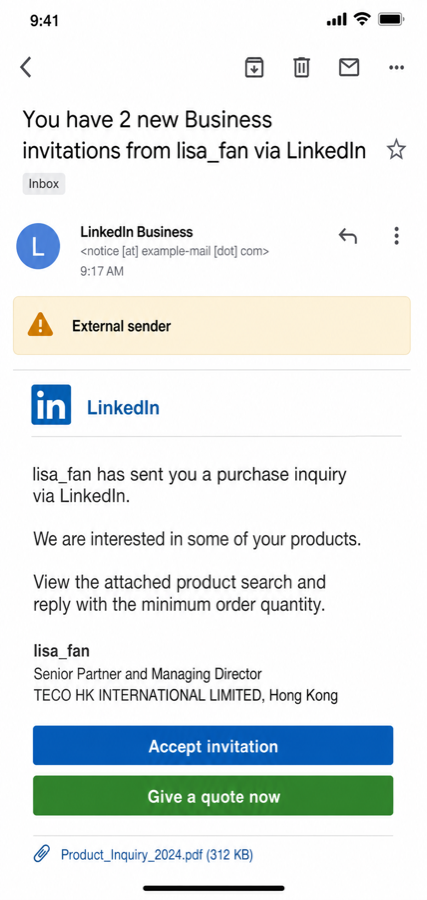
Recent examples use wording similar to You have 2 new Business invitations from lisa_fan via LinkedIn. The sender display name may say LinkedIn Business, while the actual sender domain is not a LinkedIn domain. The email may describe the contact as lisa_fan, Senior Partner and Managing Director, and a Hong Kong-based trading-company representative. Treat those details as bait, not proof that the inquiry is real.
Example
Subject: You have 2 new Business invitations from lisa_fan via LinkedIn
Sender: LinkedIn Business <notice [at] example-mail [dot] com>

lisa_fan has sent you a purchase inquiry via LinkedIn.

We are interested in some of your products.
View the attached product search and reply with the minimum order quantity.

lisa_fan
Senior Partner and Managing Director
TECO HK INTERNATIONAL LIMITED, Hong Kong

[Accept invitation] [Give a quote now]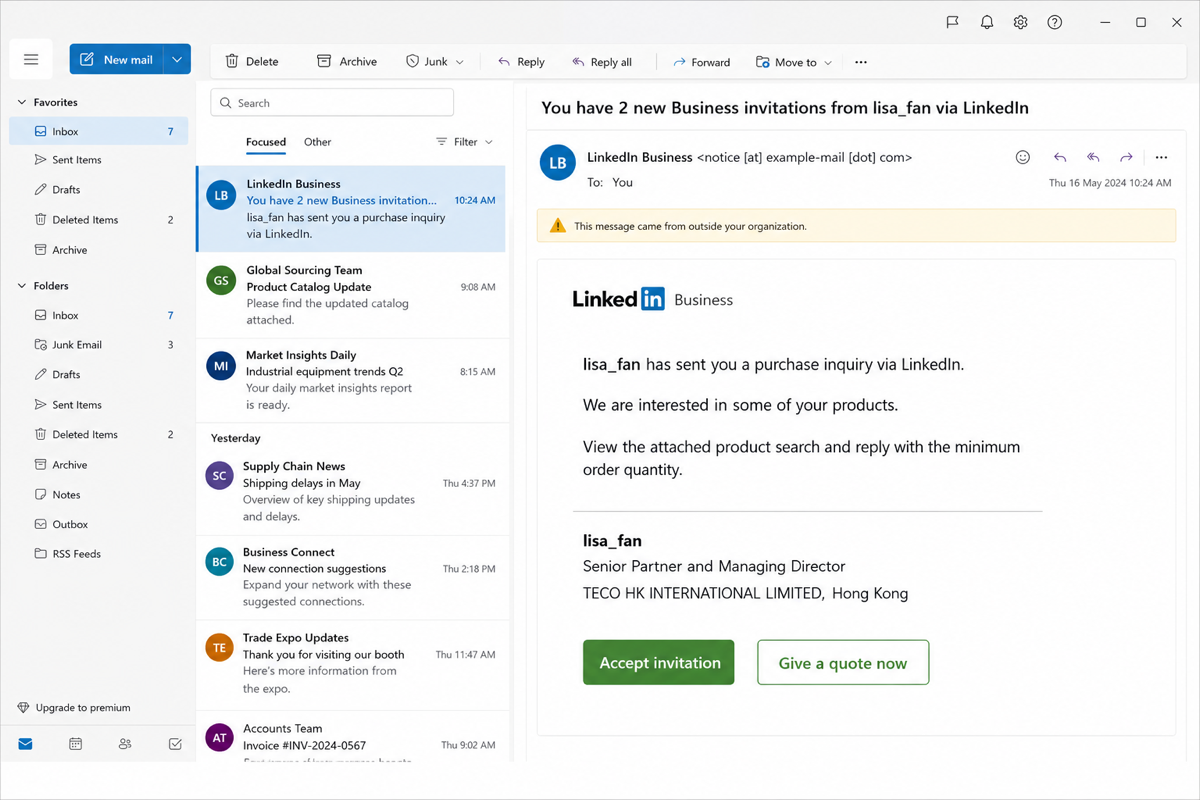
Red Flags In This Purchase-Inquiry Scam
- The sender domain is wrong. A real LinkedIn notice should not arrive from a random webmail, compromised business domain, or lookalike sender.
- The call to action skips normal verification. A legitimate sales lead can be checked inside LinkedIn or through your company’s CRM without using an emailed login link.
- The buyer persona is vague but urgent enough to click. Phrases such as product search, best price, minimum order quantity, or quote now are chosen to sound routine to sales teams.
- The buttons lead to a sign-in page. If a quote request turns into an email, Microsoft 365, webmail, or LinkedIn password form, close the page.
- The email is not addressed to a real contact process. Many versions avoid your account name, company-specific supplier terms, purchase-order number, or a prior conversation.
How To Check It Safely
- Do not click Accept invitation, Give a quote now, attachments, QR codes, or shortened links in the email.
- Open
linkedin.comdirectly in a browser or use the official LinkedIn app. Sign in only through that known path. - Check your LinkedIn notifications, messages, and connection requests. If the inquiry is not present there, treat the email as fake.
- Search the sender’s company and profile independently. Do not trust a profile link from the email.
- If your business uses a shared sales inbox, report the email to IT or the mailbox owner so other staff do not respond to the same lure.
- Forward suspicious LinkedIn-themed emails to LinkedIn’s phishing reporting address and then delete the message from the inbox and trash.
What To Do If You Clicked Or Entered Credentials
If you only opened the email but did not click, delete it and warn anyone else who received it. If you clicked a button, closed the page before typing anything, and did not download a file, clear the browser tab and report the email.
If you entered a password, act as if the account is compromised:
- Change the password from a clean browser session by typing the official site address yourself.
- Enable or reset multi-factor authentication for the affected account.
- Sign out of all active sessions where the service allows it.
- Review mailbox forwarding rules, recovery email/phone settings, connected apps, and recent login activity.
- If the same password was reused, change it anywhere else it was used.
- Tell your company IT team, because a stolen business email or LinkedIn account can be used for invoice fraud, vendor impersonation, or follow-up malware.
If the phishing page made you download a file, browser extension, remote-support tool, or “product list” viewer, disconnect from sensitive accounts and scan the computer before continuing normal work. Gridinsoft Anti-Malware can help check for downloaded payloads, startup entries, browser changes, and other leftovers after a suspicious business-email click.
Why This Scam Works On Business Users
Most people expect consumer scams to look emotional or sloppy. This one borrows a normal business task: review a buyer, quote product pricing, and respond quickly. A sales employee may click because delaying a lead feels costly. That is why the best defense is process-based: verify the inquiry inside LinkedIn or your CRM, never through the login page attached to an unexpected email.
A Simple Team Checklist
- Tell sales and procurement staff that purchase-inquiry emails can be phishing, even when they mention LinkedIn.
- Require staff to open LinkedIn and supplier portals from saved bookmarks or typed URLs.
- Keep a shared rule: quote requests that require a new login, file viewer, or extension need IT review.
- Use unique passwords and MFA for LinkedIn, email, Microsoft 365, Google Workspace, CRM, and payment portals.
- Review suspicious email examples with staff using a short guide such as How to Spot a Phishing Email.
For procurement teams, the same verification rule applies to vendor-registration lures: see the Flydubai vendor registration email scam checklist before sending company profiles, trade licenses, or reference-customer details to a new contact.
Related Gridinsoft Guides
- What Is Pretexting? explains why believable roles and business excuses make scams harder to spot.
- Phishing vs Spoofing helps separate fake login pages from forged sender identities.
- Signs of Online Scams covers broader red flags when a message moves from normal business talk to credential theft.
FAQ
Is the LinkedIn Purchase Inquiry email real?
Treat it as fake unless the same invitation or message appears when you open LinkedIn directly. Do not use the buttons in the email to check.
Can I reply to the sender and ask for confirmation?
No. Replying confirms that the mailbox is active and may move the conversation into another scam path. Verify the person or company through LinkedIn or a known business contact channel instead.
What if the link opened a real-looking LinkedIn page?
Close it and open LinkedIn from a typed address or the official app. Phishing pages often copy branding closely enough to look real at first glance.
Should I change only my LinkedIn password?
Change every account that used the same password, especially email and Microsoft 365 or Google Workspace. A stolen email account is often more valuable than the social profile itself.
Do I need a malware scan after this email?
A scan is most important if you downloaded or opened a file, installed an extension, accepted a remote-support prompt, or noticed browser/account changes after clicking. If you only viewed the email and did not interact, account-safety steps are usually the priority.
References
- LinkedIn Help. “Phishing content.” LinkedIn, accessed June 18, 2026. https://www.linkedin.com/help/linkedin/answer/a1339266
- LinkedIn Help. “Manage phishing emails for sales rep-assisted purchase.” LinkedIn, accessed June 18, 2026. https://www.linkedin.com/help/linkedin/answer/a6234738
- Federal Trade Commission. “How To Recognize and Avoid Phishing Scams.” Consumer Advice, accessed June 18, 2026. https://consumer.ftc.gov/articles/how-recognize-avoid-phishing-scams