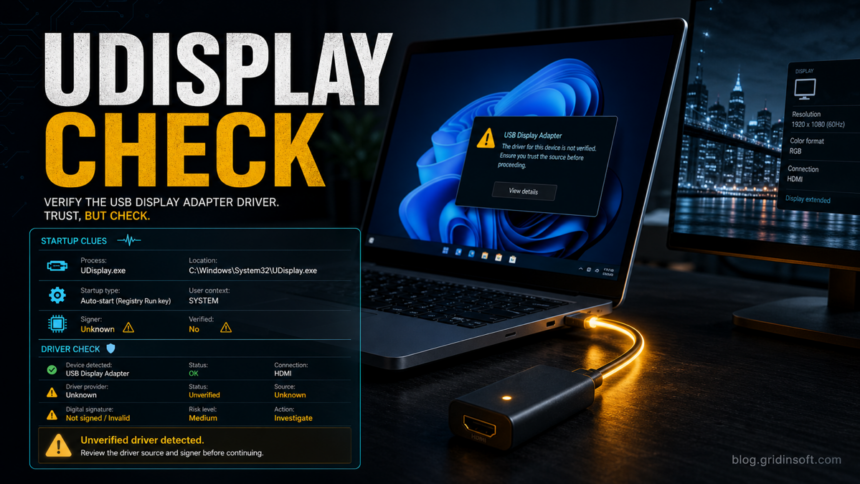
UDisplay.exe, also shown as USB显示扩展客户端, can be part of a USB display or USB-to-HDMI adapter driver. Treat it as suspicious, however, if it appeared after an unknown driver bundle, runs from C:\ProgramData\UDisplay, AppData, or Temp, starts automatically, lacks a trusted signature, or keeps returning after you unplug the adapter. The right move is not to delete every USB display driver blindly, but to verify the device relationship, source, persistence, and scan results before deciding whether to remove it.
What Is UDisplay.exe?
UDisplay.exe is reported in public startup and sandbox data with the Chinese description USB显示扩展客户端, which translates roughly to a USB display extension client. That fits the legitimate use case: many USB-to-HDMI or USB display adapters install helper software so Windows can extend or mirror the desktop through the adapter.
The concern is that the same name can also appear in risky installer contexts. Public sandbox reports have seen UDisplay.exe samples running from C:\ProgramData\UDisplay, temporary archive folders, and user profile locations, with the file description USB显示扩展客户端 and company metadata such as SAGE [1]. That is enough to justify a safety check, especially when the driver arrived from a dongle storage partition, a mirror download page, or a repacked installer.
When It Looks Legitimate
UDisplay.exe is more likely to be a legitimate adapter component when all of these are true:
- You recently installed a known USB display, USB-to-HDMI, or docking adapter.
- The external monitor stops working when you uninstall or disable the related display driver.
- The file is installed under a vendor or program folder, not a random archive extraction path.
- Device Manager shows a matching display adapter, USB device, or software component installed at the same time.
- The file has a consistent publisher/signature and does not trigger repeat security warnings.
Even then, keep the installer you used and the device model handy. Cheap adapters are often rebranded, and the support/download page may not make the software origin obvious.
Red Flags To Check
| Finding | Why it matters |
|---|---|
UDisplay.exe runs from AppData, Temp, or an extracted archive folder |
Driver helpers normally should not need to keep running from a temporary unpack path. |
| It launches at every sign-in after the adapter is unplugged | Unwanted persistence is common in bundled drivers and PUAs. |
| No trusted digital signature, unknown publisher, or mismatched file details | The name alone does not prove the binary came from a safe vendor. |
| Security tools flag the file, or sandbox reports show startup/service behavior | That does not prove every copy is malicious, but it raises the cleanup threshold [1]. |
| The installer asked you to disable antivirus | That is a poor safety signal for a consumer driver, even when the hardware is real. |
How To Verify UDisplay.exe On Windows
- Unplug the adapter first. If you plan to uninstall a device, Microsoft recommends physically unplugging it so Windows does not immediately rediscover and reinstall the driver package [2].
- Check the file path. In Task Manager, right-click UDisplay.exe and open the file location. Be more cautious with
C:\Users\...\AppData,Temp, archive extraction folders, or unexpectedC:\ProgramData\UDisplayinstalls. - Check the signature. Right-click the file, open Properties, and review Digital Signatures. No signature is not an automatic malware verdict, but it should match the device vendor story.
- Match it to hardware. Open Device Manager and look under Display adapters, USB devices, and Software components. If the external display still works only when that component is present, document the device name before removing anything.
- Review startup entries. Check Task Manager startup apps, Task Scheduler, and
HKCU/HKLM\Software\Microsoft\Windows\CurrentVersion\Runfor UDisplay-related entries. - Scan the file and system. If UDisplay.exe persists, appears without the adapter, or came from an unknown package, run a full scan with your security tool and use Gridinsoft Anti-Malware as a second-opinion cleanup check.
Safe Removal Steps
If you do not need the adapter driver, or if the checks above look suspicious, remove it in this order:
- Disconnect the USB display or USB-to-HDMI adapter.
- Open Settings > Apps and uninstall the related USB Display, UDisplay, DisplayLink-like, or adapter vendor package if it appears there.
- Open Device Manager, find the matching display/USB/software component, and uninstall the device. If Windows offers Delete the driver software for this device, use it only when you are sure no needed hardware depends on it [2].
- For advanced cleanup, use an elevated Command Prompt and
pnputil /enum-driversto identify leftover driver packages before deleting anything. PnPUtil is the built-in Windows tool for listing and managing driver packages [3]. - Remove stale UDisplay startup entries, scheduled tasks, and leftover folders only after the main uninstall is complete.
- Reboot, confirm the process does not return, and reconnect the adapter only if you intentionally reinstall a trusted driver from the hardware vendor.
After uninstalling the suspicious app or deleting the visible threat, use Gridinsoft Anti-Malware to check hidden files, startup entries, scheduled tasks, bundled apps, browser changes, and other persistence points that can restore malware.
Download Anti-MalwareIf Pop-Ups Or Browser Changes Came With It
A USB display driver should not change your browser search engine, notification permissions, proxy settings, or startup pages. If those changed around the same time, treat it as a bundled unwanted-program incident rather than a normal driver issue. Use the PUA and browser hijacker removal guide, and reset browser settings with Gridinsoft’s browser reset checklist if pop-ups or redirects continue.
Should You Keep It?
Keep UDisplay.exe only when it is clearly tied to hardware you still use, installed from a trustworthy source, and does not show suspicious persistence or security alerts. Remove it when you no longer need the adapter, cannot verify the source, see unknown startup entries, or find the same file running from temporary/user-profile folders.
If you are unsure, save the device model and file path, scan the file, and avoid reinstalling from random mirror pages. For broader driver-safety context, see Are PnP Windows Drivers Safe?.
FAQ
Is UDisplay.exe always malware?
No. UDisplay.exe can be a USB display adapter helper. The risk depends on where it came from, where it runs from, whether it is signed, and whether it persists or triggers security alerts.
Why is the name in Chinese?
The description USB显示扩展客户端 means a USB display extension client. That wording can fit a real display driver, but it does not verify the exact file on your PC.
Can I delete UDisplay.exe manually?
Use the normal uninstall path first. Manual deletion can leave driver packages, services, or startup entries behind, and Windows may reinstall the device driver when the adapter is plugged in again.
Should I disable antivirus to install a USB display driver?
No. A driver installer that requires disabling protection should be treated cautiously. Look for a safer vendor download, scan the installer, and avoid using unknown mirrors.
References
- ANY.RUN. “Malware analysis UDisplay.exe.7z Malicious activity.” ANY.RUN interactive sandbox report, accessed June 11, 2026. https://any.run/report/b4a5577b13fbf59243777e5342133ab68b0a87b7f8c7845d3858a8a322e793da/47ec5388-6f38-4a29-b74c-9aca71c68627
- Microsoft Learn. “Using Device Manager to uninstall devices and driver packages.” Microsoft, updated 2026, accessed June 11, 2026. https://learn.microsoft.com/en-us/windows-hardware/drivers/install/using-device-manager-to-uninstall-devices-and-driver-packages
- Microsoft Learn. “PnPUtil Command Line Tool for Driver Packages.” Microsoft, updated 2026, accessed June 11, 2026. https://learn.microsoft.com/en-us/windows-hardware/drivers/devtest/pnputil