Bright VPN is a real VPN and web-data proxy-sharing product, but an unexpected installation should not be treated as automatically safe—or automatically called a Trojan. If you knowingly installed the official signed app and accept the connection-sharing model, the main decision is privacy and consent. If it appeared with another installer, triggered a security alert, runs from an odd path, or keeps returning after removal, keep the detected item blocked, verify the exact file, and remove the app plus any leftovers.
What to check first
- Copy the exact antivirus detection name and affected file path before clearing the alert.
- Check whether Bright VPN appeared on the same day as DAEMON Tools or another downloaded program.
- Confirm the file’s source and digital signature; a familiar name or icon is not enough.
- If you do not want your connection used for Bright Data’s public-web-data activity, uninstall Bright VPN.
- After an unexpected install, review startup items, services, scheduled tasks, VPN profiles, browser extensions, and other apps installed on the same date.
Bright VPN Safety Verdict
- You intentionally installed the current app from Bright VPN’s site: it may be the recognized product. Verify the signature and decide whether you accept the proxy-sharing model. Uninstall it if you do not.
- It appeared while installing DAEMON Tools or another program: treat it as a bundled offer that may have been accepted during setup. Remove Bright VPN if that was not an informed choice, then check for other same-day additions.
- A security tool labels the installer or app as a PUA: a potentially unwanted application is not automatically malware. Keep the item blocked while you verify its path, source, signer, and the exact detection.
- The file is unsigned, in an unusual folder, or has a Trojan/backdoor alert: do not assume it is the official app. Quarantine it, run a full scan, and investigate how it arrived.
- A startup error, process, or network activity returns after uninstall: check for a leftover startup entry, task, service, VPN profile, extension, or co-installed program. Recurrence is a cleanup problem, not proof that uninstall succeeded.
What Bright VPN Does—and Why It Is Free
Bright VPN’s own FAQ describes a value exchange: Bright Data pays for the VPN, while the user allows the company to occasionally use the device’s Internet connection to access publicly available web data. The FAQ says users can control some data-use rules and can completely opt out by uninstalling the application.[1]
That is different from a conventional paid VPN relationship. A VPN normally sends your traffic through a remote server. Bright VPN also describes a background web-indexing activity in which approved business traffic may use your residential IP address to reach public websites. Whether that trade is acceptable is a consent and privacy decision—even when the software is not malicious.
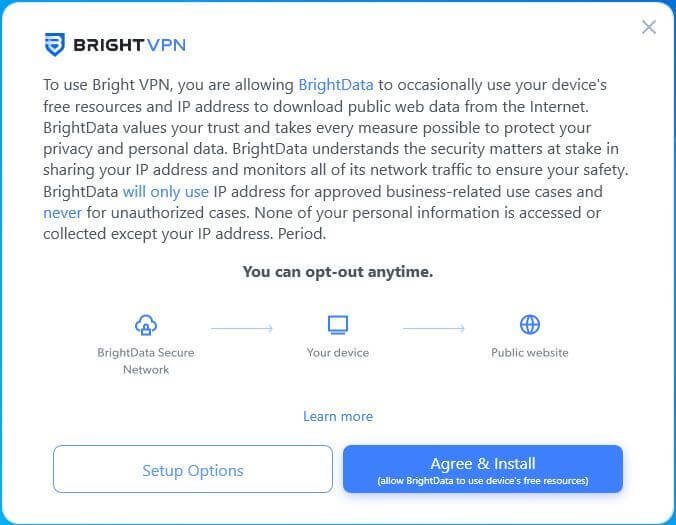
Read the disclosure as a practical permission request, not as a safety certificate. If you do not remember approving it, do not use the app until you have checked how it arrived. If you understand the model but no longer want to participate, uninstalling is the vendor-documented way to stop both the VPN and peer-network activity.
Why Bright VPN May Seem to Install Itself
One official Bright VPN landing page states that Bright VPN was installed because the user accepted a free offer during DAEMON Tools installation.[2] That makes a bundled setup flow a documented explanation for at least some unexpected installations.
“Accepted” does not always mean the user deliberately searched for a VPN. Optional offers can be missed when someone moves through an installer quickly, leaves default boxes selected, or does not realize that one approval installs a second product. The right response is to identify the parent installer, sort Installed apps by date, and review every addition from that session.
Do not confuse the Bright VPN offer with every security issue involving DAEMON Tools. If Microsoft Defender shows Backdoor:Win64/RogueDaemon.LTSN!MTB, or DAEMON Tools was installed during the documented 2026 compromised-build window, follow our separate DAEMON Tools backdoor cleanup guide. A bundled VPN decision and a backdoor detection are different cases.
Is Bright VPN a Virus or a PUA?
No verdict is reliable without the exact detected object. Microsoft separates malware from potentially unwanted applications. Its current criteria say PUAs are not considered malware, while bundling, marketing behavior, unclear consent, and poor removal experiences can still make software unwanted.[3]
Use the full detection name rather than the word “virus” from a notification summary. A PUA alert calls for a consent and identity check. A Trojan, backdoor, or behavior-based alert on an unsigned file calls for a stronger response. Our Microsoft Defender detection-name guide explains how to read the type, platform, family, and affected path before deciding.
A false positive is plausible only when the exact file came from the verified official source, has the expected valid signature, behaves like the documented product, and no other indicators contradict that identity. Do not restore a blocked file merely because the vendor says its product is safe. Likewise, do not call every Bright VPN installation malware solely because it arrived unexpectedly.
How to Verify the Bright VPN File
- Record the exact alert. In Protection History or your security tool, copy the detection name, action status, full affected path, and time. Do this before clearing history.
- Find the actual executable. In Task Manager, right-click the Bright VPN process and choose Open file location. A name in Task Manager is not proof of identity.
- Check the digital signature. Open the file’s Properties → Digital Signatures. Confirm that Windows reports a valid signature and compare the signer with the publisher currently named by the official vendor. A missing, invalid, or unrelated signer is a red flag.
- Trace the installer source. Check browser download history and the file’s creation date. Search ads, freeware mirrors, repacks, torrents, and chat attachments do not become trustworthy because the final filename says Bright VPN.
- Review the hash when the file is ambiguous. Our EXE safety checklist shows how to calculate a hash and evaluate source, signature, behavior, and scan results together. You can also submit a single non-sensitive file to the Gridinsoft Online Virus Scanner.
- Look for contradictions. A wrong folder, unexpected PowerShell window, newly disabled security settings, unrelated browser extensions, or another high-severity detection outweighs a familiar product name.
How to Uninstall Bright VPN Completely on Windows
- Stop active sessions. Disconnect the VPN. In the notification area, exit Bright VPN and the Bright Data background task if either is present.
- Use the standard uninstaller. Open Settings → Apps → Installed apps, find Bright VPN, choose Uninstall, and follow the prompts. The vendor also documents Control Panel → Programs and Features as the uninstall path.[1]
- Restart Windows. Reboot before judging whether a process or service survived. A process that disappears only until restart has not been fully resolved.
- Check VPN configuration. Open Settings → Network & Internet → VPN and remove a Bright VPN profile if it remains. Review Network Connections for an adapter that clearly belongs to the removed app; do not remove unrelated corporate, hardware, or Windows adapters.
- Review Startup Apps. Open Task Manager → Startup apps. Disable only entries tied to Bright VPN, Bright Data, or the same installer session. Use Open file location before deleting anything.
- Review services and tasks. Open
services.mscand Task Scheduler. Look for an obvious Bright VPN/Bright Data component or a task that launches the recorded leftover path. Do not disable random Microsoft or driver services. - Remove browser components. If an extension appeared at the same time, remove it from the browser’s extension page. Check that the browser proxy, home page, search provider, and notification permissions are still your choices.
- Sort apps by installation date. Remove other unfamiliar programs added with the same parent installer. A successful Bright VPN uninstall does not remove an unrelated bundled app automatically.
- Update protection and run a full scan. This is especially important if the app was unexpected, the file was unsigned, the installer came from a mirror, or another alert appeared.
After the visible app is gone, an unwanted installer can still leave another bundled application, startup item, service, scheduled task, extension, or browser change. A full Gridinsoft Anti-Malware scan can check those locations and help remove detected leftovers. It cannot prove that an unknown file was always safe, restore stolen credentials, or replace a reinstall when the system remains compromised.
If the process path is wrong, the name imitates a Windows component, or high CPU started after an unknown installer, scan for hidden miners, services, startup entries, and bundled components.
Scan for bundled apps and persistenceIf Bright VPN Keeps Starting After Uninstall
A command window, “file not found” message, or repeated startup process after uninstall often means Windows still has an entry that points to a removed file. It may be in Startup Apps, Task Scheduler, a service, or another program that was installed during the same session.
- Record the exact missing-file path or process command shown by the error.
- Check Task Manager → Startup apps for an entry that opens that path.
- Check Task Scheduler Library for a task whose Action launches the same file.
- Check Services only for a service with a matching display name, publisher, or executable path.
- Reboot and confirm that the error and network activity are gone.
Do not search the Registry for “Bright” and delete every match. Broad Registry deletion can remove unrelated application data and make troubleshooting harder. If ownership of an entry is unclear, leave it disabled, preserve its path, and investigate the file before removing the entry.
For a comparable residential proxyware cleanup, see our K-Lite and Infatica removal guide. The product names differ, but the useful checks—consent, background service, proxy settings, same-day bundles, and recurrence—are similar.
An unexpected Xunlei/Thunder install needs the same state-based check but adds a download client and optional browser integration. Our Xunlei Thunder safety and removal guide shows how to verify the source and signature, remove the browser helper, and confirm that startup components do not return.
Do You Need to Change Passwords or Reinstall Windows?
Uninstalling the recognized app does not by itself require password changes. Change important passwords from a clean device when the installer came from an untrusted source, a Trojan/backdoor alert affected another file, security settings were disabled, a suspicious process ran, or account sessions show activity you do not recognize. Sign out other sessions after changing the email password first.
Reinstall Windows only when the evidence justifies it: high-severity alerts keep returning, remote access is confirmed, system files or security controls remain altered, or you cannot establish a trustworthy clean state after scanning and manual checks. A surprise bundled app with no other suspicious evidence normally calls for uninstall, full scan, and monitoring—not an automatic wipe.
How to Avoid Bundled VPN and Proxy Offers
- Download software from the publisher’s verified site, not a search ad, mirror, repack, or torrent.
- Choose a custom or advanced installation when available.
- Read every offer screen and decline software you did not search for.
- Cancel setup when the relationship between the main program and an optional VPN, proxy, browser tool, or “web data” component is unclear.
- Keep PUA blocking enabled and review the exact alert instead of adding blanket exclusions.
FAQ
Is the official Bright VPN app malware?
The recognized product is a real VPN and proxy-sharing service. That does not validate every file using its name. Verify the exact source, signature, path, detection, and behavior before deciding that your copy is the official app.
Why was Bright VPN installed with DAEMON Tools?
Bright VPN has an official landing page stating that the app was installed after a free offer was accepted during DAEMON Tools setup. If you did not intend to accept it, uninstall Bright VPN and review other apps installed on the same date.
Does uninstalling Bright VPN stop Bright Data from using my IP?
Bright VPN’s FAQ says uninstalling completely opts out and removes the VPN and peer-network activity. Reboot and verify that no Bright VPN profile, process, service, or network activity remains.
Should I allow a Bright VPN file that Defender blocked?
Not until you know the exact detection, affected path, source, and signer. A PUA label is different from a Trojan alert, but neither should be overridden only because the filename looks familiar.
Why does Bright VPN still open a window after uninstall?
A leftover startup entry, scheduled task, service, or same-session bundled app may still point to the removed file. Match the error path to the responsible entry instead of deleting broad Registry branches.
Is the Bright VPN proxy-sharing model the same as stealing my data?
The vendor describes access to public web data through the device’s IP, not collection of the user’s personal browsing content. The important decision is whether the disclosure is accurate for the installed version and whether you knowingly consent to that connection use.
References
- Bright Data Ltd. “Frequently Asked Questions (FAQ).” Bright VPN, living web page, accessed August 11, 2026. https://brightvpn.com/faq
- Bright Data Ltd. “Install Daemon Tools — Bright VPN.” Bright VPN, living web page, accessed August 11, 2026. https://brightvpn.com/install-daemon-tools
- Microsoft. “How Microsoft identifies malware and potentially unwanted applications.” Microsoft Learn, updated 2026, accessed August 11, 2026. https://learn.microsoft.com/en-us/unified-secops/criteria