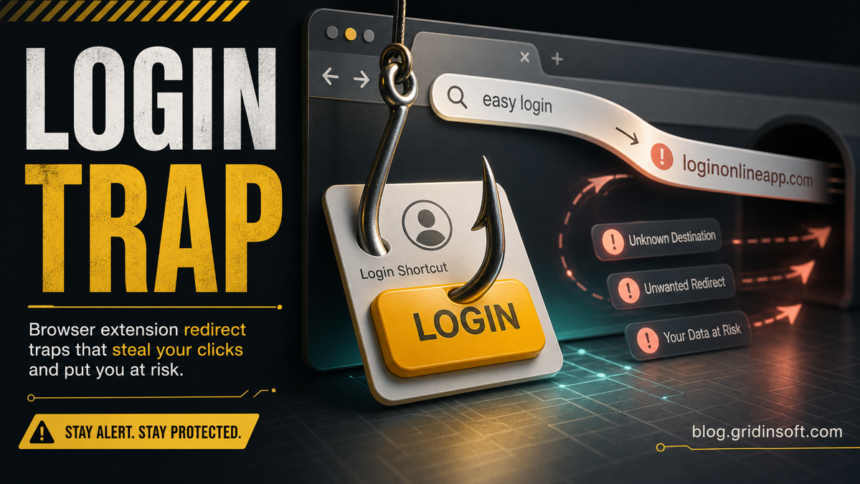
Loginonlineapp.com redirect is tied to the Easy Login browser extension, which advertises faster access to login pages while pushing a sponsored search experience into the browser. If your homepage, new tab, or address-bar searches started passing through loginonlineapp.com, remove the extension first, then reset the affected browser settings and scan Windows for the installer that may have added it.
For another current search-extension variant, see the Fusebase Search redirect removal guide; it covers the s.fusebase-search.com search provider and the same cleanup order: extension, search settings, policies, and Windows persistence.
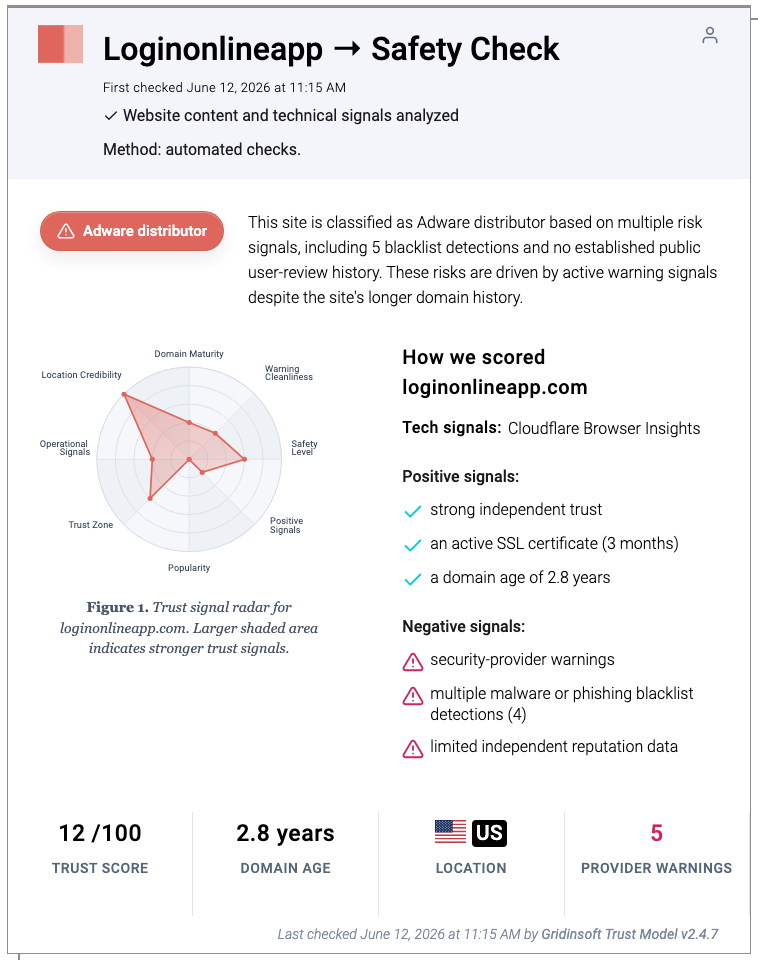
Gridinsoft’s Website Reputation Checker currently rates loginonlineapp.com at 12/100 and classifies it as an adware distributor. Treat the domain as a warning signal: do not enter passwords on pages reached through the redirect, and do not assume the problem is fixed until the extension and browser search settings are both clean.
Technical snapshot
- Extension name: Easy Login
- Promoted domain:
loginonlineapp.com - Claimed purpose: quick login-page access and safer account shortcuts
- Observed lure: install a Chrome extension to “login faster” and receive sponsored search updates
- Browser settings to check: homepage, new tab URL, default search engine, search shortcuts, and extension site access
- Main risk: unwanted redirects, adware-style search routing, tracking, and exposure to low-trust pages.
Why Loginonlineapp.com appears in the browser
The redirect usually starts after an extension changes the browser’s first-screen settings. Easy Login may look like a convenience shortcut, but the important detail is control: it can influence where the new tab opens, which provider handles address-bar searches, and whether searches briefly pass through its own domain before reaching a familiar-looking results page.
That is why changing only the homepage is not enough. A browser hijacker can leave a custom search shortcut, startup page, or extension permission behind, then restore the redirect after the next restart.
Symptoms to check
- Your browser opens
loginonlineapp.com, or a search briefly flashes through that domain. - The extension list contains Easy Login or a login/search helper you did not intentionally install.
- Homepage, new tab, or default search settings change again after you fix them.
- The browser says a setting is managed by an organization on a personal device.
- Extra ads, sponsored search redirects, or unfamiliar search shortcuts appear after installing a free utility or extension.
Remove Easy Login from the browser
Remove the extension before restoring search settings. If Easy Login remains active, it can keep writing the unwanted values back.
- Open the browser extension manager.
- Remove Easy Login and any extension installed at the same time that you do not recognize.
- Restart the browser once, then check whether
loginonlineapp.comreturns. - If the Remove button is unavailable or the setting is managed, continue with the policy and Windows persistence checks below.
- Launch Chrome.
- Click the three dots (...) in the top right corner.
- Select Extensions > Manage Extensions.
- Click Remove next to the extension you want to delete.
Quick Access: Type chrome://extensions/ in the address bar.
- Open Safari.
- In the menu bar, click Safari and select Settings (or Preferences).
- Click on the Extensions tab.
- Select the extension and click Uninstall.
- Click the menu button, select Add-ons and themes.
- Go to the Extensions tab.
- Click the three dots (...) next to the extension and select Remove.
Quick Access: Type about:addons in the address bar.
- Launch Microsoft Edge.
- Click the three dots (...) in the top right corner.
- Select Extensions.
- Find the extension and click Remove.
Quick Access: Type edge://extensions/ in the address bar.
- Launch Brave browser.
- Click the menu icon > Extensions.
- Find the extension and click Remove.
Quick Access: Type brave://extensions/ in the address bar.
- Launch Opera.
- Click the Opera logo in the top left corner.
- Select Extensions > Extensions.
- Click the X or Remove button next to the extension.
Quick Access: Type opera://extensions/ in the address bar.
Open Extensions/Add-ons again and remove any entry linked to loginonlineapp.com or clearly out of place.
Restore search, homepage, and new-tab settings
After the extension is gone, clean the browser settings that redirects commonly modify.
- Set your preferred homepage and startup page.
- Open search engine settings and remove
loginonlineapp.comfrom search shortcuts or site search entries. - Set a trusted default search engine again.
- Reset the browser if settings keep changing or if multiple extensions were installed together.
- Run one address-bar search and one new-tab test after restart.
- Tap on the three dots (...) in the top right corner and Choose Settings.

- Choose Reset and Clean up and Restore settings to their original defaults.

- Tap Reset settings.

Quick Access: Type chrome://settings/reset in the address bar.
- Open Safari.
- In the menu bar, click Safari > Clear History.
- Select all history and click Clear History.
- Go to Safari > Settings (or Preferences).
- Click the Privacy tab and select Manage Website Data... > Remove All.
- In the Advanced tab, check Show features for web developers.
- In the menu bar, select Develop > Empty Caches.
- Launch Brave browser.
- Click the menu icon in the top right corner and select Settings.
- Click Additional settings > Reset settings.
- Tap Restore settings to their original defaults.
- Confirm by clicking Reset settings.
Quick Access: Type brave://settings/reset in the address bar.
- In the upper right corner tap the three-line icon and Choose Help.

- Choose More Troubleshooting Information.

- Choose Refresh Firefox... then Refresh Firefox.

Quick Access: Type about:support and click Refresh Firefox.
- Tap the three dots.

- Choose Settings.

- Tap Reset Settings, then Click Restore settings to their default values.

Quick Access: Type edge://settings/reset in the address bar.
- Launch the Opera browser.
- Click the Opera menu button in the top left corner and select Settings.
- Scroll down to the Advanced section in the left sidebar and click Reset and clean up.
- Click Restore settings to their original defaults.
- Click Reset settings to confirm.
Quick Access: Type opera://settings/reset in the address bar.
After reset, verify that loginonlineapp.com is no longer set as your default search engine or homepage.
If the browser says it is managed
A personal browser that suddenly says it is managed can mean an unwanted app or policy entry is enforcing the extension or search setting. Do not delete random registry keys first; document what changed, remove the suspicious app, then scan the system.
- Check recently installed Windows apps and remove unfamiliar downloaders, search utilities, or “login” helpers.
- Inspect browser shortcuts for an extra URL after the executable path.
- Review Startup Apps and Task Scheduler for entries that launch the browser.
- Check Chrome/Edge policy pages only to identify the source; if you are on a work or school device, ask the administrator before changing policy-controlled settings.
Scan Windows for the installer behind the redirect
If Loginonlineapp.com returns after manual cleanup, the extension is probably being reinstalled or restored by a Windows-side component. A security scan is useful here because adware bundles often leave scheduled tasks, startup entries, or additional unwanted apps behind.
After uninstalling the suspicious app or deleting the visible threat, use Gridinsoft Anti-Malware to check hidden files, startup entries, scheduled tasks, bundled apps, browser changes, and other persistence points that can restore malware.
Download Anti-MalwareFor broader context, use the PUA and browser hijacker removal guide. If the browser opens repeated tabs after the redirect starts, check the multiple-tabs troubleshooting guide. If you also see fake security prompts or push-notification spam, compare the behavior with the fake browser notification cleanup guide.
How to avoid the same redirect again
- Install extensions only when the publisher, permissions, and reviews are clear.
- Be skeptical of extensions that promise faster login, safer account access, coupons, video search, or PDF tools while requesting broad site permissions.
- After installing any browser helper, immediately check homepage, new tab, and search settings.
- Keep browser sync in mind: remove the extension from every synced browser profile if it reappears on another device.
A similar symptom can appear when the browser lists MINERSEARCH as a search engine and then sends searches to Bing or Yahoo. The MinerSearch redirect cleanup guide covers that search-engine variant separately from Easy Login.
FAQ
Is Loginonlineapp.com a virus?
It is better described as an adware-style browser hijacker domain. The immediate problem is browser control and redirect behavior, but you should still scan Windows if the extension returns after removal.
Can I keep Easy Login if I change my search engine back?
No. If the extension caused the redirect, changing the search engine while leaving the extension installed can allow the same setting to return.
Why does Loginonlineapp.com lead to another search page?
Some hijackers route the query through a promoted domain first, then forward the user to a familiar search provider. That extra hop is still the redirect that needs to be removed.
Should I reset Chrome, Edge, or Firefox?
Reset only after removing the suspicious extension and checking search shortcuts. Reset is useful when several settings changed together or the redirect keeps coming back.
References
- Google Chrome Help. “Reset Chrome settings to default.” Google, accessed June 12, 2026. https://support.google.com/chrome/answer/3296214?hl=en
- Microsoft Support. “Add, turn off, or remove extensions in Microsoft Edge.” Microsoft, accessed June 12, 2026. https://support.microsoft.com/en-us/edge/add-turn-off-or-remove-extensions-in-microsoft-edge
- Mozilla Support. “Disable or remove Add-ons.” Mozilla, accessed June 12, 2026. https://support.mozilla.org/en-US/kb/disable-or-remove-add-ons