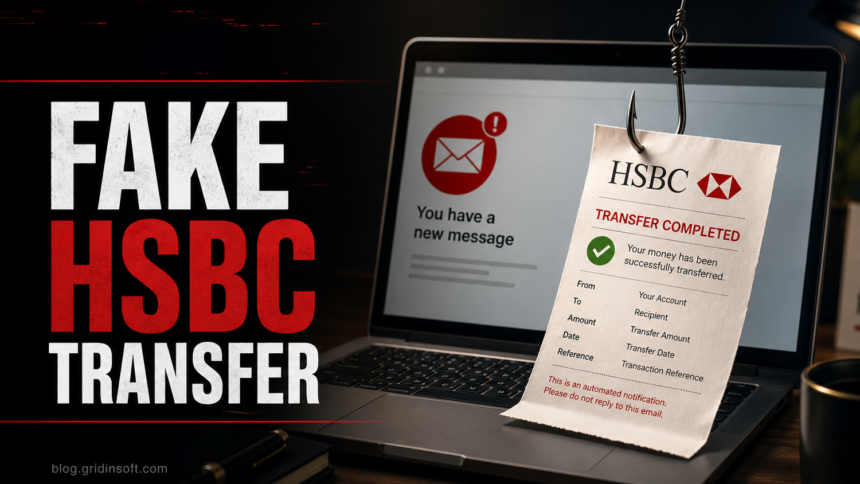
The “HSBC Money Transfer Completed” email is a phishing scam when it claims a large transfer is complete and sends you to a button such as “Review Payment Recipt.” Do not use the button, do not sign in through the page it opens, and do not reply with banking or email-account details. Verify any real HSBC transfer from the HSBC app, HSBCnet, or a known bank contact opened separately from the email.
Do this first
- Do not click Review Payment Recipt or any payment-advice button in the message.
- Do not enter Gmail, Microsoft 365, webmail, HSBC, or banking credentials after opening a link from the email.
- Check the sender, but do not trust display names or logos; verify from the real HSBC site or your banking portal.
- If you typed a password, change it from a clean tab or device, review account activity, and enable two-step verification.
- If you opened an attachment or installed anything, disconnect the file from your workflow and scan the computer before using online banking again.
What Is the HSBC Money Transfer Completed Email Scam?
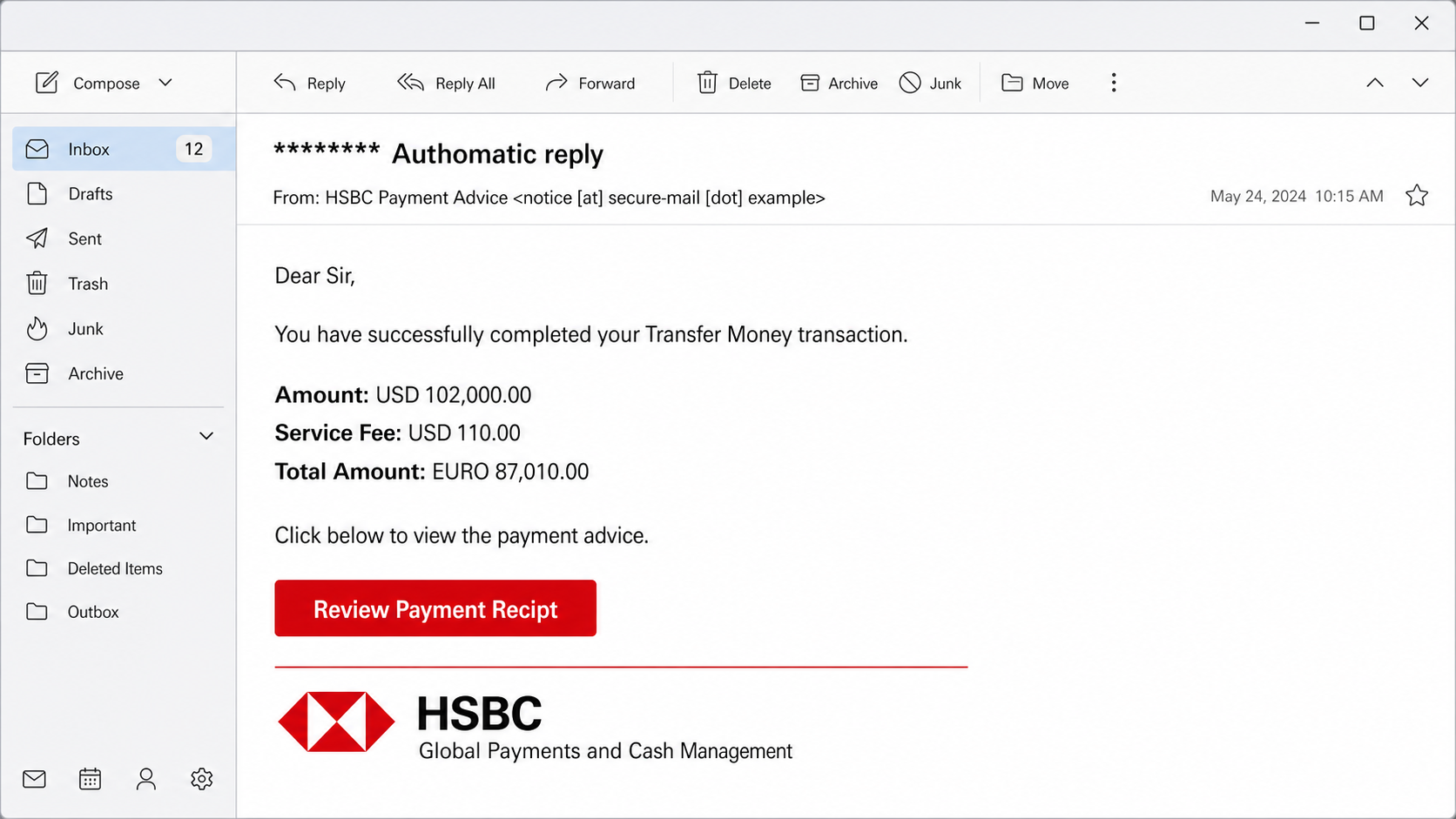
This scam pretends to be an HSBC payment-advice notice for a completed transfer. A current version uses a subject similar to “******** Authomatic reply”, claims a transfer of USD 102,000.00, shows a small service fee, then displays a total in EURO that does not match the dollar amount. The lure pushes the recipient to a Review Payment Recipt button.
The goal is not to confirm a real payment. The button leads to a fake sign-in page, often a webmail or Gmail-looking page, so the attacker can steal the mailbox password. Once a mailbox is compromised, scammers can search invoices, reset other accounts, impersonate the victim, or continue a business email compromise chain.
What the Fake Email Looks Like
The exact wording changes, but the useful clues are the same: a surprising high-value transfer, generic payment-advice language, inconsistent currency totals, and spelling mistakes in places a real bank notice would normally proofread.
Example
Subject: ******** Authomatic reply
Sender display name: HSBC Payment Advice
Dear Sir,
The attached payment advice is issued at the request of our customer.
You have successfully completed your Transfer Money transaction.
Amount: USD 102,000.00
Service Fee: USD 110.00
Total Amount: EURO 87,010.00Click below to view the payment advice.
[Review Payment Recipt]Global Payments and Cash Management
HSBC
Why it is suspicious: the message mixes currencies, uses awkward wording, misspells Automatic and Receipt, and asks you to open the “receipt” through the email instead of verifying the payment in a real banking channel.
Red Flags in the Message
- Unexpected transfer amount. A large payment you were not expecting is bait, especially when it appears without a known invoice, vendor, or internal approval trail.
- Currency mismatch. The example uses a USD amount and service fee, then switches the total to EURO. That is a strong sign of a reused scam template.
- Typo in the call-to-action. Review Payment Recipt is not normal bank copy. Scammers often leave small spelling mistakes because templates are edited quickly.
- Fake login destination. A real bank transfer notice should not require your Gmail, webmail, or Microsoft 365 password to view a receipt.
- Generic HSBC branding. A logo, footer, or department name does not prove the message came from HSBC. Email display names and images are easy to copy.
- Pressure to click inside the email. HSBC’s own phishing guidance says to avoid logging in through links in suspicious emails and to visit the official site directly instead [1].
What to Do If You Clicked the Button
- Close the page without entering credentials. If you only opened the page, do not keep testing it and do not download any file it offers.
- Change any password you entered. Use a fresh browser tab or another trusted device. Do not reuse the same password on email, bank, cloud storage, or accounting accounts.
- Review recent sign-ins and security events. For Gmail or Google accounts, check recent security activity and devices, then enable two-step verification if it is not already on [3].
- Check mailbox rules and forwarding. Attackers often add forwarding rules, hidden filters, or recovery-address changes after stealing a mailbox password.
- Warn your finance or IT contact. If the mailbox handles invoices or bank transfers, treat it as a potential business email compromise incident, not only a spam message.
- Contact HSBC through a known channel if banking details were exposed. Use the official HSBC app, HSBCnet, your relationship manager, or a phone number from the real bank site, not the email.
- Report the message. HSBC lists [email protected] for suspicious HSBC emails, and US users can also report fraud attempts to the FTC [2].
Should You Scan Your Computer?
If you only viewed the message and did not click, a local malware scan is usually not the first priority. If you opened an attachment, downloaded a “receipt,” installed a viewer, allowed a browser extension, or noticed redirects after clicking, scan the device before using online banking again.
Phishing pages sometimes stop at credential theft, but attachment-based payment lures can also drop scripts, fake document viewers, or browser changes. After deleting the email and securing the account, run a full Gridinsoft Anti-Malware scan to check for suspicious downloads, startup entries, browser changes, and persistence that a visible email cleanup would not remove.
If the page or email made you download an invoice, coupon, tracking app, browser extension, or support tool, scan the PC before opening it again or logging into sensitive accounts.
Scan after a suspicious banking emailHow to Verify a Real HSBC Payment Notice Safely
A real transfer confirmation can exist, especially for corporate payments and HSBCnet workflows. The safe test is the route you use to verify it:
- Open HSBC, HSBCnet, or your accounting platform from a bookmark, typed address, or official app.
- Compare the payment against known invoices, purchase orders, treasury records, or a known vendor contact.
- Ask the supposed sender in a separate thread or known phone channel, not by replying to the suspicious email.
- Never enter an email password on a page opened from a bank-transfer notice.
- Forward suspicious HSBC-branded emails to HSBC’s phishing-reporting address when the message appears to impersonate the bank.
Related Payment and Mailbox Scams
This lure belongs to the same family as fake wire-transfer and mailbox-login messages. If the email uses a generic processed-payment or statement-notice wording instead of a bank brand, compare it with our We Have Processed Your Payment email scam guide. If your email talks about a SWIFT copy, payment slip, or MT103-style confirmation, compare it with our SWIFT Confirmation Copy email scam guide. If the message claims your mailbox will stop receiving mail, use the Insufficient Email Capacity phishing guide instead.
FAQ
Is the HSBC Money Transfer Completed email real?
Treat it as suspicious unless you can verify the transfer inside a real HSBC channel or through a known finance contact. The scam version uses typo-heavy wording, mismatched currencies, and a button that opens a fake sign-in page.
Why does the email ask for my Gmail password?
A bank payment notice should not need your Gmail password. That request is the main phishing step: stealing the mailbox lets attackers read invoices, reset accounts, and continue fraud from your address.
Can I just reply and ask if it is real?
No. Replying keeps you inside the attacker-controlled thread. Verify through the official HSBC site, HSBCnet, your bank app, accounting platform, or a known contact outside the suspicious email.
What if I entered my password?
Change it immediately from a clean tab or device, enable two-step verification, review account activity, remove unknown forwarding rules, and check recovery email/phone settings. If the same password was reused, change it everywhere it was used.
Should I report the email?
Yes. Forward HSBC impersonation emails to HSBC’s phishing-reporting address when appropriate, report fraud attempts to the FTC if you are in the United States, and use your mail provider’s phishing-report button.
References
- HSBC UK. “Phishing Scams Explained.” HSBC Business Banking, accessed July 4, 2026. https://www.business.hsbc.uk/en-gb/phishing
- HSBC Bank USA. “How To Report Fraud.” HSBC Bank USA, accessed July 4, 2026. https://www.us.hsbc.com/help/security/report-fraud/
- Google. “Google Account Recovery.” Google, accessed July 4, 2026. https://accounts.google.com/signin/recovery