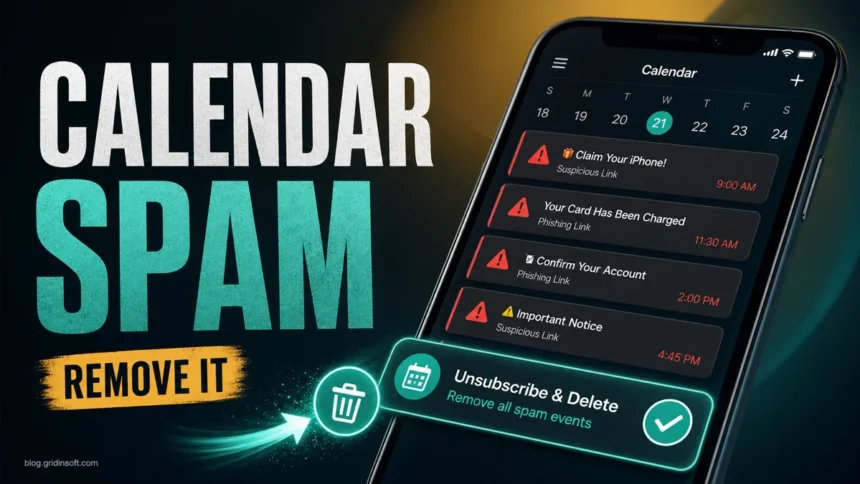
An iPhone calendar virus is usually not malware on the phone. It is calendar spam: a rogue subscribed calendar, spam invite, or email-backed event that fills Calendar with fake virus alerts, prize messages, or phishing links. To remove it, do not tap the links inside the events. Open Calendar, remove the suspicious calendar or unsubscribe from it, then check Calendar Accounts and your mail account if the events keep coming back. If the spam is a Google Calendar billing or renewal invite instead of an iPhone subscribed calendar, use the Google Calendar renewal warning scam workflow before deleting it.
If the message says your iPhone is infected, your card was charged, or you won a prize, treat the event as a scam notification. Apple does not use Calendar events to warn you about viruses. If you also saw a browser warning, read our separate guide to the “Your iPhone has been hacked” pop-up scam before tapping any button or support link.
What the iPhone Calendar Virus Really Is
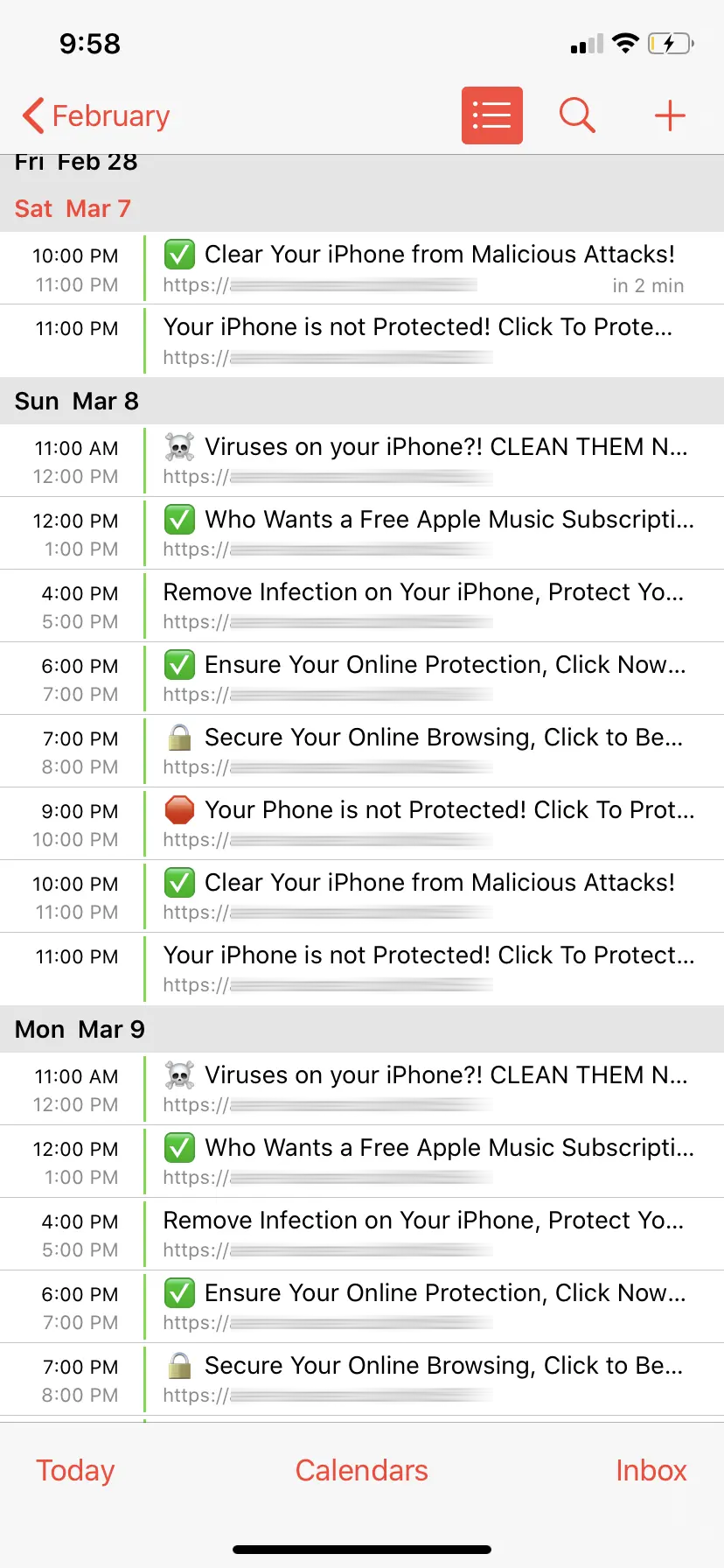
The phrase “Calendar virus on iPhone” describes unwanted calendar events rather than a classic iOS virus. Scammers abuse calendar subscriptions, shared invitations, and email-to-calendar behavior to place alarming events on the lock screen and in the Calendar app.
The events often use titles such as “Your iPhone has viruses”, “Your card was charged”, “Confirm your account”, or “Claim your reward”. The goal is to make you open a phishing page, install a configuration profile, call a fake support number, or enter Apple ID, card, or email credentials. The event itself is annoying, but the real danger starts when you follow the link.
Remove Calendar Spam from the Calendar App
Start in the Calendar app because many spam subscriptions can be removed without opening Settings.
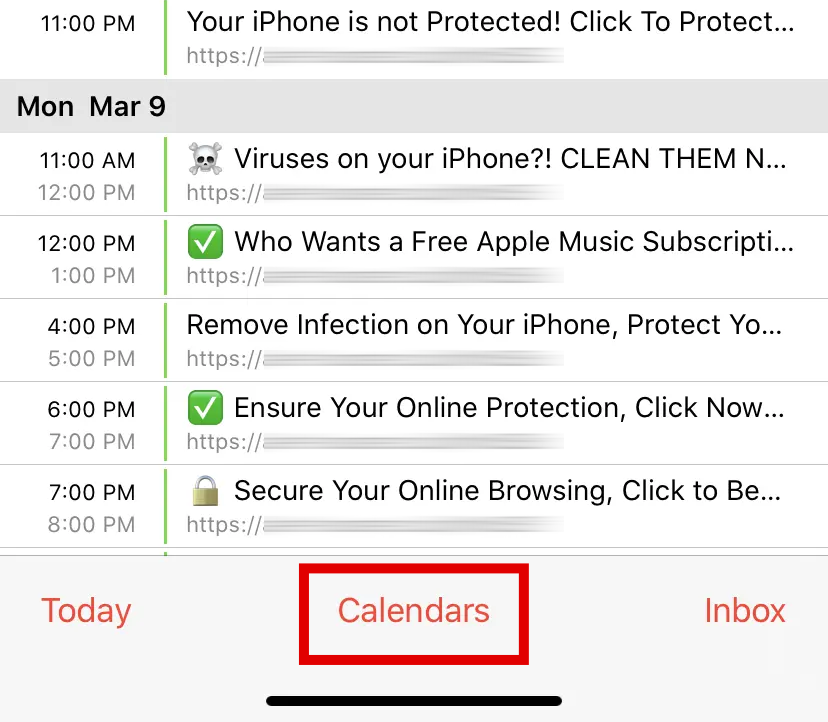
- Open the Calendar app.
- Tap Calendars at the bottom of the screen.
- Look for a calendar name you do not recognize, especially under subscribed, shared, or recently added calendars.
- Tap the info button next to that calendar.
- Choose Unsubscribe, Unsubscribe and Report Junk, or Delete Calendar, then confirm.
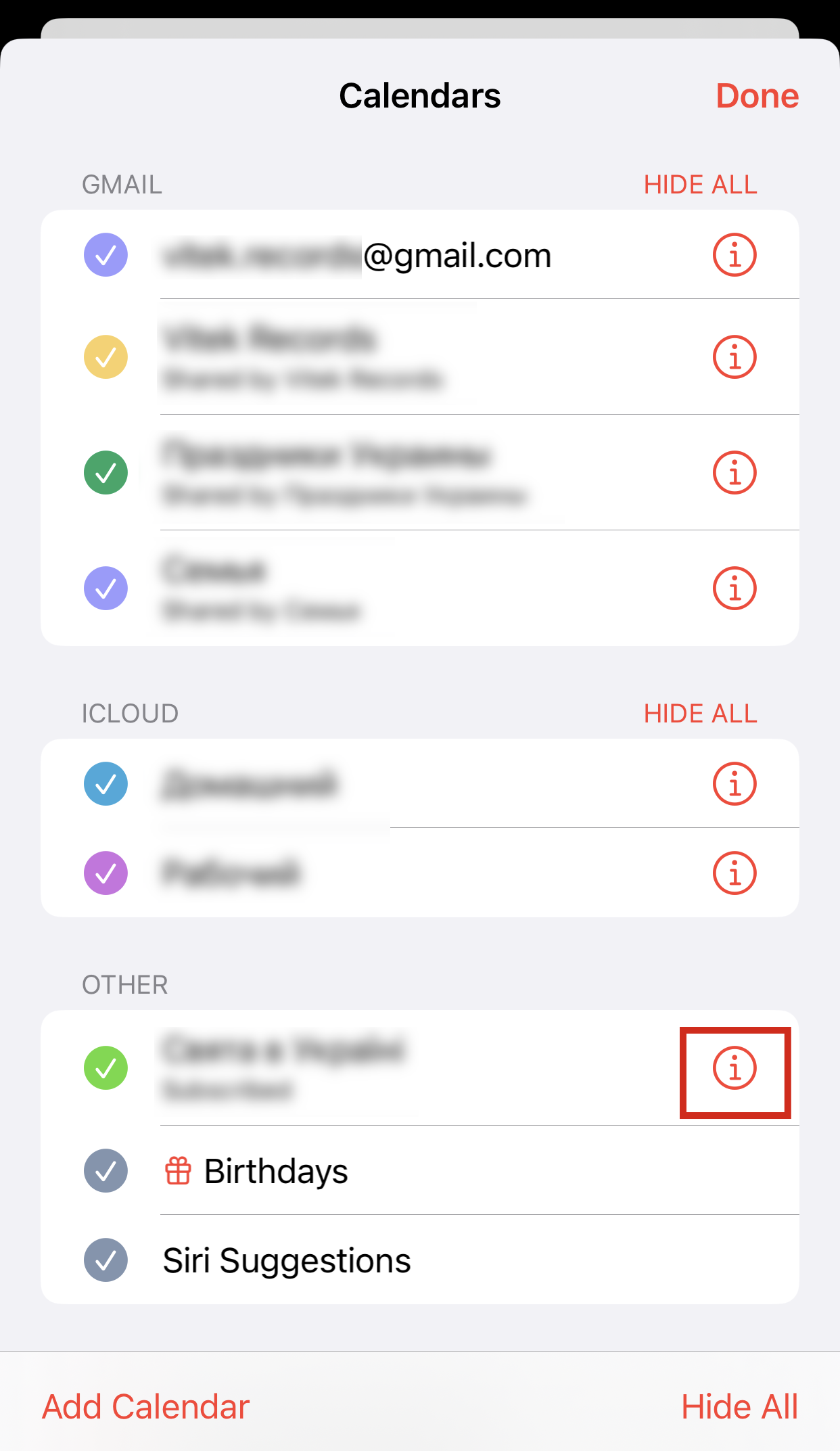
If you see only one unwanted event from an unknown sender, open that event and use Report Junk or delete it. Avoid tapping links inside the description, location, notes, or URL fields. Declining suspicious invitations can sometimes confirm that your address is active, so reporting or removing the source is safer than interacting with each invite.
Remove Hidden Calendar Subscriptions in Settings
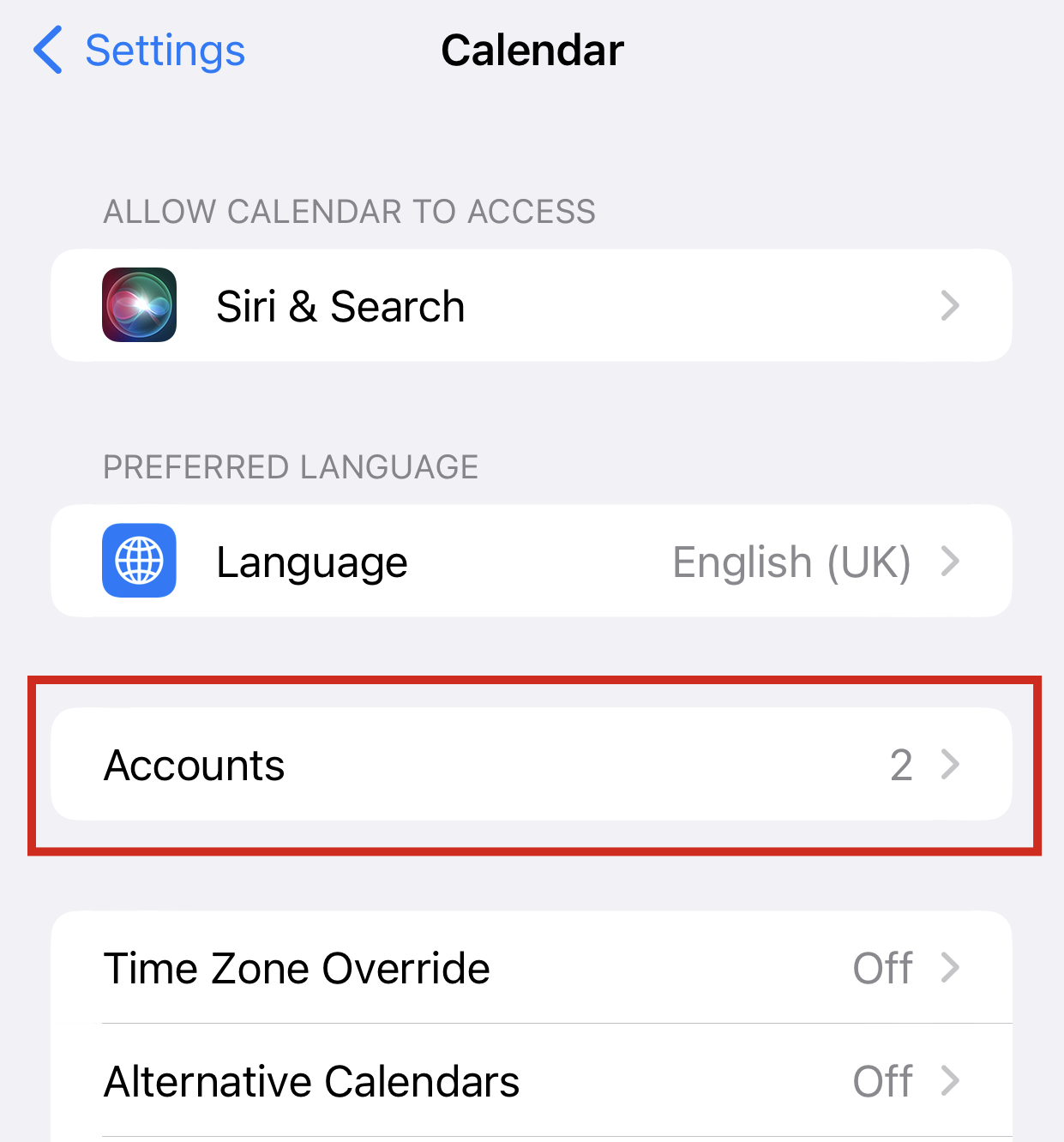
If the spam calendar is not obvious inside the Calendar app, check calendar accounts. On current iOS layouts, go to Settings > Apps > Calendar > Calendar Accounts. On some older iOS versions, the path is Settings > Calendar > Accounts, or Settings > Passwords & Accounts.
- Open Settings.
- Go to Apps > Calendar > Calendar Accounts, or use the older Calendar > Accounts path if that is what your iPhone shows.
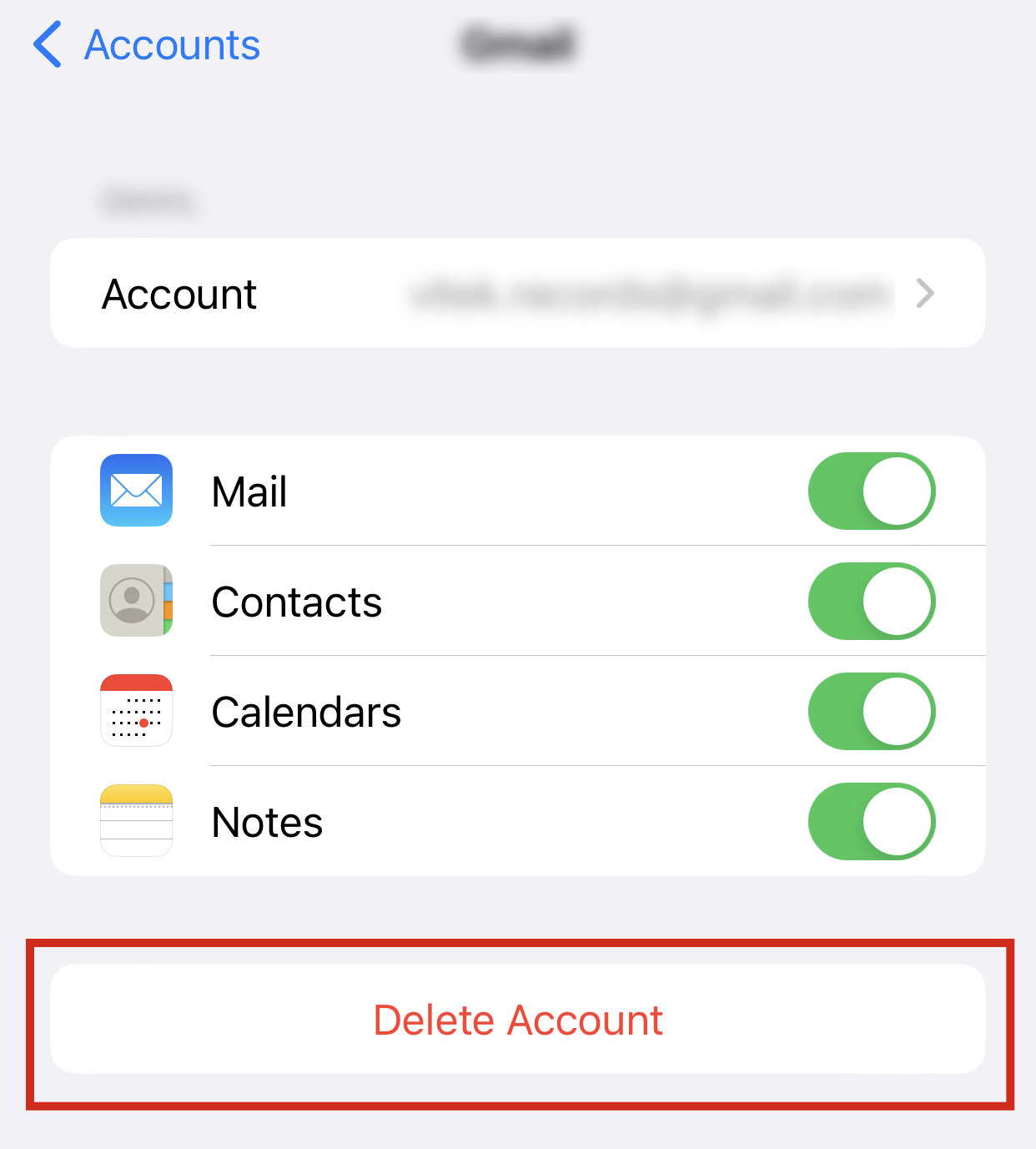
- Tap Subscribed Calendars or the unfamiliar account that contains the spam events.
- Choose the calendar you do not recognize.
- Tap Delete Account, Unsubscribe, or remove that calendar account, then restart Calendar.
If Calendar Spam Keeps Coming Back
Recurring spam usually means you removed a visible event but not the source. Use this checklist to decide where to look next.
| What you see | What to check |
|---|---|
| Spam events return after you delete one event | Remove the whole subscribed calendar from Calendar or Calendar Accounts. |
| No suspicious subscribed calendar is visible | Search Mail, Junk, and Spam folders for the event title or sender, then delete the invite email. |
| Events appear on iPhone, iPad, and Mac | Check iCloud Calendar and every synced account that has Calendar enabled. |
| A website keeps asking to add a calendar | Close the tab, clear Safari website data for that site, and avoid tapping Allow on pop-ups. |
| You entered a password or card after tapping an event link | Change the affected password, enable MFA, watch payment activity, and secure your Apple account. |
If a link inside the event opened a phishing page, close it without entering information. If you already entered your Apple ID password, follow account recovery steps immediately and review trusted devices. If the link led you to a download on a Windows or Mac computer, scan that computer before signing in again. You can also check suspicious domains with the Gridinsoft Website Reputation Checker before visiting them from another device.
How Calendar Spam Gets Added
Most cases start with a pop-up, scam page, shortened link, QR code, email invitation, or website that asks to add a calendar. Once accepted, the subscription can sync through iCloud or another account and produce repeated notifications. That makes it feel like a virus, but it is closer to unwanted notification spam.
Scammers use this route because it bypasses normal app installation warnings. They do not need to install an app to place scary text on your screen; they only need you to subscribe to a calendar or let an account sync events. This is why deleting the calendar source is more effective than deleting one event at a time.
How to Stop iPhone Calendar Spam
- Do not tap links in calendar events that mention viruses, prizes, payments, or urgent support.
- Do not accept calendar subscriptions from pop-ups, QR codes, adult sites, fake giveaways, or unknown short links.
- Keep iOS updated so Calendar and Safari security behavior stays current.
- Review Settings > Apps > Calendar > Calendar Accounts after a suspicious pop-up or fake security alert.
- Use strong, unique passwords and multi-factor authentication for Apple ID, email, and payment accounts.
- If a calendar message resembles a fake support or phishing attack, compare it with common Apple ID scam signs.
FAQ
Is the iPhone calendar virus real malware?
Usually no. In most cases it is a rogue subscribed calendar, spam invite, or synced email event. It becomes dangerous if you tap the links, call fake support numbers, enter credentials, or install profiles or apps from the scam page.
Why can’t I delete one calendar event?
The event may belong to a subscribed calendar or a synced email account. Remove the calendar subscription or delete the invite email instead of trying to delete each repeated event.
Why do the spam events appear on all my Apple devices?
The calendar source is probably synced through iCloud, Google, Outlook, or another account. Remove the subscription or unwanted calendar account once, then let the devices sync.
Should I reset my iPhone to remove calendar spam?
A factory reset is rarely needed for calendar spam. First remove the subscribed calendar, check Calendar Accounts, delete the invite email if necessary, and secure any account where you entered credentials.
References
- Apple Support. “How to delete calendars and remove events on your iPhone.” Apple, accessed June 11, 2026. https://support.apple.com/en-us/102444
- Apple Support. “Set up multiple calendars on iPhone.” Apple iPhone User Guide, accessed June 11, 2026. https://support.apple.com/guide/iphone/use-multiple-calendars-iph3d1110d4/ios