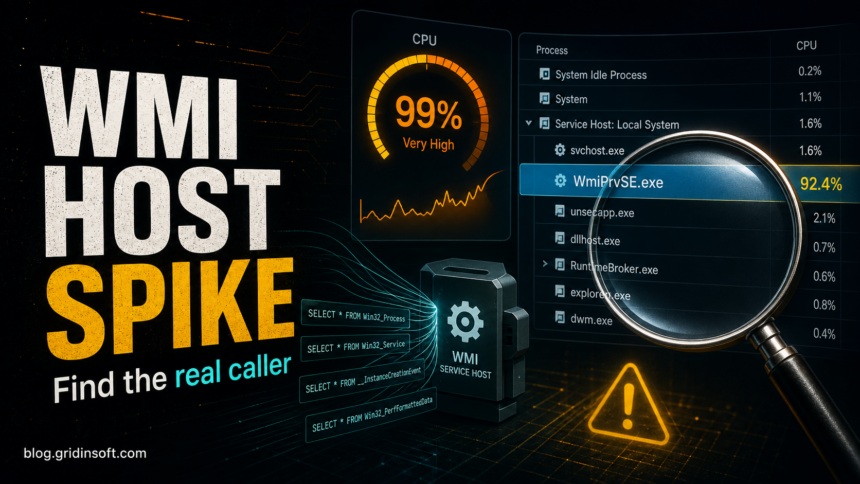
WmiPrvSE.exe is normally the legitimate WMI Provider Host, not a virus. A signed Microsoft copy can run from C:\Windows\System32\wbem\WmiPrvSE.exe or, for 32-bit providers on 64-bit Windows, C:\Windows\SysWOW64\wbem\WmiPrvSE.exe. A scheduled task merely named wmiprvse does not prove Windows created it: if its action launches CMD, PowerShell, a script, or a file from a user-writable folder, investigate that action as separate persistence. For high CPU from the genuine process, find the WMI client generating the load before repairing or deleting anything.
WmiPrvSE.exe from a normal System32\wbem or SysWOW64\wbem path. Note its PID and find the WMI caller. If the clue is a task named wmiprvse, inspect the task’s action and arguments instead of trusting the name.What Is WMI Provider Host?
Windows Management Instrumentation (WMI) lets Windows, drivers, scripts, inventory tools, security tools, and management apps ask the operating system for information. WMI Provider Host, shown as WmiPrvSE.exe, is the host process that runs WMI providers so those requests can be answered without loading everything into one core service.
That is why more than one WmiPrvSE.exe entry can appear in Task Manager. A brief CPU spike is normal when software asks for hardware, event log, performance, or process data. Sustained high CPU is different: it usually means a noisy client, a broken provider, a looped script, a driver utility, an enterprise agent, or less commonly malware using WMI.
Why WMI Provider Host Uses High CPU
The common mistake is to treat WMI Provider Host as the cause. In most cases it is the messenger. Something else is asking WMI for data too often or in a way that forces heavy work.
- Monitoring and inventory tools: hardware monitors, printer tools, RGB utilities, backup agents, remote management software, and corporate inventory agents can poll WMI repeatedly.
- Drivers and OEM utilities: laptop control centers, audio utilities, GPU tools, and sensor packages can trigger WMI load after an update. If the client PID belongs to ASUS Armoury Crate, use the ArmouryCrate.UserSessionHelper.exe high-CPU test to measure the helper before repairing the full package.
- Scripts and scheduled tasks: PowerShell, VBScript, login scripts, or scheduled tasks can run WMI queries in a loop.
- Broken provider or repository state: a provider DLL, performance counter, or WMI repository issue can make WMI retry work.
- Malware persistence: attackers can abuse WMI event subscriptions to run commands or payloads when a trigger occurs.
First Checks Before You Repair Anything
- Open Task Manager with
Ctrl+Shift+Esc. - Go to the Details tab. If PID is hidden, right-click the column header and enable it.
- Find the
WmiPrvSE.exeentry using CPU. Write down the PID. - Right-click it and choose Open file location. Normal Microsoft-signed copies are in
C:\Windows\System32\wbem\WmiPrvSE.exeorC:\Windows\SysWOW64\wbem\WmiPrvSE.exe. - If the file opens from
AppData,Temp,Downloads, a browser profile, a game folder, or another user-writable directory, treat it as suspicious and skip to the malware checks below.
If the path and Microsoft signature are correct, do not delete the file and do not disable WMI as a first response. That can break Windows tools, security products, device management, and software installers that rely on WMI.
A Task Named wmiprvse Is Not WmiPrvSE.exe
Task Scheduler names are labels. A task called wmiprvse, WMI Provider Host, or another Windows-looking name is not proof that it belongs to Windows or that it launched the legitimate process. The task’s Action shows what actually runs.
- Signed
WmiPrvSE.exeinSystem32\wbemorSysWOW64\wbem: usually the real WMI Provider Host. For high CPU, match its PID to WMI Activity events and find the client making the requests. wmiprvse.exeinAppData,Temp,Downloads, or another user-writable folder: treat it as a suspicious lookalike. Check the signature, parent process, download source, startup entries, and security detections before allowing it.- A scheduled task named
wmiprvse: the name alone proves nothing. Inspect its program, arguments, author, creation time, trigger, account, and destination path. - The task action launches
cmd.exe, PowerShell, a script host, or an unknown file: the task is launching a separate command or payload, not identifying the genuine WMI host. Preserve the details, disable a confirmed malicious launcher, and scan for related persistence.
- Open Task Scheduler and select the task in Task Scheduler Library.
- Open Properties and read the full Actions entry, including every argument after
cmd.exe, PowerShell,wscript.exe, or another launcher. - Check the General, Triggers, and History tabs for the author, account, hidden/highest-privilege settings, schedule, creation time, and last run result.
- Open the destination file’s folder and verify its digital signature and source. A Windows-looking task label does not make an unsigned file in a user folder safe.
- If the action is malicious, save its path and command for evidence, disable the task, quarantine the payload, and scan for the service, Run key, script, or installer that can recreate it.
Attackers reuse other Windows-looking task labels too. The RuntimeBroker.exe fake-process guide shows the same name-versus-action decision for a RuntimeBrokerService task. If an unknown process is mining or returning after deletion, use the service-miner persistence checklist to inspect tasks and services together.
Find the Client Process Causing the Spike
The most useful clue is the process that is calling WMI. Event Viewer can show this through WMI Activity logs.
- Open Event Viewer.
- Go to Applications and Services Logs > Microsoft > Windows > WMI-Activity > Operational.
- Look for recent Error or Warning events around the time CPU spikes.
- Open the event and find
ClientProcessId. - Match that PID in Task Manager, Process Explorer, or with this command:
tasklist /fi "PID eq 1234"Replace 1234 with the ClientProcessId from the WMI Activity event. If the client is a known driver tool, updater, monitoring app, printer service, backup agent, or corporate management service, update it first, disable only that client temporarily, or uninstall it if you do not need it.
Use Process Explorer When Task Manager Is Not Enough
Task Manager can show that WmiPrvSE.exe is using CPU, but it may not show which provider is loaded inside that process. Microsoft documents Process Explorer as a way to inspect DLLs and process details. Run Process Explorer as administrator, locate the high-CPU WmiPrvSE.exe PID, open its properties, and check loaded modules or the WMI provider information when available.
Look for a provider DLL, vendor name, path, or related service that points to the real owner. A signed provider in a normal C:\Windows\System32\wbem or C:\Windows\SysWOW64\wbem location is different from a random DLL under %LOCALAPPDATA%, %TEMP%, or an unknown updater folder.
Safe Fixes for Normal WMI High CPU
Use these in order. Restarting WMI first may hide the evidence you need, so capture the PID and WMI Activity event before restarting services.
- Update the client app or driver. If WMI Activity points to a hardware monitor, printer tool, VPN, backup app, or OEM utility, update it from the official vendor source.
- Disable only the noisy client for testing. Use Services, Startup Apps, or Task Scheduler to pause the identified tool. If CPU drops, you have the owner.
- Restart Windows Management Instrumentation. Open an elevated Command Prompt and run
net stop winmgmt, thennet start winmgmt. Restart dependent services if Windows asks. - Repair system files. Run
sfc /scannow, thenDISM /Online /Cleanup-Image /RestoreHealthif Windows reports corruption. - Review recent installs. If the spike began after installing a driver package, remote tool, system optimizer, browser bundle, or cracked installer, treat that timing as evidence.
When WmiPrvSE.exe High CPU Looks Like Malware
A real WmiPrvSE.exe spike is often noisy software, not malware. The case becomes suspicious when one or more of these signs appear:
WmiPrvSE.exeruns outside the normalC:\Windows\System32\wbemandC:\Windows\SysWOW64\wbemlocations, or the file lacks a valid Microsoft signature.- The high CPU returns after every reboot and the caller is a random script host, unknown updater, hidden scheduled task, or recently downloaded file.
- WMI Activity events point to
powershell.exe,wscript.exe,cscript.exe,mshta.exe,rundll32.exe, or an unsigned executable in a user-writable path. - You also see browser redirects, fake update prompts, unusual outbound connections, disabled security settings, or new startup entries.
- Security software quarantines a file but WMI CPU spikes or suspicious scripts come back later.
Malware can use WMI event subscriptions as persistence. That means a trigger such as startup, login, time interval, or another system event can launch a command or payload later. In that situation, removing only the visible file may not remove the trigger.
One documented example is MODBEACON, which used a named event filter, command-line consumer, and binding to start an AppData payload. See the MODBEACON RAT removal guide for the artifact names and campaign-specific checks.
Cleanup Path for Suspicious WMI Activity
- Disconnect the PC from the network if you see active suspicious scripts, credential prompts, or unknown remote access tools.
- Keep the suspicious file quarantined. Do not restore it just because
WmiPrvSE.exeis a Windows process. - Check Task Scheduler, Startup Apps, and Services for entries created around the time the CPU spikes began.
- Inspect common script locations such as
%APPDATA%,%LOCALAPPDATA%,%TEMP%, and%USERPROFILE%\Downloads. - Run a full malware scan and reboot. If the CPU spike or script activity returns, scan again and review the WMI Activity log for the same client PID pattern.
If a visible file was already removed but high CPU, scripts, or WMI events keep returning, a loader, scheduled task, service, browser change, or WMI subscription may still be present. Gridinsoft Anti-Malware can help check for detections, hidden files, startup entries, scheduled tasks, bundled apps, browser changes, and persistence leftovers after you identify the suspicious path.
If the process path is wrong, the name imitates a Windows component, or high CPU started after an unknown installer, scan for hidden miners, services, startup entries, and bundled components.
Scan WMI persistence leftoversWhat Not to Do
- Do not delete a Microsoft-signed
WmiPrvSE.exefromC:\Windows\System32\wbemorC:\Windows\SysWOW64\wbem. - Do not disable WMI permanently to lower CPU. It can break Windows and security tooling.
- Do not rebuild the WMI repository as a first step unless you have evidence of repository corruption and backups.
- Do not install random “WMI fixer” or “CPU optimizer” tools from search ads or download portals.
- Do not assume every
ClientProcessIdis malware. Match the PID to a file, vendor, path, signature, and recent system change.
Related Checks
If your investigation points to another Windows process, use the same path-and-caller logic. For another WMI-related Windows process, see the Unsecapp.exe safety guide. If a different host process is consuming CPU, compare it with the Dllhost.exe COM Surrogate high CPU guide. If WMI Activity points to scripts or startup commands, the PowerShell outbound connection cleanup guide is a useful next check.
FAQ
Is WMI Provider Host a virus?
No. WMI Provider Host is normally a legitimate Windows component. A Microsoft-signed copy may run from C:\Windows\System32\wbem or C:\Windows\SysWOW64\wbem. Treat a wrong-path or unsigned copy, an unknown WMI caller, or a task named wmiprvse that launches a suspicious command as separate evidence to investigate.
Why are there multiple WmiPrvSE.exe processes?
Windows can start multiple WMI Provider Host instances to isolate different providers. Multiple entries are not automatically a problem. Focus on the one using CPU, its PID, the provider loaded inside it, and the client process that is querying it.
Can I end WmiPrvSE.exe in Task Manager?
You can end it temporarily, but it may restart and the CPU spike can return. Ending the process is a short-term diagnostic step, not a fix. Find the caller or provider that is creating the load.
Should I rebuild the WMI repository?
Not as a first step. Rebuilding WMI can affect installed software and management tools. Start with Task Manager, WMI Activity logs, Process Explorer, client updates, and normal system repair commands before considering repository repair.
When should I scan for malware?
Scan when WmiPrvSE.exe runs from the wrong folder, when the caller is an unknown script or unsigned file in a user folder, when CPU spikes return after reboot, or when the issue started after a fake installer, cracked app, browser redirect, or security alert.
References
- Microsoft. “Troubleshoot WMI high CPU usage issues.” Microsoft Learn, updated February 2026, accessed July 3, 2026. https://learn.microsoft.com/en-us/troubleshoot/windows-server/system-management-components/troubleshoot-wmi-high-cpu-issues
- Microsoft. “Windows Management Instrumentation.” Microsoft Learn, updated March 8, 2023, accessed July 3, 2026. https://learn.microsoft.com/en-us/windows/win32/wmisdk/wmi-start-page
- MITRE ATT&CK. “Event Triggered Execution: Windows Management Instrumentation Event Subscription (T1546.003).” MITRE, last modified October 24, 2025, accessed July 3, 2026. https://attack.mitre.org/techniques/T1546/003/